

A few simple tweaks can make a big difference.
While “unlimited” mobile internet plans are common, you might have a limited data plan to save money with an MVNO. And there are other times when you need to watch how much data you use, like during international travel or when using a hotspot.
When you don’t want your iPhone to gobble up data for every little task, you have several options to reduce what your device does on your mobile connection.
Options to control apps’ data usage
The easiest place to start is with a single toggle that lowers data consumption across everything your iPhone does. To access it, open Settings, then tap Cellular. If you have multiple SIMs, select the one you want to adjust. Then in the settings for it, hit Data Mode.
This will probably be set to Standard, which is good in most cases. Choose Low Data Mode instead, and your iPhone takes various actions to reduce data usage. These include streaming media (and video calls) in lower quality, turning off automatic updates and backups, and limiting how often feeds refresh. Try this when using a secondary eSIM in another country or anytime you need to preserve your data allotment for what you’re actively doing.
For a less drastic approach, turn off Background App Refresh for apps that don’t need to fetch new information while inactive. Visit Settings > General > Background App Refresh, where you can change the master option to Wi-Fi to avoid background refresh entirely on cellular data. Otherwise, leave it on for Wi-Fi and Cellular Data and disable the slider for any apps that don’t need this feature. Note that Low Data Mode disables Background App Refresh.
You also have the option to cut off certain apps from using mobile data entirely. Go back to Settings > Cellular, and under the Cellular Data section, tap Show All to see a list of data amounts used by apps in the Current Period (which only resets when you do so manually). Disable the slider for any app, and it will never use mobile data in the background or foreground.
Review individual app settings and take advantage of downloads
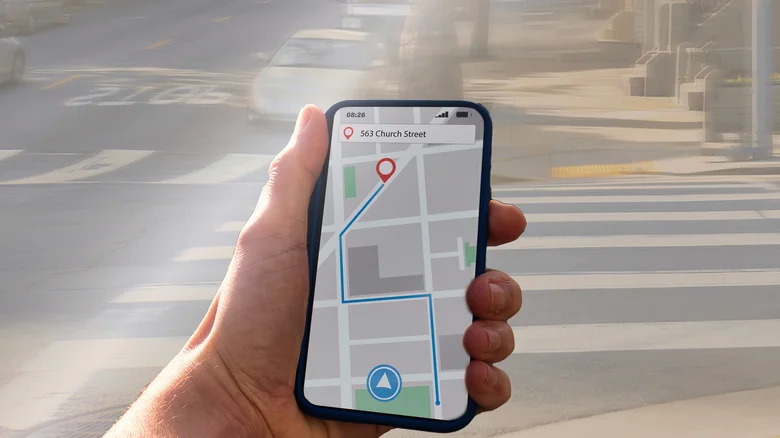
Beyond iOS settings, you should also explore what each app offers in its settings menu (especially those that indicated high data usage in the Cellular list above).
In most apps centered around video, like YouTube and social media, you can disable autoplay and lower the default quality. Streaming apps like Apple Music have separate quality toggles for Wi-Fi and mobile data, while most podcast apps have the option to disable downloads on data. Some apps, like Instagram and Spotify, have a Data Saver or similar toggle that applies several tweaks in one option.
If you have enough storage on your phone, downloading media is a great way to cut down on data usage. Offline maps for navigation, movies and shows in video streaming apps, playlists in music streaming apps and podcasts are all good candidates for this. Many of these have an expiration date or limit for downloads, so check them often to make sure everything is ready when you expect to use it.
Avoid iOS data wasters
An easy-to-miss iPhone setting can waste data without you realizing: go to Settings > Wi-Fi and scroll down to find Connectivity Assist. With this enabled, your iPhone will use mobile data alongside Wi-Fi when the latter is “weak or busy.” This reduces the time it takes to switch when you leave a Wi-Fi network’s range and makes your experience smoother on slow networks. Like the Cellular menu, this shows how much data the feature has used since you last reset the count.
This setting isn’t used when you’re roaming in another country or if you have Low Data Mode enabled. If you don’t want to use it on a given Wi-Fi network, tap the i button next to the network and disable the Connectivity Assist slider in its options.
A few other iOS controls are worth a look. Head to Settings > Apps > App Store and turn off Automatic Downloads under Cellular Data to avoid a huge data consumer. Then, set the App Downloads option to Always Ask or Ask If Over 200 MB so you don’t accidentally download a massive new app while away from Wi-Fi. Similarly, at Settings > [Your name] > iCloud > iCloud Backup, turn off Back Up Over Cellular so you only back up on Wi-Fi.
Use Wi-Fi and hotspots wisely
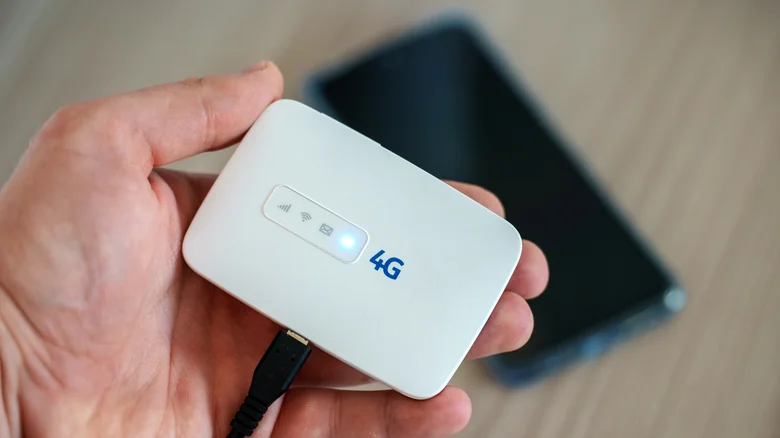
While it’s obvious that using Wi-Fi as much as possible reduces data usage, there are a few tricks to help with this. If you have Xfinity internet (or other ISPs, such as Spectrum), you can take advantage of hotspots around the country. These networks are titled “xfinitywifi,” and many of them use the company’s equipment to broadcast a separate network that subscribers can connect to. If you’re otherwise without Wi-Fi, open your phone’s Wi-Fi menu and look for one nearby. The Xfinity app has more features, including a hotspot map and auto-connection.
Depending on your setup, it might be more cost-effective to consolidate your data plans. For example, you could pay for a dedicated physical hotspot and have everyone in your family connect to its Wi-Fi network while you’re away from home. Or you could opt for an unlimited data plan (with unlimited hotspot data) on one person’s phone, then use that hotspot to get everyone else online. The math will depend on how many people are in your family and how much data you need, but it could be smoother than trying to minimize how much data you’re using all the time.
A final, practical tip is to avoid the most data-hungry tasks while on cellular data. Video streaming and calling drain data quickly, so use lower resolutions and switch to audio-only calls to cut back.
