

You don’t need a new GPU to increase your frame rates, but you’ll need to turn off some fancy graphical enhancements.
Generally, PC gamers care more about frame rates than their console-playing counterparts. And they should: as a platform, PC offers far greater levels of customization than consoles, letting you tweak all manner of graphical presets, output resolutions and advanced rendering techniques like ray tracing. But what if you’re a PC player who doesn’t want to buy new hardware to boost frames rates in your favorite games?
Though many panic-bought PCs to avoid RAMageddon 2026, the fiscally sensible don’t need to obliterate their bank balances on a new GPU or upgraded RAM to experience a smooth 60 or even 120 fps. Below, we’ll guide you through simple settings tweaks to boost performance, while also telling you what graphical features to avoid if you’re on a modest rig thirsting for smooth frame rates.
Don’t forget the basics first: close background apps so they aren’t fighting for resources your game can use, and clean out your gaming rig if it’s been a while. Excess dust in your case means the system has to work harder to cool it, rather than putting that juice toward performance.
Lower graphics settings and tweak power options
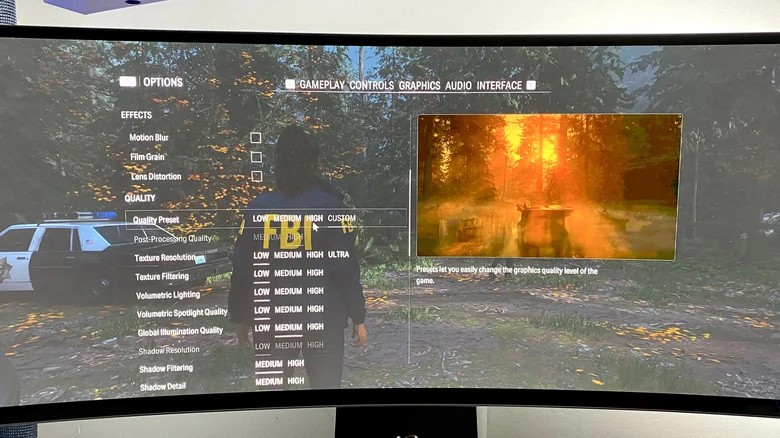
First, jump into in-game menus and start lowering graphical settings. Texture quality, shadows and effects like ambient occlusion can all create a strain on your GPU if you’ve set these sliders too high, so it’s worth reducing them to medium or low if you’re struggling to lock down a stable frame rate. Also consider disabling features like motion blur and in-game V-sync to reduce input lag, then cap your frame rate through the NVIDIA Control Panel or AMD Radeon software to prevent screen tearing.
The difference between high and low settings in many games isn’t always huge, especially during fast-paced action. Unless you’re obsessed with graphical fidelity, settling on a less demanding preset is wise if you’re craving a locked 60 fps, since there’s an inverse relationship between graphics quality and performance. A lot of modern titles auto-detect optimized settings the first time you boot up a game by calculating what hardware you’re using. This takes away a lot of fiddly trial-and-error tinkering, and from my experience, auto-detect wizards work particularly well in games like Forza Horizon 6 and GTA V: Enhanced Edition.
There are less obvious ways to boost frame rate performance that don’t involve dipping into graphics menus. Though the results won’t be as significant as, say, dropping your internal resolution, turning off recording software (like the solutions the NVIDIA app and Xbox Game Bar offer) can help. Regularly download the latest AMD or NVIDIA drivers, as well as updating the NVIDIA or AMD app itself. Of course, if an update suddenly breaks your game, roll back the driver.
You should also make sure Windows 11 is optimized to run games as well as it can. To squeeze the most out of the OS, go to Settings > System > Power [& battery] > Power Mode, then set the slider to Best Performance. It’s especially worth switching to this power plan if you’re playing on one of the best gaming laptops — just keep an eye on battery life. Also, head to Settings > Gaming > Game Mode and make sure this is on; it will de-prioritize other processes while you’re playing a game.
Use supersampling to boost frame rates
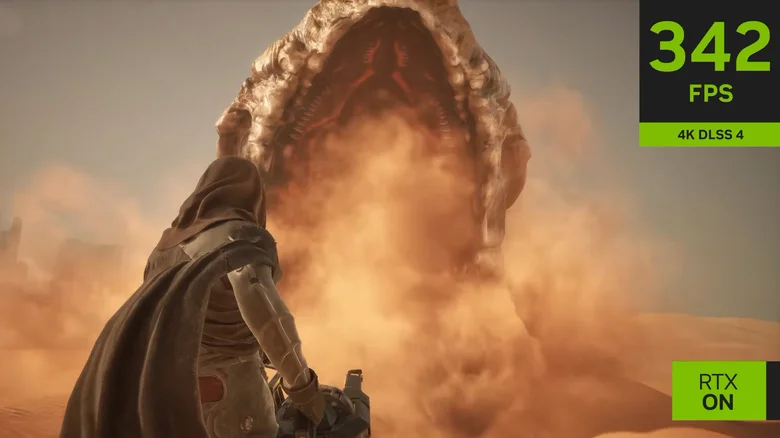
Supersampling has become a crutch many modern AAA games can’t do without. With blockbuster 2026 titles, your best bet for boosting fps numbers is to lean on an upscaler. NVIDIA DLSS 4.5 is currently the most robust supersampling solution on the market, producing results that often look as good as native resolution while also being far more performant. AMD’s FSR 4 is a great option for those with RDNA 4 cards, like the Radeon RX 9000 Series, though the older open-source FSR 3 remains a decent alternative for owners of older GPUs. If your system has an Intel Arc card, XeSS is also worth enabling.
Supersampling uses AI and deep learning techniques to take low internal resolutions and upscale them to a far higher output. This means your GPU has to natively render far fewer pixels, with AI handling the reconstruction work, leading to higher frame rates. Take NVIDIA’s DLSS presets, where quality looks almost as good as native output, but only renders 66.7 percent of the pixels. Moving all the way down to Ultra Performance, that only renders 33 percent of native resolution, yet still provides a surprisingly clean image that should seriously boost your frame rate.
For modern cards, frame generation can also amp up your fps… at a cost. While NVIDIA’s DLSS 4.5 Multi Frame Generation tech can let you play Cyberpunk 2077 with path tracing in 4K at upwards of 200 fps with the x6 multiplier, input lag can increase drastically when the technology is enabled. Forcing your GPU to buffer interpolated, AI-assisted frames often adds a dramatic amount of latency, but can offer a smoother-looking (if not feeling) experience. If your GPU supports frame generation, it’s worth playing around with it in selected titles, especially if a game supports demanding ray tracing. On that note…
Turn off ray tracing
Ray tracing is an absolute performance killer. Compared to old-school rasterization methods, this advanced rendering technique can hobble frame rates. Even the most powerful graphics card on the planet, NVIDIA’s RTX 5090, can drop a whole lot of frames when RT features are cranked to the max. If you’re playing some of the best PC games on a mid-range or aging graphics card and want to claw back performance, ray tracing is the first graphical setting you should turn off.
Unlike pre-calculated rasterized effects, RT realistically simulates lighting, shadows and reflections in real-time by bouncing rays around the in-game environment. This effect can be particularly immersive in the case of ray traced shadows, with Cyberpunk 2077 and Resident Evil Requiem being two of the most impressive poster children for advanced RT features.
The trouble is, ray tracing can often cut your fps in half (or more), even on capable GPUs. If you’re not comfortable with a 50 percent performance drop, it’s best to turn RT off, especially if you don’t own a cutting-edge GPU.
Path tracing is even more demanding. Unless you own an RTX 5090 or RTX 5080, you should avoid this feature (granted, it’s only available in a handful of PC games at time of writing). Unlike normal ray tracing, which often limits the effect to lighting, shadows and ambient occlusion, path tracing handles the entire lighting system in those two previously mentioned titles plus Doom: The Dark Ages. Though it looks utterly gorgeous, path tracing can kneecap even the 5090 in Cyberpunk, with results dropping to around 30 fps at 4K if you disable DLSS and frame generation. Both ray and path tracing look sensational, but they are extremely expensive.
