Close Menu
MyAppsPlus

    Subscribe to Updates

    Get the latest creative news from FooBar about art, design and business.

    What's Hot

    Operator of Illegal Phone Spying App Gets 7 Years in Prison

    October 4, 2026

    How to Integrate Unity ARCore Geospatial Into a Native Android App

    October 4, 2026

    Apple will update Mac permissions to protect users from AI agents accessing their data

    October 4, 2026
    Facebook X (Twitter) Instagram
    Facebook X (Twitter) Instagram
    MyAppsPlusMyAppsPlus
    Sunday, October 4
    • Home
    • Breaking Tech
    • Apps & Software
    • AI & Automation
    • Android
    • iPhone & iOS
    • More
      • Reviews
      • How-To Guides
      • Deals & Discounts
      • Shop
    MyAppsPlus
    Home»Breaking Tech»How to disable or restrict your iPhone’s Apple Intelligence features
    Breaking Tech

    How to disable or restrict your iPhone’s Apple Intelligence features

    myappsplusBy myappsplusOctober 4, 2026004 Mins Read
    Share Facebook Twitter Pinterest Copy Link LinkedIn Tumblr Email Telegram WhatsApp
    Follow Us
    Google News Flipboard
    How to disable or restrict your iPhone’s Apple Intelligence features
    Share
    Facebook Twitter LinkedIn Pinterest Email Copy Link

    You have a lot of control over AI on your iPhone.

    As Apple brings more AI to the iPhone, the technology is getting harder to avoid. While there’s no longer a single switch to shut down Apple Intelligence system-wide, you can still turn off many AI features in iOS 27. You just have to do a little more digging.

    These instructions are for Apple Intelligence-capable iPhones (iPhone 15 Pro or newer or iPhone 16 or newer) running iOS 27. If you’re still on iOS 26, the simpler universal shut-off switch is still there: open Settings > Apple Intelligence & Siri, and turn off Apple Intelligence.

    Turn off Siri AI — or switch to the old version

    Closeup of the Siri icon listening for the user's response on iPhone.

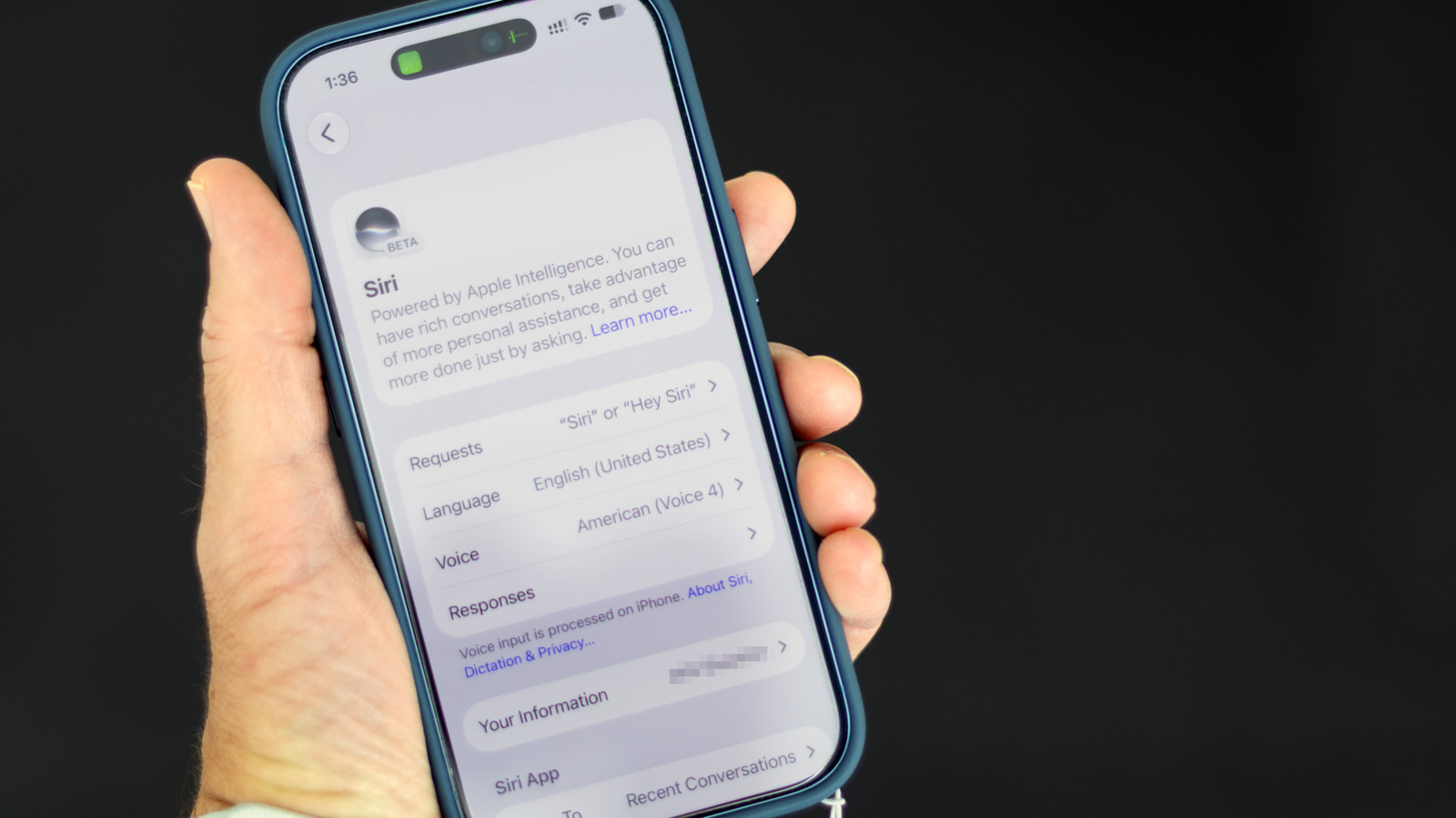
    iOS 27 brought Siri’s long-awaited AI revamp, transforming it from a simple voice assistant to a more conversational and context-aware one. But not everyone wants a chatbot-like Siri. To turn it off, open Settings > Siri, scroll to the bottom, tap Turn Off Siri and confirm on the next screen.

    After that, you can switch back to the old Siri if you want. In that same settings screen, tap Turn On Siri, then choose Use Siri Classic. That way, you can still use it for simple tasks like setting timers and playing music.

    Turn off AI summaries

    Apple Intelligence isn’t just about Siri. Among its other skills, it can summarize messages and other notifications. But you can turn those off, too.

    For AI-generated summaries of messages, open Settings > Apps > Messages, and turn off Summarize Messages. This disables the AI-generated recaps of messages in the conversation list. For email’s equivalent, go to Settings > Apps > Mail, and turn off Summarize Message Previews. That deactivates the AI summaries in your inbox, showing the first lines of the most recent message instead.

    Apple Intelligence summarizes notifications, something that it has gotten embarrassingly wrong in the past. To turn those off, go to Settings > Notifications > Summarize Notifications, and switch the feature off. Or, if you prefer to leave it on for some apps, you can toggle them individually on that same screen.

    You can also stop Apple Intelligence from placing the notifications that it considers the most important at the top of the stack. To do that, open Settings > Notifications > Prioritize Notifications, and turn the feature off.

    Turn off other AI-based suggestions

    iOS supports Smart Reply, which can draft AI-powered email responses in your writing style. To deactivate it, go to Settings > Apps > Mail, and turn off Personalize Smart Replies.

    Even the Phone app isn’t spared from Apple Intelligence. It can suggest actions for voicemails, like creating a reminder or calendar event based on the transcript. To disable that, go to Settings > Apps > Phone, and turn off Suggestions in Voicemail. Apple Intelligence can also show relevant information, like a reservation number, when you call businesses. To put a stop to that, go to Settings > Apps > Phone > Apple Intelligence & Siri, and turn off Show When Calling.

    Apple Intelligence even turns up in the Journal app, where it can suggest what to write. To disable that, go to Settings > Apps > Journal, and turn off Get Writing Prompts.

    Block Writing Tools and image generation
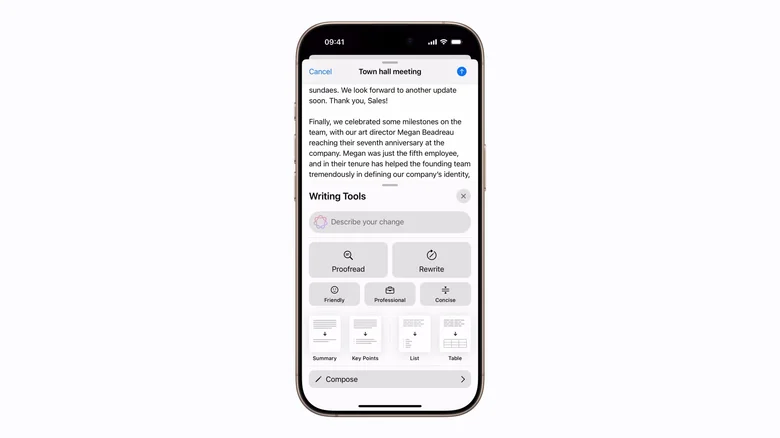
    An iPhone with Writing Tools showing beneath a body of text.

    The standard Siri settings don’t include toggles for Writing Tools and image creation. But don’t worry: you can still block them. Strangely, that toggle lives in Screen Time settings. Navigate to Settings > Screen Time > Content & Privacy Restrictions, turn on the restrictions, then tap Siri.

    In that menu, you can turn off Writing Assistance, Apple’s system-wide rewriting, proofreading and summarizing tools. Just change the toggle to Don’t Allow. Meanwhile, Image Creation blocks tools like Image Playground, Genmoji and Image Wand.

    While you’re there, you can also block Math Assistance, which provides help with complex math problems in Calculator and Notes. And if you don’t want Apple Intelligence handing requests off to services like ChatGPT, you can block Extensions here, too.

    AI Apple Disable restrict Your
    Follow on Google News Follow on Flipboard
    Share. Facebook Twitter Pinterest LinkedIn Tumblr Email Copy Link
    myappsplus
    • Website

    Related Posts

    Apple will update Mac permissions to protect users from AI agents accessing their data

    October 4, 2026

    A fourth RuneScape game is under development using Unreal Engine

    October 4, 2026

    Sony digital camera model numbers explained: Bigger isn’t always better

    October 4, 2026
    Add A Comment
    Leave A Reply Cancel Reply

    Top Posts

    Can reviews settle disputes that marked first two seasons?

    September 21, 20268 Views

    Experts call for leveraging AI, breaking key tech bottlenecks to propel advanced manufacturing

    September 19, 20266 Views

    What was the PSX? The souped-up PS2 rarely sold outside of Japan

    September 14, 20265 Views
    Latest Reviews

    SpaceX is building a $100 billion ‘Starbase’ launch site in Louisiana

    myappsplusAugust 26, 2026

    ‘If we stuck with the silent protagonist method, we wouldn’t be able to tell this story properly’ — Metro 2039 executive producer says making The Stranger a speaking protagonist ‘goes hand in hand with telling a personal story’

    myappsplusAugust 26, 2026

    Bill Gates says we’ve passed AI’s danger thresholds. Now what?

    myappsplusAugust 26, 2026
    Stay In Touch
    • Facebook
    • YouTube
    • TikTok
    • WhatsApp
    • Twitter
    • Instagram

    Subscribe to Updates

    Get the latest tech news from FooBar about tech, design and biz.

    Most Popular

    ‘If we stuck with the silent protagonist method, we wouldn’t be able to tell this story properly’ — Metro 2039 executive producer says making The Stranger a speaking protagonist ‘goes hand in hand with telling a personal story’

    August 26, 20260 Views

    Bill Gates says we’ve passed AI’s danger thresholds. Now what?

    August 26, 20260 Views

    AI gold rush draws crypto firms away from Bitcoin

    August 26, 20260 Views
    Our Picks

    Operator of Illegal Phone Spying App Gets 7 Years in Prison

    October 4, 2026

    How to Integrate Unity ARCore Geospatial Into a Native Android App

    October 4, 2026

    Apple will update Mac permissions to protect users from AI agents accessing their data

    October 4, 2026

    Subscribe to Updates

    Subscribe to our newsletter and get the latest tech news, app updates, AI trends, smartphone reviews, and exclusive deals delivered straight to your inbox.

    Facebook X (Twitter) Instagram Pinterest
    • About Us
    • Get In Touch
    • Disclaimer
    • Privacy Policy
    • Terms & Conditions
    © 2026 MyAppsPlus. All Rights Reserved.

    Type above and press Enter to search. Press Esc to cancel.