

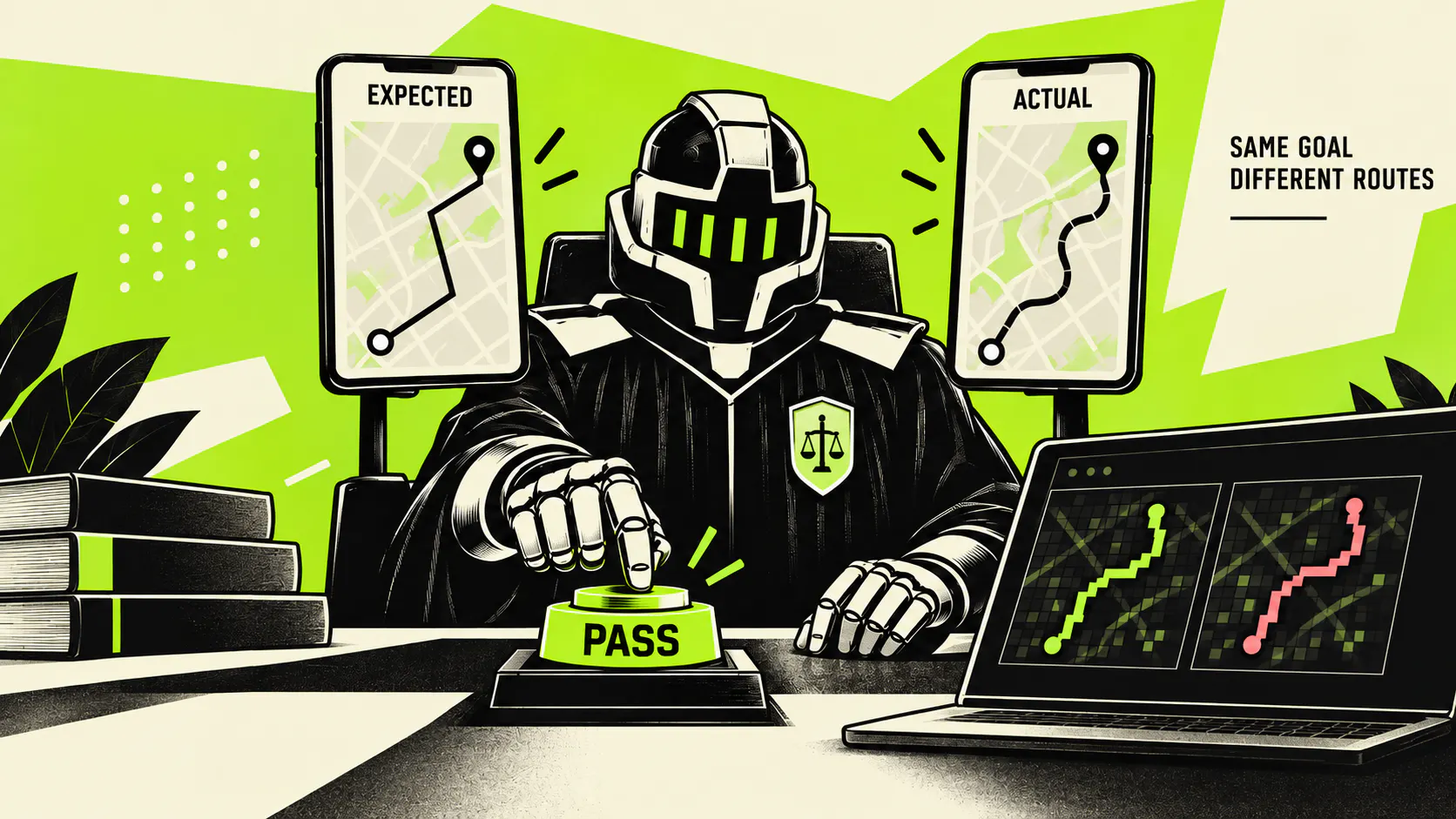
The GeoWay team in inDrive’s Geo cluster added an AI-powered analysis layer to its existing UI tests to handle screens where visual content changes from one run to another. The main use case is maps: route geometry, camera position, and pin placement can all vary on iOS and Android even when the screen is working exactly as expected.
Authors: Alexey Sumin and Oleg Anisimov, QA Engineers at inDrive
A map can look noticeably different from one mobile E2E test run to another and still be completely correct. The camera may shift, the route may take a slightly different shape, or a pin may move a few pixels. A person can usually look at the screen and tell immediately whether something is wrong. A pixel-by-pixel comparison cannot.
This was a recurring problem for our GeoWay team, especially in tests involving the map layer. Many of our scenarios depend on routes, pickup and destination points, navigation, vehicle positions, and other visual elements on the map. Appium is useful when you can check the presence or state of a specific UI element, but in our case it sees the map as a single layer rather than a set of elements with individual locators.
That means checking that a route exists is not enough. We also need to know whether it connects the right points, whether its geometry makes sense, and whether the screen looks correct as a whole. We had been using a pixel comparer for this, but it produced a lot of noise. A change to a font, icon, margin, or surrounding layout could slightly move the map and push the visual diff over the threshold even though nothing was actually broken.
Where pixel comparison starts to break down
Our original setup was fairly standard for visual regression testing. The project stores a golden screenshot, and during a test run the pixel comparer takes a new screenshot and calculates the difference between the two. If the diff stays below a configured threshold, the check passes.
This works well for stable interfaces. Maps are different. The camera may shift slightly, the zoom level can change, data outside the area we care about can affect the layout, and a routing provider may return different but equally valid geometry.
In one of our tests, for example, the comparer reported an 11.24% difference against a 5% threshold, although the route itself was correct.
There was no useful universal threshold we could set. Make it too strict and valid tests fail constantly. Make it too loose, and you risk missing a real issue. So the test report kept filling up with red cases that someone still had to inspect manually.
The pixel comparer was useful as a first filter, but it often could not make the final decision.
Adding AI Judge
We kept the existing comparison logic and added another step only for ambiguous cases. We called it AI Judge.
The model is not involved in every test. Most checks still end with ordinary deterministic logic. AI Judge is called only when the pixel difference is too large for the normal threshold but still small enough that we consider the result worth analysing rather than rejecting outright.
- Run the UI test and take a screenshot.
- Compare it with the golden screenshot.
- If the diff is within the normal threshold, pass the test.
- If it is above that threshold, check a second limit configured for AI Judge.
- If the diff is within that range, send the expected and actual screenshots to the model. If it is above the upper limit, fail the test immediately.
- AI Judge checks the screenshots against the expectations defined for that specific test and returns pass or fail.
The limits are configurable per test. A relatively dynamic case might allow AI Judge to inspect differences of up to 40%, while a more stable screen can use a much lower boundary.
The important part is what we ask the model. We do not send a generic prompt such as “Are these screenshots similar?” Instead, each test describes what actually matters. For a route, that may mean checking that it is continuous, connects the right points, and shows the expected icons.
This changes the task from visual similarity to a much narrower question: does the actual screen still satisfy the test expectations?
If it does, AI Judge can rescue the test. We mark those cases separately so we can track them and review a sample manually. The model also returns a confidence score, and we define the minimum confidence we are willing to accept. If it finds a problem or is not confident enough, the test stays red.
The goal here is not to make the dashboard greener. It is to remove failures that are clearly noise without hiding real defects.
What happened with the 11.24% diff?
The earlier example is a good illustration. The routing provider returned slightly different geometry, so the pixel comparer rejected the screenshot at 11.24%. The route still connected the correct points and was functionally valid.
AI Judge checked the actual test expectations and passed it. Previously, a tester would have opened the report, looked at the screenshots, and reached the same conclusion manually.
This is essentially the role we wanted AI Judge to play. It does not replace Appium or visual regression testing. It handles a narrow class of cases where the deterministic check can see that something changed but cannot tell whether the change matters.
What changed in real runs?
We compared two recent nightly runs, one without AI Judge and one with it.
The number of failing tests went from 47 to 8 in those two runs. On iOS, failures dropped from 15 to 4; on Android, from 32 to 4.
We do not treat this as a permanent performance metric. The composition and total number of tests change between runs, so a single comparison can be misleading. What matters more is what disappeared from the report: many of the cases removed by AI Judge were tests that previously reached manual review and were then confirmed to be valid anyway.
The result is less noise. A red test is now more likely to be something worth opening.
The Bigger Benefit: Automating tests we used to run manually.
Reducing false failures was useful, but it was not the main reason we built this.
Navigation scenarios were much more interesting. Because the route comes from an external provider, its exact geometry cannot be fixed ahead of time. A completely correct route may still differ significantly from the baseline screenshot, which makes these tests awkward to automate with a normal pixel comparer.
Before AI Judge, some of these cases simply were not worth automating.
In one regression suite of around 120 test cases, all 120 previously required manual execution. With the new approach, we were able to automate roughly 100 of them, leaving about 20 for manual testing. The team estimates that this saves around two hours of manual work per regression cycle, although the exact number varies by run.
For us, this is the strongest argument for the approach. AI Judge is not just cleaning up reports. It makes automation practical for scenarios where screenshot-based testing had previously been too unstable.
The model cost turned out to be almost irrelevant.
We initially used GPT-5.4-mini and later moved AI Judge to GPT-5.6 Luna. In our tests, Luna performed better at analysing the screenshots while remaining cheap enough that model cost was not really a factor in the decision.
In recent runs, AI Judge processed 155,929 input tokens and 16,599 output tokens for iOS, and 83,187 input tokens and 30,118 output tokens for Android. Based on the pricing we used for the calculation in the project, that came to approximately $0.051 for iOS and $0.053 for Android, or around $0.104 in total.
Usage changes from run to run, so we do not treat those numbers as a fixed average. The useful conclusion is simpler: one regression run costs us a few cents, while manually checking noisy failures costs considerably more in engineering time.
We also track token usage directly in the test report so we can see how that changes as the test suite grows.
Prompt quality mattered more than we expected.
Once a model can change the final status of a test, false passes become the obvious risk. During the first month, we therefore kept manual review in place and regularly checked AI Judge decisions.
We found one questionable green result during that period. It was not an actual product bug, but according to our own expectations, the model should have been stricter.
What we saw more often was a different problem: the prompt itself was incomplete.
If we forgot to describe something important, the model could make a reasonable decision based on the information we had given it. The mistake was not necessarily in the image analysis. We had simply left part of the specification out.
That changed how we think about prompts. They are now effectively part of the test code. If the route must connect points A and B, that needs to be stated. If color matters, we need to say so. If an icon should be in a particular state, that condition belongs in the expectations as well.
We now review these prompts much like regular assertions. In practice, incomplete expectations have caused us more trouble than systematic image-recognition errors.
Automating reference screenshot updates as well.
There is another piece of automation in the same nightly screenshot workflow, although technically it is separate from AI Judge.
AI Judge decides whether a test result is valid. A second workflow helps us deal with reference screenshots when they genuinely need to be updated. Alexey worked on AI Judge, while Oleg implemented this part.
Previously, someone had to find the right image in a large report, download it, add it to the repository, and open a pull request manually.
Now, after every nightly run, an n8n workflow sends the results to Slack. The message includes the Android and iOS failures, the reason for each failure, a link to the report, and the relevant screenshots.
If a screenshot should become the new reference, the tester selects it and clicks Update. The workflow then creates a GitHub pull request with the selected images automatically.
The two automations solve different problems around the same workflow: AI Judge helps us decide whether a visual difference is actually a bug, while the bot removes some of the repetitive work involved in maintaining reference screenshots.
What We Learned
A few rules emerged after running this in the regression pipeline for several weeks.
We still prefer deterministic checks whenever they are enough. There is no reason to call a model if the pixel comparer can already give us a clear answer. AI is useful only in the ambiguous middle ground where understanding the content of the screen matters.
Keeping the task narrow also helps. AI Judge does not explore the product, generate the test, or decide how the application should behave. It evaluates one known state against a set of explicit expectations. That makes its decisions easier to understand and easier to review.
We are also conservative with confidence. If the model is not confident enough, the test stays red. And even after launch, we continue reviewing real regression runs rather than assuming that a good result on a test dataset is enough.
What’s Next?
The problem we solved is not unique to GeoWay. Any mobile team working with maps, canvas-based interfaces, dynamic content, or third-party visual components can run into the same limitation: the screen is valid, but it differs too much from the reference image for simple pixel comparison.
We are now looking at whether AI Judge can become a reusable module and have already discussed the approach with other inDrive teams working on geo-related functionality. There are also smaller improvements we can make around the workflow. For example, the nightly report could distinguish a brand-new failure from one that has been appearing for days. AI could eventually suggest reference screenshot updates and prepare the pull request, leaving the final approval to a person.
The key point is that we did not rebuild the testing stack around AI. Appium, the pixel comparer, and the existing thresholds are still there. We added the model only at the point where deterministic checks stop being able to tell us whether a visual difference actually matters.
For our team, that turned out to be a small but useful addition to the pipeline. The model is not deciding how the application should work. It is helping us answer a much more practical question:
Is this visual difference acceptable, or is it a bug?
Special thanks to Karim Azab, GeoWay Tech Lead, for supporting the team while we worked on this automation, and to Vlad Ryzhkov. AI Judge grew out of Vlad’s earlier work on a workflow that analysed localization from screenshots; we adapted the same general idea for dynamic geo scenarios.
