

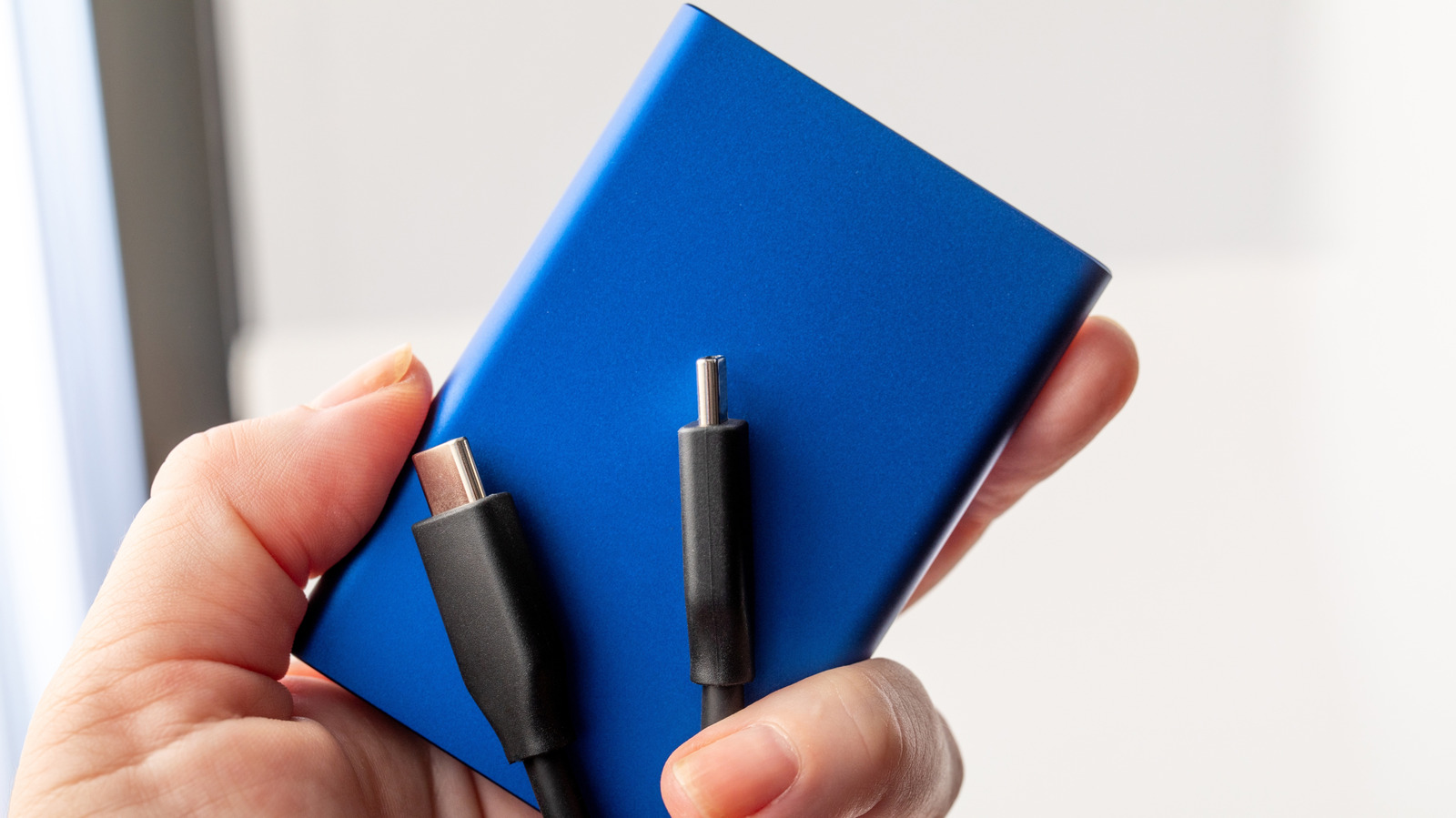
Bring a dead external drive back to life with these troubleshooting steps, including Disk Utility and swapping cables.
Finding the best portable SSD is almost a must in the modern tech landscape. Although you can get by with internal storage and cloud backup, an external drive makes it far easier to move media and document libraries between machines. It can also be a safeguard against worst-case scenarios by starting to use fail safes such as the 3-2-1 rule, which means keeping three copies of your data stored on two types of media with one copy kept in a safe location at home or away from the workplace.
As with any local storage, though, there’s a possibility that a drive will suddenly stop working, or fail to run in the first place. If these things happen, don’t panic, at least not yet. There may be troubleshooting steps you can take to get back on track.
A few of these should be relatively intuitive, like testing different hardware combinations. Less so are the ones that involve software, since they involve tools you’re probably not using on a regular basis, unless perhaps you’re an IT professional. Mercifully, if a software fix is possible, you probably won’t have to spend any money.
How to troubleshoot your external hard drive

The first step is to rule out bad hardware that’s not your drive. Try plugging it into another port, or swapping in another matching USB or Thunderbolt cable. Thunderbolt cables cover charging, data transfer and video, so it’s always good practice to use the right cable and port. Remember also that all external drives require a power supply. Some USB ports on your computer might not have sufficient power, and of course if a drive has a jack for an AC adapter, you’re not getting anywhere until that adapter is plugged in. Try plugging a drive into a second computer, if you have one.
Drives can however be detected by Windows or macOS but still fail to load, possibly because they haven’t been formatted correctly. In Windows 11, open Device Manager by searching for it in the taskbar, then expand the Disk drives section. If your drive shows up, you may be able to bring it back by right-clicking on it, then selecting Properties > Volumes > Populate.
Next, click on Disk Management and look for the disk number you should’ve seen a moment ago. If there’s no drive letter assigned, you may be able to assign one. But if the drive is missing NTFS formatting, you may have to reformat it if you want it to work with Windows. You’ll lose any existing data on the disk, so treat this option as a last resort. Before reformatting, it’s wiser to try Windows’ CHKDSK utility. Open the Terminal app using taskbar search, then enter chkdsk [drive letter] /r. This will attempt to both fix errors and recover bad sectors.
On Macs, the catch-all software solution is typically Disk Utility. Once you’ve opened the app, select View > Show All Devices. If you see your drive, click on the indented entry and then select Mount at the top of the app. Should that not work, click First Aid instead. This may let you repair errors without losing data. If not, Disk Utility will let you reformat, once again at the cost of wiping a drive clean.
Other SSD rescue steps you can try
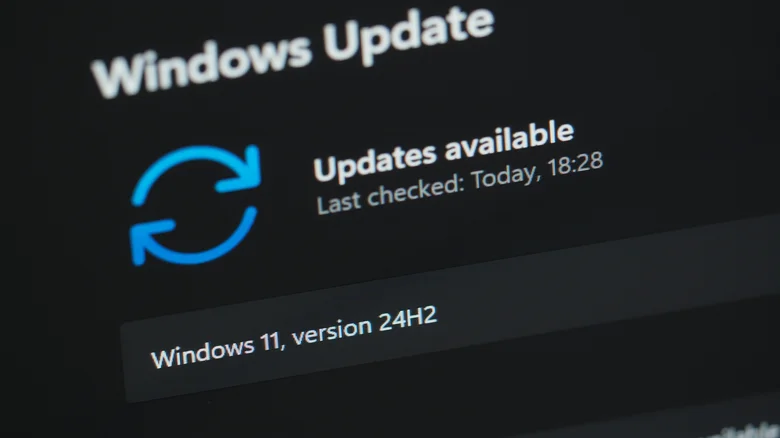
One simpler possibility is that you need to update your hardware drivers. This is dead simple on macOS, since Apple typically bundles these in with the latest OS updates. Just head to Apple menu > System Settings > General > Software Update to check. In Windows 11, swing by Settings > Windows Update to install anything there.
In some cases, though, Windows users may need to return to the right-click Properties menu for a drive in Device Manager. Once you’re there, click on the Driver tab, then try updating or uninstalling. If you uninstall without selecting the driver deletion option, restarting your PC should automatically reinstall the correct software, which might repair it.
If you’ve gotten this far without luck, there may not be much you can do other than cross your fingers that a reboot will solve things or seek out third-party help, such as the drive manufacturer or a repair shop. You might need a recovery firm’s help if valuable data is trapped. You can also try your Mac or PC’s general OS recovery tools, but these are unlikely to fix anything we haven’t already suggested.
