

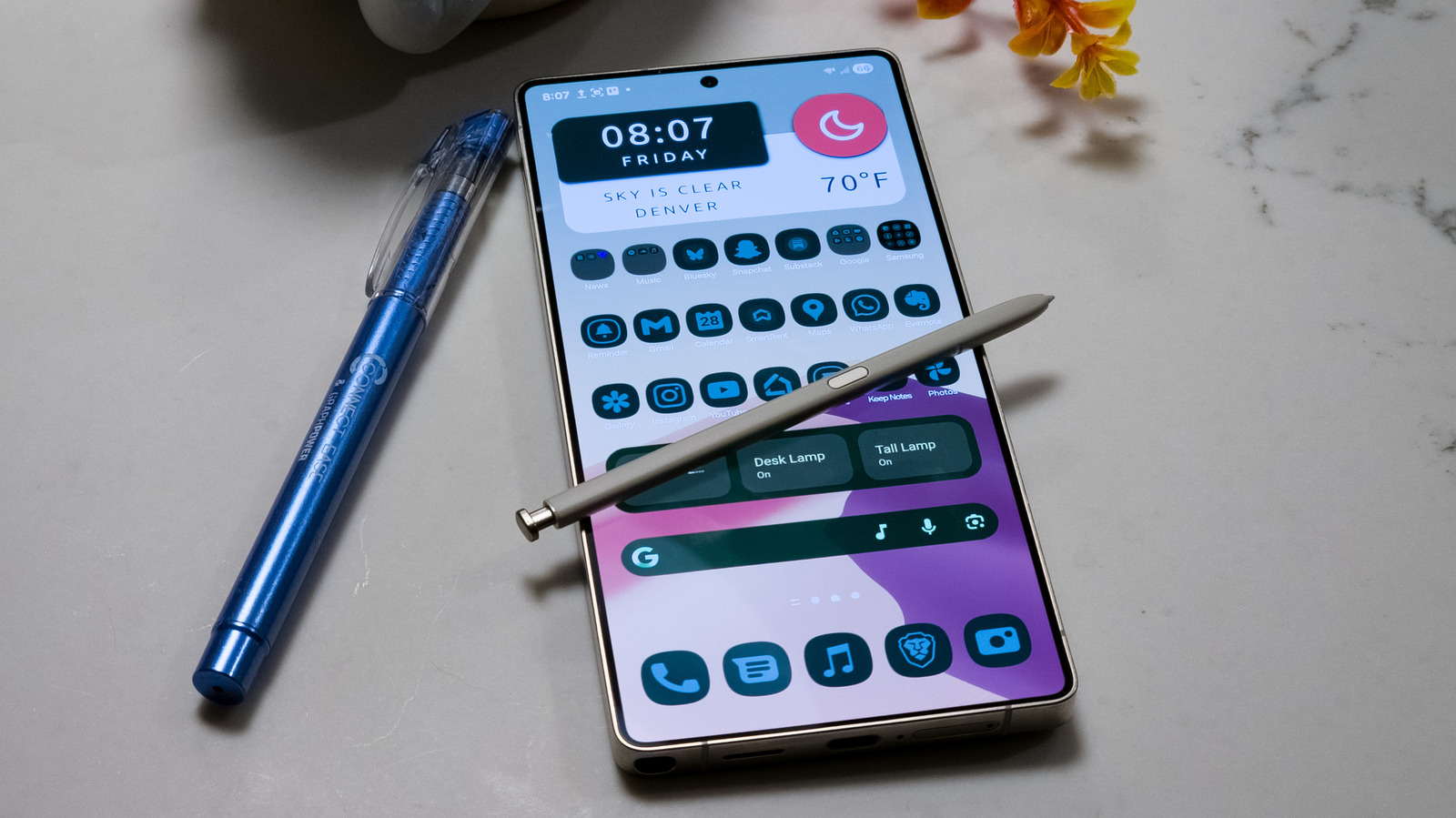
Some of these will increase your battery life.
As one of the world’s leading display manufacturers, even supplying screens to its biggest competitors, Samsung makes smartphones that are accordingly pixel-packed with display features. As in many other areas, Samsung lets users take the initiative to customize their smartphone displays, but it doesn’t do a very good job of making sure you know those options exist.
Maybe you’ve found that your expensive Galaxy flagship seems to have a lower resolution than the spec sheet led you to believe, or that it seems a bit less responsive to your swipes than an iPhone 18 Pro. That’s because your resolution and refresh rate are artificially capped by Samsung. Maybe your display isn’t very bright. Maybe it’s too bright. And have you ever wished you could leave the screen off without the whole phone going into sleep mode? Samsung has solutions for all of these and more baked into the past several versions of its One UI Android skin.
These features were tested on a Galaxy S23 Ultra, S25 Ultra and S26 Ultra running the latest One UI 9 software, along with both Galaxy Tab S9 and Tab S10 Ultra tablets running the previous One UI 8.5. Some features cannot be immediately confirmed to work on devices older than the Galaxy S23 Ultra but may still be available on some of them. Only one feature we covered, Super HDR, is unavailable on the S23 Ultra, since it was added with the S24 series and works at a hardware level.
Samsung’s displays are elite, but not unless you tweak them in settings
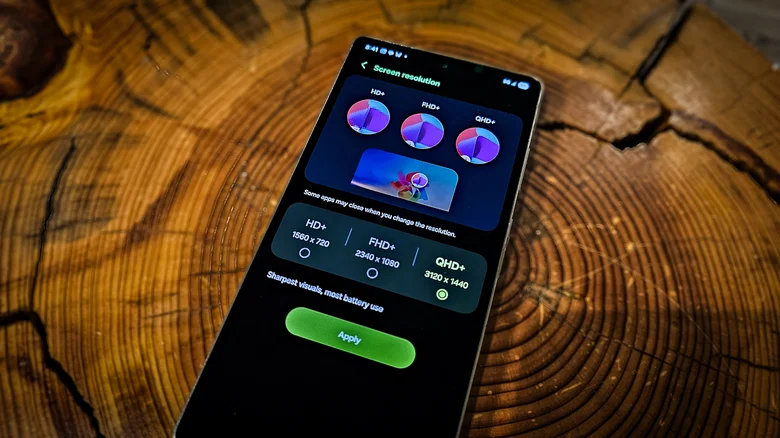
If you own one of Samsung’s higher-end Galaxy phones such as a Galaxy S26+, S26 Ultra or Fold Z 8, your phone comes out of the box set to 1080p but can actually go a lot higher. The same is true of the screen’s refresh rate, which can reach 120Hz for smooth scrolling and gaming but arrives from the factory set to just half that. To remedy this, you can open Settings by swiping down from the top right corner of the display and then tapping the gear icon in that same corner. Select Display, then Motion smoothness and set the screen to Adaptive, then press Apply. Go back to Display settings, tap Screen resolution and select the rightmost option with the highest resolution your device offers, then tap Apply.
Both settings will consume extra battery, so be sure you’re willing to make that trade-off beforehand if you care about improving your phone’s battery life.
One more display setting worth tweaking in Display settings is Screen mode. This lets you choose how colors appear onscreen. Samsung defaults to Vivid mode, which cranks up sharpness and saturation, making content onscreen look more candy-coated and vibrant. However, this comes at the cost of accuracy. If you want a more true-to-life image, you should switch to Natural. If you prefer Vivid, you can customize things a bit further. With Vivid selected, newer Galaxy devices show a white balance slider that lets you make the image warmer (shifting toward reds and yellows) or cooler (shifting toward blues). You can also tap Advanced settings to find individual red, green and blue sliders for more granular cast compensation, as well as a Vividness slider that can crank the saturation even higher.
Quick Panel toggles keep your screen extra bright or dim
Modern OLED displays like those found in Samsung’s flagship Galaxy phones and tablets are reaching increasing levels of brightness, but OLED struggles with brightness compared to other panel technologies. Meanwhile, in pitch-black conditions such as when you’re reading in bed, even the dimmest brightness setting can be too much for some users (or might bother the person sleeping next to you). Samsung seems to understand this, and One UI includes both an extra bright and extra dim setting to compensate.
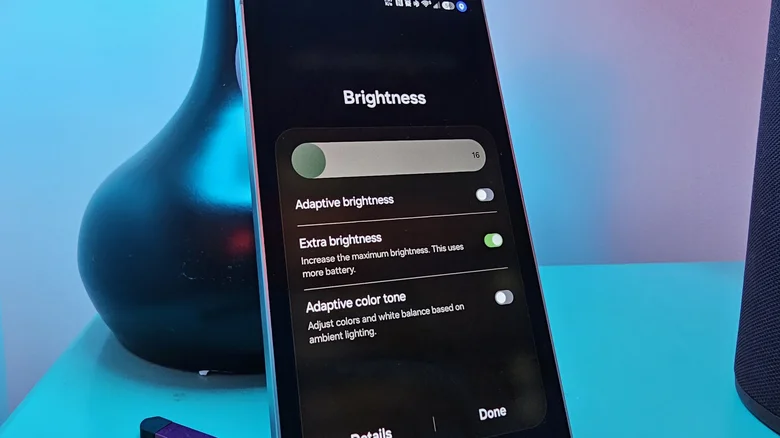
In direct sunlight, your Galaxy phone will flex past its normal top brightness level to make sure the screen remains visible, but this special sunlight mode otherwise stays dormant. You can enable it manually, however. First, you need to turn off automatic dimming by pulling down the Quick Panel from the top right corner of the display and holding down on the brightness slider to access brightness settings, then toggling off Adaptive brightness. Once you do, a new toggle for Extra brightness will appear. When enabled, the screen will get brighter than it could be with the slider all the way at max brightness.
If you want the screen to be extra dark, that’s also possible, but you’ll need to go into the Accessibility section of the Settings app, then tap Vision enhancements. You can toggle on Extra dim from here, or tap on the setting to configure it further. If you use it frequently, toggle on the Extra dim shortcut option, which will add a toggle to your Quick Panel for instant bedtime reading sessions.
Keep your screen on longer or keep it off without putting the phone to sleep
The screen timeout on your Samsung Galaxy smartphone ensures you won’t accidentally drain the battery by leaving the screen on indefinitely. When you turn your screen off, you’re actually putting the phone into sleep mode. Nonessential processes are paused, radios scan less frequently and the CPU relaxes in frequency. Additionally, your screen itself takes a lot of power to run, especially at high refresh rates and resolutions, so turning it off conserves even more power.
But sometimes you need the display to remain on regardless, and sometimes you need your phone to run internally at full power even when the screen is off. Samsung has ways to accomplish both without changing your settings indefinitely, but to take advantage of them, you’ll need to download the Good Lock application from the Galaxy Store or Google Play and install the Display Assistant module inside of it. This unlocks One UI features you won’t get on other Android phones.
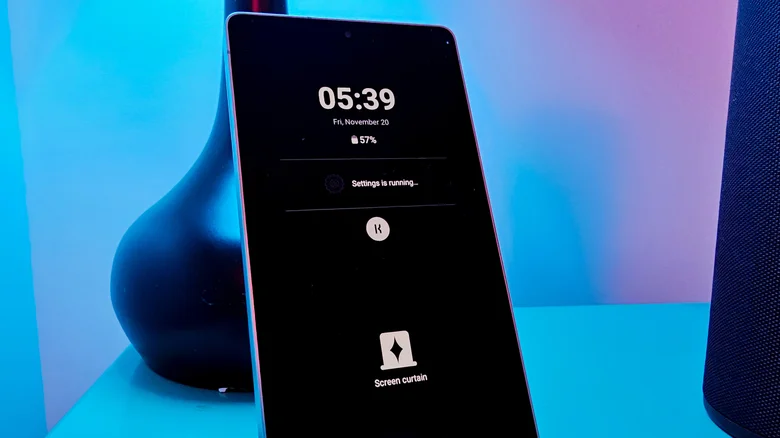
Once Display Assistant is installed, you’ll find two new toggles in your Quick Panel (accessed by swiping down from the top right-hand corner of the screen). Keep screen on is represented by a downward-facing lamp icon and is pretty self-explanatory. When toggled on, the screen will remain awake for half an hour, at which point you will be prompted to extend it another half hour. The other new toggle you can add to the Quick Panel is Screen Curtain, which turns the screen off but keeps the phone running as though it were still on. This comes in handy during situations where you need the phone to keep running a task — for example, exporting a long 4K video edit — but you don’t want the screen to drain battery unnecessarily while it does so.
Samsung phones include features to reduce eyestrain
If you’re like most people, you spend more time on your phone than you care to admit. Whether you’ve got real work to attend to or simply get caught up doomscrolling (it happens to the best of us), all that screen time can cause eyestrain that leads to headaches and fatigue. Most devices now include a blue light filter for that reason. Though recent research suggests reducing blue light may not be as effective as once believed for reducing eyestrain or maintaining sleep hygiene, some people do find it more comfortable to filter out some of the dominant blue hues in modern displays.
Samsung’s blue light filter can be found in the Quick Panel, where it is called Eye comfort shield. Alternatively, you can go to the Display section of the Settings app to find the same toggle. You can further tune the blue light filter by holding down on the Quick Panel toggle or tapping the option in Settings. You can choose between Adaptive and Custom temperature modes, set a schedule to enable the filter only at certain times of day and choose how intense the effect is when enabled.
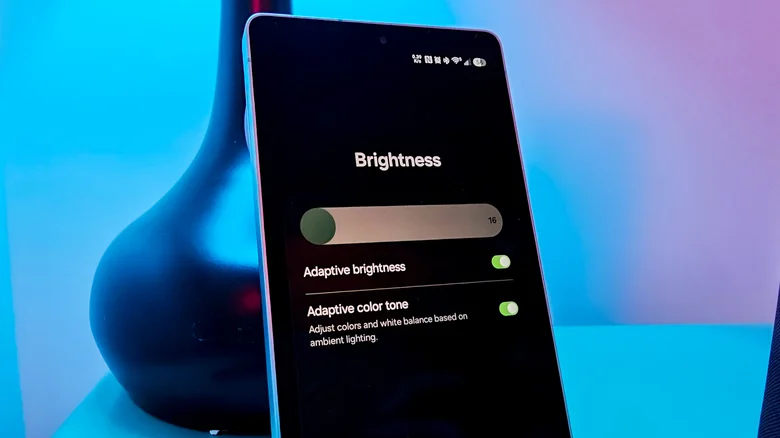
Another related Galaxy display feature helps to make images look consistent in different lighting conditions. The lighting around you can influence how you perceive content on a display, so the Adaptive Color Tone feature adjusts the screen’s color temperature and brightness based on your environment. In theory, this helps you see your display more comfortably, but opinions are mixed. Some users report that it makes their screen feel more natural, while others have the opposite reaction. To try it for yourself, open the Quick Panel and hold down on the display brightness slider, then toggle on Adaptive color tone.
Make videos brighter and view photos in HDR
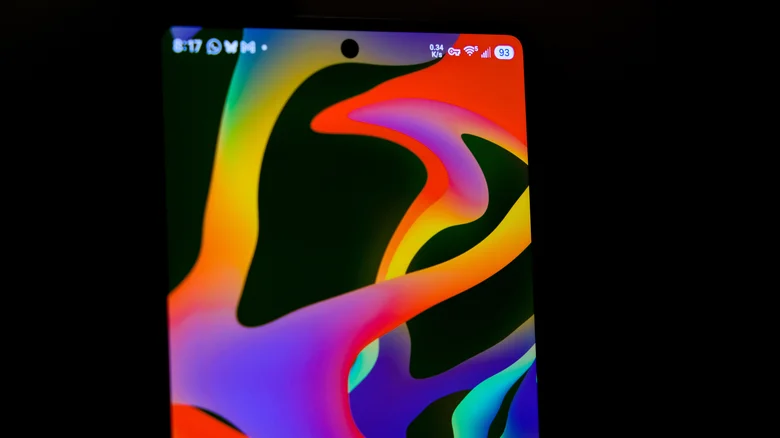
Viewing media on flagship Samsung phones is a visual treat thanks to the company’s vivid OLED displays. Unless you own a very expensive OLED TV or monitor, there’s a good chance your Samsung Galaxy phone has the best display in your home. But Samsung has added in a couple of features to make photos and videos even better. Both of them are somewhat counterintuitively hidden in the Advanced features section of the Settings app.
Video brightness will crank up the display’s luminance and vibrance while watching local or streamed video from supported apps, toggleable per app. Our test devices showed support from the most common apps, including Netflix, Disney+, TikTok and YouTube, as well as Samsung’s built-in video player and other local players like VLC. This likely means you’re getting a less natural image, but it does make videos a lot punchier in bright environments.
Super HDR is another feature that enhances media by reading HDR data stored inside the SDR version of photos. It is based on Google’s Ultra HDR format. HDR files look better because they balance shadows and highlights, but they need 10-bit color and can therefore break compatibility on older screens. Super HDR encodes a gain map — the data in an HDR file that tells it how to render brightness in different parts of an image — into the standard version of the file when you take a photo on a Galaxy phone or other phones like recent Pixels that support Google Ultra HDR. Samsung even partnered with Instagram to make Super HDR work in that app, too, allowing you to share and view HDR content in your Stories and grid posts.
