Close Menu
MyAppsPlus

    Subscribe to Updates

    Get the latest creative news from FooBar about art, design and business.

    What's Hot

    Beats Studio Buds Plus are 47% off, matching their lowest price

    November 24, 2026

    Beats Studio Buds Plus are 47% off, matching their lowest price

    November 24, 2026

    Chinese tech company Huawei convicted on federal charges

    November 24, 2026
    Facebook X (Twitter) Instagram
    Facebook X (Twitter) Instagram
    MyAppsPlusMyAppsPlus
    Tuesday, November 24
    • Home
    • Breaking Tech
    • Apps & Software
    • AI & Automation
    • Android
    • iPhone & iOS
    • More
      • Reviews
      • How-To Guides
      • Deals & Discounts
      • Shop
    MyAppsPlus
    Home»iPhone & iOS»How to set up message announcements in CarPlay
    iPhone & iOS

    How to set up message announcements in CarPlay

    myappsplusBy myappsplusNovember 24, 2026004 Mins Read
    Share Facebook Twitter Pinterest Copy Link LinkedIn Tumblr Email Telegram WhatsApp
    Follow Us
    Google News Flipboard
    How to set up message announcements in CarPlay
    Share
    Facebook Twitter LinkedIn Pinterest Email Copy Link

    Learn how to have Siri read your new messages in CarPlay so you can know what the text says without taking your eyes off the road or touching your iPhone.

    Texting and using the phone while driving is one of the leading causes of accidents. With your iPhone kept near the dash while driving, you may be tempted to pick it up and read a text from your spouse or colleague, which can lead to distracted driving and major mishaps.

    To combat this, enable and use the Announce Messages feature so Siri reads your incoming messages. You can hear it through your car’s speaker while keeping your eyes on the road.

    Here’s how to set it up.

    Have Siri read aloud new messages in your car

    You can enable this from your car or your iPhone. We have listed both steps below.

    From your car

    1. Start wired or wireless CarPlay through your iPhone.
    2. Open the CarPlay Settings app on your vehicle display.
    3. Tap Announce Messages from the top.
    4. Turn on Announce Messages.
    5. Tap “Turn on Announcements” if you see it.
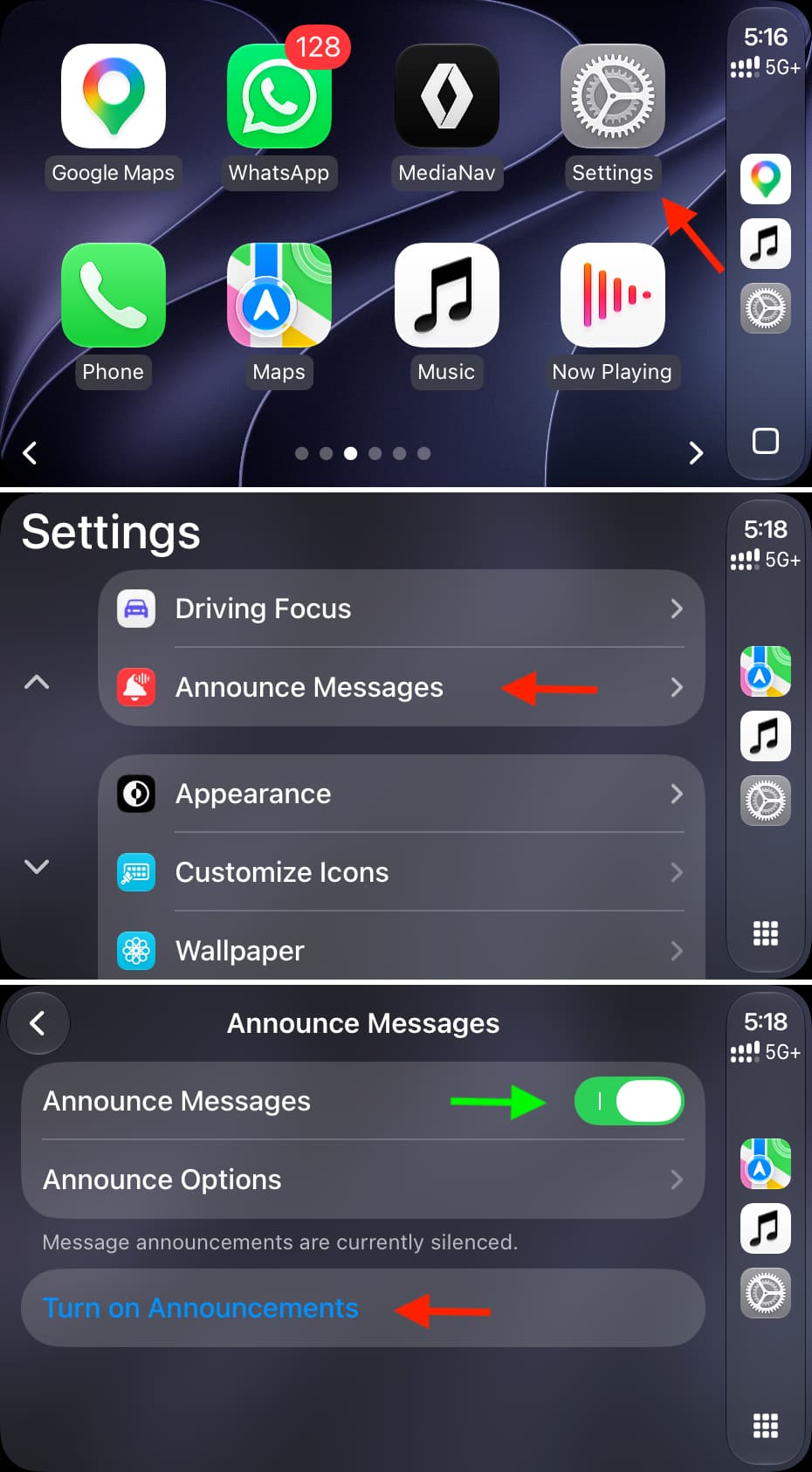
    Turning on Message Announcements in CarPlay settings

    From your iPhone

    1. Open the Settings app on your iPhone.
    2. Scroll down and tap Notifications.
    3. Tap Announce Notifications.
    4. Turn on Announce Notifications.
    5. Turn off Headphones if you don’t want your messages to be read in your ears in the ‘Announce When Connected To’ and tap CarPlay.
    6. Turn on Announce Messages and select Announce New Messages.
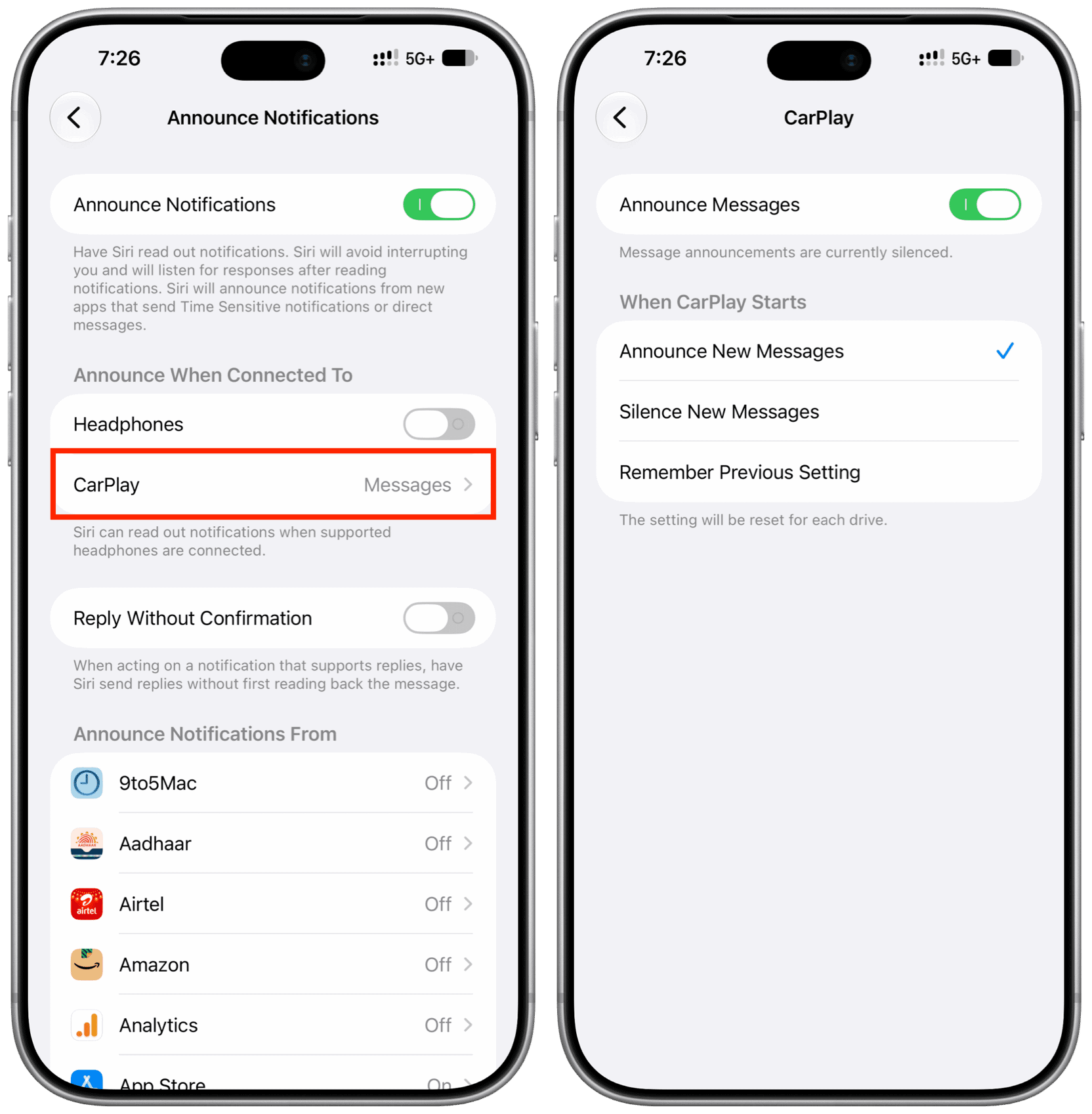
    Announce Messages for CarPlay enabled in iPhone Notification settings

    Moving forward, when you’re using CarPlay and get a new SMS, RCS text, or iMessage, Siri will read it aloud, and you’ll hear it through your car’s speaker.

    Reply to message

    Invoke Siri by saying “Siri or Hey Siri,” or press the voice assistant button on your car’s steering wheel or dashboard area (if available in your vehicle) and say something like:

    • Reply ‘your actual message’
    • Reply to ‘person’s name’ ‘your actual message’

    Silence message announcements for a ride

    Maybe you’re driving with other people in your car and don’t want Siri to read your texts aloud. You can ensure privacy by silencing message announcements for that ride (i.e., CarPlay session).

    1. Open the Settings app on your CarPlay screen.
    2. Tap Announce Messages.
    3. Tap Silence Announcements or Silence for This Drive Only.
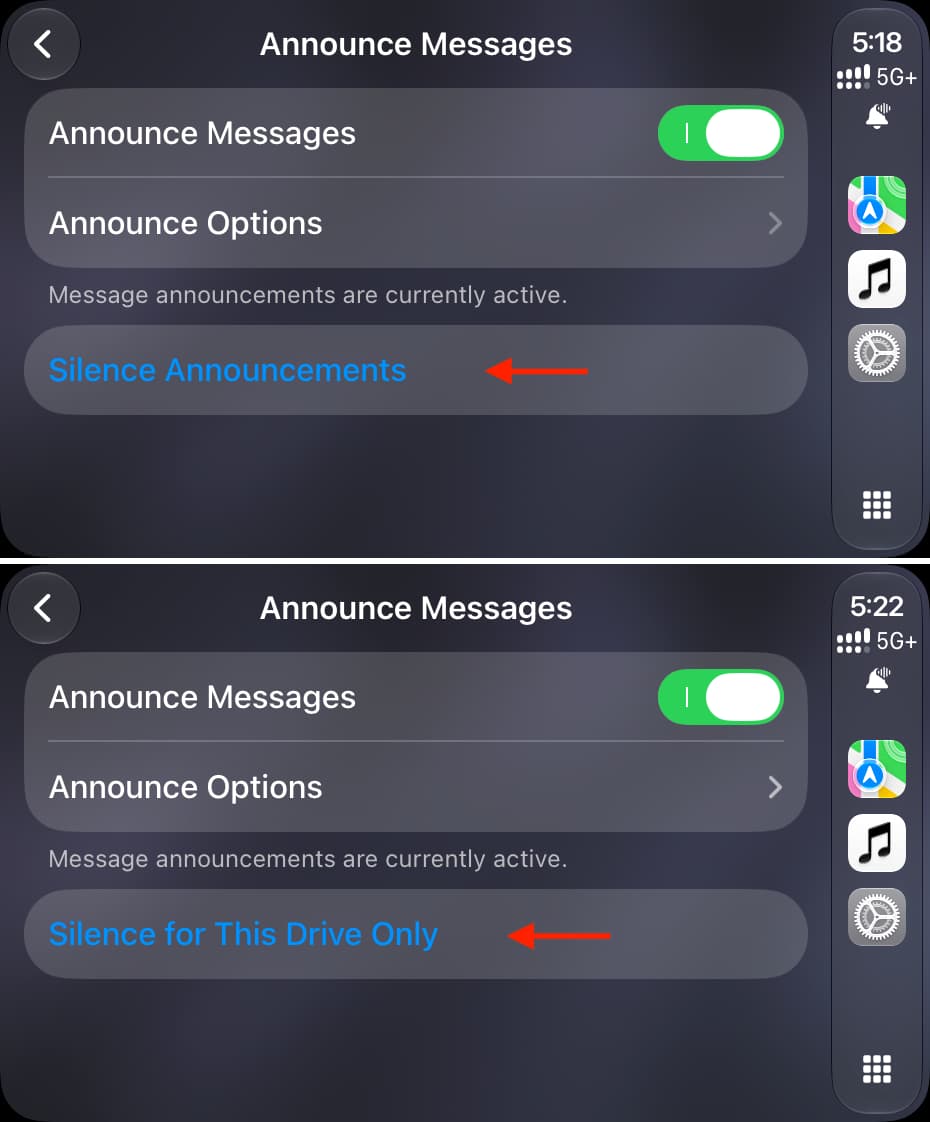
    Silence message announcements during CarPlay for this drive only

    Select what happens when CarPlay starts

    You can decide what message announcement setting is the default for when you start CarPlay.

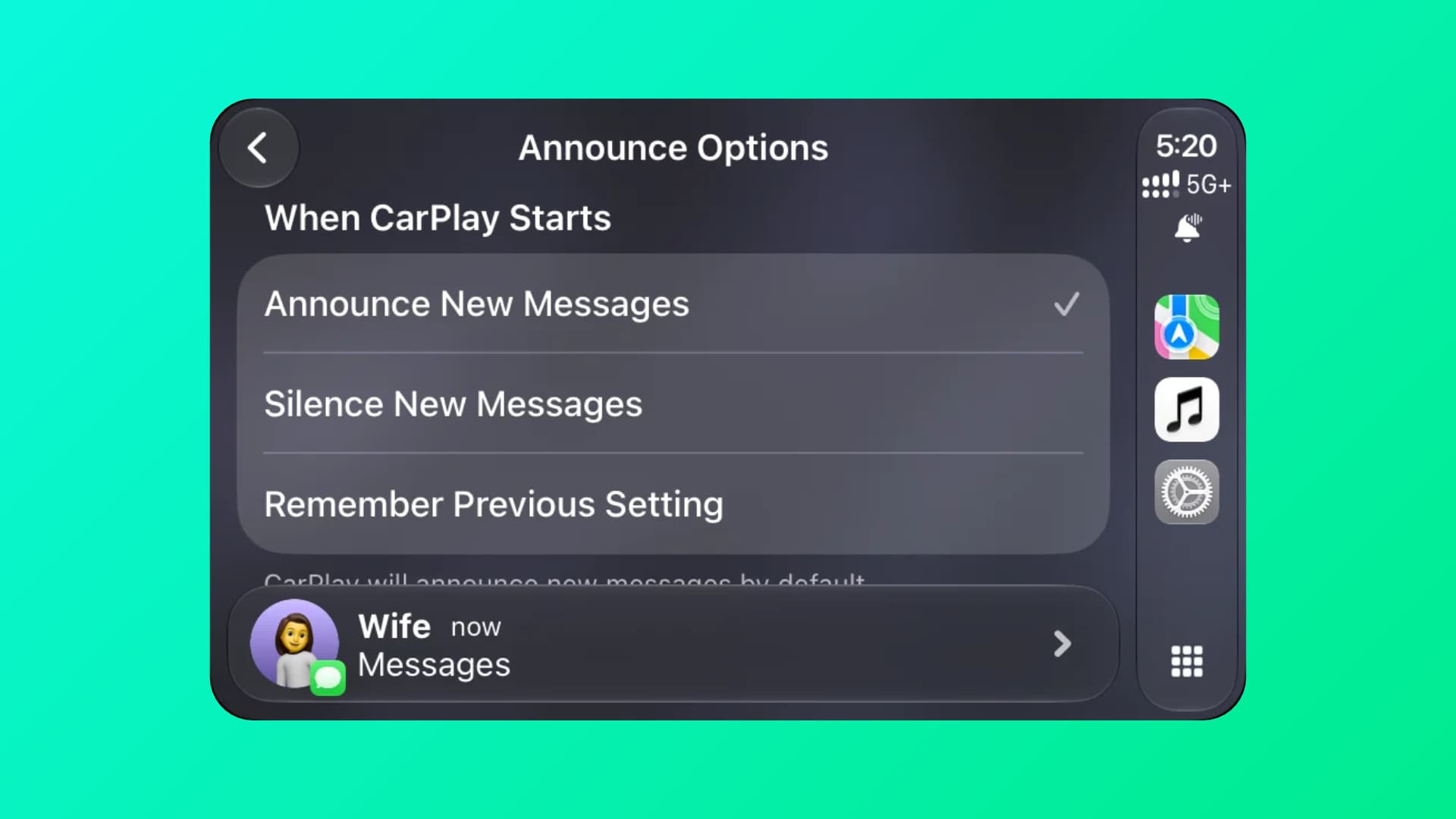
    Go to CarPlay Settings > Announce Messages > Announce Options or iPhone Settings > Notifications > Announce Notifications > CarPlay and select one of these options under the ‘When CarPlay Starts’ heading:

    • Announce New Messages: Siri will read new incoming messages.
    • Silence New Messages: Siri won’t read new incoming messages, but you can return to this feature’s settings and tap ‘Turn on Announcements’ for this ride.
    • Remember Previous Settings: Siri will remember whether you choose to turn on message announcements or silence it and honor that.
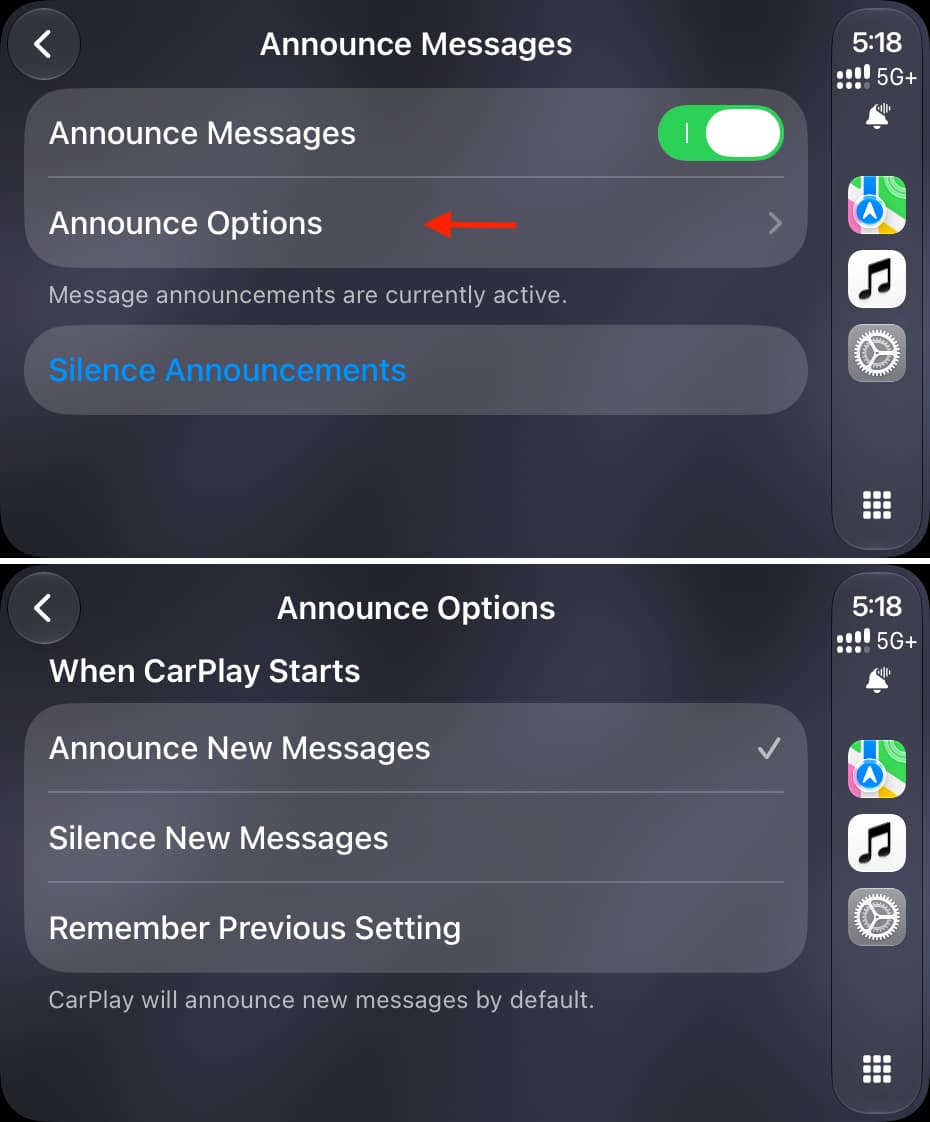
    Announce Options When CarPlay Starts

    If you always drive alone, then ‘Announce New Messages’ as the default is fine.

    If you’re on an occasional trip with some people and don’t want this feature, select ‘Remember Previous Settings’ and then silence the message announcements. This way, CarPlay will stay silent even if you take breaks during driving (i.e., stop and resume CarPlay).

    Select ‘Silence New Messages’ if you don’t want Siri to read your messages aloud by default.

    I usually drive alone and have set it to ‘Announce New Messages.’

    Turn off message announcements

    If you no longer need Siri to read your texts, head back to CarPlay Settings > Announce Messages and turn off the Announce Messages switch.
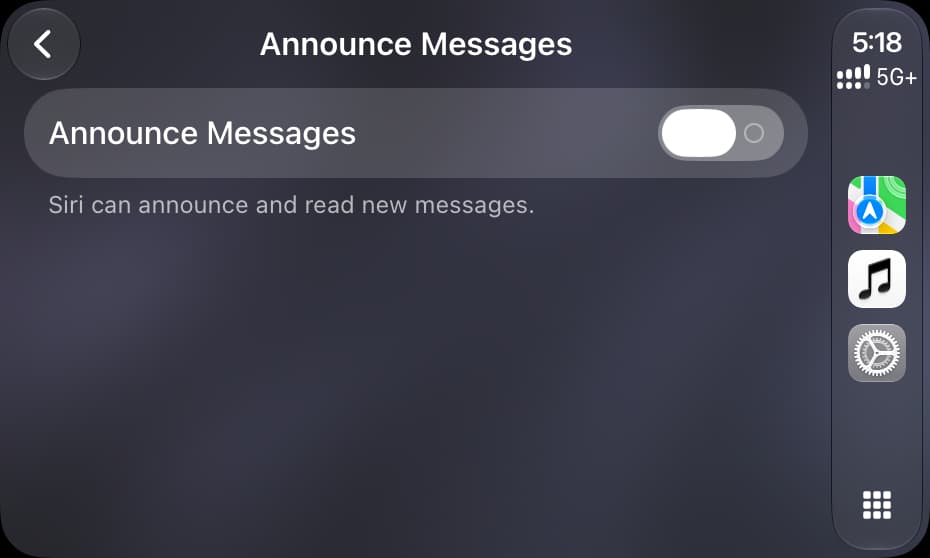
    Announce Messages turned off in CarPlay Settings

    You can also go to iOS Settings > Notifications > Announce Notifications > CarPlay and turn off Announce Messages.

    • How to auto-open Maps when you connect to CarPlay
    • 20 tips to use your iPhone with your car
    • Tips to customize CarPlay for your vehicle
    Car CarPlay Featured How to Messages News Push Siri Tips Tutorial Tutorials
    Follow on Google News Follow on Flipboard
    Share. Facebook Twitter Pinterest LinkedIn Tumblr Email Copy Link
    myappsplus
    • Website

    Related Posts

    Walmart drops Apple Pay support from its app and website

    November 24, 2026

    Kagi, the paid Google Search alternative, now has a Gmail rival too

    November 24, 2026

    Google Messages is preparing iMessage-style threaded replies to make chats easier to follow

    November 24, 2026
    Add A Comment
    Leave A Reply Cancel Reply

    Top Posts

    The pros and cons of using your phone as a mobile hotspot

    November 16, 202647 Views

    UiPath Launches AI Coding Agent, Integrates Claude Code and Codex to Target Development Automation

    November 16, 202646 Views

    Save on your groceries, gas, and holiday shopping with this $15 BJ’s membership (Reg. $60) 

    November 4, 202634 Views
    Latest Reviews

    iPhone price hike ‘better than feared,’ Duo to drive cycle demand

    myappsplusSeptember 11, 2026

    Fairbuds 2 leak gives us an early look at a very different design

    myappsplusSeptember 11, 2026

    Intel says it has already passed a million High-NA EUV wafers – more than the rest of the industry combined

    myappsplusSeptember 11, 2026
    Stay In Touch
    • Facebook
    • YouTube
    • TikTok
    • WhatsApp
    • Twitter
    • Instagram

    Subscribe to Updates

    Get the latest tech news from FooBar about tech, design and biz.

    Most Popular

    Ford CEO hits back at government ‘mistruths’ about China —as its $28K electric truck prepares to take on Slate and Chinese rivals

    September 12, 20260 Views

    Monitoring production agent lifecycle with AWS DevOps Agent and AgentCore Evaluations

    September 12, 20260 Views

    You can still shop these robot vacuums

    September 12, 20260 Views
    Our Picks

    Beats Studio Buds Plus are 47% off, matching their lowest price

    November 24, 2026

    Beats Studio Buds Plus are 47% off, matching their lowest price

    November 24, 2026

    Chinese tech company Huawei convicted on federal charges

    November 24, 2026

    Subscribe to Updates

    Subscribe to our newsletter and get the latest tech news, app updates, AI trends, smartphone reviews, and exclusive deals delivered straight to your inbox.

    Facebook X (Twitter) Instagram Pinterest
    • About Us
    • Get In Touch
    • Disclaimer
    • Privacy Policy
    • Terms & Conditions
    © 2026 MyAppsPlus. All Rights Reserved.

    Type above and press Enter to search. Press Esc to cancel.