

If your apps or menus have been a bit sluggish, it’s worth a try.
It’s happened to many of us at some point. You’ve settled into the couch in front of your smart TV, and you just started binging your favorite show, watching that new release you’ve been waiting for weeks to see or anxiously anticipating the start of a big playoff game when … your streaming app crashes.
Your first instinct may be to throw the remote across the room or immediately start browsing online for TV sales. Understandable reaction. But before you do any of that, take a deep breath and try one potential fix that could solve the problem if your TV is a Samsung: clearing the cache. Temporary cache files are stored every time you use an app, so they build up over time. The more apps you use, the more the cache grows. Eventually, that can impact your TV’s performance.
Taking just a couple of minutes to clear the cache may take care of your TV’s streaming issues. And don’t worry, clearing your TV’s cache will not delete any apps you’ve downloaded, mess with any of your audio/video settings, reset your Wi-Fi password or erase any software updates.
The benefits of clearing the cache on your TV

What clearing the cache on your Samsung TV will do is remove all temporary junk files that could be causing performance issues with the TV. So, if your streaming apps — like Hulu, Netflix, HBO Max, Peacock, Prime Video, YouTube and others — have been freezing or crashing when you’re trying to watch them, clearing the cache may fix those issues.
Another common symptom you may encounter is extra lag or buffering as you browse through your Samsung TV menus or start up your apps; a glut of old cache data could be the culprit. Clearing it out should improve your TV’s overall response time and result in smoother operation. Also worth noting is that most smart TVs have limited internal storage — typically around 8GB. However, the actual amount of available storage is far less.
For example, your Samsung TV’s operating system gobbles up around 20 percent of the TV’s total storage. When you factor in all the pre-installed bloatware, the apps you actually want to install and then the cache and temporary data files, there’s not much storage left to spare. Clearing out all the built-up cache can free up some space to keep your apps running smoothly. Keep in mind, however, that the cache will pile up again as you continue to run apps. It’s a good idea to make cache clearing a regular task every few months.
The downsides of clearing your TV’s cache

There really aren’t any lasting downsides to clearing your Samsung TV’s cache. You’re just getting rid of temporary junk files, after all. But you may experience a few minor inconveniences that are easily taken care of.
One annoyance is slower initial app loads, which occur because the app must download new temporary files (remember, you just deleted all the old ones) and images from online sources instead of loading them from the files that were locally stored on your TV. It’s just a few extra seconds to wait for the first launch of each app after you cleared the cache, and subsequent launches shouldn’t experience any delays.
Another small inconvenience, if you opt to Clear Data instead of Clear Cache, is the possible loss of saved app preferences, such as video playback, app layout or subtitle/closed captioning within certain apps. And you may notice within each app that some visuals like movie posters, thumbnails and other images take an extra beat to load. This happens for the same reason that the app takes an extra few seconds to launch after the TV’s cache has been cleared.
How to clear your Samsung TV’s cache
Clearing the cache on your Samsung smart TV is pretty quick and straightforward. And these instructions should apply to most Samsung TV models. We’ll provide directions for Samsung TVs dating back to 2016 because they do vary slightly.
To clear the entire system cache for Samsung TV models made between 2020 and today, go to Settings > Support > Device Care > Start Device Care. If you want to clear the cache of individual apps, follow the same path, but choose Manage Storage rather than Start Device Care, select the app, click View Details > Clear Cache.
For 2019 and 7-Series Samsung TV models, follow Settings > Support > Self Diagnosis > TV Device Manager > Clean Now (to clear your TV’s entire system), or choose an app and clear its cache from there. If you have a Samsung TV made between 2016 and 2018, you won’t be able to clear caches of individual apps. But you can delete browser cookies as well as some internet data by going to Settings > Broadcasting > Expert Settings > HbbTV Settings > Delete Browsing Data.
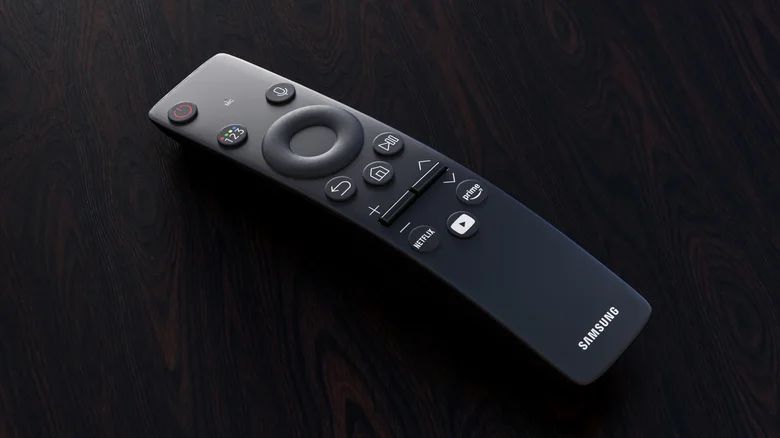
Clearing the cache of your TV or individual apps should help with performance. If all else fails, you can always give your TV a cold boot, which works on every Samsung smart TV regardless of when it was built. With the TV on, press and hold the power button on your Samsung TV remote until the TV shuts off and turns back on. That process lasts roughly five seconds. Or, unplug the TV’s power cable from the wall (or power strip), then wait 30 to 60 seconds before plugging it back in. These physical resets completely shut down the TV’s operating system and clear out temporary cache files.
