


In this step-by-step tutorial, we show you how to check whether an image is AI-generated using SynthID Detector or Siri on your iPhone, iPad, Mac, Android phone, or Windows PC.
AI image generation tools have gotten extremely good, and there is a high possibility that many people, including those who like to think they are tech-savvy, may be deceived into believing an AI image is real.
To address this, Google developed the SynthID digital watermark, which is added to AI-generated or AI-edited photos from participating companies. This watermark is invisible to humans, but dedicated tools like SynthID Detector can see it and tell if the image was made or edited by AI.
Google, OpenAI, Nvidia, Kakao, and Apple are among the leading companies that add the SynthID digital watermark to images their AI tools generate or edit.
Apple added the invisible SynthID watermark feature in iOS 27.2 for images generated by its Image Playground app and Image Wand tool or edited in the Apple Photos app using AI features like Clean Up, Extend, and Spatial Reframing.
This means that if you edit a photo on your iPhone using these AI tools and send it to someone, they can easily tell whether it was AI-edited or generated, thanks to the embedded, invisible SynthID watermark.
I recently heard about an incident involving a person who used AI to generate or manipulate expense bill images and submitted them to their employer to claim reimbursements. The fraud was eventually detected when the person responsible for approving the claims started checking whether the submitted bills were AI-generated. So make sure you no longer use these methods to fabricate images to mislead people.
That said, here are a couple of quick ways to know if an image is AI-generated. The first method works on all devices, while the Siri methods are for iPhone, iPad, and Mac.
Use SynthID Detector
Use these steps to check whether an image is AI-generated, provided it was created or edited with generative tools from companies that support SynthID, such as Apple, OpenAI (ChatGPT), Google (photos generated with Gemini), Nvidia, and Kakao.
1) Visit synthid.com on your phone or computer and agree to the terms and conditions if you do.
2) Tap Select file or the profile icon and sign in with your Google, Apple, or OpenAI account. As of now, accepting the terms and conditions, signing in, and allowing SynthID Detector to access basic details like your name are mandatory.
3) Tap Select file again and upload the photo you want to check to see whether it’s AI-generated.
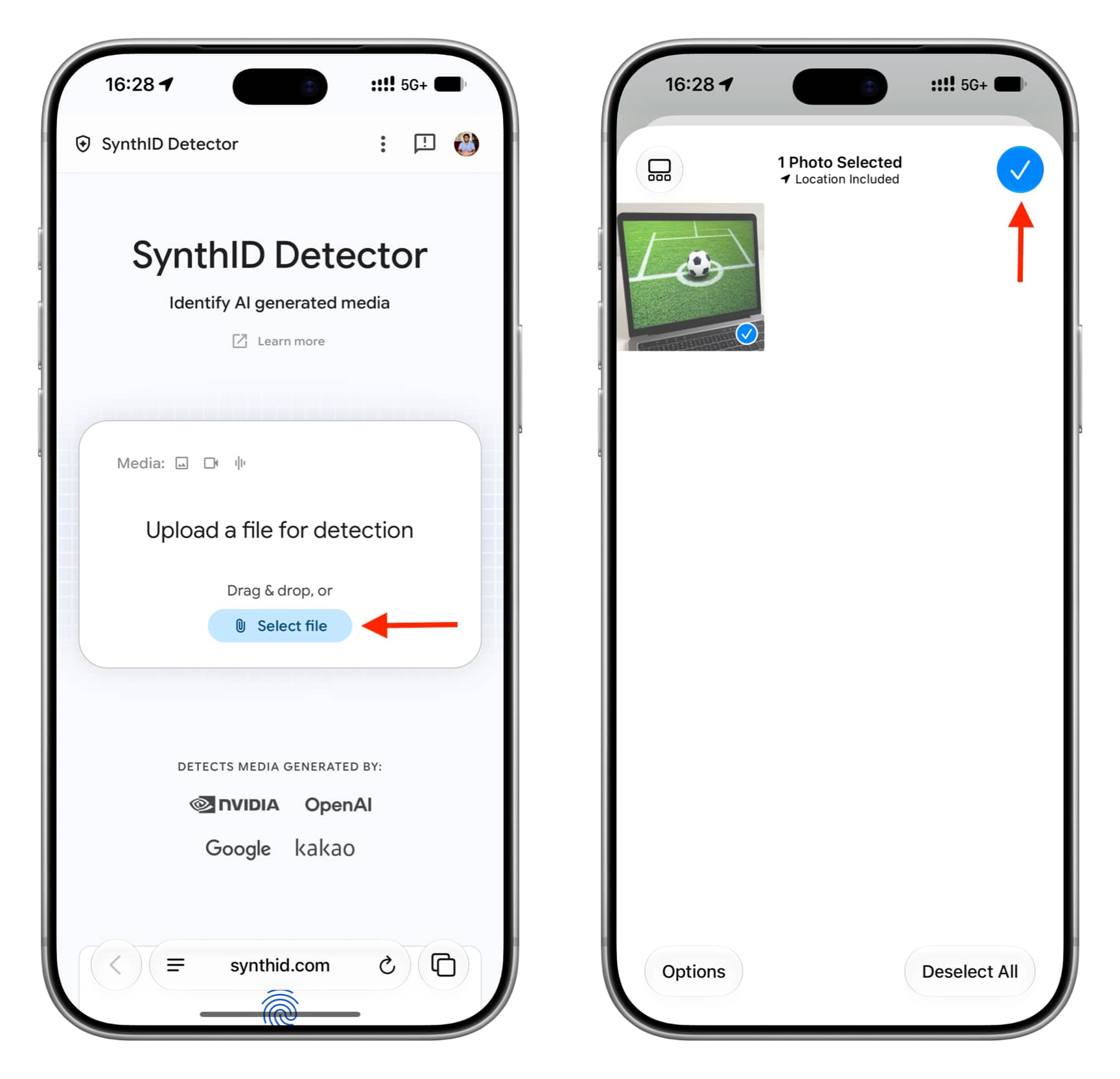
4) If it’s AI-generated, it will say “SynthID was detected. This media was made or edited with AI from a SynthID partner.” I got this for an image I generated in Apple’s Image Playground app on my iPhone running iOS 27.3 beta.
In some cases, it also shows the AI company name that generated the image, like “This media was made or edited with OpenAI.”
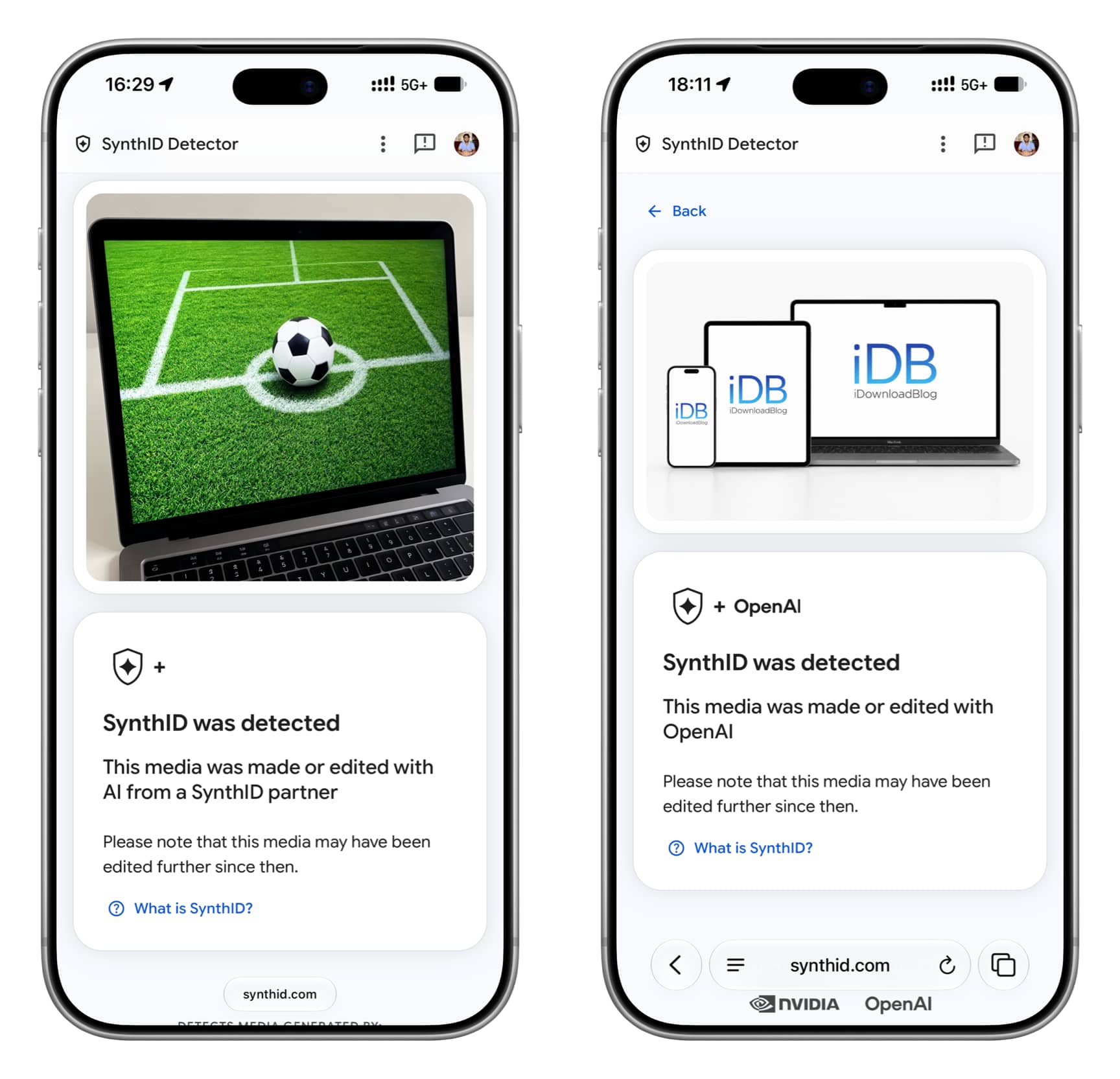
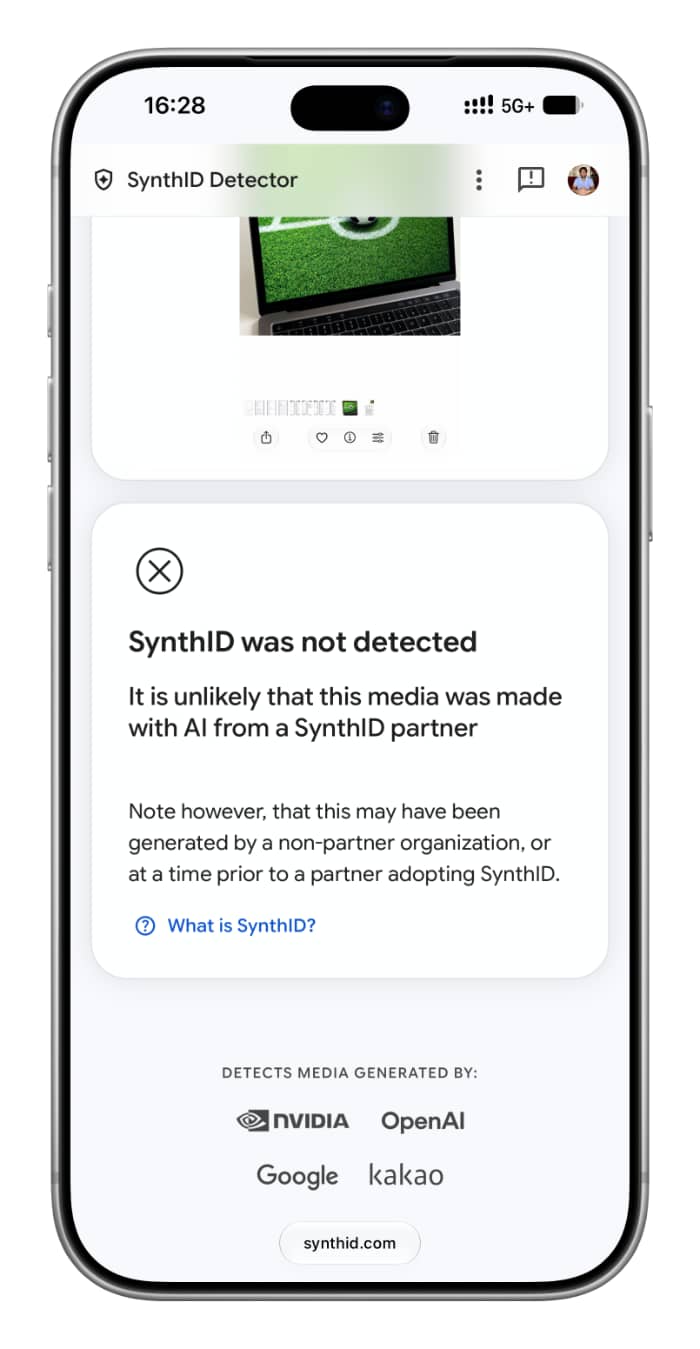
If the image is not AI-generated or generated/edited using a tool that doesn’t use SynthID, it will say “SynthID was not detected. It is unlikely that this media was made with AI from a SynthID partner.”
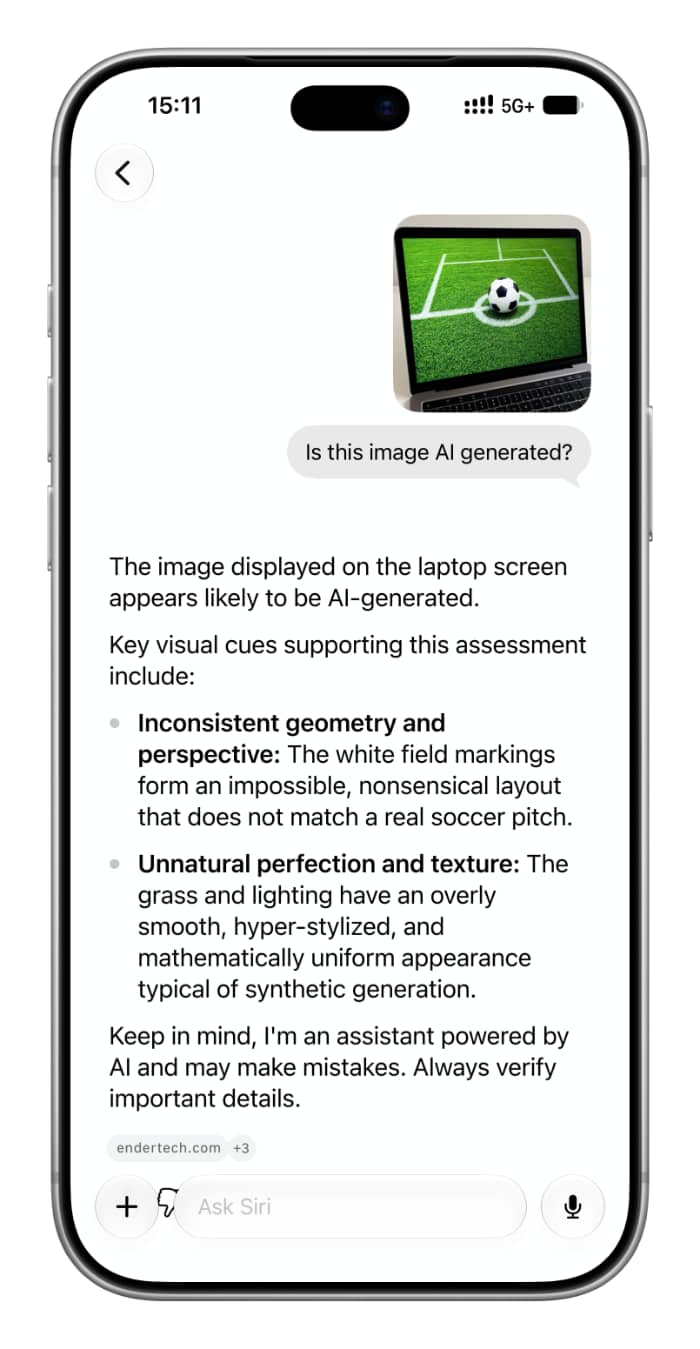
Ask Siri app
iOS 27, iPadOS 27, and macOS 27 Golden Gate have a dedicated Siri app. Add a photo and ask if it’s AI-generated. It works, but isn’t always accurate; I had ChatGPT generate an image, and Siri said it wasn’t AI-generated.
Ask Siri
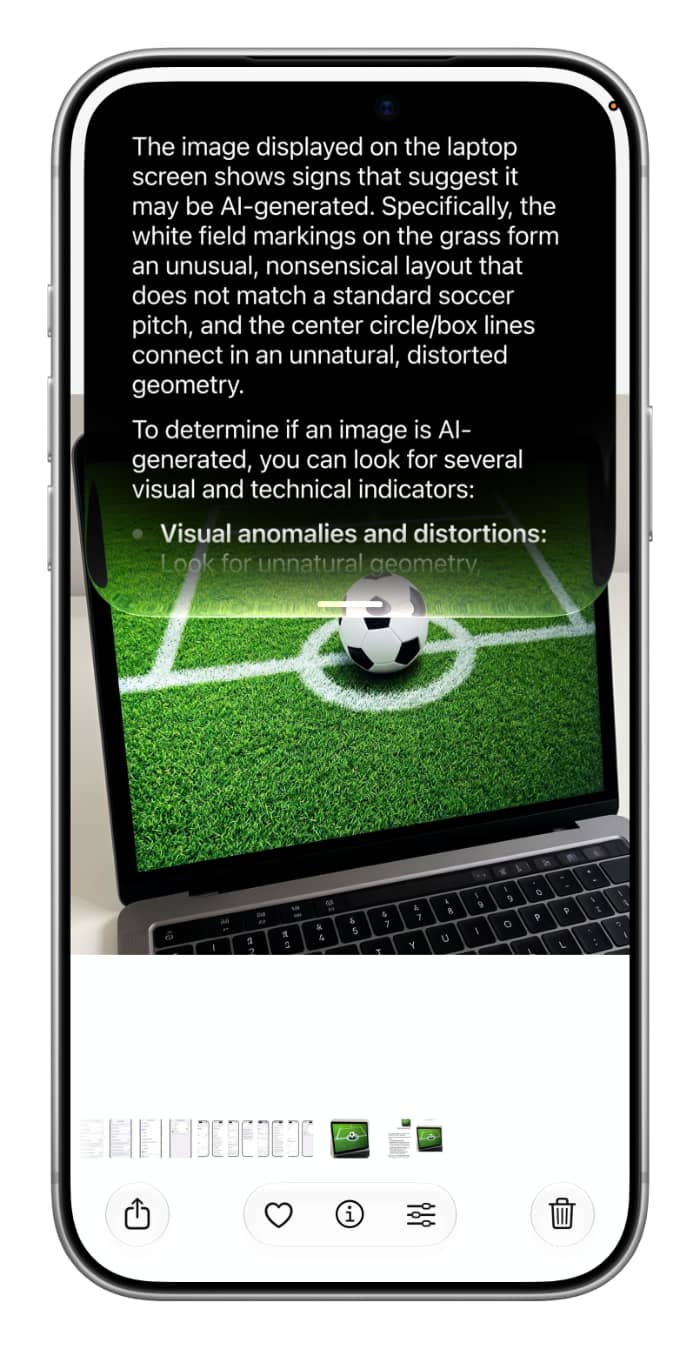
Siri in iOS 27 has screen awareness, meaning it can see and understand what’s on your phone screen. Simply have the image open on the screen and ask Siri if it’s AI-generated. Siri should be able to tell.
Use reverse image search
Search for the image and spend some time finding where it came from. A bit of research should give you an idea of the photo’s origins.
To sum up, using Google SynthID is the best, sure-shot way to know whether an image is AI-generated or manipulated, but it only works if the AI tool used is one that has partnered with SynthID. Thankfully, the top companies that make the most AI images, like OpenAI (ChatGPT), Google (Gemini), Nvidia, and Apple, are already partners. Hopefully, more companies will come on board and add invisible watermarks to their AI-generated images so we don’t end up in a world where it’s impossible to tell real from fake.
Also, check out: New features added to iPhone Photos app in iOS 27
