

Some of its best features can be enabled in seconds.
Android has long allowed third-party keyboards to replace the built-in one that came installed on your phone. It’s ironic, then, that Google’s own Gboard app is widely regarded as the best available keyboard on the platform. While some vendors — most notably Samsung — ship their own, proprietary keyboards, Gboard comes installed by default on the company’s Pixel phones, as well as on devices from several other brands. But you can tweak it a lot to get better results, and no, you don’t need to turn it into a conveyor belt.
Using Gboard is a good experience at first, with smooth typing, decent auto-correct and text prediction. But that’s only scratching the surface. Some of the most powerful Gboard features are tucked just out of sight. Taking advantage of them can help supercharge your mobile productivity. Whether you’re looking for a more comfortable typing experience, more ways to manipulate text, or want more features when using a physical keyboard with your Android device, these are just a few Gboard features that can boost your productivity.
Use the Gboard clipboard
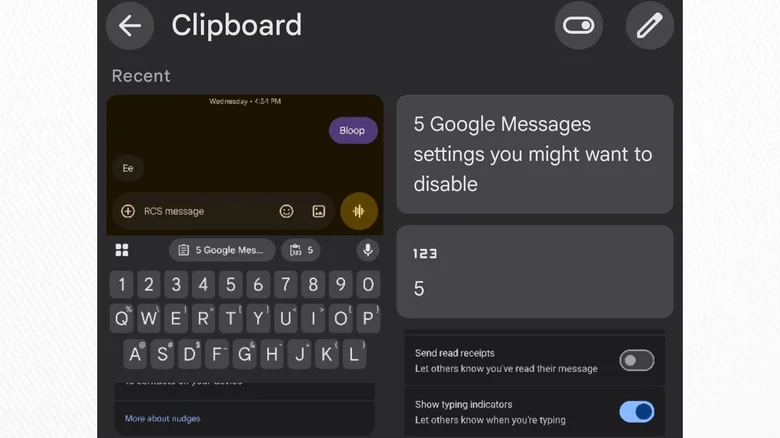
Perhaps the most impactful change you can make to Gboard is turning on the clipboard, which is disabled by default for security reasons. By default, Android only allows you to paste the most recent thing you cut or copied, but enabling Gboard’s clipboard allows you to copy multiple things at once, including images. For example, if you wanted to copy multiple quotes out of an article back-to-back, along with some of its pictures, you can do so. You can then open a different app, open the clipboard, and paste them all in with a few taps. Items are deleted from the clipboard after an hour, but you can pin an item to keep them there permanently (for example, an email sign-off you always use).
There are some security risks to enabling the clipboard. Copying a password out of a password manager becomes riskier because it will sit on the clipboard for an hour unless you manually delete it, and in the unlikely event your phone were subject to an attack that looks at your clipboard, the attacker would see potentially actionable information depending on what you’ve recently copied. For most people, the benefits outweigh the risk, but it’s worth knowing what you’re getting into.
Gboard’s clipboard gets even more powerful when you use clipboard sync with other devices. While Gboard does not have its own clipboard sync, programs like Microsoft Phone Link or KDE Connect do. Enabling clipboard sync means that copying something on one device will also copy it on your other synced devices. That means you can copy a text string or image from your desktop browser and paste it into an app on your phone, or vice versa.
To enable the Gboard clipboard, open the keyboard using any text field, then tap the clipboard-shaped icon on the top toolbar above the keys (you may need to tap the four-squares icon and find it in the overflow menu if it is not on the toolbar). You will see a prompt with a blue button labeled, “Turn on Clipboard.” Tap that, and you can clip away.
Try resizing, floating and one-handed mode
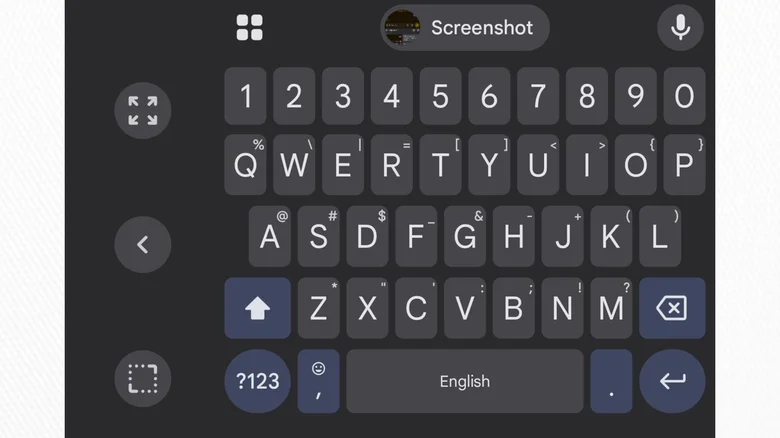
Flagship phones have ballooned to comical proportions over the years, adopting expansive screens that require a lot of finger gymnastics to navigate. Typing can be particularly difficult, especially if you find yourself using your phone with one hand while holding something in the other. Gboard makes things easier with three features.
The ability to resize the keyboard is the best place to start. You can shrink the keyboard vertically to reclaim more space on-screen while typing, or expand it to create a larger touch target for each key. If you find that the keyboard is too low, and that the weight of your phone makes typing a pain, you can raise Gboard to put more space underneath it. On tablets, you can even move the keyboard horizontally — I like to cram mine all the way to one end so I can use swipe typing with one hand.
Gboard also has a floating mode, which detaches the keyboard from the bottom of the screen, allowing you to move and resize it freely as a floating, always-on-top window. It’s more handy on tablets than on phones, but if you want to make sure you can reach the entire keyboard with one thumb while holding the phone at an odd angle, Gboard has you covered.
For me, the most useful of Gboard’s ergonomic accommodations is one-handed mode. It does not change the area of the screen the keyboard takes up, but crams all the keys toward one side of the screen. On larger phones, this allows you to easily reach all of the keys without stretching your fingers precariously — no more dropping your phone while trying to reach the letter Q. A small button allows you to swap which side the keyboard aligns toward, and there’s a separate resizing control within one-handed mode to dial things in even further.
All three of these controls can be found in either the toolbar atop Gboard, or in the overflow menu accessible by tapping the four-squares icon.
Customize long presses, vibration, and more
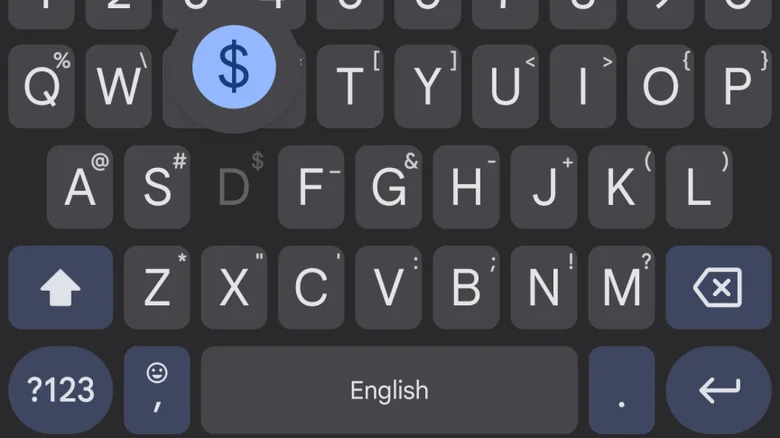
Dive into Gboard’s extensive settings menu, and you’ll quickly find that nearly every aspect of the keyboard can be tweaked to your liking. The best advice is to simply spend some time methodically looking through the settings to find which adjustments are useful to you, but if you’re short on time, here are a few settings I always change when setting up Gboard.
Long-pressing a key in Gboard allows you to enter a corresponding symbol, reducing the number of times you need to press the “?123” key. You can adjust the length of time it takes for a long-press to register by going to Gboard settings > Preferences > Touch & hold duration. I’m a fast typer, so I reduce mine to 200 milliseconds. Any longer and I feel slowed down by long-presses. Any shorter and I long-press keys accidentally. It’s worth playing around with this setting to find your own sweet spot.
Just above that setting in Preferences, you can adjust the length of the vibration that accompanies each keypress when haptics (labeled as Keyboard vibration in Gboard settings) are enabled. I like to tone this way down to just two milliseconds, which is enough for me to feel a keypress register without the vibrations overlapping one another when I press the next key.
At the top of the Preferences menu, making sure the comma and period key are both enabled allows you to enter those symbols with a single tap rather than forcing you to tap the “?123” key to surface them. Depending on how often you use emoji or second languages, you may wish to show the language switch or emoji key on the main page, too. However, both can also be accessed by long-pressing the comma key. I personally find myself accidentally tapping those keys too often to leave them on.
Gboard has a special mode for physical keyboards
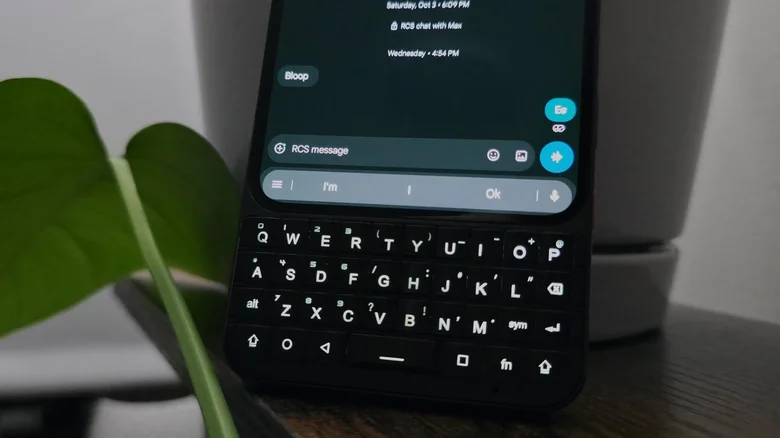
If you’re the type of person who uses a Bluetooth keyboard with your Android phone or tablet, or who has a phone with a physical keyboard such as the Unihertz Titan 2 Elite or Clicks Communicator, Gboard has a special mode for you. When Gboard senses input from a physical keyboard, the on-screen keyboard disappears and is replaced with a small strip along the bottom of the screen. It shows text and emoji predictions sandwiched between an overflow menu and a voice input shortcut.
While typing, you can accept one of the three text suggestions Gboard surfaces by pressing the Alt key in combination with the 1, 2, or 3 key. There are other keyboard shortcuts bound to opening the clipboard, Gboard’s Google Translate layer, the emoji and symbols keyboards, and more.
On a tablet, dragging the Gboard strip from the bottom of the screen allows you to freely reposition it along the sides of the display, though it will shrink to remove the text suggestions. On a phone, you can instead select “Switch to vertical toolbar” from the overflow menu to shrink it down to a small pill.
If you wish, you can disable the suggestion bar entirely by opening Gboard settings > Physical keyboard and toggling off Show toolbar. You can also choose to disable auto-correction and auto-capitalization, which can feel strange while typing on a real keyboard.
