Close Menu
MyAppsPlus

    Subscribe to Updates

    Get the latest creative news from FooBar about art, design and business.

    What's Hot

    Harvard University reveals data breach exposed 851,000 accounts

    November 5, 2026

    God of War Laufey is delayed until May 20

    November 5, 2026

    The INIU Outdoor Rugged 20000 power bank is built to keep your adventures juiced up for longer

    November 5, 2026
    Facebook X (Twitter) Instagram
    Facebook X (Twitter) Instagram
    MyAppsPlusMyAppsPlus
    Thursday, November 5
    • Home
    • Breaking Tech
    • Apps & Software
    • AI & Automation
    • Android
    • iPhone & iOS
    • More
      • Reviews
      • How-To Guides
      • Deals & Discounts
      • Shop
    MyAppsPlus
    Home»iPhone & iOS»How to access App Switcher on Apple Watch in watchOS 27
    iPhone & iOS

    How to access App Switcher on Apple Watch in watchOS 27

    myappsplusBy myappsplusNovember 5, 2026002 Mins Read
    Share Facebook Twitter Pinterest Copy Link LinkedIn Tumblr Email Telegram WhatsApp
    Follow Us
    Google News Flipboard
    How to access App Switcher on Apple Watch in watchOS 27
    Share
    Facebook Twitter LinkedIn Pinterest Email Copy Link

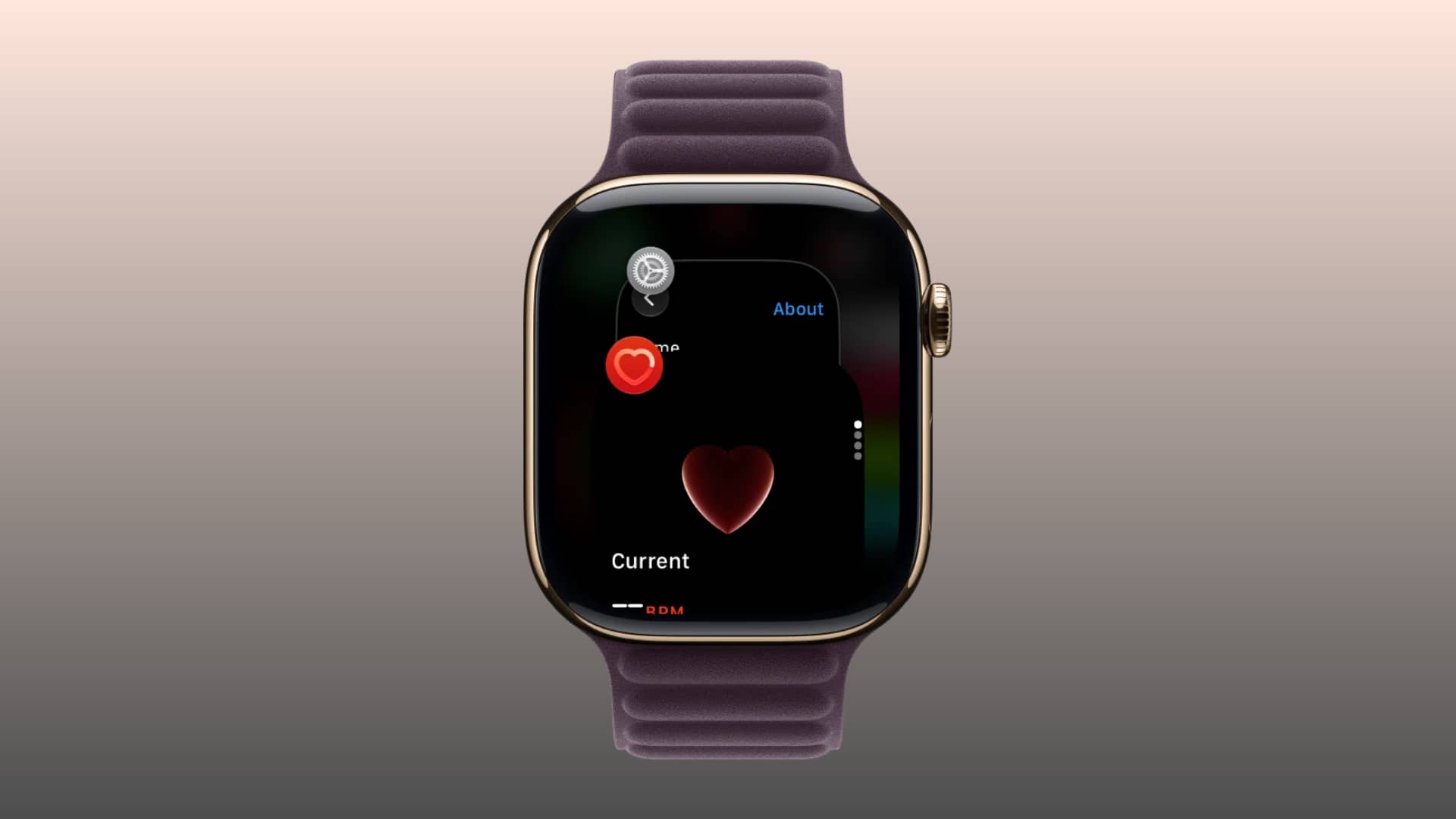
    Learn how to access the missing App Switcher on your Apple Watch in watchOS 27 to see your recently used apps and swipe left to force-close one.

    Before the watchOS 27 update, you could double-press the Digital Crown to bring up the App Switcher and access your recently used apps.

    However, Apple introduced a new Live Rewind AI feature for Series 12 and Ultra 4 in watchOS 27, and it’s mapped to a double-press of the Digital Crown (Live Rewind has finally arrived in watchOS 27.3, which is currently in beta).

    Double-pressing the Digital Crown on older watch models running watchOS 27 does nothing, leading users to believe there is no way to access recently used apps, aside from hoping to see them on the revamped Home Screen.
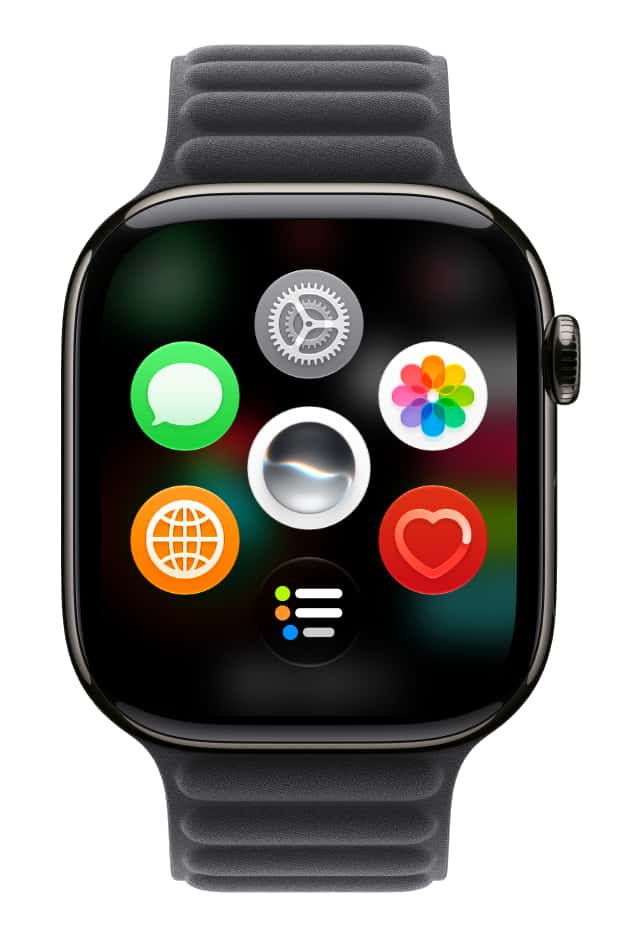
    New watchOS 27 home screen
    My recently used apps on watchOS 27 Home Screen

    But that’s not entirely true. Apple has simply changed how we access the App Switcher. Here’s the new method that works on all Apple Watch models running watchOS 27.

    See recently used apps on Apple Watch in watchOS 27

    1. Update your Apple Watch to watchOS 27.2 or later.
    2. Make sure you’re inside an app, and not on the watch face or Home Screen.
    3. Touch and hold the bottom of the screen until you feel a soft vibration.
    4. Swipe up or down to go through all your recently used apps.
    5. If you swipe to an app card and don’t do anything, watchOS will automatically show that app on the full screen after a couple of seconds.

    You can also swipe left on an app card and tap the big red X icon to quit it. Remember, the old method to force-close an app using the power-off screen still works.

    Remember that, just like iOS, you shouldn’t close all recent apps if your goal is to save battery. It can actually hurt battery life, as Apple itself has pointed out.

    • How to use the new consolidated Find My app in watchOS 27
    • Stop Apple Watch from asking for passcode frequently
    App Switcher Apple Watch Apple Watch Tips Featured How to News Push Tips Tutorial Tutorials watchOS
    Follow on Google News Follow on Flipboard
    Share. Facebook Twitter Pinterest LinkedIn Tumblr Email Copy Link
    myappsplus
    • Website

    Related Posts

    Livestream: Watch Labrinth create a song from scratch tonight using Apple’s new MacBook Pro

    November 5, 2026

    Labrinth is spending a night at an Apple Store making music on the new MacBook Pro

    November 5, 2026

    Report: Apple and Samsung outperform rivals as smartphone chip shipments tumble 21%

    November 5, 2026
    Add A Comment
    Leave A Reply Cancel Reply

    Top Posts

    Cathay Pacific tests Google AI that dramatically cuts airplane contrails — tiny altitude shifts slash environmental impact by 40% in early trials

    September 8, 2026138 Views

    Apple is making Creator Studio an even better deal with new AI features and creative tools

    October 28, 202618 Views

    Liene PixCut S1 Photo Printer and Sticker Cutter Review

    October 31, 202617 Views
    Latest Reviews

    Plug-in solar shone at IFA 2026 —here are the 5 best products we saw, from Anker to DJI and EcoFlow

    myappsplusSeptember 5, 2026

    I rode in a self-driving powered wheelchair that avoids obstacles and people, and can be summoned when you need it — it’s like Tesla’s Autopilot for personal mobility

    myappsplusSeptember 5, 2026

    What is the release date for The Paper season 2 on Peacock?

    myappsplusSeptember 5, 2026
    Stay In Touch
    • Facebook
    • YouTube
    • TikTok
    • WhatsApp
    • Twitter
    • Instagram

    Subscribe to Updates

    Get the latest tech news from FooBar about tech, design and biz.

    Most Popular

    Plug-in solar shone at IFA 2026 —here are the 5 best products we saw, from Anker to DJI and EcoFlow

    September 5, 20260 Views

    What is the release date for The Paper season 2 on Peacock?

    September 5, 20260 Views

    I just tried Ecovacs’ robot vacuum of the future — and as a pet owner, I’m beyond floored

    September 5, 20260 Views
    Our Picks

    Harvard University reveals data breach exposed 851,000 accounts

    November 5, 2026

    God of War Laufey is delayed until May 20

    November 5, 2026

    The INIU Outdoor Rugged 20000 power bank is built to keep your adventures juiced up for longer

    November 5, 2026

    Subscribe to Updates

    Subscribe to our newsletter and get the latest tech news, app updates, AI trends, smartphone reviews, and exclusive deals delivered straight to your inbox.

    Facebook X (Twitter) Instagram Pinterest
    • About Us
    • Get In Touch
    • Disclaimer
    • Privacy Policy
    • Terms & Conditions
    © 2026 MyAppsPlus. All Rights Reserved.

    Type above and press Enter to search. Press Esc to cancel.