

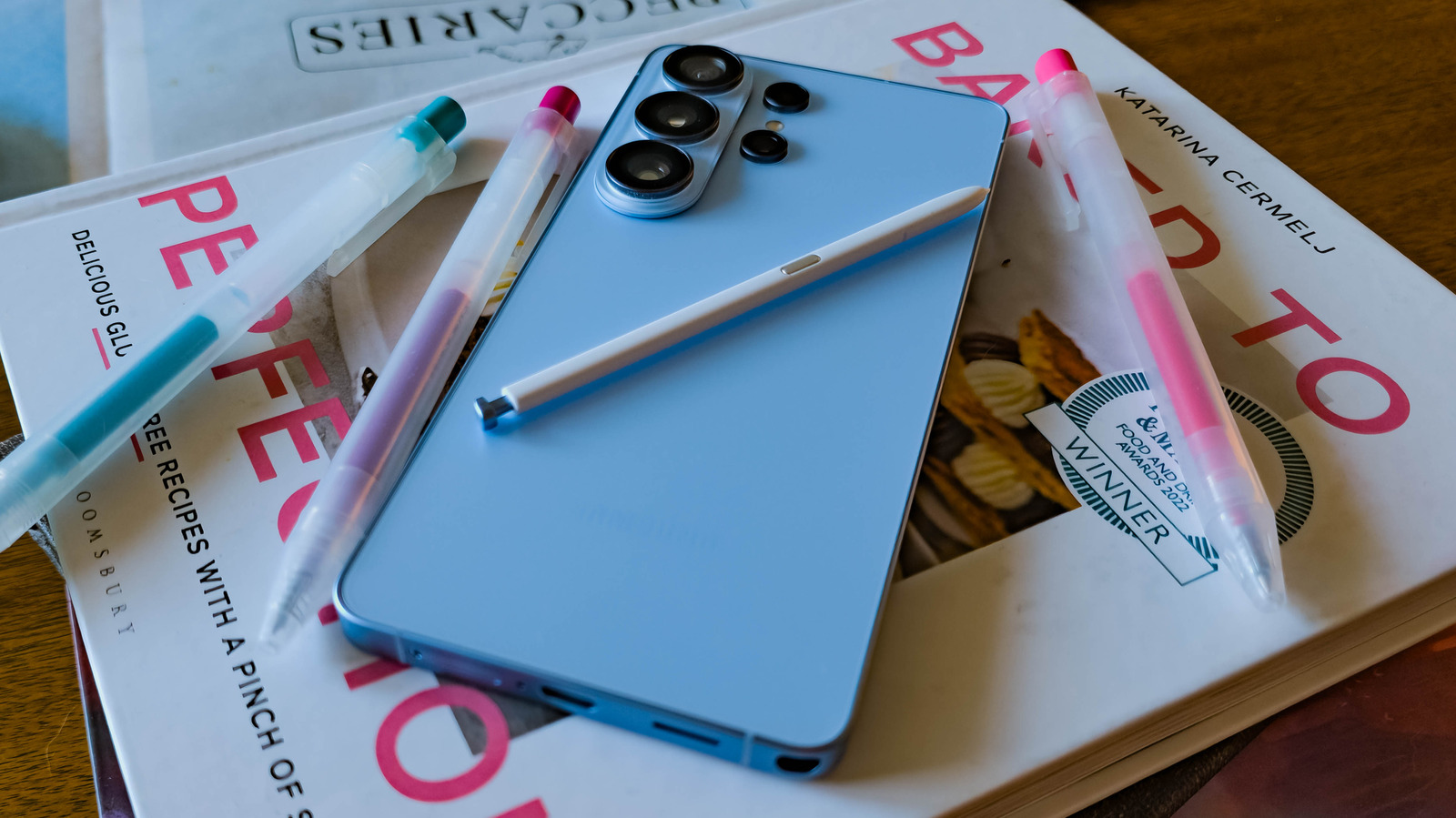
From deep customization to seamless multi-device computing, there’s a lot that makes One UI stand out from other Android variants.
Samsung’s Galaxy smartphones are the world’s most popular Android smartphones, which means that a huge chunk of Android users’ experience of the OS is through Samsung’s One UI software. But that’s not a bad thing: One UI has a slew of unique features you can’t get elsewhere, and once you find the most useful features for you, it can be hard to switch to another brand.
Some of Samsung’s exclusive features in One UI 9, the most recent version of its skin built on Android 17, can help you use your devices together more easily. Others protect your phone against security threats and advanced malware. But some of the most charming features involve audio. As the owner of brands like Harmon Kardon, Denon, and JBL, Samsung is a major player in the audio space, and its Android skin reflects that with features that let you share and control your music more easily.
All of these features were tested on devices running this year’s feature-rich One UI 9 and One UI 8.5, but not every Samsung phone will update to that software. But don’t fret: all of these features are also available on One UI 8, which some older devices support.
Multi Control lets you use the same mouse and keyboard with multiple devices
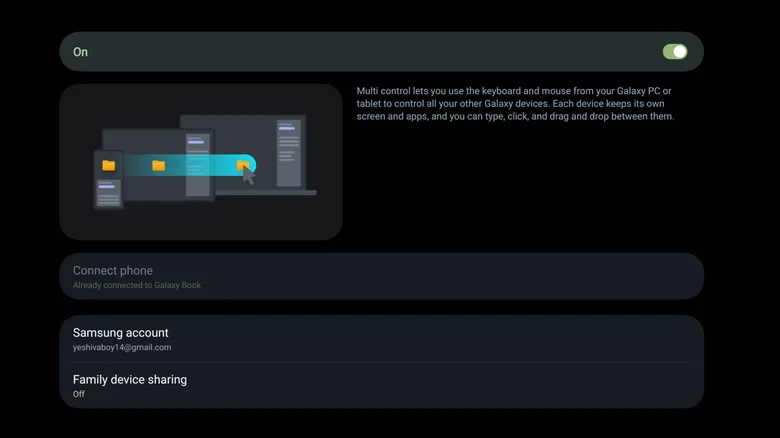
Screenshot by Max Miller (Samsung)
Switching between multiple Galaxy devices — or a Galaxy device and a Windows PC — can be cumbersome. That’s where Multi Control comes in, allowing you to connect a mouse and keyboard to one device and use them on the others. Multi Control lets you move your inputs between any combination of Galaxy devices and a Windows PC and use them to control the native Android interface. You can also type in text boxes on all connected devices and even drag files between them.
Other manufacturers have similar features — Lenovo as part of Motorola Smart Connect and Oppo/OnePlus within the O+ Connect suite — but the crucial difference is that those features require a PC to sit in the middle of the connection. Only Multi Control lets you share a mouse and keyboard between a phone and tablet without a PC in the mix. As someone who uses a Samsung Galaxy Tab S10 Ultra as my primary “laptop,” this means I can pop my phone on a kickstand, fold out my tablet’s keyboard case, and use the keyboard and trackpad to control both devices. It essentially turns my phone into a miniature second monitor, perfect as an always-on Spotify window or a dedicated screen for a calendar or to-do list.
Until recently, Multi Control on PC was locked to Samsung computers such as Galaxy Books. However, as of this writing, Samsung has opened the functionality up to work with any PC. As I write this, my tablet sits alongside my PC monitors, happily accepting the PC’s cursor on its screen. My phone sits below the tablet, and I can move my cursor between them seamlessly.
Separate App Sound lets you DJ a party while watching TikTok
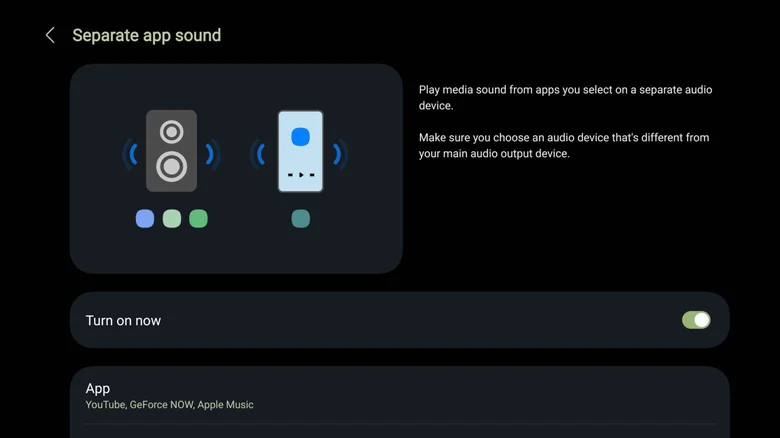
Have you ever been in charge of the music on a road trip or at a party and accidentally blasted the beginning of a TikTok or Instagram video over the Bluetooth speaker? If so, Samsung has a feature that will prevent those embarrassing moments.
Android generally wants to play from just one audios your music, for example, and both will playyou tweak that behavior. You can route apps to specific outputs, so TikTok and Instagram can be set to play through the phone’s built-in speaker, even when you’re connected to your car’s Bluetooth, preventing that road trip faux pas
To configure Separate App Sound, open Settings > Sounds and vibration > Separate app sound. You will be prompted to pick an app and select an accompanying output device. To go a step further, you can download Good Lock from the Galaxy Store and install the Sound Assistant module. Inside Sound Assistant, you will find the Multi sound setting, which lets you choose which apps can play audio at the same time as other apps. Alternatively, select the “All apps” option to prevent apps from pausing other apps’ audio system-wide, essentially forcing Android to handle audio like a desktop OS.
Music Share lets your friends DJ the road trip without diving into Bluetooth settings
We’ve all been in a situation where a friend wants to take over the car radio to play some of their own music. As eager as you may be to oblige, though, connecting their phone requires fiddling with the inscrutable Bluetooth menus in your car’s head unit, which isn’t easy while you’re parked, let alone while careening down the highway, so you say “no.”
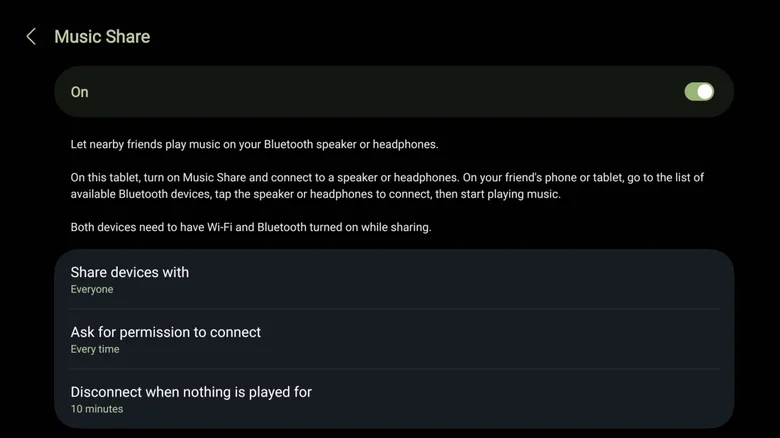
Music Share is a Samsung Galaxy feature that solves this exact issue. It allows other devices to connect to your phone and piggyback on your Bluetooth connection. After connecting your Galaxy device to a Bluetooth speaker and enabling Music Share from the Quick Panel, the speaker will show up on other people’s phones as “[speaker name]y connecting to your phone, which then routes their audio forward to the speaker
Not just anyone can use your phone as an audio router. By default, Music Share only allows pairing requests from contacts and requires you to approve the connection. You can change these in Music Share settings by long-pressing the Music Share tile in the Quick Panel. Additionally, Music Share will disconnect a device if no audio is played from it for 10 minutes. You can change that duration to five minutes, 30 minutes or never. And, of course, you can kick someone off your Music Share, making it easy to shut a guest DJ down if they abuse your generosity by playing Nickelback.
Good Lock is an embarrassment of customization riches
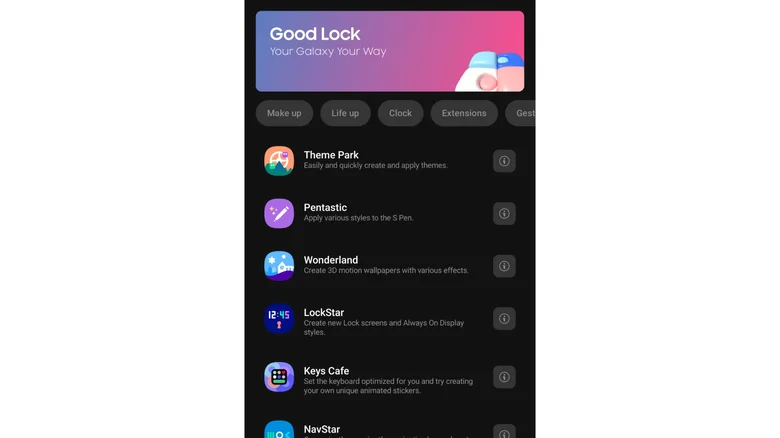
Nearly every time the topic of Galaxy-exclusive features comes up, so does Good Lock, Samsung’s suite of customization tweaks. Good Lock is where Samsung lets its engineers go nuts with features that might overwhelm a basic user. Samsung is already infamous for stuffing its phones to the gills with features and settings most people will never use, so you can get a sense of just how extra Good Lock’s additions are. And instead of being a single app, Good Lock is a container for downloadable plugins — 23 at the time of writing — that each enable a bundle of settings.
Home Up, for instance, lets you customize your home screen, while Camera Assistant adds options to the camera app and MultiStar improves multitasking features. Most people have never wanted to replace their home button with a GIF, but Good Lock’s NavStar module will let you. Similarly, you may never have thought of setting a longer screen-off timeout for specific apps, but Good Lock has that option tucked away in Display Assistant. Turn app icons on your home screen sideways or make them take up the whole screen? Good Lock can do that. Manually select which camera lens to use? That too. It even lets you reorder your settings menu. Rattling off everything you can adjust in Good Lock would take an entire workday, really.
The best way to approach Good Lock is to download it from the Galaxy Store and start poking around. It’s not the most intuitive app, with some functions not clearly labeled and incorrect English copy here and there. But it has a human touch that’s often missing from modern tech, and it’s clear some features are Samsung engineers’ passion projects. The suite is a confusing and expansive tangle of options, but if you love endless customization, it’s utterly glorious.
Auto Blocker is an extra layer of security against hackers
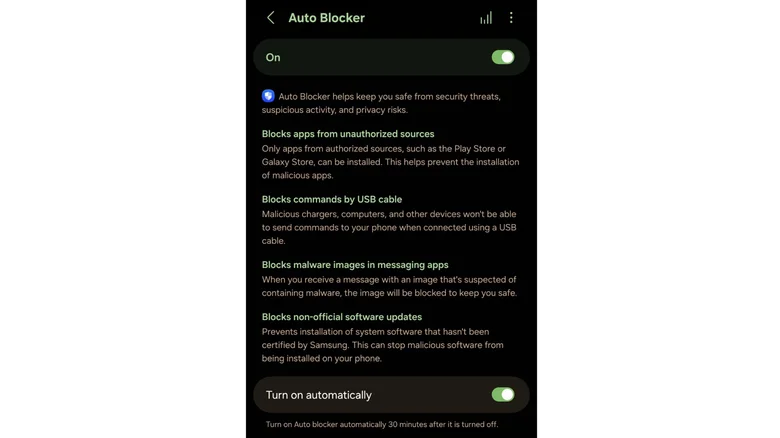
Lastly, Samsung includes a suite of security features called Auto Blocker that harden your Galaxy device against the most advanced forms of malware. There is some overlap between Auto Blocker and Google’s Advanced Protection suite commonly available on newer Android devices, but Auto Blocker is unique enough to stand on its own. The most security-conscious users should enable both.
Auto Blocker prevents your phone from installing apps sourced from outside the Play Store. While installing apps from anywhere on the internet is one of Android’s strengths, those apps can pose risks and contain malware. Auto Blocker also prevents USB commands from reaching your phone. Some attackers use a rubber ducky, a USB stick that executes commands automatically when plugged in. Similarly malicious tools can be hidden in USB ports or cables, which is why you should never use a USB port charger at an airport or other public location. If you do, though, Auto Blocker should make any attack less likely to succeed.
Another feature is protection against malware delivered through a messaging app. With zero-click malware (which doesn’t require you to click anything to execute an attack) on the rise, this is another excellent addition to Samsung’s security umbrella. Auto Blocker can also turn on automatically after you disable it, keeping you protected even if you turn it off temporarily to install an APK, for example.
If all that isn’t enough, Auto Blocker includes another suite of protections in its Maximum Restrictions submenu. When enabled, Maximum Restrictions blocks device admin apps that could remotely execute commands, prevents all USB connections beyond charging, and blocks automatic connections to insecure Wi-Fi networks that could make you more vulnerable to man-in-the-middle attacks. It also blocks 2G network connections, which can be spoofed by law enforcement tools such as Stingrays.
