

Find out what to do if you plug your iPhone into the charger but see a “Liquid Detected” alert message on the screen and the device doesn’t start to charge.
Before you begin, relax and don’t panic. This is a safety feature, and your iPhone is likely fine.
Liquid alert messages you may see
When iOS detects water or other liquid in the charging port, it cuts off charging and accessory connection to protect your iPhone, cable, adapter, and the accessory. With charging or accessory connection blocked, it shows one of the following alert messages.
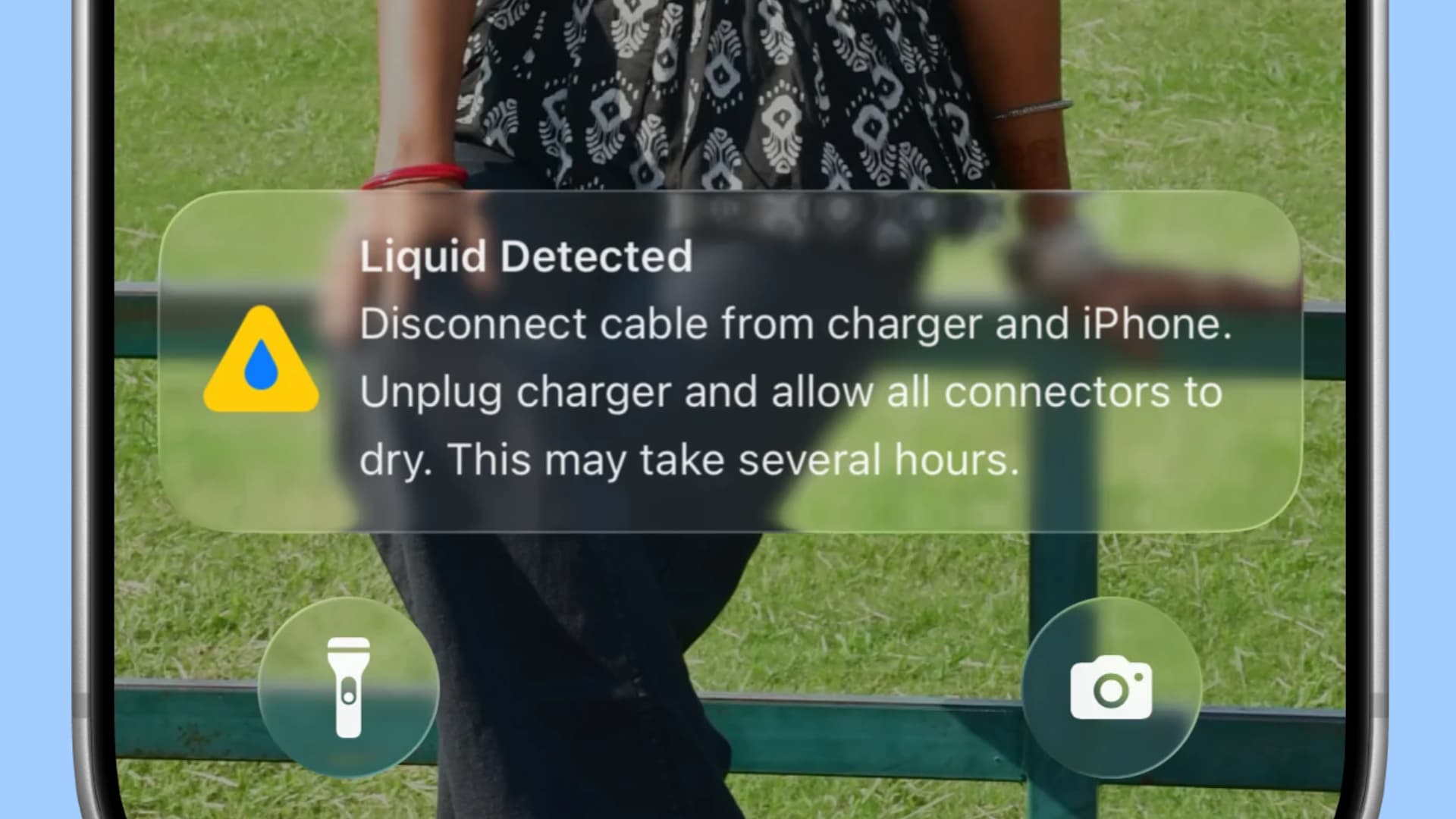
Liquid Detected. Disconnect cable from charger and iPhone. Unplug charger and allow all connectors to dry. This may take several hours.
My wife got the above alert on her iPhone 16 after water got into the charging port at the beach.
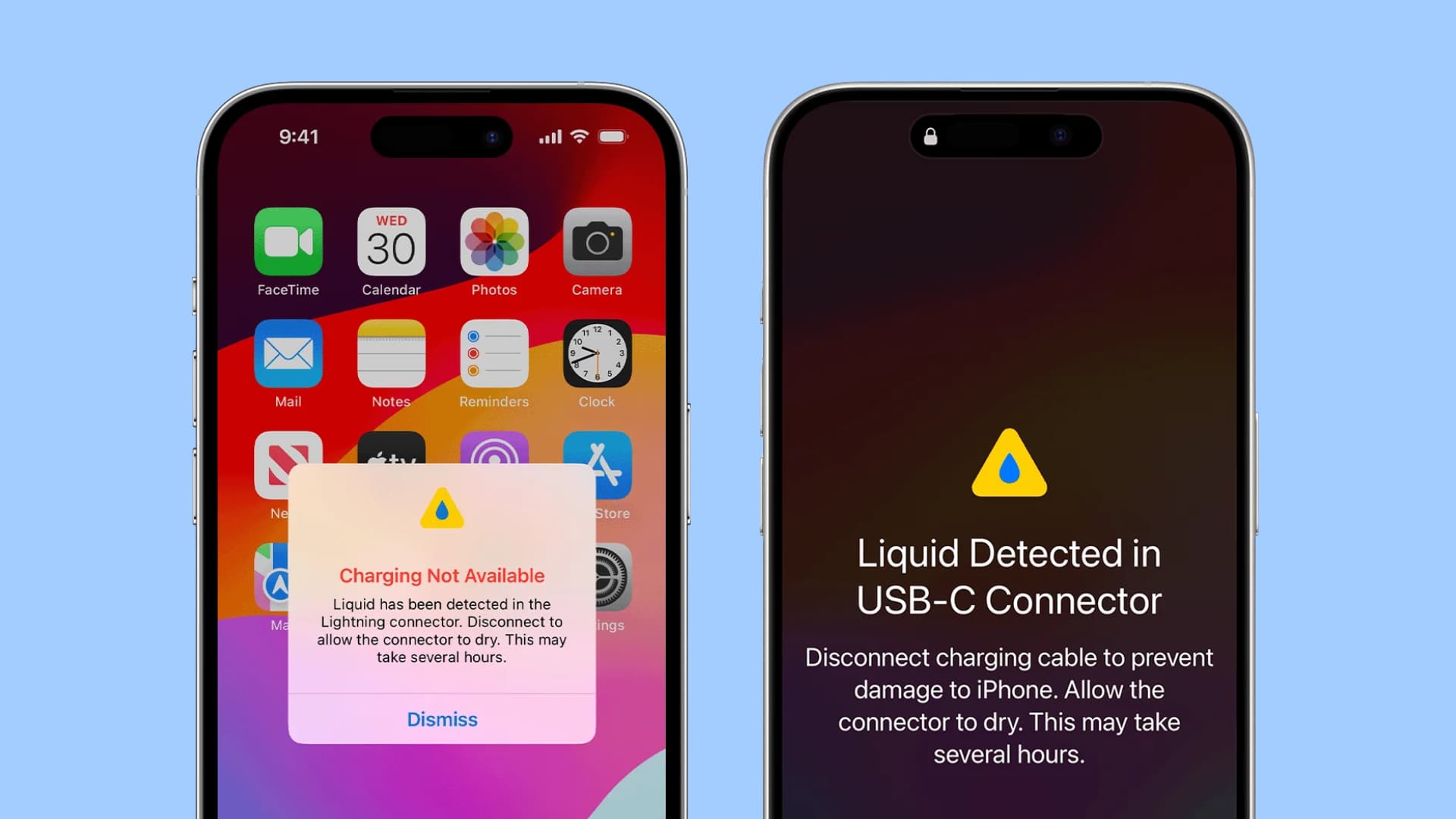
Aside from that, Apple says the following alert messages may also show:
Liquid Detected in USB-C Connector. Disconnect charging cable to prevent damage to iPhone. Allow the connector to dry. This may take several hours.
Charging Not Available. Liquid has been detected in the Lightning connector. Disconnect to allow the connector to dry. This may take several hours.
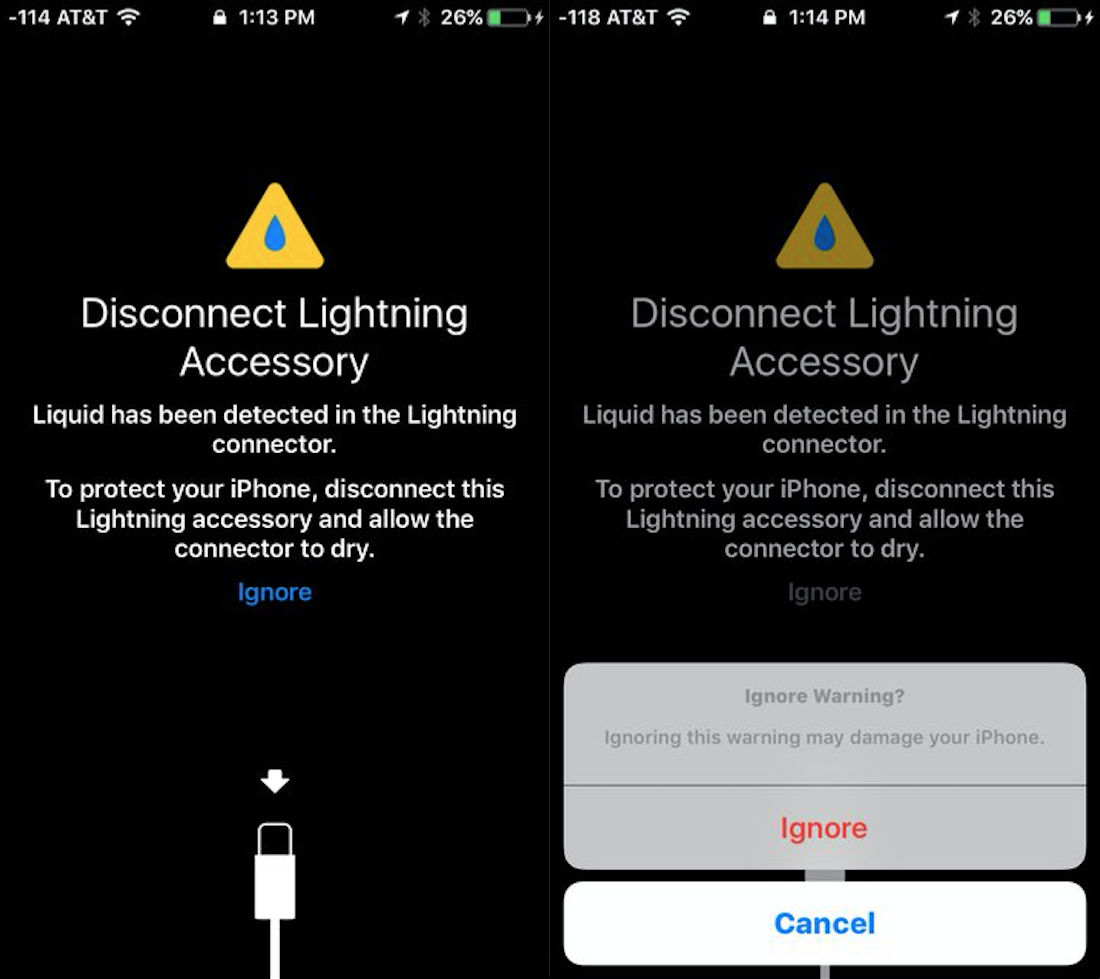
Disconnect Lightning Accessory. Liquid has been detected in the Lightning connector. To protect your iPhone, disconnect this Lightning accessory and allow the connector to dry. Ignore.
Liquid Detected: This alert appears if you connect a USB-C accessory to your iPhone and liquid is detected.
Liquid detected in Lightning Connector: This alert appears if you connect a Lightning accessory to your iPhone that doesn’t charge it and liquid is detected.
Here’s what to do when you see one of these messages. But before that, here’s what not to do.
Don’t do these if liquid is detected in your iPhone’s charge port
- Don’t insert cotton swabs or other metal or hard objects into the port, as they may damage the connector pins and cause further damage.
- Don’t place your iPhone’s charging port near very hot streams of air like a hair dryer.
- Apple also recommends against using external heat sources or compressed air.
- Don’t put your iPhone in rice as it won’t help meaningfully; instead, small rice particles may enter the charging port, speaker grills, etc., and cause additional problems.
With don’ts out of the way, here’s what to do instead.
Power off your iPhone
This is a safe step. Quickly shut down your iPhone to prevent further issues.
Tap to force the water out
Wipe your phone with a dry cloth. Then hold the iPhone so the charging port faces down, and tap it gently on your palm to force the liquid out.
Wait 30 minutes to 24 hours for liquid to evaporate
Leave your powered-off iPhone in an airy area for at least 30 minutes so water dries off from inside the Lightning or USB-C port.
After 30 minutes or an hour, power on your iPhone and plug it into charging once again. If the same ‘Liquid Detected’ message reappears, shut down your iPhone and leave it for several hours to dry off.
Use wireless charging if needed
iPhone XS, iPhone XS Max, iPhone XR, and all later models running iOS 10 or later support this liquid detection feature, and all of them have some level of official water resistance rating. This means in most cases a small splash of water shouldn’t cause damage to the internals (but remember that in case something goes wrong, water damage is not covered under warranty).
So, it’s best to leave your iPhone powered off until the liquid evaporates and you no longer see the Liquid Detected message. But if you need to use your iPhone in an emergency, you can power it on and charge it wirelessly. Just make sure to wipe off the back side of the iPhone properly.

If you don’t have a MagSafe or wireless charger and need to charge your wet iPhone in an emergency, Apple says to reconnect it to the charging cable, then use the option to ignore/override liquid detection; it should start charging.
Again, using wired charging on a wet iPhone is a last resort, kind of how Tesla allows you to drive away even when the supercharger is plugged in, but at the cost of damaging the charging cable and your car’s charge port.
Don’t always follow what third-party repair shops say
My wife was on the beach, and a wave hit her iPhone when she was taking pictures. Later, when the Liquid Detected message came up, she took it to an Apple-authorized store (but not a first-party Apple Store, as none was available in that area). They quoted a huge repair amount and said the charging port would have to be replaced, as seawater can corrode it sooner or later. She didn’t go through with the repair, thinking that if it corrodes in the future, she would have to replace it anyway.
Thankfully, after a couple of hours, the liquid evaporated and charging resumed.
Now, about the salty seawater part that the Apple authorized person said – that’s actually correct. Saltwater, drinks, and similar liquids can damage the port over time. So when my wife returned home, I sprayed an alcohol based cleaning solution inside the charging port and let it dry off. Things have been fine, but you should do your own research and follow what Apple Support or an official Apple Store representative recommends.
Also, check out: 9 things you should do after dropping your iPhone in water
