Close Menu
MyAppsPlus

    Subscribe to Updates

    Get the latest creative news from FooBar about art, design and business.

    What's Hot

    Implixo Examines the Economics of AI-Powered App Development as Global AI Investment Accelerates

    October 23, 2026

    Samsung confirms a list of Galaxy phones and tablets getting Android 17 updates

    October 23, 2026

    Where to Buy iPhone Duo Today: Stores, Pickup, and Wait Times

    October 23, 2026
    Facebook X (Twitter) Instagram
    Facebook X (Twitter) Instagram
    MyAppsPlusMyAppsPlus
    Friday, October 23
    • Home
    • Breaking Tech
    • Apps & Software
    • AI & Automation
    • Android
    • iPhone & iOS
    • More
      • Reviews
      • How-To Guides
      • Deals & Discounts
      • Shop
    MyAppsPlus
    Home»iPhone & iOS»How to disable all touch controls on your HomePod in 27.2
    iPhone & iOS

    How to disable all touch controls on your HomePod in 27.2

    myappsplusBy myappsplusOctober 23, 2026004 Mins Read
    Share Facebook Twitter Pinterest Copy Link LinkedIn Tumblr Email Telegram WhatsApp
    Follow Us
    Google News Flipboard
    How to disable all touch controls on your HomePod in 27.2
    Share
    Facebook Twitter LinkedIn Pinterest Email Copy Link

    Learn how to use the new Lock Controls feature on your HomePod or HomePod mini running software version 27.2 or later to stop the top screen surface from responding to touches.

    The circular light display on top of HomePod responds to touch so you can play, pause, invoke Siri, change volume, and more. However, many people don’t use the touch surface at all and prefer using voice (Siri) or their iPhone, iPad, Mac, or Apple TV to control playback on HomePod. If that’s you, HomePod settings now include a new option called Lock Controls that disables the touch surface to prevent accidental or intentional taps. It blocks you from changing the volume, invoking Siri, pausing or resuming playback, and more using the touch surface controls.

    Activating Lock Controls also makes sense if you have children or guests in your house and you don’t want them adjusting the volume or interacting with the display.

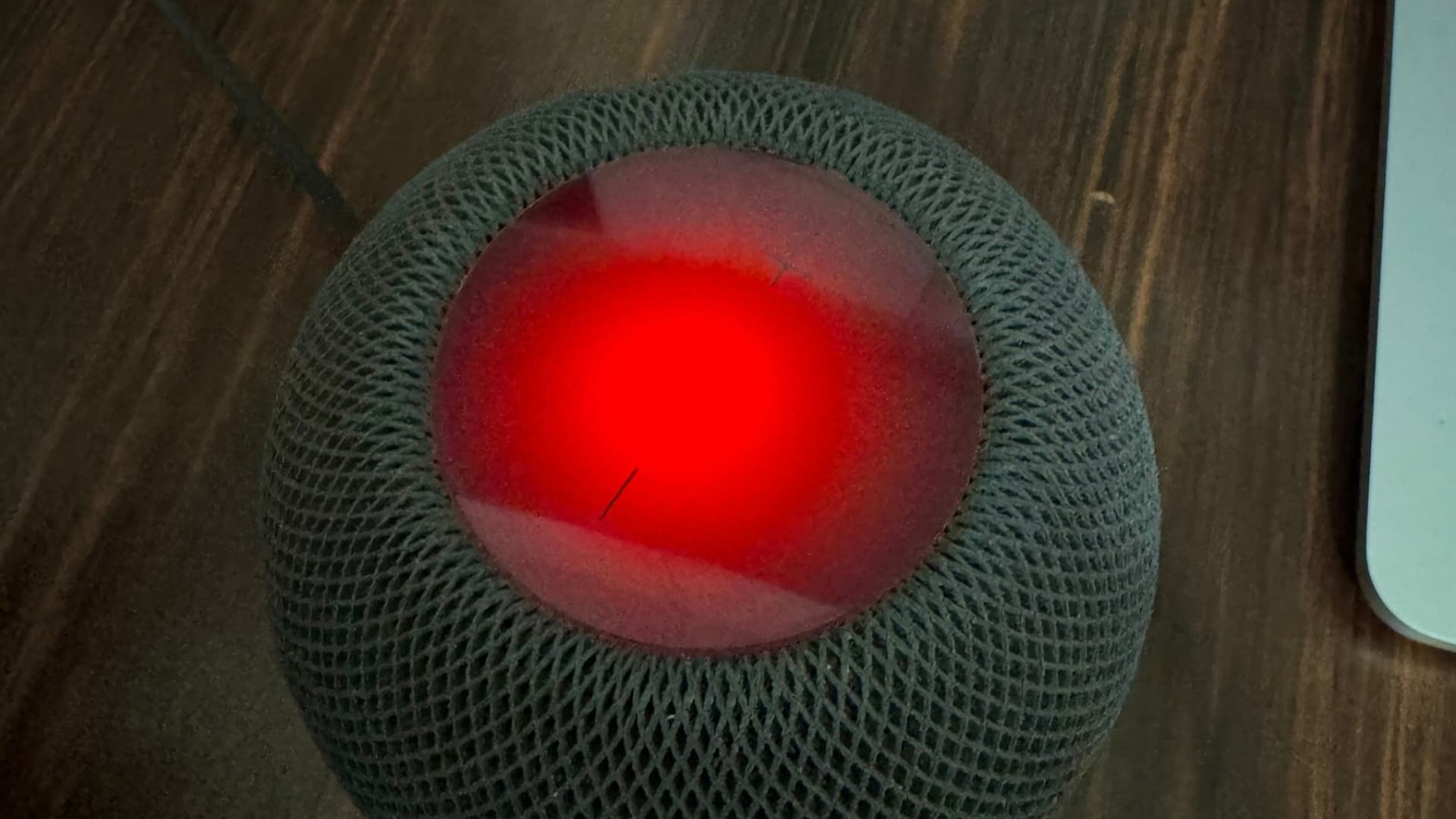
    I turned it on for one reason: to eliminate unrequested Apple Music playback. Allow me to explain: when nothing is playing on the HomePod, its display is turned off. So I often tap or double-tap the display to check whether it’s powered on, and when I do, my HomePod immediately wakes up and says, “Sure, here’s XYZ playing on Apple Music…” I never liked this. Thankfully, now with the display locked, when I tap to check if it’s on, it just shows a cute red head-shake animation, and the music doesn’t start playing automatically.

    Exceptions when Lock Controls won’t work

    Locking the touch controls locks every touch, except for:

    • Stopping timer and alarm alerts
    • Intercom
    • Check In
    • And during Phone and FaceTime calls made directly from HomePod or when you use your HomePod as a speaker for iPhone calls

    Supported models

    Unlike the new Sound Glow feature, which doesn’t work on the first HomePod, Lock Controls works on all models running software version 27.2 or later. Here’s the full list:

    • HomePod (released in 2018)
    • HomePod mini (released in 2020)
    • HomePod 2 (released in 2023)
    • HomePod mini 2 (released in 2026)

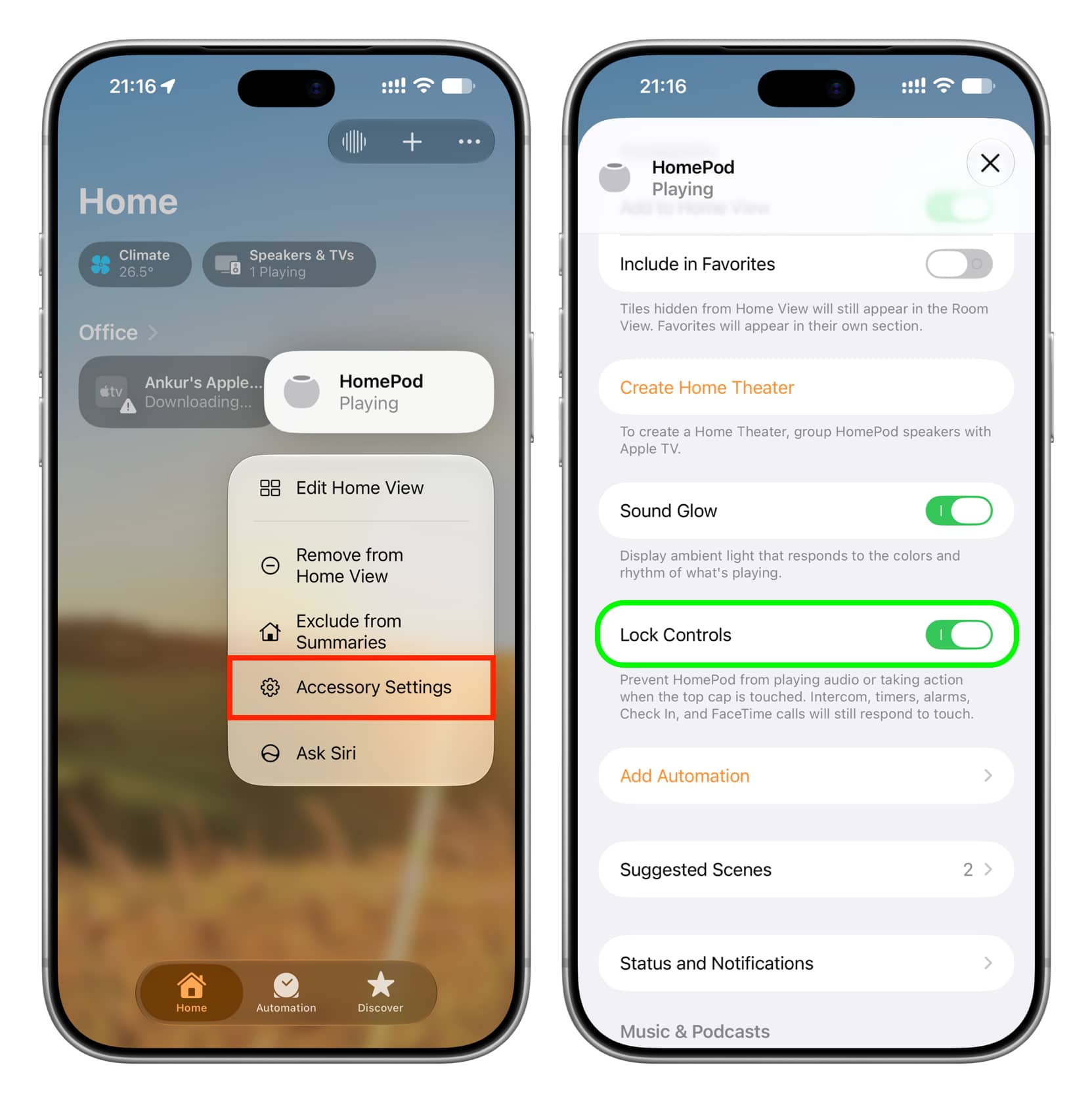
    Turn on Lock Controls on HomePod

    1. Update your iPhone, iPad, or Mac to iOS 27.2, iPadOS 27.2, or macOS Golden Gate 27.2 or later (currently in beta).
    2. Update your HomePod to software version 27.2 or later. It’s also in beta, with public release expected very soon.
    3. Open the Home app.
    4. Touch and hold your HomePod and select Accessory Settings.
    5. Turn on Lock Controls.

    Lock Controls enabled for HomePod in iPhone Home app settings

    Now, tap anywhere on the top touch display of your HomePod, and a red glowing ball will move left to right, mimicking a head shake to show it’s refusing your touch.

    Managing HomePod with Lock Controls enabled

    Even though you can no longer use the HomePod screen to invoke Siri, change volume, switch tracks, or control media playback, you can still do all that by saying “Siri” or “Hey Siri” followed by your command. You can also use the Home app to control playback and volume on your HomePod.

    But remember that even though Siri on HomePod (usually) gets preferential treatment, it isn’t always the case. Even if you intend to invoke Siri on HomePod by speaking the hotword, Siri on your iPhone or other device may carry out that request. In these cases, touching and holding the HomePod touch surface is the only sure-shot way to use Siri on it (and not other devices).

    In case you want to regain access to the touch controls, return to HomePod settings and turn off Lock Controls.

    What do you think of this new feature? I love it, even though it’s 8 years too late!

    Also, check out:How to use AutoMix or Crossfade song transitions on HomePod

    Featured HomePod HomePod mini HomePod tips How to iOS 27 News Push Tips Tutorial Tutorials
    Follow on Google News Follow on Flipboard
    Share. Facebook Twitter Pinterest LinkedIn Tumblr Email Copy Link
    myappsplus
    • Website

    Related Posts

    Samsung confirms a list of Galaxy phones and tablets getting Android 17 updates

    October 23, 2026

    Where to Buy iPhone Duo Today: Stores, Pickup, and Wait Times

    October 23, 2026

    The Oppo Find X10 Pro Max was exciting until I found out about the price

    October 23, 2026
    Add A Comment
    Leave A Reply Cancel Reply

    Top Posts

    Cathay Pacific tests Google AI that dramatically cuts airplane contrails — tiny altitude shifts slash environmental impact by 40% in early trials

    September 8, 2026137 Views

    Drone swarm tech valued by both defense and civilian sectors, industry platform says

    September 8, 202615 Views

    Best Gaming TV 2026: High refresh rates and stunning visuals

    September 8, 202614 Views
    Latest Reviews

    iPhone 18 Pro camera upgrades — everything we know about the new sensor

    myappsplusSeptember 1, 2026

    Apple’s top App Store exec, Phil Schiller, follows wave of exits as CEO Tim Cook steps down

    myappsplusSeptember 1, 2026

    Magna increases bet on battery swapping in India with $35M for Yuma

    myappsplusSeptember 1, 2026
    Stay In Touch
    • Facebook
    • YouTube
    • TikTok
    • WhatsApp
    • Twitter
    • Instagram

    Subscribe to Updates

    Get the latest tech news from FooBar about tech, design and biz.

    Most Popular

    Galaxy Tab S10+ and Tab S10 Ultra also get the August 2026 software update

    September 1, 20260 Views

    Score up to 25% off Premier Protein, Orgain, Muscle Milk, more

    September 1, 20260 Views

    You might be using Claude wrong — 5 habits to stop right now

    September 1, 20260 Views
    Our Picks

    Implixo Examines the Economics of AI-Powered App Development as Global AI Investment Accelerates

    October 23, 2026

    Samsung confirms a list of Galaxy phones and tablets getting Android 17 updates

    October 23, 2026

    Where to Buy iPhone Duo Today: Stores, Pickup, and Wait Times

    October 23, 2026

    Subscribe to Updates

    Subscribe to our newsletter and get the latest tech news, app updates, AI trends, smartphone reviews, and exclusive deals delivered straight to your inbox.

    Facebook X (Twitter) Instagram Pinterest
    • About Us
    • Get In Touch
    • Disclaimer
    • Privacy Policy
    • Terms & Conditions
    © 2026 MyAppsPlus. All Rights Reserved.

    Type above and press Enter to search. Press Esc to cancel.