

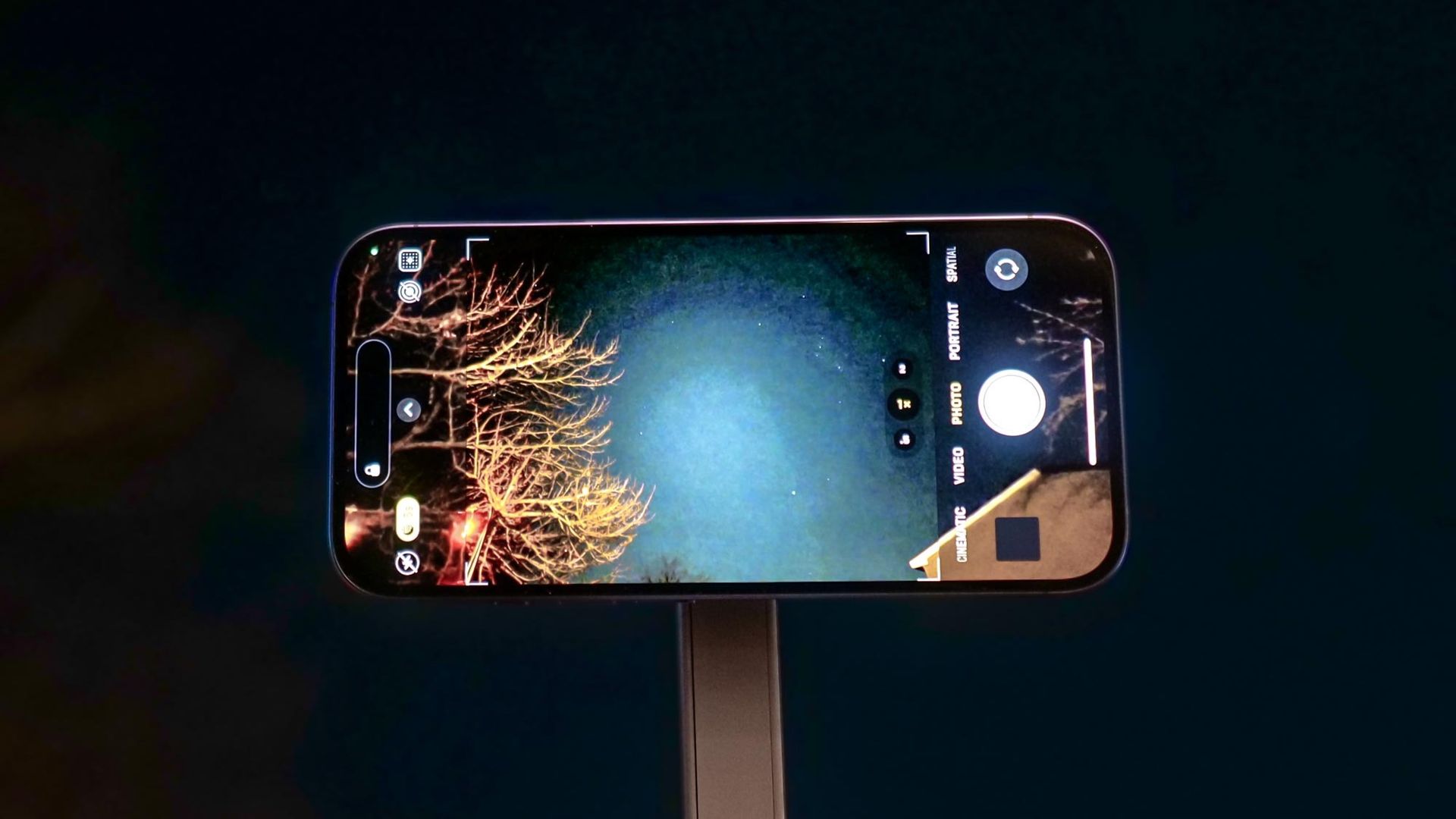
You don’t need an expensive digital camera and heavy lenses to capture the night sky. With modern low-light processing, the iPhone in your pocket is fully capable of taking detailed photos of stars, constellations, and even the faint glow of the Milky Way.
While these tips work across most recent Apple models with Night Mode, dialing in a few specific camera settings before heading outside makes the difference between a grainy blur and a sharp nightscape.
Here is how to set up your iPhone for night sky photography.
Why these simple tweaks work (and the results to prove it)
My camera roll is already full of shots of the sun setting over the hills and the moon hanging clear in the sky, but pinpointing actual stars on an iPhone had always been surprisingly elusive.
That finally changed on a recent camping trip I took. The night sky was completely clear, a pitch-black canvas filled with constellations and even the occasional shooting star. It felt like the absolute best time to put my phone to the test. My very first attempt, however, turned out to be a total disappointment: you could only make out one or two stars, faintly illuminated against an expanse of black.
It wasn’t until I changed my techniques and eliminated the physical tap on the screen that everything snapped into focus. You can see the results below.
Once the micro-vibrations were gone, the sensor finally captured the rich depth of the night sky — revealing dense star clusters, subtle nebular glow, and tight, needle-sharp points of light with zero motion blur.
There is something immensely satisfying about capturing a photo that actually matches the awe of standing under a dark, star-filled sky in person. Here are the exact camera adjustments you need to make to get the same results on your next clear night.
1. Lock your iPhone into a tripod to unlock 30-second exposures
(Image: © Tom’s Guide )
When you shoot in Night Mode by hand, your iPhone caps the exposure time at 10 seconds to avoid handheld blur. However, the internal gyroscopes automatically detect when the phone is locked down on a tripod.
Mounting your device unlocks the full30-second Max exposuresetting, giving the sensor enough time to gather faint starlight and pull hidden details out of the dark.
2. Stick strictly to 1x lens and turn on RAW
(Image: © Tom’s Guide)
Your iPhone opens to the primary 1x wide lens by default, which features the camera’s largest physical sensor and aperture for gathering light. Make sure not to pinch to zoom or switch to the 0.5x ultra-wide lens, as those smaller sensors produce grainier night shots.
Then tap the six-dot menu and select your format to switch to RAW, or simply tap the RAW indicator in the top cornerbefore shooting to save uncompressed image data for cleaner editing later.
3. Set a timer to eliminate shutter shake
(Image: © Tom’s Guide)
Set your iPhone’s built-in self-timer to a 3-second delayto keep your shots razor-sharp. Even on a sturdy tripod, tapping the screen creates micro-vibrations that travel through the phone. Because long exposures are sensitive to movement, that split-second shake can easily blur the final image.
The brief countdown gives those physical vibrations time to completely die down before the camera begins capturing, ensuring crisp details.
To bypass the countdown altogether,you can always trigger the shutter hands-free using the Apple Watch Camera Remote app, Voice Control, or the volume button on a pair of wired headphones.
How to do this on Samsung or Google Pixel phones
If you or a friend are shooting on Android, the same core principles apply using native tools. Google Pixel users can switch to Night Sight and secure the phone on a tripod to automatically trigger Astrophotography mode, which shoots a 4-minute exposure sequence.
Samsung Galaxy users can opt for a similar automated experience using Astrophoto Mode inside Samsung’sExpert RAW app, which stacks exposures over 4 to 10 minutes and even includes an on-screen constellation guide.
Alternatively, you can use manual controls by swiping to Pro Mode in the Camera app: set your shutter speed to 10 to 15 seconds to capture the starlight, and dial your ISO to 800–1600 to keep the image sharp.
- Start using these 3 iPhone camera features — you’ll wonder how you lived without them
- iOS 27 Photos features that transform your pictures — here’s how to use them
- How to use every iPhone camera mode to take better photos
