Close Menu
MyAppsPlus

    Subscribe to Updates

    Get the latest creative news from FooBar about art, design and business.

    What's Hot

    Jensen Huang still thinks a succession plan creates unnecessary hierarchy

    November 24, 2026

    Google Photos is forcing some Galaxy users to save every minor edit as a copy

    November 24, 2026

    Google Messages replacing old Gemini with new ‘tasks’ chat, and it’s very proactive

    November 24, 2026
    Facebook X (Twitter) Instagram
    Facebook X (Twitter) Instagram
    MyAppsPlusMyAppsPlus
    Tuesday, November 24
    • Home
    • Breaking Tech
    • Apps & Software
    • AI & Automation
    • Android
    • iPhone & iOS
    • More
      • Reviews
      • How-To Guides
      • Deals & Discounts
      • Shop
    MyAppsPlus
    Home»Breaking Tech»How to supercharge your Windows 11 PC with this built-in automation tool
    Breaking Tech

    How to supercharge your Windows 11 PC with this built-in automation tool

    myappsplusBy myappsplusOctober 7, 2026024 Mins Read
    Share Facebook Twitter Pinterest Copy Link LinkedIn Tumblr Email Telegram WhatsApp
    Follow Us
    Google News Flipboard
    How to supercharge your Windows 11 PC with this built-in automation tool
    Share
    Facebook Twitter LinkedIn Pinterest Email Copy Link

    Windows 11 can automate more of your PC routine than its aging Task Scheduler interface suggests.

    Task Scheduler has been part of Windows for years, but it’s so old-school that you might have written it off. Ignore the gray menus, though, and there’s a surprisingly capable automation tool underneath. Microsoft explains that Task Scheduler waits for a trigger you configure, then runs the associated task when it fires. This trigger may be a specific time, Windows startup, your login or even a system event.

    Task Scheduler won’t magically make your processor faster, and that’s not its intended purpose. What it can do is take repetitive tasks off your hands, delay apps that normally flood Windows the moment you log in and execute commands or scripts while you’re busy with something more fun. Those are pretty neat tricks for a tool that appears to have been absent from the last decade of Windows redesign meetings.

    Setting up Task Scheduler is easier than it looks
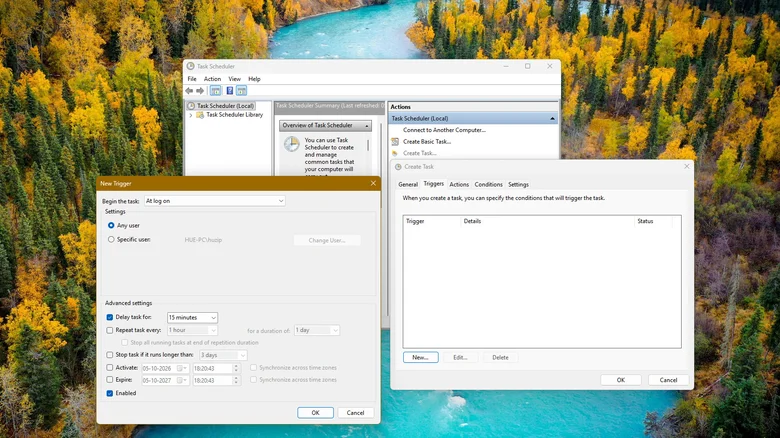
    Screenshot of Windows 11 Task Scheduler New Trigger window, set to run at logon with a 15-minute delay.

    To get started, type “Task Scheduler” into the Start menu and click it. You’ll be greeted with a fairly busy interface; ignore most of it for now. Select Create Task in the right Actions pane. Avoid Create Basic Task; it’s friendlier, but the full option reveals the controls that make Task Scheduler worth using.

    From there, here’s how to set up a task:

    1. Under General, give the task a Name.
    2. Open Triggers, select New and choose when to run it. Options include On a schedule, At startup or At log on.
    3. In Actions, choose New, then Start a program. You can direct Windows to a program, command-line tool or PowerShell.
    4. Review Conditions and Settings to determine whether the task can run on battery power, must wait until the PC is idle or should catch up after a missed run.
    5. Save it, then right-click the task in Task Scheduler Library and select Run to test it once and make sure it works.

    Those conditions are of special concern to those on a laptop. According to Microsoft, a task that runs every five minutes will prevent a PC from entering a low-power idle state. Instead, you should use event, idle or maintenance triggers for tasks that do not require constant polling.

    Don’t enable Run with highest privileges unless the task truly needs to run as an administrator. Automation is great, but the less running as an administrator, especially without your explicit input, the better.

    Three automations that are actually worth setting up
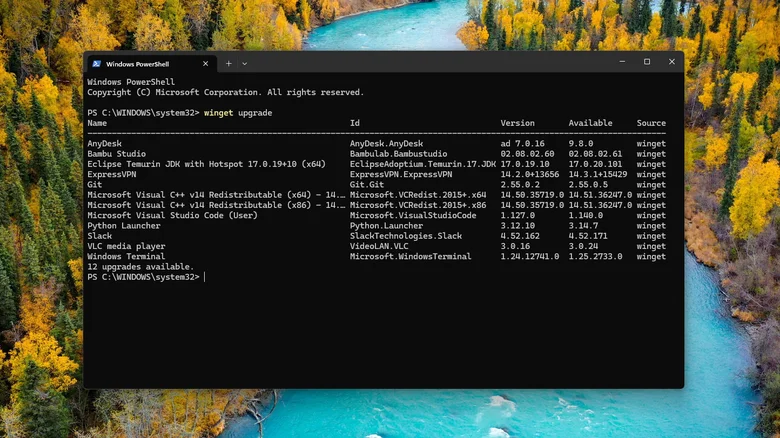
    Windows PowerShell showing WinGet results with 12 app upgrades available.

    An example of putting the task manager to good use is keeping supported apps up to date with WinGet. Microsoft’s package manager can check for newer versions of installed software, and winget upgrade --all will attempt to upgrade eligible installed packages it recognizes.

    You can make it a weekly task with this:

    winget upgrade –all –silent –accept-package-agreements –accept-

    Execute the command manually prior to scheduling it. Not all apps are managed by WinGet, and pinned packages are skipped by default. Some installers may still require elevation.

    Another option addresses the well-known startup frenzy. Trimming unnecessary startup apps can make the logon process faster, but Task Scheduler gives you a middle ground: disable an app’s normal startup entry, then launch it with a delayed logon trigger instead. A cloud storage client or other commonly used app can appear a few minutes later, rather than competing with everything else to get your desktop ready to go.

    Task Scheduler also works well with PowerShell if you have scripts you’ve already tested, like copying files to another location or doing your own PC housekeeping. Conditions can ensure the job waits for idle time or AC power instead of barging in halfway through something important.

    Power Automate for desktop is better suited to automations that require clicking through apps or interacting with interfaces. However, broader cloud and unattended automation can require paid licenses.

    Also, there’s little reason to automate maintenance Windows already performs itself. Storage Sense can automatically delete temporary files and items in the Recycle Bin, while Windows automatically optimizes both HDDs and SSDs.

    Microsoft supercharge this Windows Your
    Follow on Google News Follow on Flipboard
    Share. Facebook Twitter Pinterest LinkedIn Tumblr Email Copy Link
    myappsplus
    • Website

    Related Posts

    Jensen Huang still thinks a succession plan creates unnecessary hierarchy

    November 24, 2026

    Two tech companies tried to reinvent the e-bike. Why DJI’s Amflow soared while Rivian’s ALSO floundered

    November 24, 2026

    Chinese tech company Huawei convicted on federal charges

    November 24, 2026
    Add A Comment
    Leave A Reply Cancel Reply

    Top Posts

    The pros and cons of using your phone as a mobile hotspot

    November 16, 202648 Views

    UiPath Launches AI Coding Agent, Integrates Claude Code and Codex to Target Development Automation

    November 16, 202646 Views

    Save on your groceries, gas, and holiday shopping with this $15 BJ’s membership (Reg. $60) 

    November 4, 202634 Views
    Latest Reviews

    iPhone price hike ‘better than feared,’ Duo to drive cycle demand

    myappsplusSeptember 11, 2026

    Fairbuds 2 leak gives us an early look at a very different design

    myappsplusSeptember 11, 2026

    Intel says it has already passed a million High-NA EUV wafers – more than the rest of the industry combined

    myappsplusSeptember 11, 2026
    Stay In Touch
    • Facebook
    • YouTube
    • TikTok
    • WhatsApp
    • Twitter
    • Instagram

    Subscribe to Updates

    Get the latest tech news from FooBar about tech, design and biz.

    Most Popular

    Ford CEO hits back at government ‘mistruths’ about China —as its $28K electric truck prepares to take on Slate and Chinese rivals

    September 12, 20260 Views

    Monitoring production agent lifecycle with AWS DevOps Agent and AgentCore Evaluations

    September 12, 20260 Views

    You can still shop these robot vacuums

    September 12, 20260 Views
    Our Picks

    Jensen Huang still thinks a succession plan creates unnecessary hierarchy

    November 24, 2026

    Google Photos is forcing some Galaxy users to save every minor edit as a copy

    November 24, 2026

    Google Messages replacing old Gemini with new ‘tasks’ chat, and it’s very proactive

    November 24, 2026

    Subscribe to Updates

    Subscribe to our newsletter and get the latest tech news, app updates, AI trends, smartphone reviews, and exclusive deals delivered straight to your inbox.

    Facebook X (Twitter) Instagram Pinterest
    • About Us
    • Get In Touch
    • Disclaimer
    • Privacy Policy
    • Terms & Conditions
    © 2026 MyAppsPlus. All Rights Reserved.

    Type above and press Enter to search. Press Esc to cancel.