

Affiliate links on Android Authority may earn us a commission. Learn more.
My Samsung phone was full of screenshots. This quick trick fixed it
It should be possible to do this natively.
By
•
•
•
Yash Wate / Android Authority
Add Android Authority on Google:
Preferred SourceGoogle Discover
I use the RegiStar Good Lock module to turn my Samsung phone’s backside into a virtual button. I’ve set up the double- and triple-tap gestures on my Galaxy S26 Ultra to take screenshots and toggle the privacy display feature, respectively.
Although the former makes taking screenshots much easier than pressing button combinations, there’s one problem: sometimes, when I rotate the phone or switch it in my hands, the gesture accidentally gets triggered and takes a screenshot. Because of this, I end up with way too many unwanted screenshots in my gallery and need to delete them manually to prevent them from hogging space.
Thankfully, the Good Lock app has another module — Nice Shot — that helped me fix the problem.
Did you know you could add a quick delete button to the floating screenshot toolbar?
How to quickly delete unwanted screenshots on your Samsung phone
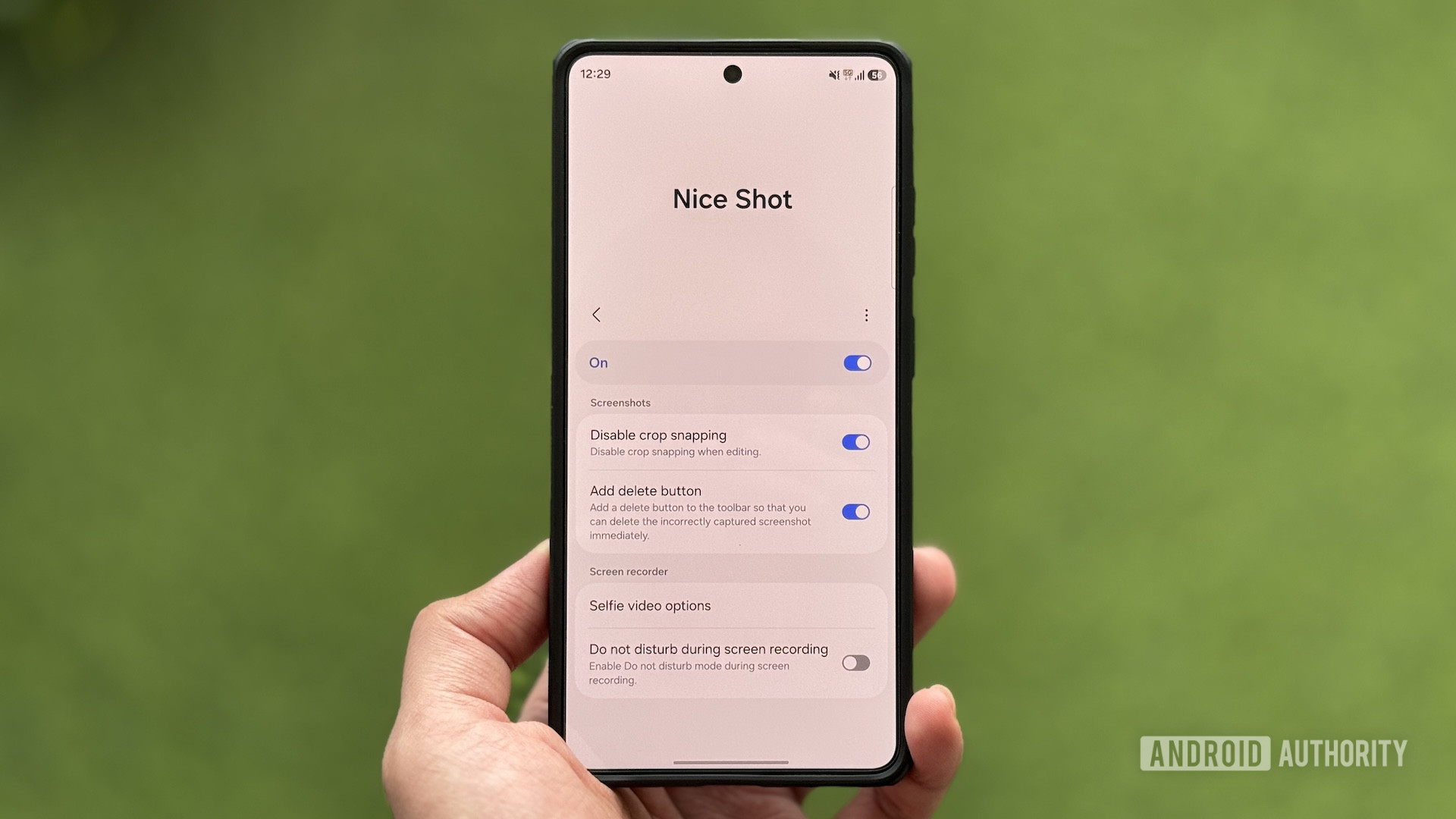
Nice Shot is one of the underrated Good Lock modules that lets you change the default behavior of screenshots and screen recordings on your Galaxy phone. One of the many useful options it offers is the “Add delete button,” which adds a trash icon to the floating toolbar that appears immediately after a screenshot is taken. This way, when the Back-Tap action feature accidentally triggers and takes a screenshot, I can tap this icon to delete it immediately.
Although I’ve found enabling this option quite handy for my use case, it can be useful even if you don’t use Back-Tap action. Let’s say you take a screenshot but don’t like how it came out, perhaps because the menu you wanted to capture disappeared early. Instead of going into Gallery and deleting it, which isn’t always practical, you can remove it by tapping the delete button. Just note that when you delete a screenshot this way, it doesn’t go to the Trash. It gets deleted permanently, so you can’t restore it later.
To add a delete button to the floating screenshot toolbar, open the Good Lock app; you can download it from the Galaxy Store if you don’t already have it. Then, go to the Plugins tab, find Nice Shot, and tap the download icon next to it. Once downloaded, tap Nice Shot to access it. Flip the toggle at the top to enable the module. Finally, toggle on the switch next to the Add delete button option to turn it on.
Nice Shot has a few other helpful tricks, too
The Nice Shot Good Lock module doesn’t just make it easier to delete unwanted screenshots. It also packs a few other options that can be really helpful for someone who takes a lot of screenshots or does a lot of screen recordings.
Disable crop snapping is one of them. When you try to crop a screenshot on your Samsung phone, especially one with lines, the crop tool automatically snaps your selection. Although useful in some scenarios, this isn’t ideal when you need precision in including or removing an object from the screenshot. Turning on the Disable crop snapping option stops this behavior and gives you complete control over cropping.
Selfie video options are also great. As the name implies, these options in Nice Shot let you customize how your selfie videos look during screen recordings. For example, if you find the circular video feed too small, you can double it. Head into Selfie video options and toggle on “Double selfie video size.”
Similarly, you can make the background color transparent by enabling the “Make the background color transparent” option. Keep in mind, though, that for this feature to effectively replace your background, you need a clean, minimal one. You can also enable/disable auto-detection and adjust the color-detection sensitivity as needed.
Getting notifications while you’re recording the screen can be really annoying. One way to avoid this is to turn on Do Not Disturb mode before you hit record. But this approach isn’t practical, especially if you need to record your phone screen frequently, since you may sometimes forget.
Nice Shot offers a better solution: it automatically puts your phone in Do Not Disturb mode anytime you record your screen, blocking all incoming notifications. Simply toggle on “Do not disturb during screen recording” and follow the on-screen instructions to enable it.
I find using Back-Tap action to take screenshots really convenient and have gotten used to it over the years. And now that I have a quick delete button in my screenshot toolbar, I can keep using the feature without worrying about unwanted screenshots cluttering my photo library. If you also take a lot of screenshots, be it with Back-Tap action or the traditional method, you should definitely consider enabling the delete button option, if not others.
Features
AndroidGood LockSamsungSamsung Galaxy
Follow
Thank you for being part of our community. Read our Comment Policy before posting.
