

GitHub Copilot can now read and operate local desktop applications, extending its reach to work that requires clicking through a graphical interface. The practical first question is which application it is allowed to control, and for how long.
GitHub announced the computer-use public preview on October 1. It is available in Copilot CLI and the GitHub Copilot app for local sessions on macOS and Windows. GitHub describes reading accessible application content and visual context, clicking controls, typing, scrolling and navigating between applications.
For developers dealing with legacy software or a GUI-only testing step, that opens a useful route. It also makes permission settings part of the workflow. The current documentation is more precise than a blanket promise that Copilot will ask before every application interaction.
Choose a task that needs desktop control
GitHub’s computer-use concept guide says Copilot prefers direct tools, such as APIs, filesystem operations, MCP integrations or browser automation, when those can accomplish the task. Desktop interaction covers cases where those routes are insufficient.
That is a sensible selection rule for a first trial. A command-line export already produces a structured file and a clear exit status. Recreating it through menus would add another set of things to inspect. A desktop task becomes more interesting when the necessary information or action is available only inside an existing application.
For example, you might ask an agent to inspect a status panel in a legacy tool, compare a few visible values with an expected result, or walk through a local test application’s screens. Treat these as candidate tasks to evaluate, not demonstrated Copilot success cases. Kingy has not run a hands-on test of this preview.
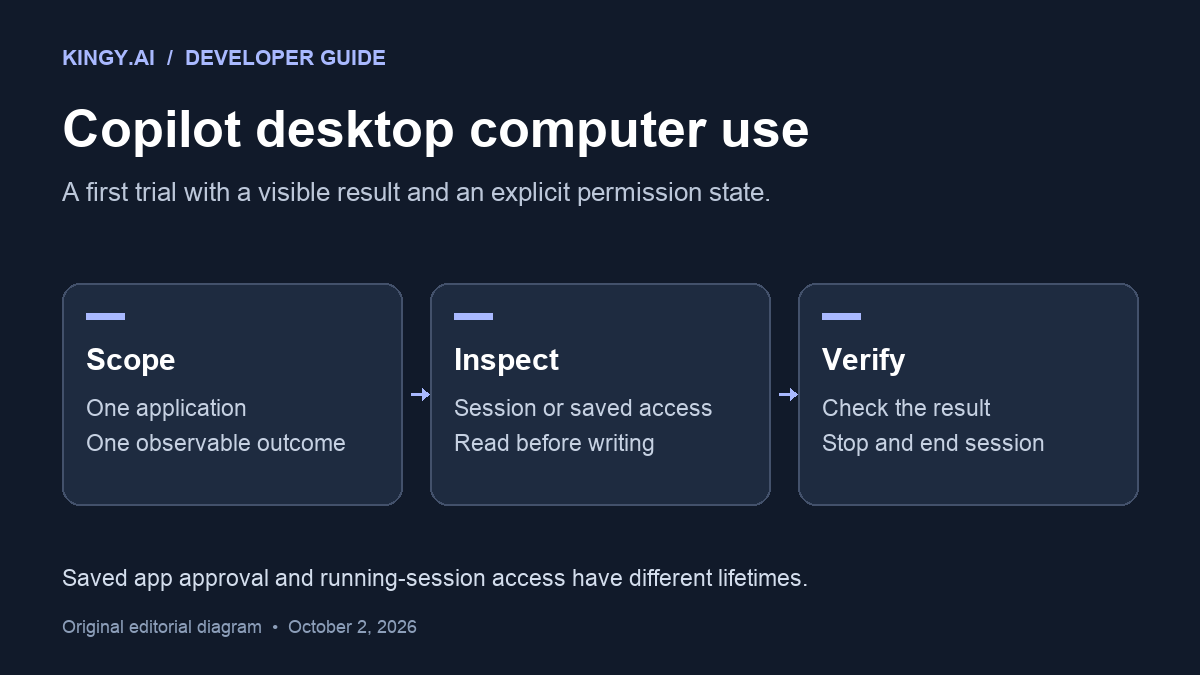
Pick one application and one observable outcome. “Check three values on this screen” is easier to verify than “handle my operations.” It also gives you a useful failure report if the agent cannot identify the right window or read a field.
Check availability and enable it
Computer use is disabled by default and remains a public preview. GitHub’s CLI guide lists the following interactive commands:
/computer show |
Inspect computer-use plugin, MCP server and associated skill status |
/computer on |
Enable the bundled feature and save the preference |
/computer off |
Disable computer use |
The guide says Copilot CLI is available across Copilot plans, with an organization’s CLI policy required for organization-provided access. An administrator’s managed block on computer use cannot be overridden by your local preference. Those conditions matter when the command exists but the feature does not become available.
In the GitHub Copilot app, open Settings, then Computer Use, and enable the feature. On macOS, grant the documented Accessibility and Screen Recording prerequisites. The app has a Check again control if a permission change is not detected. Windows is also supported for local sessions; the macOS permission procedure should not be presented as a Windows setup requirement.
Before using it on work data, check your organization’s policy and open a task-appropriate application window. Avoid leaving unrelated sensitive material visible during the trial. This is practical preparation for a feature that can inspect application content, rather than a claim that a particular privacy setting solves every exposure risk.
Understand what an approval does
The active permission mode determines whether Copilot prompts before controlling an application. In the CLI, /permissions show reports the mode. In the app, review Tool Permissions under Sessions. Configured deny rules take precedence over saved approvals and automatic permission behavior.
The difference between a temporary and persistent approval is worth checking before choosing one:
| Allow | Access for the current computer-use session |
| Always allow | Saved approval for future sessions, shared by the app and CLI on the same computer |
| Remove an always-allowed app | Removes future saved approval; already granted access in a running session remains |
These distinctions come from the CLI permission instructions and the app’s approval-removal instructions. Removing an app from the persistent list does not end the active session’s access. GitHub directs users to stop the current operation and end the session to revoke access granted to that session.
A trial should therefore record more than whether an approval dialog appeared. Note the active permission mode, which application was approved, whether the approval was temporary or saved, and whether the session remained open after cleanup. Otherwise, a later run could behave differently for reasons unrelated to the model.
Kingy’s Claude Code permission guide examines controls in another coding product. Those settings are not interchangeable with Copilot’s; use each product’s own permission rules.
A first trial you can verify
Here is an original observation-only prompt to adapt to a local application you are authorized to inspect. Use sample data and specify the window or document that contains it:
In [application], inspect the open [window or document]. Report the values of [three named fields] and where each appears. Do not edit fields, save files, submit forms, send messages, or switch to another application. If a value is unreadable or the requested window is missing, report that problem and stop.
This prompt defines intended behavior. It is not a security boundary, and it does not replace the application’s permissions or Copilot’s tool settings.
Before the run, write down the correct values yourself. Afterward, compare the returned values field by field, including units, dates and decimal places. Check that the application stayed unchanged. If the agent guesses a missing value instead of reporting the gap, the trial has failed even if the rest of the answer looks plausible.
Then try a deliberately awkward but harmless case: two similarly titled sample windows, a field outside the initial view, or an absent document. The useful result is whether it identifies the ambiguity and respects the requested stopping point. A single smooth demonstration cannot establish that.
Stop the operation, then verify the result
GitHub documents pressing Esc twice to interrupt an active CLI operation. In the app, click Stop or press Esc. Desktop interfaces can change between versions and depend on focus and timing, so watch for repeated clicks, incorrect targets or an operation that continues after the expected result.
For a later trial that makes an authorized change, define completion evidence before starting. If the task saves a sample file, check its contents and location afterward. If it changes a test record, read the record back. An agent’s statement that it finished is only one part of verification.
Keep a record of interventions as well. A task that finishes after several corrections may still be useful, but it answers a different question from one that completes unattended. Avoid converting either result into a universal reliability claim.
After a first trial, stop the operation, end the session, inspect saved app approvals and disable computer use if you do not intend to keep using it. Begin the next trial with an explicit permission state and a result you can check.
Editorial note: Access and commands were checked against GitHub’s documentation on October 2, 2026. This is a setup and evaluation guide, not a hands-on product review or a promise about charges, task success or availability in every account.
Get future Kingy Brief editions.
Free · Choose your subjects · Double opt-in · Unsubscribe anytime
Regular sending is paused; no restart date is set.
After submitting, check your inbox for “Confirm your subscription to The Kingy Brief” and open its confirmation link. Check Spam or Promotions if you cannot find it.
