Close Menu
MyAppsPlus

    Subscribe to Updates

    Get the latest creative news from FooBar about art, design and business.

    What's Hot

    The cream of the US tech industry attended the dinner for Xi: Musk, Huang and Altman. The first ladies stole the show

    September 27, 2026

    Why Does Wired Android Auto Still Use Your Phone’s Bluetooth?

    September 27, 2026

    Innocn E49M1R ultrawide monitor review

    September 27, 2026
    Facebook X (Twitter) Instagram
    Facebook X (Twitter) Instagram
    MyAppsPlusMyAppsPlus
    Sunday, September 27
    • Home
    • Breaking Tech
    • Apps & Software
    • AI & Automation
    • Android
    • iPhone & iOS
    • More
      • Reviews
      • How-To Guides
      • Deals & Discounts
      • Shop
    MyAppsPlus
    Home»Breaking Tech»Is your Roku TV talking to you? Here’s why and how to turn it off
    Breaking Tech

    Is your Roku TV talking to you? Here’s why and how to turn it off

    myappsplusBy myappsplusSeptember 27, 2026002 Mins Read
    Share Facebook Twitter Pinterest Copy Link LinkedIn Tumblr Email Telegram WhatsApp
    Follow Us
    Google News Flipboard
    Is your Roku TV talking to you? Here’s why and how to turn it off
    Share
    Facebook Twitter LinkedIn Pinterest Email Copy Link

    Relax, that voice you’re hearing is pretty easy to turn off.

    There are few things more terrifying than watching one of your favorite shows on Roku at night and suddenly hearing a disembodied voice coming from your screen. This robotic-sounding entity seems to know your every move, almost as if they’re narrating your life — but not in a fun Stranger Than Fiction kind of way.

    No, you’re not losing your mind: The voice coming from the Roku TV is just the screen reader, a text-to-speech accessibility feature that makes the app easier to navigate for people who are visually impaired. That’s why the voice is constantly narrating all the on-screen text.

    How to turn off the screen reader
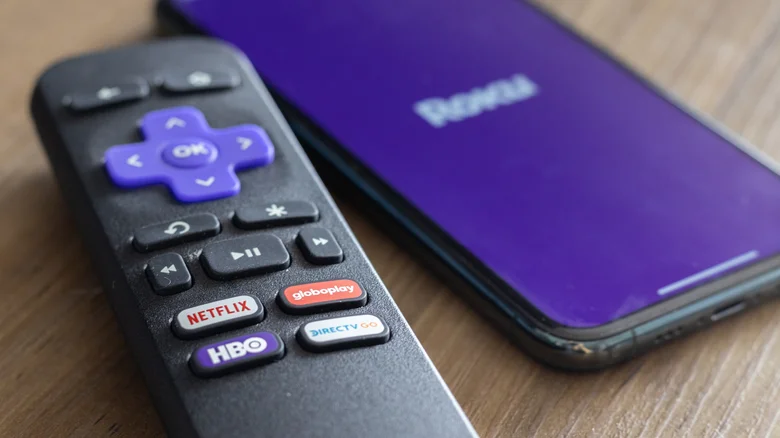
    A close-up shot of a Roku remote and a phone running the Roku app.

    But if you’re not someone who normally benefits from having a screen reader, you most likely triggered it by accident with the Roku remote. By default, the remote has a screen reader shortcut that turns on when you press the Options button (the one with the little star) four times in a row.

    It’s the kind of shortcut that can be easily activated if the remote slips between the couch cushions or if any four-legged furry friends manage to step on it. Fortunately, it’s pretty simple to turn off the screen reader as well: just press Options four more times.

    You can also turn the feature off using Roku’s menu screen by following these steps.

    1. Press the Home button on the remote.

    2. Open Settings.

    3. Open Accessibility.

    4. Scroll down to Screen Reader, then select Off.

    How to disable the shortcut

    You can also get rid of the remote’s shortcut entirely to prevent future mishaps with the screen reader. Go back to the Screen Reader section under the Accessibility menu, find the Shortcut option and turn it off.

    If you’re having other problems with your Roku TV — such as a lagging Wi-Fi connection or just need to adjust the type of ads you see — you might be able to find the answer by diving into Roku’s secret menus for more information and settings.

    Heres Roku Streaming talking Your
    Follow on Google News Follow on Flipboard
    Share. Facebook Twitter Pinterest LinkedIn Tumblr Email Copy Link
    myappsplus
    • Website

    Related Posts

    The cream of the US tech industry attended the dinner for Xi: Musk, Huang and Altman. The first ladies stole the show

    September 27, 2026

    China consumer stocks head for a lost decade as investors pile into AI

    September 27, 2026

    The MacBook models that macOS 27 Golden Gate does not support

    September 27, 2026
    Add A Comment
    Leave A Reply Cancel Reply

    Top Posts

    Can reviews settle disputes that marked first two seasons?

    September 21, 20266 Views

    Microsoft resolves issues after software updates

    September 22, 20263 Views

    Experts call for leveraging AI, breaking key tech bottlenecks to propel advanced manufacturing

    September 19, 20263 Views
    Latest Reviews

    The reasons Siri may not work on CarPlay

    myappsplusAugust 23, 2026

    Augury’s first appearance in Gartner’s APM Market Guide signals that plant AI is moving toward agent-led automation

    myappsplusAugust 23, 2026

    I took the Volvo EX60 and BMW iX3 on 400-mile road trips — and range anxiety is officially dead

    myappsplusAugust 23, 2026
    Stay In Touch
    • Facebook
    • YouTube
    • TikTok
    • WhatsApp
    • Twitter
    • Instagram

    Subscribe to Updates

    Get the latest tech news from FooBar about tech, design and biz.

    Most Popular

    The reasons Siri may not work on CarPlay

    August 23, 20260 Views

    Augury’s first appearance in Gartner’s APM Market Guide signals that plant AI is moving toward agent-led automation

    August 23, 20260 Views

    I took the Volvo EX60 and BMW iX3 on 400-mile road trips — and range anxiety is officially dead

    August 23, 20260 Views
    Our Picks

    The cream of the US tech industry attended the dinner for Xi: Musk, Huang and Altman. The first ladies stole the show

    September 27, 2026

    Why Does Wired Android Auto Still Use Your Phone’s Bluetooth?

    September 27, 2026

    Innocn E49M1R ultrawide monitor review

    September 27, 2026

    Subscribe to Updates

    Subscribe to our newsletter and get the latest tech news, app updates, AI trends, smartphone reviews, and exclusive deals delivered straight to your inbox.

    Facebook X (Twitter) Instagram Pinterest
    • About Us
    • Get In Touch
    • Disclaimer
    • Privacy Policy
    • Terms & Conditions
    © 2026 MyAppsPlus. All Rights Reserved.

    Type above and press Enter to search. Press Esc to cancel.