Close Menu
MyAppsPlus

    Subscribe to Updates

    Get the latest creative news from FooBar about art, design and business.

    What's Hot

    Speechify is pricey, but it’s also completely transformed how I digest information

    September 20, 2026

    iPhone 18 Pro Demand Stronger Than Expected

    September 20, 2026

    Claude Fable vs GPT-5.6 Sol vs GLM-5.3 SWE-Bench Verified

    September 20, 2026
    Facebook X (Twitter) Instagram
    Facebook X (Twitter) Instagram
    MyAppsPlusMyAppsPlus
    Sunday, September 20
    • Home
    • Breaking Tech
    • Apps & Software
    • AI & Automation
    • Android
    • iPhone & iOS
    • More
      • Reviews
      • How-To Guides
      • Deals & Discounts
      • Shop
    MyAppsPlus
    Home»Breaking Tech»How to customize the side button on your Samsung Galaxy phone
    Breaking Tech

    How to customize the side button on your Samsung Galaxy phone

    myappsplusBy myappsplusSeptember 20, 2026003 Mins Read
    Share Facebook Twitter Pinterest Copy Link LinkedIn Tumblr Email Telegram WhatsApp
    Follow Us
    Google News Flipboard
    How to customize the side button on your Samsung Galaxy phone
    Share
    Facebook Twitter LinkedIn Pinterest Email Copy Link

    You might be surprised at all the things it can do.

    Did you know that Samsung stopped making phones with traditional power buttons in 2019? That button beneath your Samsung phone’s volume button is actually a multifunctional and customizable side button. If you used any Samsung flagship phone between the S8 and S10, you probably noticed a fourth physical button on the side of the device: the infamous Bixby Button. That fourth button didn’t disappear; it actually got merged with the power button on Galaxy phones from the Note 10 series and beyond.

    How to customize the side button on a Samsung phone

    Customizing your Samsung phone’s side button is pretty straightforward; go to Settings > Advanced features > Side button. From here, you can remap the button; a double press can be set to open Camera, Flashlight, Magnifier, Voice Recorder, Samsung Notes, Modes and Routines, Samsung Capture or a chosen app. Unfortunately, the long-press option is limited to just assistant apps like Bixby, Google Gemini, and other AI assistants including ChatGPT and Claude. Otherwise, you can set the long press to pull up the power-off menu.

    On Samsung devices with a separate physical Bixby button, namely the Galaxy S10 series, S9 series, S8 series, Note 8 and Note 9, a long press will always open Bixby Voice. You can customize the button’s double-press and single-press functions, but not at the same time; one has to open Bixby Home. 
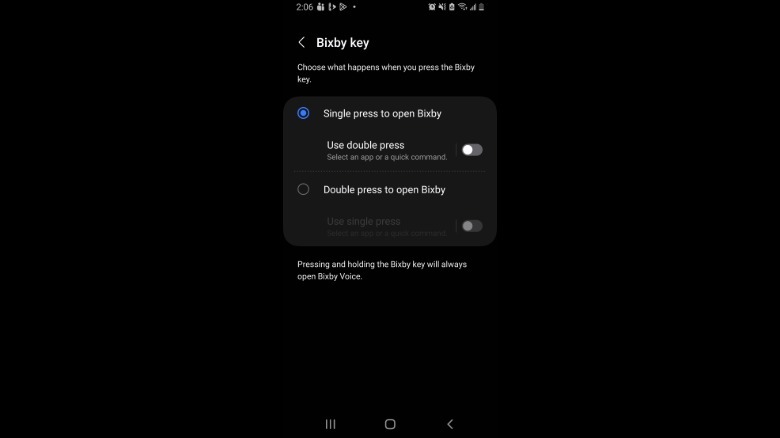
    Screenshot by Isaac Egbon (Samsung)

    To remap the button, open Settings > Advanced features > Bixby Key. Here, you can customize the button to either open any app of your choice or run a command.

    Cool ways to customize the side button
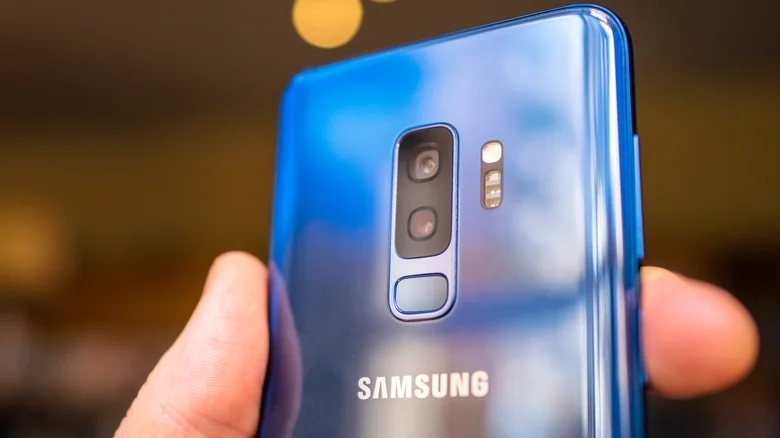
    Person holding coral blue Samsung S9+.

    Using Modes and Routines is one of the best ways to take advantage of your side button. For example, if you spend a lot of time driving, you can set the side button to turn on Driving Mode. You can make this mode trigger actions including hands-free calling, opening maps, reading messages aloud and auto-replying to texts. There are myriad things you can do when you pair Modes and Routines with your Samsung phone’s side button.

    If you like to take down quick thoughts or capture the beginning of a meeting before you can grab a notepad, you can use the side button to start recording. In your settings, you can assign Voice Recorder to begin recording with a simple side-button double press. No need to unlock the phone or hunt for the app; you can begin recording the moment inspiration strikes.

    button customize Samsung side Smartphones
    Follow on Google News Follow on Flipboard
    Share. Facebook Twitter Pinterest LinkedIn Tumblr Email Copy Link
    myappsplus
    • Website

    Related Posts

    Is the AI industry really ready to slow down?

    September 20, 2026

    ScrollEd wants to turn textbooks into TikTok

    September 20, 2026

    I tested the Samsung R95H RGB TV — and while OLED is still the top dog, this TV shows that RGB mini-LED has massive potential

    September 20, 2026
    Add A Comment
    Leave A Reply Cancel Reply

    Top Posts

    This tiny AI box could save me from upgrading my perfectly good laptop

    September 6, 20263 Views

    New Target ad delivers look at upcoming deals in one of Nintendo’s ‘largest promotions ever’

    September 13, 20262 Views

    Top 10 Best React Native App Development Companies in 2026

    September 12, 20262 Views
    Latest Reviews

    JBL Xtreme 5 drops back to its best price with $100 off at Amazon

    myappsplusAugust 20, 2026

    The best website builders of 2026: 80+ platforms tested to find the easiest ways to build a site.

    myappsplusAugust 20, 2026

    Someone targeted security researchers using a fake crypto conference as a lure

    myappsplusAugust 20, 2026
    Stay In Touch
    • Facebook
    • YouTube
    • TikTok
    • WhatsApp
    • Twitter
    • Instagram

    Subscribe to Updates

    Get the latest tech news from FooBar about tech, design and biz.

    Most Popular

    JBL Xtreme 5 drops back to its best price with $100 off at Amazon

    August 20, 20260 Views

    The best website builders of 2026: 80+ platforms tested to find the easiest ways to build a site.

    August 20, 20260 Views

    Someone targeted security researchers using a fake crypto conference as a lure

    August 20, 20260 Views
    Our Picks

    Speechify is pricey, but it’s also completely transformed how I digest information

    September 20, 2026

    iPhone 18 Pro Demand Stronger Than Expected

    September 20, 2026

    Claude Fable vs GPT-5.6 Sol vs GLM-5.3 SWE-Bench Verified

    September 20, 2026

    Subscribe to Updates

    Subscribe to our newsletter and get the latest tech news, app updates, AI trends, smartphone reviews, and exclusive deals delivered straight to your inbox.

    Facebook X (Twitter) Instagram Pinterest
    • About Us
    • Get In Touch
    • Disclaimer
    • Privacy Policy
    • Terms & Conditions
    © 2026 MyAppsPlus. All Rights Reserved.

    Type above and press Enter to search. Press Esc to cancel.