

Installing Windows 11 on another device with a USB drive is easy with this tool.
Whether you’re setting up a new computer or wiping an old one, having a bootable Windows 11 drive on hand is an important part of getting the job done. Microsoft’s official Windows 11 Media Creation Tool makes the process straightforward, guiding you through downloading the OS for installing on your current PC or any other.
When you do, there are important points to keep in mind, like what to expect from each stage, plus what can go wrong and how to fix it. Being aware of this before you begin will save you frustration and time. We’ll walk you through the whole process, starting with what you need. And if the official Microsoft tool isn’t the right fit for your situation, we’ll cover a few third-party alternatives.
What you need before creating Windows installation media
There are a few items you’ll want to have ready before starting the media creation process so you don’t get interrupted partway through:
-
A USB flash drive with at least 8GB of storage. All data on the drive will get erased before turning it into a bootable Windows drive, so make anything important is backed up.
-
A stable internet connection, since the Windows download is several gigabytes.
-
A device with a compatible 64-bit (x64) processor. If you’re setting up Windows 11 for an ARM-based device, you’ll need to download the official ARM64 ISO from Microsoft instead.
-
Optionally, a valid Windows 11 license. You don’t need a license to download the Media Creation Tool. You’ll be asked for it when setting up Windows 11, but you can skip this and will only have to deal with minor personalization limitations.
Finally, make sure the PC you want to install Windows 11 on meets the minimum W11 system requirements. The biggest hurdle for older PCs is having TPM 2.0. Otherwise, you’ll need at least 4GB RAM, 64GB of storage and a graphics card that’s compatible with DirectX 12 or later.
How to use the Windows 11 Media Creation Tool: Step-by-step
Download the Media Creation Tool
Head to Microsoft’s Download Windows 11 page, where you’ll see three options. The first is for installing Windows 11 on you current machine, while the last one downloads an ISO for advanced use. We’ll cover that later; for now, click Download Now under Create Windows 11 Installation Media. This gives you a small file called MediaCreationTool.exe.
Run the tool as an administrator
Right-click on the downloaded file and select Run as administrator. Don’t skip this step, since the tool won’t work properly without admin rights. It should ask you for admin privileges if you open it normally, but it’s better to be sure. Once the tool loads, read through the license terms and click Accept to continue.
On the Select language and edition screen, the Use the recommended options box should already be checked and the correct language listed; uncheck this and change that if needed. On the next screen, pick USB flash drive. If you haven’t plugged in the drive yet, do so now, then click Next and choose it from the list.
Double-check that you’ve picked the correct drive, because this tool will erase everything on it.
Wait for the download and creation process
From here, the tool starts downloading Windows 11 and writing a bootable version of it to your USB drive. This can take a while depending on your internet speed, PC performance and USB write speeds. Let it run without interruption.
You’re ready to install Windows 11
Once complete, the tool will confirm that your USB drive is ready; click Finish. You can now use your bootable Windows 11 USB drive on whatever PC you want to install the OS on. Connect it to the target PC, then during startup, press the key that lets you boot from an external device (depending on the machine, this could be Esc, F12, Del, or something else). Choose to boot from the USB drive, then walk through the process once you enter the Windows installation environment.
Fixing common Windows 11 Media Creation Tool issues
As easy as the Media Creation Tool is to use, sometimes issues pop up. If you run into these, there are fixes.
The tool isn’t recognizing my USB drive
- Try plugging the drive into a different USB port. Make sure it’s fully inserted.
- Open File Explorer, navigate to This PC and right-click the USB drive. Select Format, then format the drive using the FAT32 option under File system.
- Right-click the Start button and choose Disk Management. Check that the USB drive appears there with a drive letter assigned. If it shows as unallocated, right-click the empty space, create a New Simple Volume and assign it a letter.
After one or more of these fixes, run through the Media Creation Tool again. If it still isn’t working, try another USB drive.
You must run the Media Creation Tool as an administrator. Right-click the downloaded .exe file and select Run as administrator. If it still won’t open, check that your antivirus or other background processes like Windows Update aren’t interfering. Restart your PC and try again.
Also, the executable file itself may be incomplete or corrupted. Try deleting it and downloading again.
Creating a Windows 11 bootable USB without the Media Creation Tool
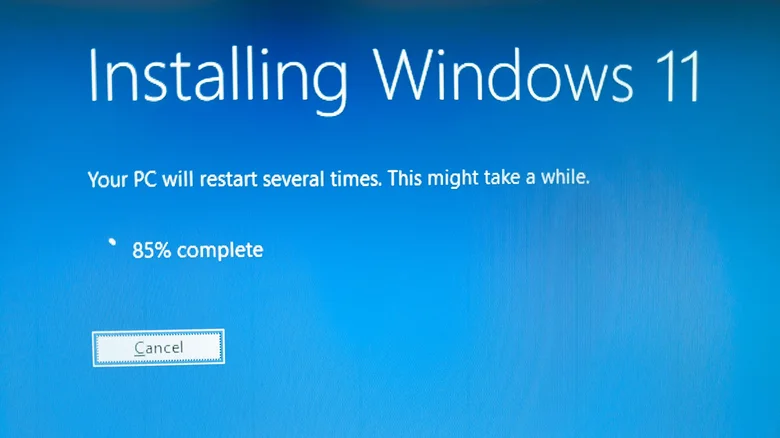
If you’d rather not (or can’t) use Microsoft’s Media Creation Tool, that’s where the third option on the Windows 11 download page comes in. With this, you’ll download the Windows 11 ISO file directly, then you can create a bootable drive using third-party tools. As an aside, if you’re ever interested in setting up a virtual machine, you can also use a downloaded ISO file for this.
Rufus is a good utility for the job. It’s free and lightweight, and makes it easy to create bootable USB drives from ISO files. It works on Windows 8 and later, and is a portable app so you don’t have to install anything. You don’t even have to download an ISO manually with Rufus, as it has a built-in option to download the latest one from Microsoft. It functions similarly to the Media Creation Tool, but it offers better control over partition schemes and file system options. The default settings should works fine in most cases, though.
Another alternative is Ventoy. This one’s even more versatile, as rather than writing a single ISO to a USB drive, it turns the drive into a boot menu with multiple options. You install Ventoy on the USB once, then drag and drop ISO files (from Windows 11 to Linux) onto it. It’s much more convenient to have one larger-sized drive with all the ISOs you need, instead of having to keep track of many for all the different OSes.
On the downside, it’s a more complex tool. The initial setup requires more steps than Rufus, and managing multiple boot options is more complicated than a one-time install. If you want to create a single Windows 11 USB drive, Rufus is easier to use, while Ventoy makes more sense for power users managing multiple OS images.
