Close Menu
MyAppsPlus

    Subscribe to Updates

    Get the latest creative news from FooBar about art, design and business.

    What's Hot

    Android malware creates a hidden copy of your banking app

    September 12, 2026

    iPhone 18 Pro and iPhone 18 Pro Max Now Available to Pre-Order

    September 12, 2026

    How to watch Ohio State vs Texas: live streams of NCAA college football 2026 Week 2

    September 12, 2026
    Facebook X (Twitter) Instagram
    Facebook X (Twitter) Instagram
    MyAppsPlusMyAppsPlus
    Saturday, September 12
    • Home
    • Breaking Tech
    • Apps & Software
    • AI & Automation
    • Android
    • iPhone & iOS
    • More
      • Reviews
      • How-To Guides
      • Deals & Discounts
      • Shop
    MyAppsPlus
    Home»Breaking Tech»Getting an ‘iPhone Unavailable’ message? Here’s how to fix it
    Breaking Tech

    Getting an ‘iPhone Unavailable’ message? Here’s how to fix it

    myappsplusBy myappsplusAugust 31, 2026004 Mins Read
    Share Facebook Twitter Pinterest Copy Link LinkedIn Tumblr Email Telegram WhatsApp
    Follow Us
    Google News Flipboard
    Getting an ‘iPhone Unavailable’ message? Here’s how to fix it
    Share
    Facebook Twitter LinkedIn Pinterest Email Copy Link

    You’ll need your old passcode or Apple Account password.

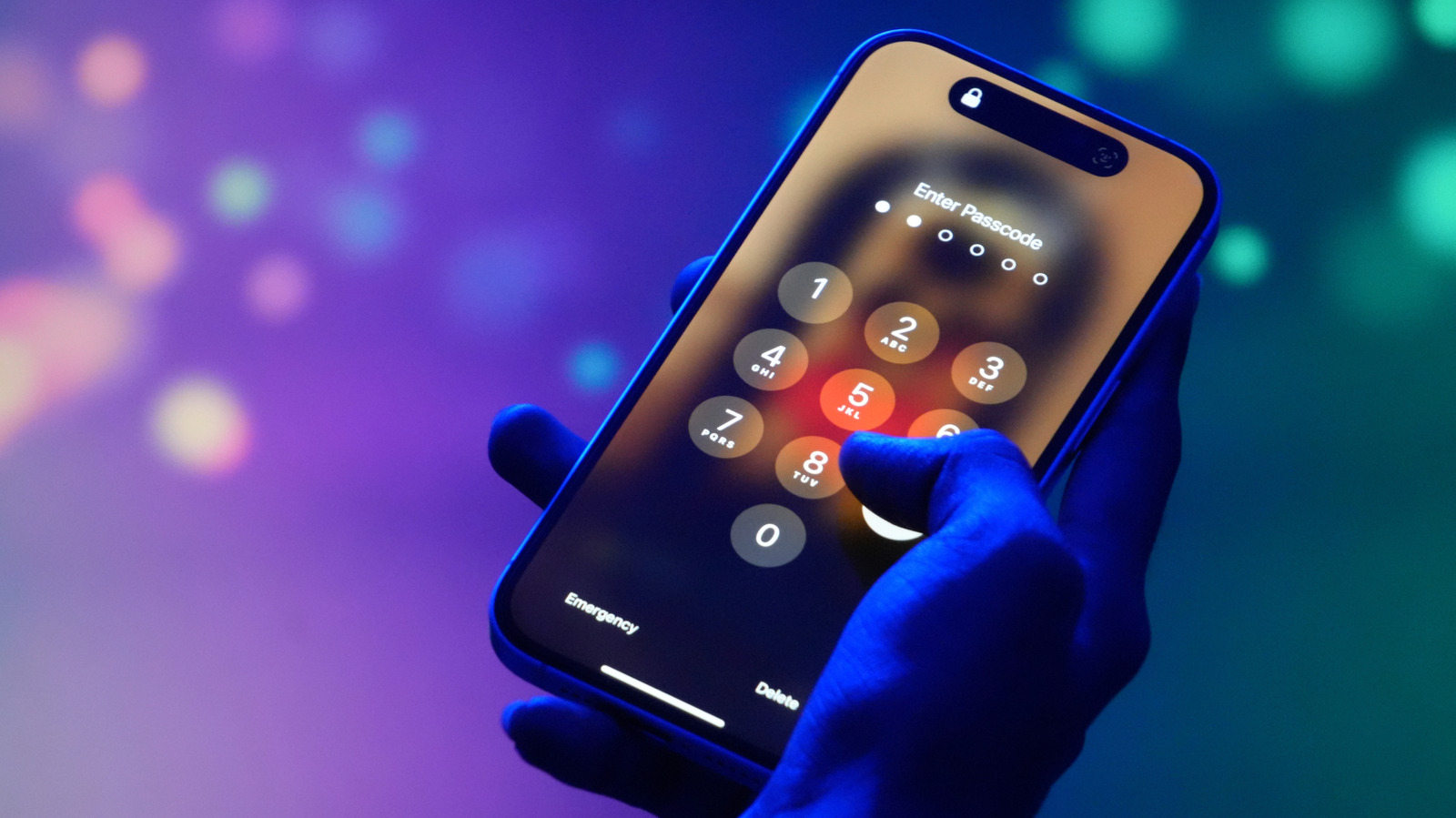
    Getting an “iPhone Unavailable” message on your lockscreen is never a welcome sight. The issue is a common one, caused by entering an incorrect passcode too many times. It’s a system meant as a safeguard against unwanted access, but it can just as easily be triggered by unintentional pocket presses or plain old forgetfulness. Thankfully, there are several ways to get access to your iPhone again, though some are a bit more labor-intensive, depending on the circumstances of your lockout.

    How to fix an iPhone Unavailable message
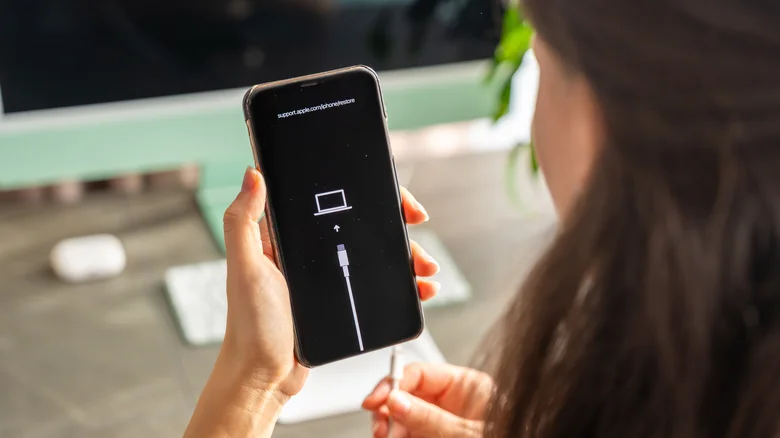
    An iPhone showing an image of a cable pointing at a laptop, a woman is holding the phone

    Your options for an iPhone Unavailable error vary slightly depending on your iOS version, if you’ve changed your passcode recently and what other technology you have available.

    Use Passcode Reset

    If you’re using iOS 17 or later and have reset your phone’s passcode within the last 72 hours, you have the option to revert back to your old passcode to solve the issue.

    1. After five incorrect passcode attempts, the iPhone Unavailable screen will appear, and you can select the Forgot Passcode option in the lower righthand corner

    2. Select Enter Previous Passcode

    3. After entering your previous passcode and unlocking your phone, you’ll immediately need to reset the passcode to a new number

    Reset your iPhone without a computer

    To reset your iPhone without a computer, you’ll need to be using iOS 15.2 or later, have Find My previously enabled, have an active cellular or Wi-Fi connection and know your Apple Account and password. Apple recommends that, if you’re using an eSIM on iOS 16 or later, you should contact your carrier before following these steps, as they may be able to give you a QR code that allows you to set up your eSIM again.

    1. From the iPhone Unavailable screen, select Forgot Passcode

    2. Enter your Apple Account password to sign out of your account

    3. Select Erase iPhone, which will delete all your data and settings. If you’re using an eSIM and iOS 17 or later, you’ll have the option to keep your eSIM but erase your data, or delete both your data and eSIM

    4. Your phone will restart; from there follow the instructions to set up your device again

    Reset your iPhone with a computer

    To reset your iPhone with a computer (either PC or Mac), you’ll need a cable to connect your phone to your computer and an internet connection. On PC, you’ll also need the Apple Devices app, which can be found on the Microsoft Store. After resetting your iPhone, you’ll only be able to restore it if you have an existing iCloud backup.

    1. Turn off your iPhone by holding down the side button and volume down button, then using the power slider

    2. Connect the cable to your computer, then plug in your iPhone and quickly hold down the side button

    3. Keep holding the button when the Apple logo appears, and continue holding until the image of a computer and cable appears; this means your phone is in recovery mode

    From here, the directions differ slightly depending on if you’re using a PC or Mac.

    Resetting an iPhone on PC

    1. Open the Apple Devices app and select your phone from the sidebar

    2. If needed, opt to trust the device, then select General

    3. Choose Restore and follow the instructions

    4. Once your iPhone has been restored, you can disconnect the phone from your PC and set up your iPhone

    Resetting an iPhone on Mac

    1. Open Finder and select your phone from the sidebar

    2. If necessary, allow the accessory to connect to your Mac

    3. A window will pop up stating there’s a problem with the phone that requires it to be updated or restored; choose Restore

    4. Once restored, you can disconnect your iPhone and set it up again

    Apple notes that you may need to update your iPhone before you can finish the restoration process; if your phone restarts during this process, you’ll need to shut your phone off and repeat the steps for entering recovery mode.

    Apple getting iPhone message Unavailable
    Follow on Google News Follow on Flipboard
    Share. Facebook Twitter Pinterest LinkedIn Tumblr Email Copy Link
    myappsplus
    • Website

    Related Posts

    iPhone 18 Pro and iPhone 18 Pro Max Now Available to Pre-Order

    September 12, 2026

    OpenAI’s Sam Altman says it would be ‘ill-advised’ to go public in 2026

    September 12, 2026

    OpenAI agents hacked a software service before the Hugging Face incident

    September 12, 2026
    Add A Comment
    Leave A Reply Cancel Reply

    Top Posts

    The 6 AI-free Linux distros I recommend most

    August 19, 20263 Views

    AI, automation, robot dogs ensure on-site nuclear safety

    September 7, 20262 Views

    This tiny AI box could save me from upgrading my perfectly good laptop

    September 6, 20262 Views
    Latest Reviews

    Apple Wallet driver’s licenses are coming to North Carolina, but there’s a catch

    myappsplusAugust 18, 2026

    3 Japanese AI Stocks Turning Automation Spending Into Real Revenue

    myappsplusAugust 18, 2026

    Apple: DOJ’s latest challenge in antitrust case ‘fails at every level’

    myappsplusAugust 18, 2026
    Stay In Touch
    • Facebook
    • YouTube
    • TikTok
    • WhatsApp
    • Twitter
    • Instagram

    Subscribe to Updates

    Get the latest tech news from FooBar about tech, design and biz.

    Most Popular

    Apple Wallet driver’s licenses are coming to North Carolina, but there’s a catch

    August 18, 20260 Views

    3 Japanese AI Stocks Turning Automation Spending Into Real Revenue

    August 18, 20260 Views

    Apple: DOJ’s latest challenge in antitrust case ‘fails at every level’

    August 18, 20260 Views
    Our Picks

    Android malware creates a hidden copy of your banking app

    September 12, 2026

    iPhone 18 Pro and iPhone 18 Pro Max Now Available to Pre-Order

    September 12, 2026

    How to watch Ohio State vs Texas: live streams of NCAA college football 2026 Week 2

    September 12, 2026

    Subscribe to Updates

    Subscribe to our newsletter and get the latest tech news, app updates, AI trends, smartphone reviews, and exclusive deals delivered straight to your inbox.

    Facebook X (Twitter) Instagram Pinterest
    • About Us
    • Get In Touch
    • Disclaimer
    • Privacy Policy
    • Terms & Conditions
    © 2026 MyAppsPlus. All Rights Reserved.

    Type above and press Enter to search. Press Esc to cancel.