

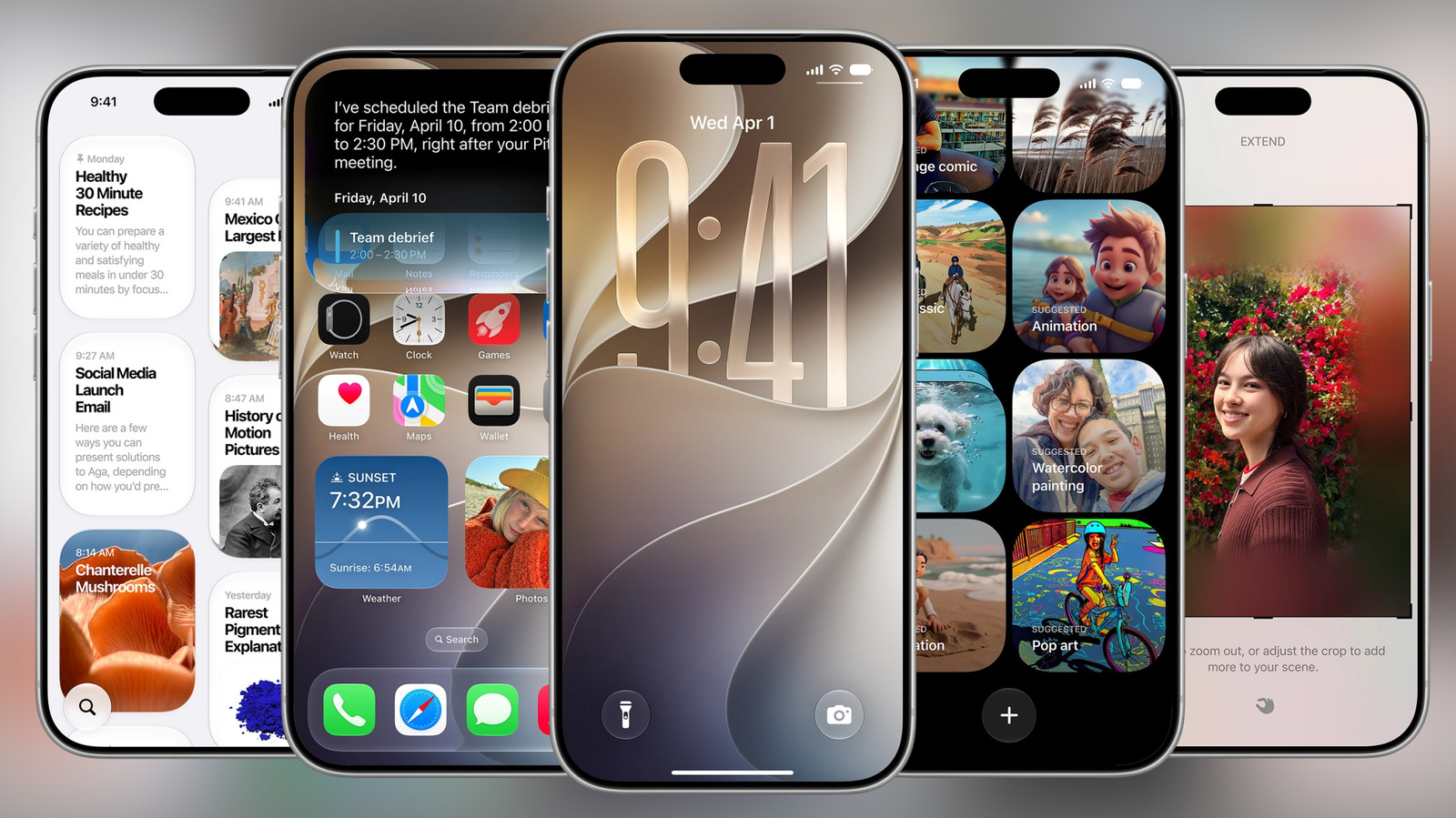
iOS 26 was a big year for Apple design. The previous year, Apple overhauled its entire interface with the new Liquid Design language that tried to bring a glass-like, refracting look to the entire interface. Compared to that, the iOS 27 update might feel like just a maintenance update, and it’s kind of true. Apple is taking the year to focus on stability, performance, and on refining the smaller parts of the iPhone software. But that doesn’t mean this cycle is free of useful and interesting features.
In fact, Apple has used this maintenance update to fix multiple, long-standing issues in iOS. You can now finally set a different volume level for alarms and calls. That might be worth the update itself. Apple has also integrated Siri AI thoughtfully across all its core apps, bringing automatic tab groups to Safari and the ability to create shortcut automation by simply describing them.
iOS 27 also gives you an option to customize Liquid Glass, making text easier to read. Here are nine useful iOS 27 features worth trying, along with how to enable them and get the most out of them.
1. Fine-tune Liquid Glass transparency
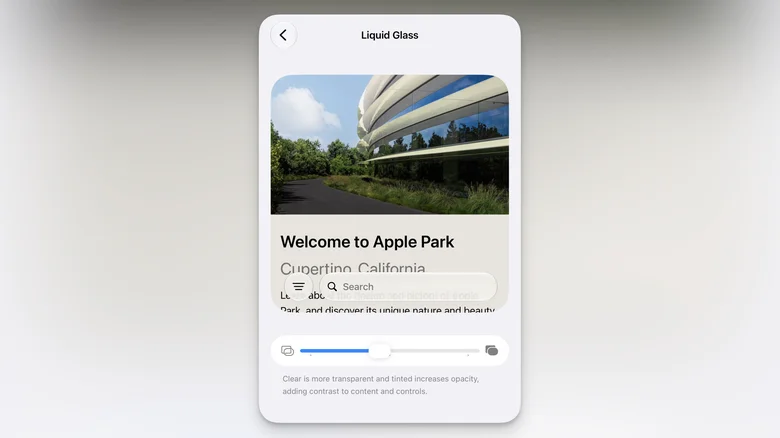
In iOS 26, Apple introduced the new Liquid Glass design language, which gives the interface a translucent, glass-like appearance. Liquid Glass refracts and reflects the content behind the interface elements. This looks beautiful on screen, but it can sometimes have issues with text, especially when you’re using an app with a busy background or multiple elements on screen.
Until now, Apple only offered a switch. You can either have a Liquid Glass interface, or you can go for a Tinted look that disables the refracting elements. But what if you like Liquid Glass and just want to make it more readable?
Apple now offers a slider for the Liquid Glass feature, meaning you can fine-tune exactly how much transparency you want in your interface. Go to Settings > Appearance > Liquid Glass. Here, drag the slider to the right to increase the tint, and to the left if you want a more transparent look. You’ll see a preview up top, and it also changes in real time. Take some time dialing in the look that you prefer, especially checking the transparency in Control Center, notifications, and app menus. And if you don’t like the Tinted look either, go to Settings > Accessibility > Display & Text Size and enable Reduce Transparency for a more solid interface.
2. Remove objects with the improved Clean Up tool
Back in iOS 18, Apple introduced its own object removal tool. It was completely on-device, but it just wasn’t that good. It was more-or-less adequate at removing objects that had clear backgrounds. But it didn’t do a good job at realistically removing objects from real-life photos, failing to mimic the background and shadows once the object was removed.
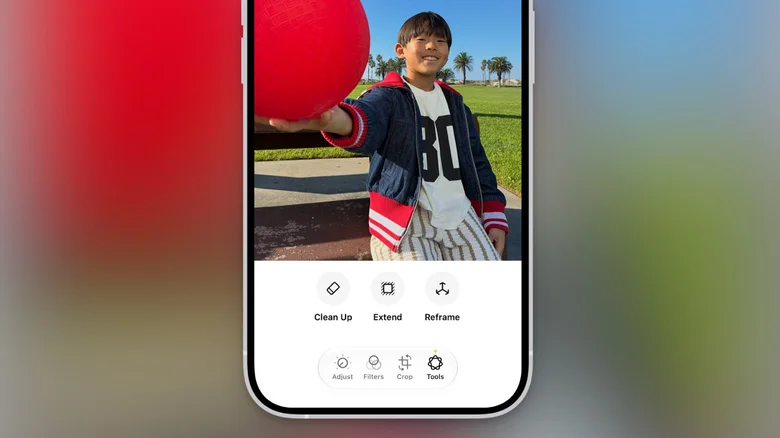
Now, in iOS 27, Apple has an improved High Quality processing mode for the Clean Up feature that uses Apple’s Cloud Compute servers running Apple’s own Foundation AI models. Your data is secure and encrypted, and it takes a couple of seconds, but the result is an image with a clean edit.
Go to the Photos app, choose a photo, and tap the Edit button. Go to Tools and choose Clean Up. The default option at the top is Auto, so make sure to tap on it to switch to the High Quality mode. Now, use your finger to highlight the objects to remove and tap the Clean Up button. After a couple of seconds, you’ll have the edited image, with the object removed (along with the surrounding shadows). Because this feature uses Apple Intelligence, it will only work on compatible iPhones (iPhone 15 Pro and higher).
3. Let Safari organize your open tabs
Browsers tabs are always messy, no matter how much you try to control them. And sorting through dozens, or hundreds, of open tabs at once takes quite a lot of skill and patience. Yes, you can use Tab Groups to organize tabs manually, but again, that requires quite a lot of patience and work.
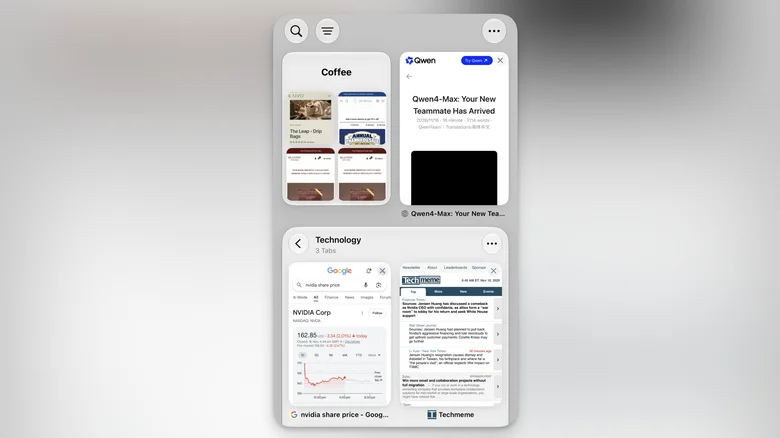
Instead, you can put AI to work. Safari’s new tab organization feature (which works on all iPhones that support Apple Intelligence) automatically sorts all your open tabs based on topics and context. So all your tabs about shopping for skincare are in one group, while all your tabs about GTA 6 guides are in another. To enable this feature, open Safari, tap the Tabs button, and select the Organize icon from the top toolbar (which looks like three horizontal lines). Then choose Automatically Create Topics.
When you have more than two related tabs, Safari will automatically group them. Tap on a topic to see all tabs, and tap on a tab to quickly jump to it. Tap the Menu button and choose the Copy Links option to quickly copy a list of links for all open group tabs instantly. You can also choose the Close Tabs feature to close all tabs in the group at once.
4. Adjust AirPods sound with Custom EQ
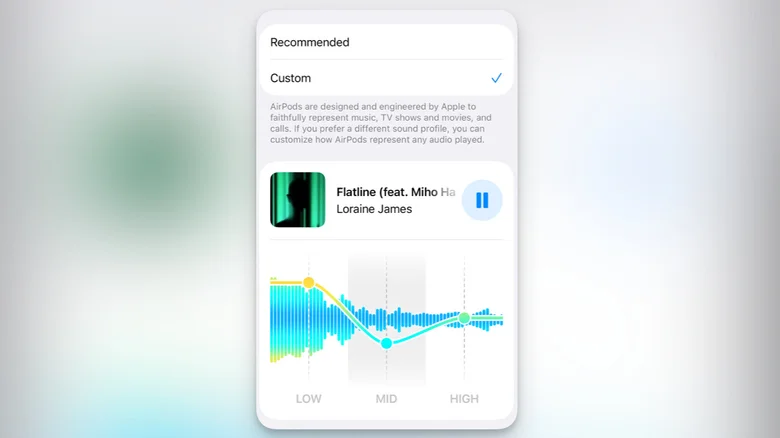
Customization options for AirPods users have been quite limited so far. AirPods users never had access to a built-in equalizer to fine-tune bass, mids, and treble, a feature that’s long been standard on competing wireless earbuds. But now, in iOS 27, Apple has finally opened up its AirPods for tuning the sound across all apps.
The new AirPods EQ offers three customizable frequency bands: Low, Mid, and High. You can drag each slider up or down to change the sound signature. For example, you can tweak the mids to make vocals more prominent, or boost the highs for brighter treble.
Connect your AirPods and open Settings > [Your AirPods] > Audio & Routing > Equalizer. Select Custom and adjust the three sliders for live music feedback. You can switch back to Recommended to go back to the default. Once adjusted, the EQ settings will carry forward even when you switch to your Mac or iPad. The feature is only supported on AirPods 4 and higher, AirPods Pro 2 and higher, and AirPods Max 2.
5. Find personal information with Siri AI
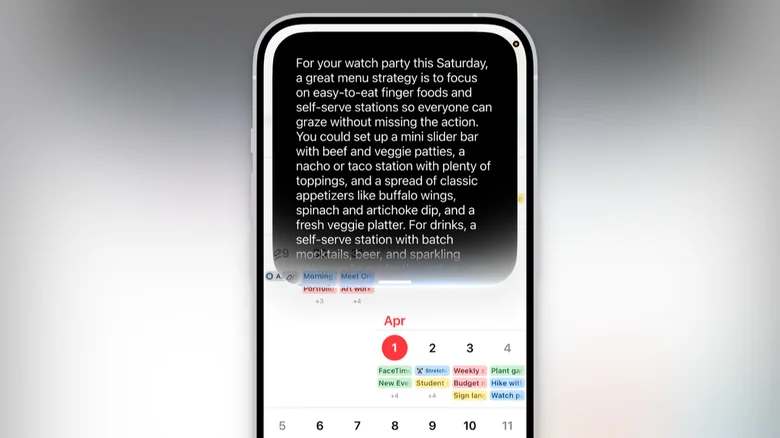
While Siri was a capable voice assistant, it has always struggled with personal context. With the new Siri AI, Apple has deeply integrated Siri’s actions into core apps like Calendar, Mail, Reminders, and more, helping you perform tasks that weren’t possible before.
Mail is a great example here. You can ask Siri AI to find all emails from your landlord over the last six months, make a summary, and send it to your accountant. And it will do that without skipping a beat. You can also ask Siri to create multiple calendar events, and you can dictate a wall of text and ask Siri AI to convert everything into actionable to-dos in the Reminders app.
Your use case, of course, will depend on how you use your iPhone day to day. On your compatible iPhone, go to Settings > Siri > Try Siri AI (Beta) to get on the waitlist. Once it’s enabled, you can start asking Siri AI all sorts of questions to see what kind of task automation will work for you.
6. Create Shortcuts just by describing what you want
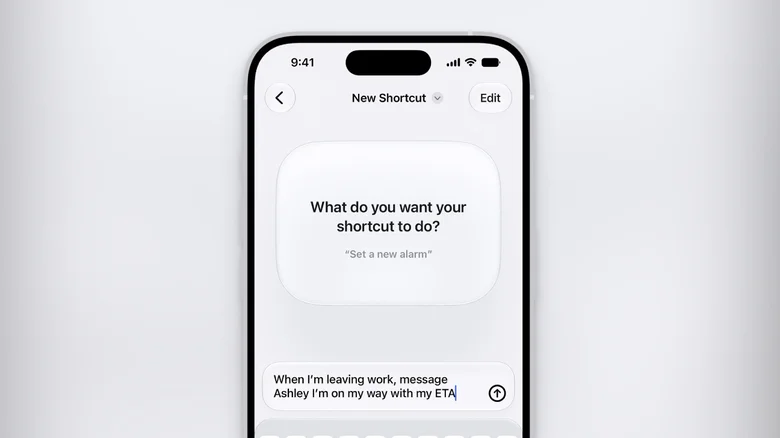
Apple’s Shortcuts app is a powerful tool for automating repetitive and menial tasks on your iPhone. But creating an iPhone shortcut automation requires setting up a multi-step workflow. You need to know exactly which action to choose, which variable to set, and how to connect all of it together.
In iOS 27, Apple is making this process much easier using natural language input. If your device supports Apple Intelligence, you can now create shortcuts by simply describing what you want. Apple Intelligence will then get to work, creating the action steps and configuring the entire workflow for you. For example, you can create a shortcut that sends a message to your partner when you leave work with an estimated time of arrival based on traffic and maps data.
Open the Shortcuts app on your iPhone, and tap the Plus button. In the text box, describe the shortcut you want to create. As this is an AI feature, it’s best to make the prompt as detailed as possible. Once it’s generated, tap the Play button to test it. You can also manually adjust the actions once the shortcut is created.
7. Set a separate volume for alarms and timers
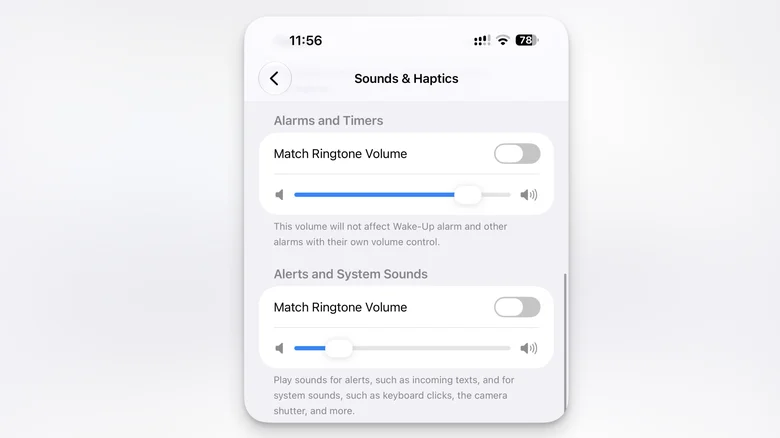
iPhone users never had access to independent volume controls for calls, alarms, and timers. Your ringer volume was tied to everything. If you reduced the call volume at night, the next morning, your alarm would barely wake you up. Well, this is another gap that iOS 27 is plugging.
To use this feature, open Settings > Sounds & Haptics, scroll down to Alarms and Timers, and turn off Match Ringtone Volume. Now, a new section will appear. Here, you will see a separate slider to adjust the volume for alarms and timers. You can now keep alarms at max volume, while calls are quieter (or the other way around).
You can do the same for system sounds as well. From the Alerts and System Sounds section, disable the Match Ringtone Volume option, and then use the slider to set an independent sound level just for system sounds like texts, keyboard clicks, and camera shutter sounds.
8. Pin your favorite Camera controls for faster access
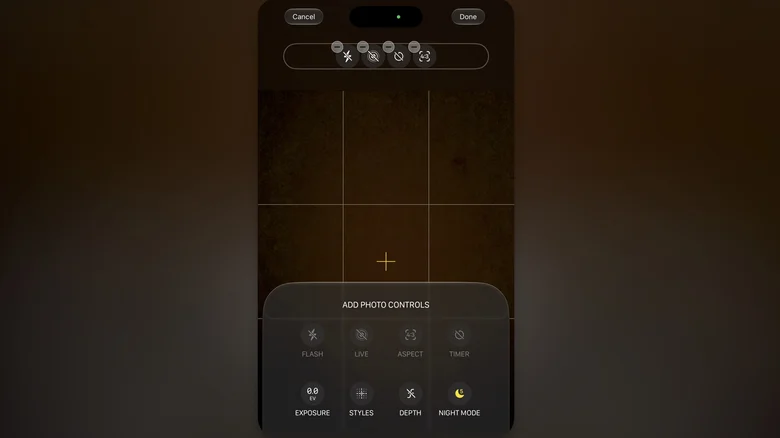
Apple redesigned the camera interface in iOS 26, with a simpler design that ended up hiding many useful features behind the menu. Frequently used features like timers, exposure, and aspect ratios now took one extra step. iOS 27 doesn’t walk back on this completely, but it at least lets you customize the Camera app by letting you pin your frequently used features to the top of the viewfinder.
So now, you can dock the Timer feature or the Exposure shortcut right to the top of the screen, where it’s always visible. To customize the Camera app, tap the Camera Controls button (the icon with six dots next to the shutter button), and choose the Edit button at the top. Now, tap the features you want to add to the top of the screen, and use drag and drop to arrange them as you like. Once you’re done with the setup, press the Done button.
All your favorite features should now be within reach, at the top of the screen. If you would like to go back to the default layout, go back to the editing screen, and choose the Reset to Essentials option.
9. Temporarily hide your location in Find My
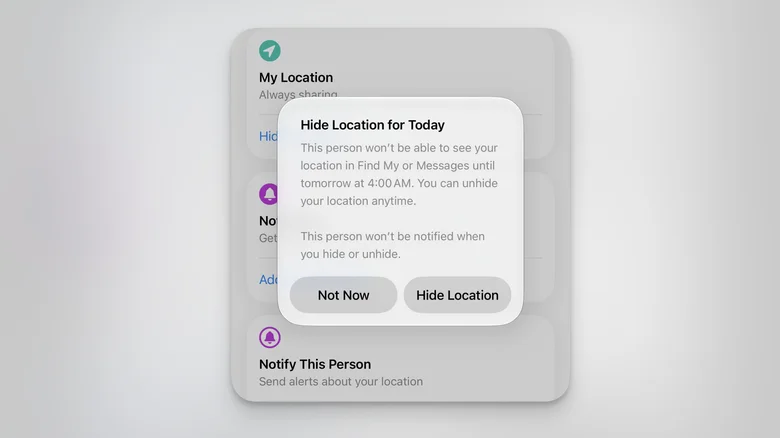
The Find My app makes it easy to share your location with your friends and family, at all times. But sometimes, you might want a little bit of privacy. Until now, the only option was to disable location sharing altogether.
iOS 27 has a new feature that lets you hide your location temporarily, and doesn’t even alert other members that you’ve done so. This feature can be helpful when you’re planning a surprise for someone, or you just don’t want them to know your location for a couple of hours. When you use the Hide Location feature, it only applies to the specific person (and not the whole family), and location sharing will be enabled automatically the next day.
Open the Find My app and go to the People tab. Choose the person you want to hide your location from, tap the More button, and tap Hide Location. If you wish to resume your location sharing, come back to the same menu, and tap the Unhide Location option. The other person won’t receive a notification when you do this. When they try to find your location, it will simply say “No Location Found” in their Find My app.
