

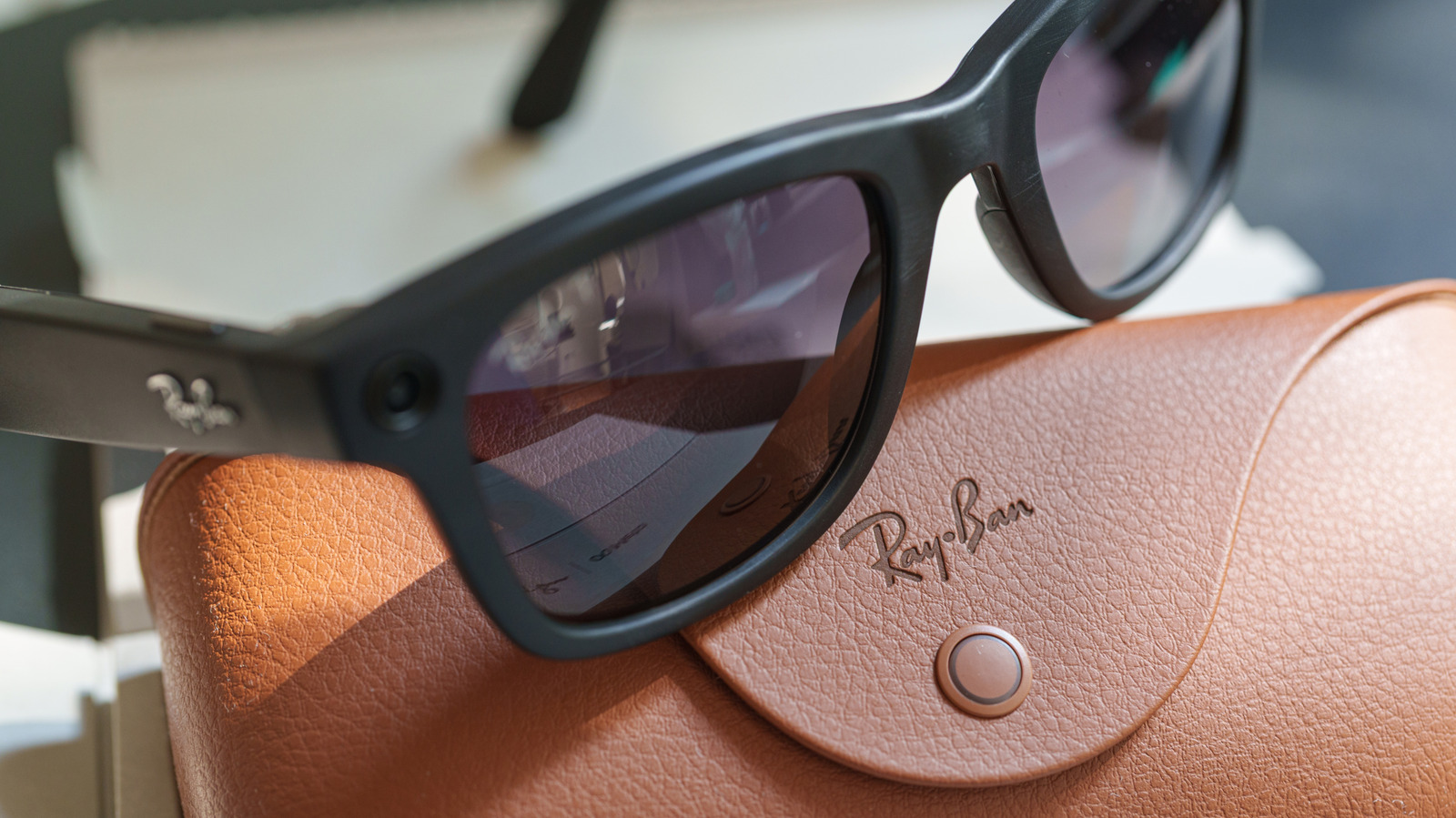
Meta gives you some control over what your glasses collect and store. You just have to know where to look.
Ray-Ban Meta glasses can snap a photo with a tap, but it’s a bit trickier to find out what happens to that photo, or anything else you send to Meta AI. Add microphones that listen for “Hey Meta” and optional cloud storage to the mix, and now you’d want to go through the privacy menu before wearing them everywhere.
Gallery photos and images processed by Meta AI follow different rules, and some data sharing is optional. Here are four options you can consider to reduce the amount of data that’s collected, uploaded or stored, but at the cost of some convenience.
Turn off ‘Hey Meta’ to avoid accidental activations
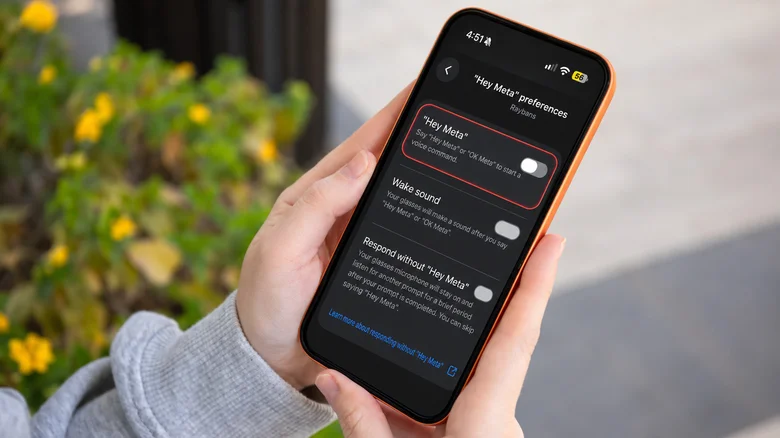
You can call on the assistant by saying “Hey Meta,” which is convenient, until a normal conversation sounds enough like the wake phrase to accidentally activate it. The glasses are always listening for those two words when voice activation is turned on.
There’s one more reason to think twice about leaving it on. In the US, users can no longer prevent Meta from storing recordings of their AI voice interactions in the cloud. You can manually delete saved recordings, but you’ll need to remember to do it.
If you don’t want to use voice activation, simply wear your glasses and ensure they are connected to your phone. Open the Meta AI app, choose your glasses and go to Meta AI > “Hey Meta” preferences. Deactivate the “Hey Meta” toggle. The touchpad on the right temple can still be used to call the assistant, and the microphones are still available for calls and videos.
Meta will also continue processing audio when you intentionally use the assistant. Previous voice interactions can be seen or deleted under Glasses privacy > Voice activity log.
Keep your photos off Meta’s cloud
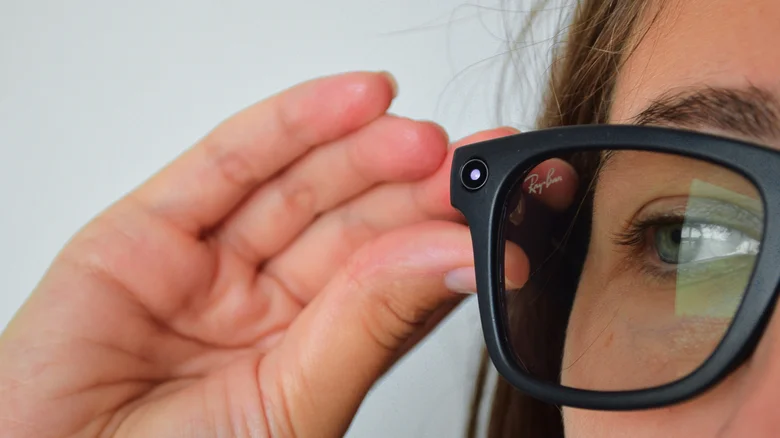
Photos and videos captured for your gallery normally stay on the glasses until you import them to your phone. Enable Cloud media, however, and Meta can keep copies on its servers for up to 30 days. That’s quite a detour for a picture that was just going to your camera roll.
To turn it off, go to Glasses privacy > Cloud media in the settings of your glasses in the Meta AI app. You can still take photos, record videos and import them to your phone. The things you lose are cloud-based features such as voice-controlled photo sharing and autocapture.
Meta says ordinary gallery captures aren’t used to train its AI models or serve ads, regardless of this setting. However, there is a key difference here: Disabling Cloud media won’t prevent images from being sent to Meta when you ask its assistant a visual question.
The backup options on your phone are also important. If you use iCloud or Google Photos for automatic backup, those photos you import may still be backed up to the cloud, just on someone else’s servers.
Stop sharing additional usage data
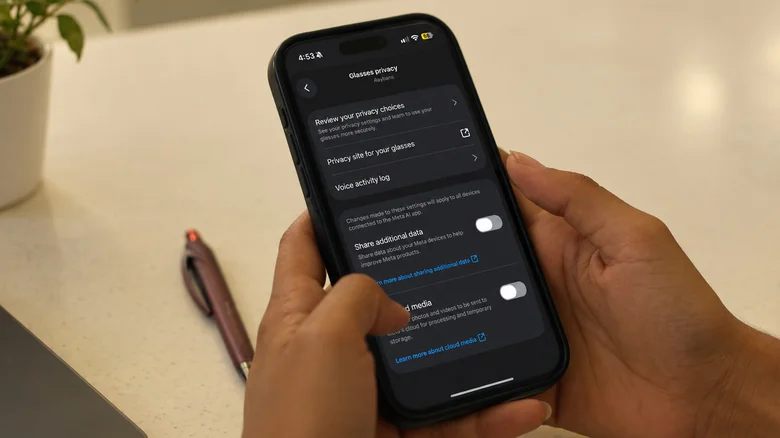
Photos aren’t the only information Meta collects from its smart glasses. The company makes a distinction between data it needs to operate the device and optional “additional data,” such as usage analytics on which features you use and how often.
Those details could help Meta to better understand how people use its products. Whether you want to volunteer that info is another story, particularly if the glasses are something you may wear all day.
To turn off this sharing, open the Meta AI app, choose your connected glasses and then go to Glasses privacy > Share additional data and turn the toggle off. Unlike disabling the wake phrase or Cloud media, this won’t change the way you engage with your photos, make calls or listen to music.
It doesn’t shut off all data collection, either. Meta continues to collect data it says it needs to run and ensure the safety of the glasses, and voice commands and AI requestsdditional data sharing also won’t delete information Meta has already collected
Stop Meta from training AI on visual data
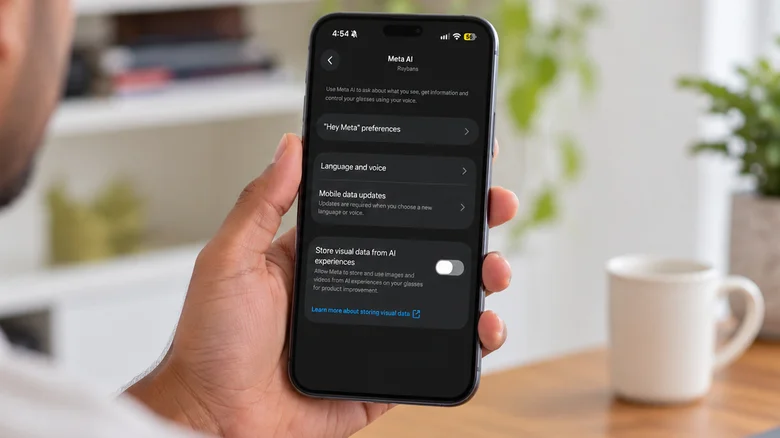
In September 2026, Meta introduced an option to stop visual data from smart glasses interactions from being used for AI training. Visual data is sent to Meta’s servers to generate an answer when you ask the assistant to identify a plant or translate a menu. Previously, that information could be stored for AI training, including review by human contractors.
This is separate from the photos and videos you intentionally save to your gallery. So, turning Cloud media off won’t change how Meta processes visual AI requests.
To opt out, open your glasses’ settings in the Meta AI app, select Meta AI and disable Store visual data from AI experiences. Your glasses need to be out of the case and connected to your phone. Meta says it still has to process images to provide answers to your queries, but it will not keep that data for AI training or make it available to human reviewers for product improvement after you opt out.
There are some compromises, though. Visual reminders, including requests for the glasses to remember an object for later, may no longer work. Meta hasn’t specified whether other features might be affected. Plus, the setting does not clear out previously processed visual information or alter the way voice interactions are processed.
If you have more than one pair of Meta glasses, like the first-generation Ray-Ban Meta glasses, you will need to change this setting separately on each pair.
