

If predictive text and suggestions are more laughable than helpful, you can shut them up.
Have you ever had your <a href="https://myappsplus.com/this-iphone-duo-rival-will-give-the-samsung-galaxy-z-fold-9-a-run-for-its-money/” title=”This iPhone Duo rival will give the Samsung Galaxy Z Fold 9 a run for its money”>iPhone‘s predictive text suggest a niche word you used once two years ago? What about receiving a suggestion in iMessage to add to your Reminders app after you’ve typed something sarcastic like, “Remind me why we’re friends?” You’re not alone. Thankfully, disabling the related Apple Intelligence features only takes a couple minutes. And there are ways to tweak your settings so you can still keep certain predictions around while disabling the useless ones.
Suggestions in the Messages app is one of several features added in iOS 27.2, while predictive text has been around for quite a while. In theory, these suggestion features can be useful — ideally, predictive text would remember all your linguistic quirks and act accordingly, and you’d only receive sensible app suggestions in iMessage.
Unfortunately, the opposite is often true — predictive text, and its auto-correct counterpart, have received lots of criticism over the years. AI invading your Messages threads with “helpful” suggestions is certainly not something everyone wants.
How to turn off predictive text on your iPhone
It’s easy to make your phone stop offering what you should say next. To turn off the suggestions at the top of the keyboard that update based on what you’re typing:
-
Open Settings.
-
Tap General, then select Keyboard.
-
Under All Keyboards, turn off Predictive Text.
This will also turn off Siri’s suggested replies. On this same screen, you can adjust several other keyboard settings that might be getting on your nerves, like Auto-Capitalization, Auto-Correction, Smart Punctuation and more.
Perhaps you want to keep predictive text, but it’s gone off the rails with its suggestions — my iPhone once decided that “what” should always be in all-caps because I typed it that way one time. If so, it’s worth resetting your keyboard’s dictionary:
-
Open Settings.
-
Tap General, then select Transfer or Reset iPhone.
-
Hit Reset and select Reset Keyboard Dictionary.
-
Enter your device’s passcode, then hit Reset again.
Suggestions may not be as useful for a short time after doing this, but it should clear up any wonkiness you had.
How to turn off Messages suggestions
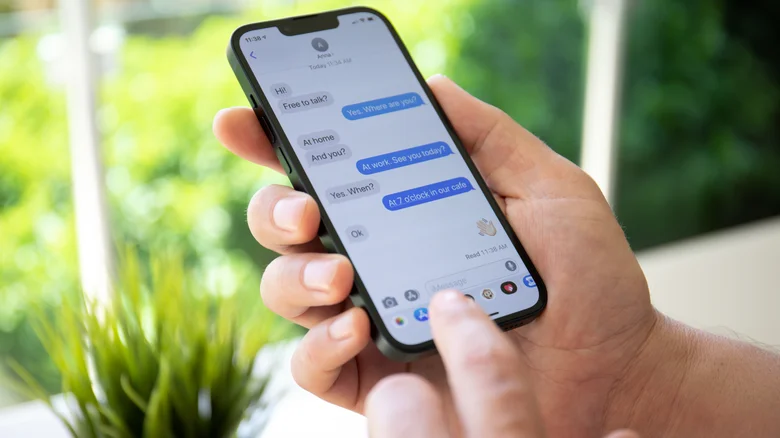
The Messages app now has the ability to suggest actions based on your messages. Mentioning a time and date to meet up with a friend, for example, will prompt a Calendar entry. Or saying you want to pick something up at the store later will offer the suggestion of jotting it down in the Reminders app.
If you don’t find this useful, don’t want Siri indexing your personal data or are just tired of seeing it pop up, turning it off is simple and customizable:
-
Open Settings.
-
Tap Apps, then select Messages.
-
Select Suggested Actions.
From here, you can select which — if any — suggestions you want to keep around from five categories: Add to Calendar, Add to Reminders, Add to Notes, Show in Maps and Flights and Packages.
