

You don’t need another app to block ads on Android. One change to your phone’s Private DNS settings can cut down on trackers across your apps.
Online ads are pivotal to the existence of many of your favorite apps and websites, allowing them to offer you content and experiences for free. At the same time, a subset of online ads have become increasingly intrusive and malicious, with researchers identifying spyware triggered by online advertising. Some particularly egregious examples can hog performance resources with poorly optimized animations, drain your phone’s battery and even redirect you to malicious websites without your consent.
Luckily, there are several measures you can take to help prevent malicious ads from appearing on Android. The operating system has gained many privacy and security features over the past few years. You can also go one step further by using an ad-blocking Private DNS server that blocks advertisements or install a dedicated web browser that can help to eliminate online ads. But before you do either, start with the ad protection features already built into Android.
How to block malicious pop-ups and invasive browser ads
Let’s begin with blocking the worst offenders: the intrusive pop-up ads that most of us frequently encounter while browsing the web. Chrome is the default web browser on the majority of Android phones these days, but it doesn’t offer support for extensions like its desktop counterpart. Still, Google includes a couple of features to block particularly problematic ads.
Open Chrome on your Android device, then tap the three-dot menu located in the top-right corner of the screen and tap Settings. Navigate to Site settings > Intrusive ads and select the option labeled Ads are blocked on sites known to show intrusive or misleading ads. Then, go back one step to the Site settings menu and tap Pop-ups and redirects. Here, pick the setting that prevents sites from sending pop-ups and using redirects.
These settings can help block intrusive ads and unwanted pop-ups in Chrome, but you will still see banners and less intrusive advertising while browsing the web. That said, you could go one step further to block more ads with a third-party web browser. Within Firefox, for example, you can navigate to the Extensions menu and install uBlock Origin. If you own a Samsung phone or tablet, you may already have the Samsung Browser app pre-installed too. Within Samsung Browser, tap the three-dot menu and Ad blockers. Finally, pick one of the services like ABP or Adblock Fast from the list.
Finally, you can simply download a different browser that offers ad-blocking as a feature out of the box. Brave is a popular option in this category, as it includes several other privacy and security features to prevent sites from tracking you as well.
How to block ads across Android apps with private DNS
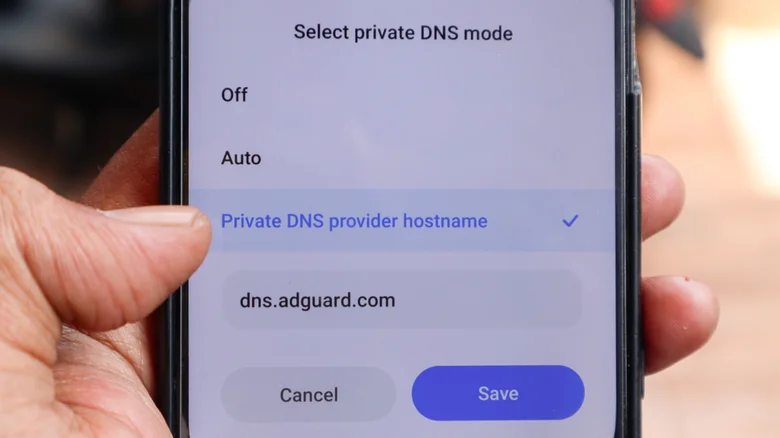
If you frequently encounter ads in other apps, you can use an Android privacy setting called Private DNS to help block them system-wide and make sure your Android phone is secure. Understanding what happens when apps track your activity can help explain why blocking trackers is useful too. Every operating system relies on DNS lookups to resolve domain names into IP addresses. By default, a DNS service will resolve domains to their corresponding destinations, but some services offer to selectively filter out malicious domains and ads. The way it works is that whenever an app tries to contact a known ad provider, the DNS resolver simply refuses to honor that specific request while resolving all other domains transparently.
To set up a custom Private DNS server on Android, open the Settings app, navigate to Network & internet > Private DNS and select Private DNS provider hostname. You have a few choices of DNS providers at this point. If you’re only looking to block the worst offenders, you can use Cloudflare’s Private DNS offering that blocks known malware-infested domains by entering security.cloudflare-dns.com in the field. To cast a wider net and block advertising domains, use AdGuard DNS by entering dns.adguard-dns.com instead. Whichever option you choose, tap Save to start filtering known malicious domains with Cloudflare or ads and trackers with AdGuard DNS.
Keep in mind that blocking ads systemwide will lead to broken functionality in some ad-supported games and apps. For example, many free games allow you to watch short ads in exchange for credits. You may be unable to earn those credits if your Android device cannot reach the game’s ad servers. DNS-based filtering can also block legitimate content, so if you ever notice a website refusing to load, that might be the culprit. In both cases, a simple workaround is to switch the Private DNS setting to Automatic while you access the game or website and re-enable it afterward.
