Close Menu
MyAppsPlus

    Subscribe to Updates

    Get the latest creative news from FooBar about art, design and business.

    What's Hot

    This iPhone Duo rival will give the Samsung Galaxy Z Fold 9 a run for its money

    November 29, 2026

    Grab a TP-Link dual-band Wi-Fi 6 router with 1.5Gbps for $44 this Cyber Monday

    November 29, 2026

    Black Friday knocks $450 off the Samsung Galaxy S26 Ultra

    November 29, 2026
    Facebook X (Twitter) Instagram
    Facebook X (Twitter) Instagram
    MyAppsPlusMyAppsPlus
    Sunday, November 29
    • Home
    • Breaking Tech
    • Apps & Software
    • AI & Automation
    • Android
    • iPhone & iOS
    • More
      • Reviews
      • How-To Guides
      • Deals & Discounts
      • Shop
    MyAppsPlus
    Home»Breaking Tech»The overlooked Samsung One UI setting that cleans up your screenshots
    Breaking Tech

    The overlooked Samsung One UI setting that cleans up your screenshots

    myappsplusBy myappsplusNovember 29, 2026014 Mins Read
    Share Facebook Twitter Pinterest Copy Link LinkedIn Tumblr Email Telegram WhatsApp
    Follow Us
    Google News Flipboard
    The overlooked Samsung One UI setting that cleans up your screenshots
    Share
    Facebook Twitter LinkedIn Pinterest Email Copy Link

    Don’t let everyone see you were taking screenshots at 2AM.

    Samsung looked at Android and decided it needed something more intuitive, so it came up with One UI, layering a ton of extra security features on top of the operating system. Frankly, there are so many One UI features you won’t get with other Android phones that you often won’t stumble over them unless you do a deep dive. One useful feature is a small toggle buried within the settings that strips away the status bar and navigation bar from your screenshots. That means whenever you take a snapshot, it captures your screen without those bars.

    This feature is called “Hide status and navigation bars,” and it can be found in your Advanced features settings. Once it is enabled, every screenshot you take afterward will lack the clock and battery info, your network status and whatever Android status bar icons you have peppering the bar up top. The bottom navigation bar will vanish too. That is an ideal step to take if you need clean and focused images showing exactly what you wanted to capture. When sharing screenshots, whether it’s a funny text exchange or that recipe you found online, having the image actually focus on what you’re interested in is ideal, especially as it doesn’t require any editing skills or extra apps later on.

    How to hide the status and navigation bars
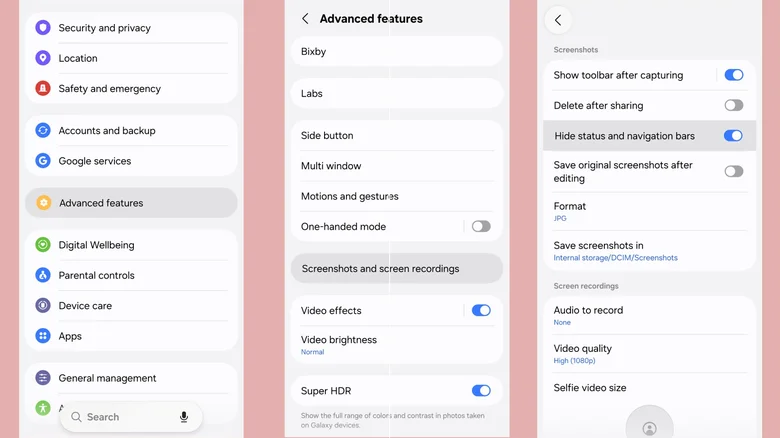
    Samsung Galaxy One UI screenshots to hide status and navigation bars.

    Enabling this handy feature takes a few seconds, and you won’t even need to download extra apps or anything.

    1. Open the Settings app.

    2. Go to Advanced features and select Screenshots and screen recorder.

    3. Make sure you toggle on the Hide status and navigation bars feature.

    When you turn on this setting, every screenshot you take moving forward will exclude those bars automatically. If you ever need to have a picture that features the time, for instance, it’s also easy to reverse it. It doesn’t matter which way you choose to take screenshots either — the effect will be the same whether you’re using the classic button combo (volume down + power button) or the hand swiping gesture. You can also customize the side button on your Galaxy phone to open Samsung Capture with a double press.

    If you’re using these screengrabs to create a combo image, you need to keep in mind the aspect ratio has changed and they’ll fit differently into your template. The toggle doesn’t expand the image to take up the space once occupied by the status bar and the button row; rather, it simply crops those elements out without your input.

    The benefits of cleaner screenshots
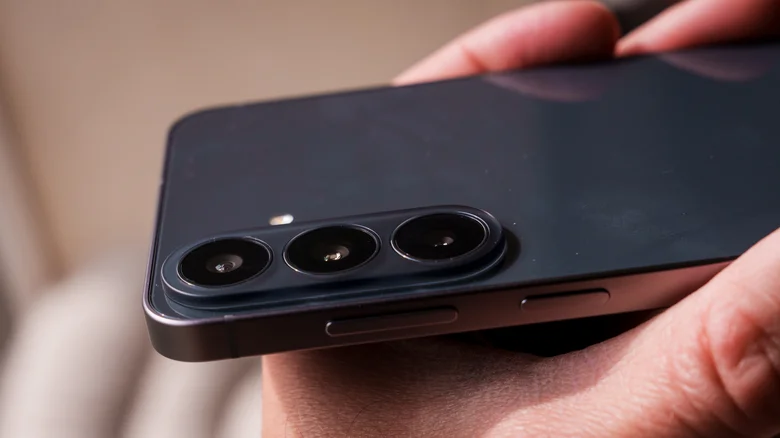
    Person holding a Samsung Galaxy smartphone.

    The obvious benefit is “it just looks better.” Screenshots that lack the status and navigation bars can look more professional since there’s no clock, battery percentage or signal strength to display. Plus, no one can now judge you for the order you keep your buttons arranged in — if you like the Back button on the left, that’s your prerogative. Either way, having a cleaner image can help whether you’re just helping your kids figure out how to fiddle with a setting, sharing a silly comment with a friend on Instagram or showing off your new Duolingo costume online.

    The setting is even more important if you’re creating tutorials or step-by-step guides to share online, or maybe for a presentation at work. Instead of cropping every single image manually (and missing the mark by just a few pixels here and there), the phone simply handles it all for you. This isn’t exactly a make-or-break feature if you’re rarely sending screenshots to your friends, but it literally takes a couple of seconds to turn it on, so why not?

    overlooked Samsung setting Smartphones That
    Follow on Google News Follow on Flipboard
    Share. Facebook Twitter Pinterest LinkedIn Tumblr Email Copy Link
    myappsplus
    • Website

    Related Posts

    Here’s how much it would cost to build a PC similar to the standard PlayStation 5

    November 29, 2026

    Rocket, an Indian rival to Lovable and Replit, is shutting down

    November 29, 2026

    The best gadgets to gift the readers in your life this holiday season

    November 29, 2026
    Add A Comment
    Leave A Reply Cancel Reply

    Top Posts

    The pros and cons of using your phone as a mobile hotspot

    November 16, 202651 Views

    UiPath Launches AI Coding Agent, Integrates Claude Code and Codex to Target Development Automation

    November 16, 202646 Views

    Announcing Artificial Analysis Intelligence Index v5

    October 28, 202641 Views
    Latest Reviews

    ‘I did not foresee at all the social-media application, nor its impact on society’: Inventor of the CMOS-based image sensor on how a technology designed to take photos in space has changed the way we view the world

    myappsplusSeptember 13, 2026

    Study says chatbots are misdiagnosing sleep apnea, so a doctor is sharing 4 symptoms you should never ignore

    myappsplusSeptember 13, 2026

    How to watch Big Brother UK 2026 online for FREE – stream season 23 from anywhere

    myappsplusSeptember 13, 2026
    Stay In Touch
    • Facebook
    • YouTube
    • TikTok
    • WhatsApp
    • Twitter
    • Instagram

    Subscribe to Updates

    Get the latest tech news from FooBar about tech, design and biz.

    Most Popular

    Why your Roku keeps randomly turning off (and how to fix it)

    September 13, 20260 Views

    External HDD vs. SSD: What are the pros and cons of each drive type?

    September 13, 20260 Views

    How to watch Man Utd vs Man City: Live streams, TV channels for Premier League 2026/27

    September 13, 20260 Views
    Our Picks

    This iPhone Duo rival will give the Samsung Galaxy Z Fold 9 a run for its money

    November 29, 2026

    Grab a TP-Link dual-band Wi-Fi 6 router with 1.5Gbps for $44 this Cyber Monday

    November 29, 2026

    Black Friday knocks $450 off the Samsung Galaxy S26 Ultra

    November 29, 2026

    Subscribe to Updates

    Subscribe to our newsletter and get the latest tech news, app updates, AI trends, smartphone reviews, and exclusive deals delivered straight to your inbox.

    Facebook X (Twitter) Instagram Pinterest
    • About Us
    • Get In Touch
    • Disclaimer
    • Privacy Policy
    • Terms & Conditions
    © 2026 MyAppsPlus. All Rights Reserved.

    Type above and press Enter to search. Press Esc to cancel.