Close Menu
MyAppsPlus

    Subscribe to Updates

    Get the latest creative news from FooBar about art, design and business.

    What's Hot

    Alphabet Has $251 Billion Invested In 2 of Its Biggest Artificial Intelligence Partners

    November 25, 2026

    The process gap holding back enterprise AI

    November 25, 2026

    Dozens of oil and shipping tankers hacked in recent weeks, per report

    November 25, 2026
    Facebook X (Twitter) Instagram
    Facebook X (Twitter) Instagram
    MyAppsPlusMyAppsPlus
    Wednesday, November 25
    • Home
    • Breaking Tech
    • Apps & Software
    • AI & Automation
    • Android
    • iPhone & iOS
    • More
      • Reviews
      • How-To Guides
      • Deals & Discounts
      • Shop
    MyAppsPlus
    Home»iPhone & iOS»How to block incoming calls on HomeView
    iPhone & iOS

    How to block incoming calls on HomeView

    myappsplusBy myappsplusNovember 20, 2026033 Mins Read
    Share Facebook Twitter Pinterest Copy Link LinkedIn Tumblr Email Telegram WhatsApp
    Follow Us
    Google News Flipboard
    How to block incoming calls on HomeView
    Share
    Facebook Twitter LinkedIn Pinterest Email Copy Link

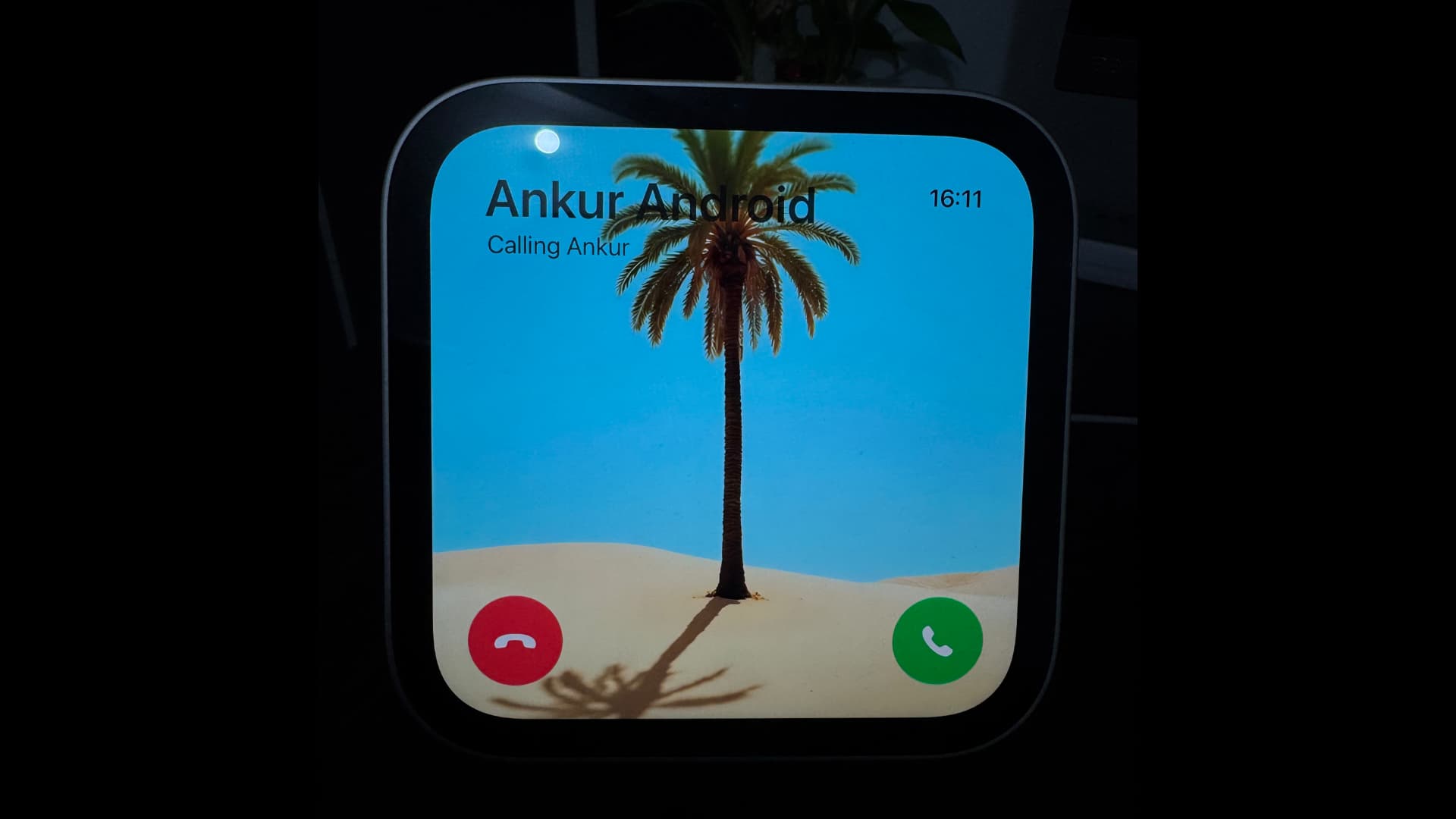
    Learn how to stop all incoming calls from showing on HomeView if you have privacy concerns that somebody else may see who’s calling you.

    When you set up your Apple HomeView smart device, you’re prompted to enable Personal Content so your call logs, texts, calendar events, and other individual items can appear in HomeView’s FaceTime, Messages, Calendar, and other relevant apps.

    HomeView isn’t a simple mirroring screen for your iPhone, so not all your calls will show up on it. Instead, Apple has added some checks, and your incoming iPhone calls will only show up on HomeView when all the following conditions are fulfilled:

    • Your iPhone is nearby and connected to the same Wi-Fi network as your HomeView. This isn’t new and is in line with how iPhone calls show on Mac, iPad, and Apple TV.
    • You have enabled Personal Content on HomeView.
    • Your user profile is selected on HomeView.
    • Importantly, HomeView can see your face and make sure you’re around it.

    The above safeguards ensure nobody at home can see who’s calling you when you’re away at the office or elsewhere. Apple has taken these steps to ensure privacy even from people who are family.

    That said, if your HomeView is on your work desk or living room table and you’re sitting there when someone calls, it will show up on the 7-inch display, and people standing behind you may see who’s calling. If you don’t want this and need an ultra level of privacy, HomeView software includes an option to disable all incoming calls from showing on its screen.

    iPhone calls on iPad and Mac

    Unlike iPad, Mac, and Apple TV, you cannot manage this from your iPhone, since HomeView still doesn’t appear as a potential device under iOS Settings > Apps > Phone > Calls on Other Devices.

    So, go to HomeView settings to make this change and permanently block incoming calls from showing up there.

    Block incoming calls on HomeView

    1) Swipe up on the HomeView clock face to bring up the app drawer and make sure you see your profile icon in the top right corner. Then, open the Settings app.

    2) Tap your name at the top.
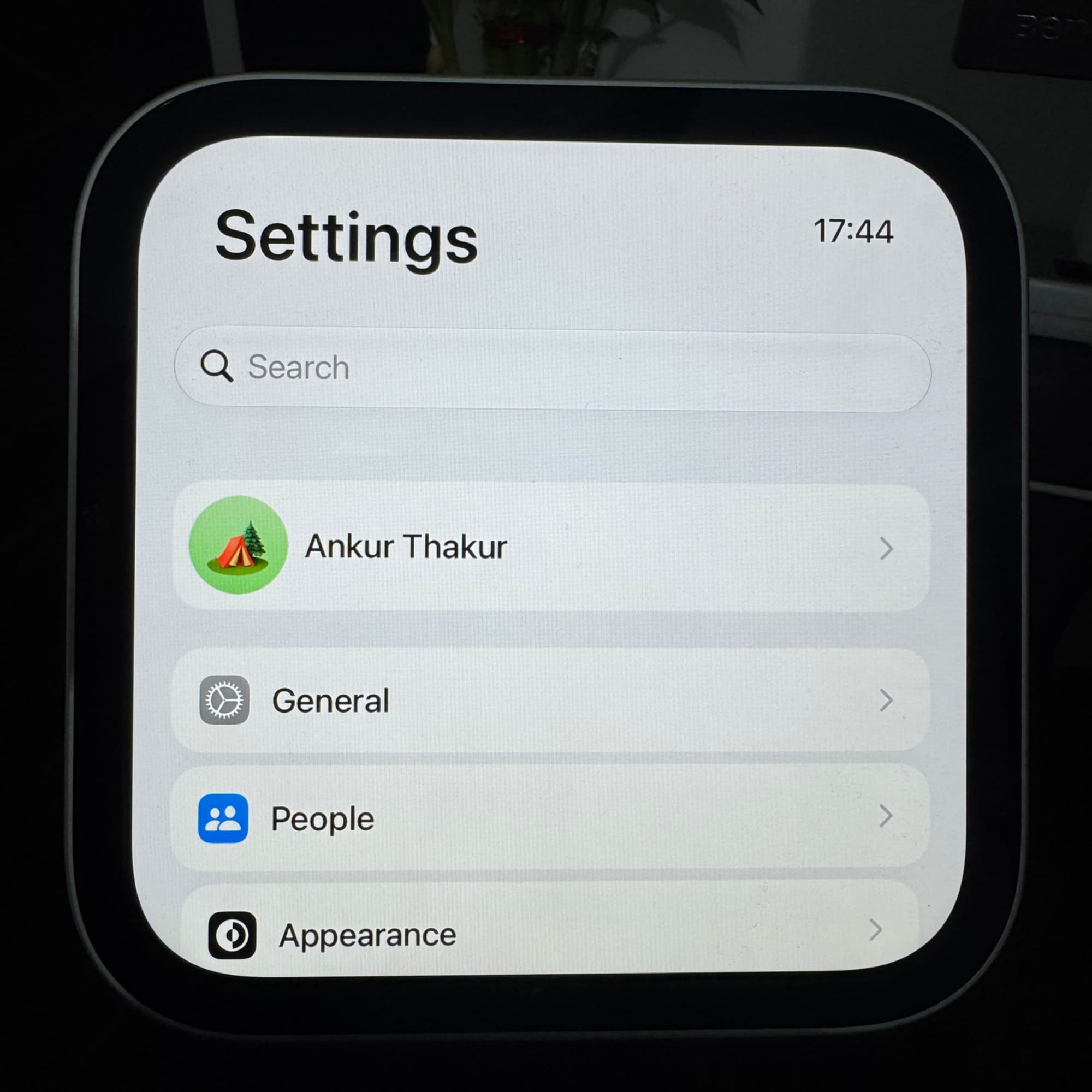
    First Settings app page on HomeView

    3) Scroll down and turn off Incoming Calls.

    Moving forward, incoming calls will be confined to your iPhone (and iPad, Mac, and Apple TV if you have enabled them), but not your HomeView.

    If you can’t access your HomeView now

    In case you can’t access your HomeView for any reason, just turn off Wi-Fi on your iPhone. Or, turn off Personal Content by following these steps.

    1. Open the Home app on your iPhone.
    2. Touch and hold the HomeView tile and select Accessory Settings.
    3. Scroll down and tap Personal Content.
    4. Turn off the switch next to your HomeView.
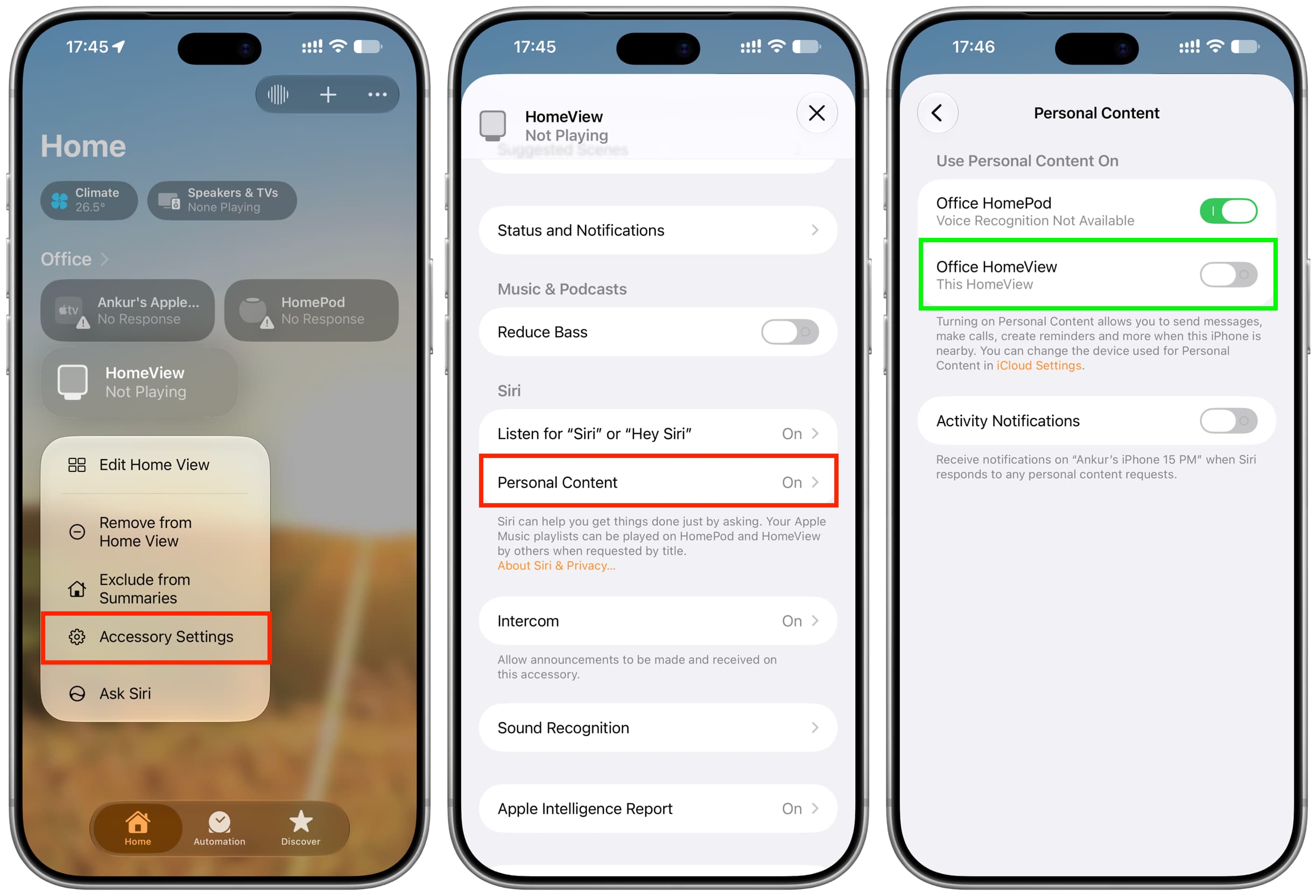
    Personal Content turned off for HomeView in iPhone Home app

    This tip works even if your iPhone isn’t connected to the same Wi-Fi as your HomeView, as long as both devices have Internet connectivity
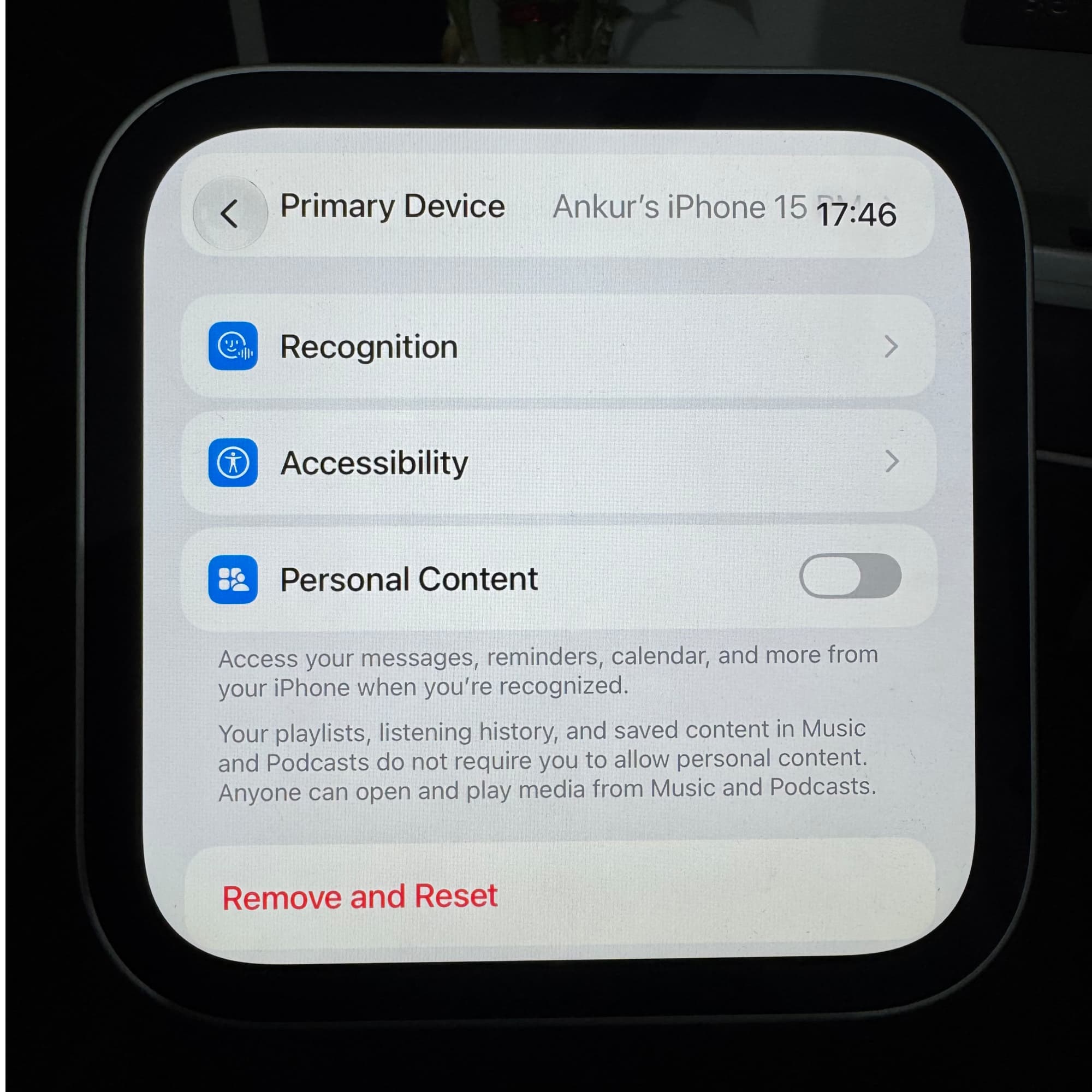
    Personal Content turned off on HomeView
    Personal Content turned off on HomeView after I disabled it in the iPhone Home app

    What’s your reason for turning off incoming calls on HomeView, if you don’t mind sharing?

    • How to make regular and FaceTime calls from HomeView
    • All about updating your HomeView software
    Featured HomeView How to News phone Push Tutorial Tutorials Voice calls
    Follow on Google News Follow on Flipboard
    Share. Facebook Twitter Pinterest LinkedIn Tumblr Email Copy Link
    myappsplus
    • Website

    Related Posts

    Gemini’s floating overlay now helps you compare prices, check warranty terms across shopping apps

    November 25, 2026

    Gemini Notebook’s flashcards just got a lot better for studies with three new features

    November 25, 2026

    Black Friday Discount Hits 512GB MacBook Neo at $699 ($100 Off)

    November 25, 2026
    Add A Comment
    Leave A Reply Cancel Reply

    Top Posts

    The pros and cons of using your phone as a mobile hotspot

    November 16, 202648 Views

    UiPath Launches AI Coding Agent, Integrates Claude Code and Codex to Target Development Automation

    November 16, 202646 Views

    Save on your groceries, gas, and holiday shopping with this $15 BJ’s membership (Reg. $60) 

    November 4, 202634 Views
    Latest Reviews

    Travel Tech Announces Pitch Competition Finalists for Upcoming Start-Up Summit

    myappsplusSeptember 12, 2026

    How to watch Pacific Nations Cup 2026: FREE rugby live streams from anywhere, schedule

    myappsplusSeptember 12, 2026

    3 nail-biting Paramount+ thriller movies to watch if you never want to sleep again

    myappsplusSeptember 12, 2026
    Stay In Touch
    • Facebook
    • YouTube
    • TikTok
    • WhatsApp
    • Twitter
    • Instagram

    Subscribe to Updates

    Get the latest tech news from FooBar about tech, design and biz.

    Most Popular

    Instagram chief thinks a chronological feed is ‘much worse’ and says the quiet part out loud

    September 12, 20260 Views

    Dbrand’s MNML Pixel 11 Pro cases are simply good, and that’s the point [Gallery]

    September 12, 20260 Views

    Some of the best budget running headphones just got a big discount on Amazon — save $70 on the Shokz OpenRun Pro

    September 12, 20260 Views
    Our Picks

    Alphabet Has $251 Billion Invested In 2 of Its Biggest Artificial Intelligence Partners

    November 25, 2026

    The process gap holding back enterprise AI

    November 25, 2026

    Dozens of oil and shipping tankers hacked in recent weeks, per report

    November 25, 2026

    Subscribe to Updates

    Subscribe to our newsletter and get the latest tech news, app updates, AI trends, smartphone reviews, and exclusive deals delivered straight to your inbox.

    Facebook X (Twitter) Instagram Pinterest
    • About Us
    • Get In Touch
    • Disclaimer
    • Privacy Policy
    • Terms & Conditions
    © 2026 MyAppsPlus. All Rights Reserved.

    Type above and press Enter to search. Press Esc to cancel.