

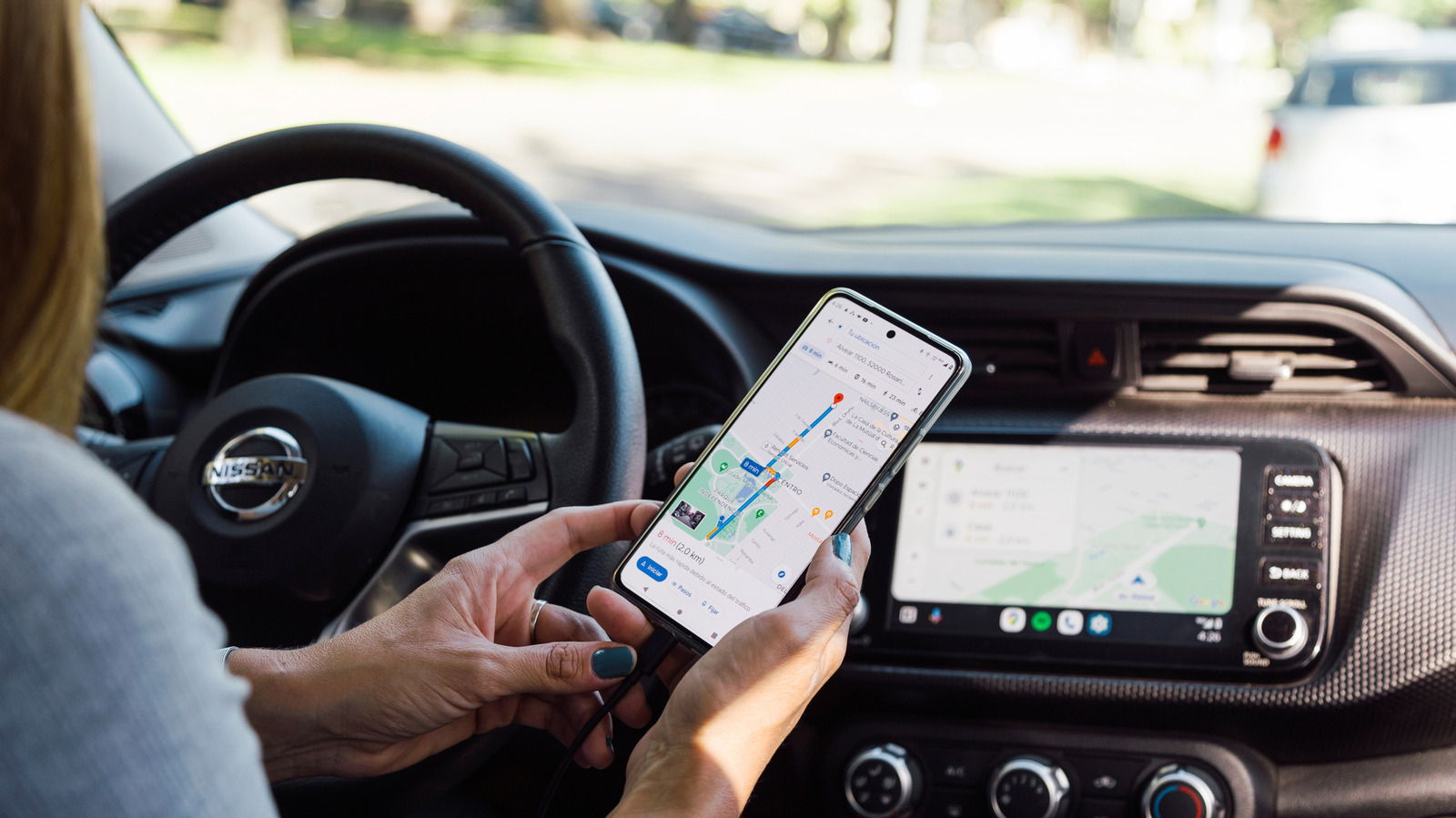
Maps has more tricks than you’ve tapped.
Most of us use Google Maps the same way day in and day out — we type in an address, follow the instructions and arrive at our destination. But the app also offers a lot of useful tools that aren’t as easily accessible as telling it where to go. If you want to set a reminder for when to leave or ensure your music is uninterrupted while still getting the step-by-step instructions, there are settings you can change to make that happen. You can also turn Google Maps into a much more useful tool if you tell it what type of car you have, or specify your route settings all so you can get customized recommendations.
None of these features require a new app or a subscription, either. They are built directly into Google Maps, and you can get to them with a little bit of digging around, especially when you know where to look.
Travel the way you want by specifying your car and route
There’s a feature within Google Maps that lets you specify what car you’re driving. The make and model don’t matter as much as what type of engine it has, letting you choose between gas, diesel, hybrid and electric. With this info, the app can tailor routing decisions to your car’s needs.
For EV and plug-in hybrid owners, this feature is worth considering because you can tell Google Maps exactly what type of plug or adapter your car requires. This allows Maps to automatically surface compatible charging stations. You can find this setting in Settings > Your vehicles. Once set, you can search for charging stations along your route, and the app will signal those that will work with your specific car.
Route preferences deserve the same attention. The app’s settings make it possible to toggle options to avoid tolls, ferries or even highways. This is useful if you’d rather take the scenic (or cheaper) route or if you wish to avoid the freeway at its higher speeds. To turn the feature on, go to Settings > Navigation, and you’ll find all toggles under Route options. One thing that will save you time in the long run is setting or changing your home address on Google Maps so you can jump straight to your custom directions with a single tap. If you have your Gemini assistant enabled, you can even say “navigate home” and it will set the route for you.
Don’t be late again with the help of reminders
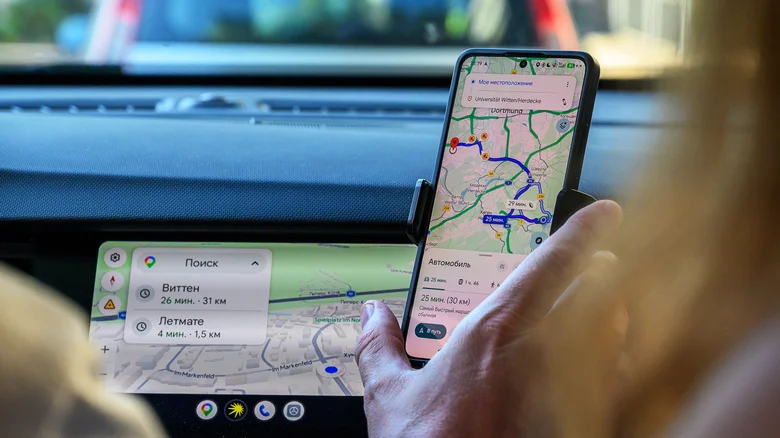
Running late is rarely about the drive itself, but more about leaving at the wrong time. Unless an accident has delayed your journey, you probably left home late in accordance with your predicted arrival time — Google Maps is that good at estimating when you’ll arrive based on your chosen route.
Well, you can use Google Maps on iPhone and its “Set a reminder to leave” feature to receive an alert telling you when to head out so you’re not late for appointments. You can set an arrive-by time (or a leave-by time) for your destination under Directions > transportation mode and then tap the three-dot menu and select Set a reminder to leave > Depart or Arrive > set the time > Done. Maps will now notify you when to leave. On Android, things are a little different; to get the same results requires Google Calendar to set the reminder by creating an event with the appointment’s date and time while adding the destination to the location field.
This feature shines best in busy cities where traffic on the same stretch of road can vary dramatically between a Monday afternoon and a Friday evening. For anyone juggling back-to-back meetings, school pickups and a million extracurricular activities, these reminders remove the need to check the app constantly. It’s a quiet but dependable feature, and it’s equally useful if you’re planning on using public transport.
Get directions while keeping your music uninterrupted
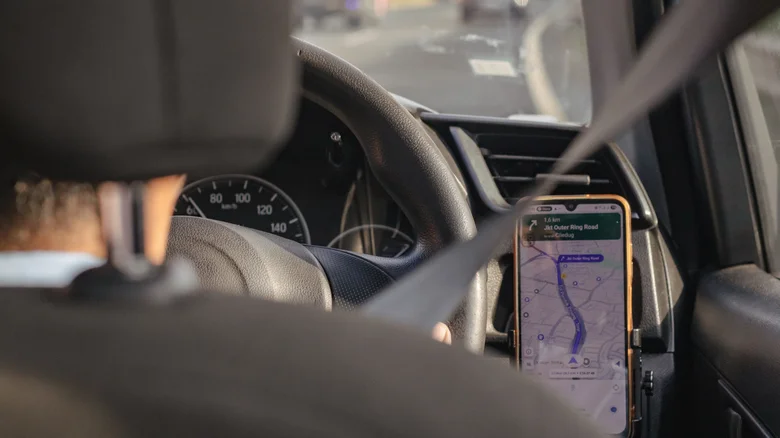
If you’ve ever had Spotify, a book or a podcast cut out midway to announce an upcoming exit, you know how annoying that can be. Thankfully, there’s an easy fix if you’d like to silence Google Maps: you simply have to turn off the “Play voice over Bluetooth” setting, a fine way to improve your Android Auto experience. This will stop Google Maps from interrupting your music over your car’s speakers, while still giving you visual turn-by-turn guidance on screen. The voice telling you to turn left or right will come from your phone rather than your car’s speakers. It’s a small adjustment that will make a big difference, especially if you drive in the city a lot and need to change direction often. To do this, go to your profile, scroll down to Settings and go to Navigation. The feature’s toggle will be available up top, under Sound & Voice.
One cool perk that’s worth knowing about when you’re using Android Auto is that when you’re parked at your destination or somewhere for a rest, you can take a breather and play games directly on an Android Auto screen. That could make the wait during your kid’s next practice session a little more entertaining.
