

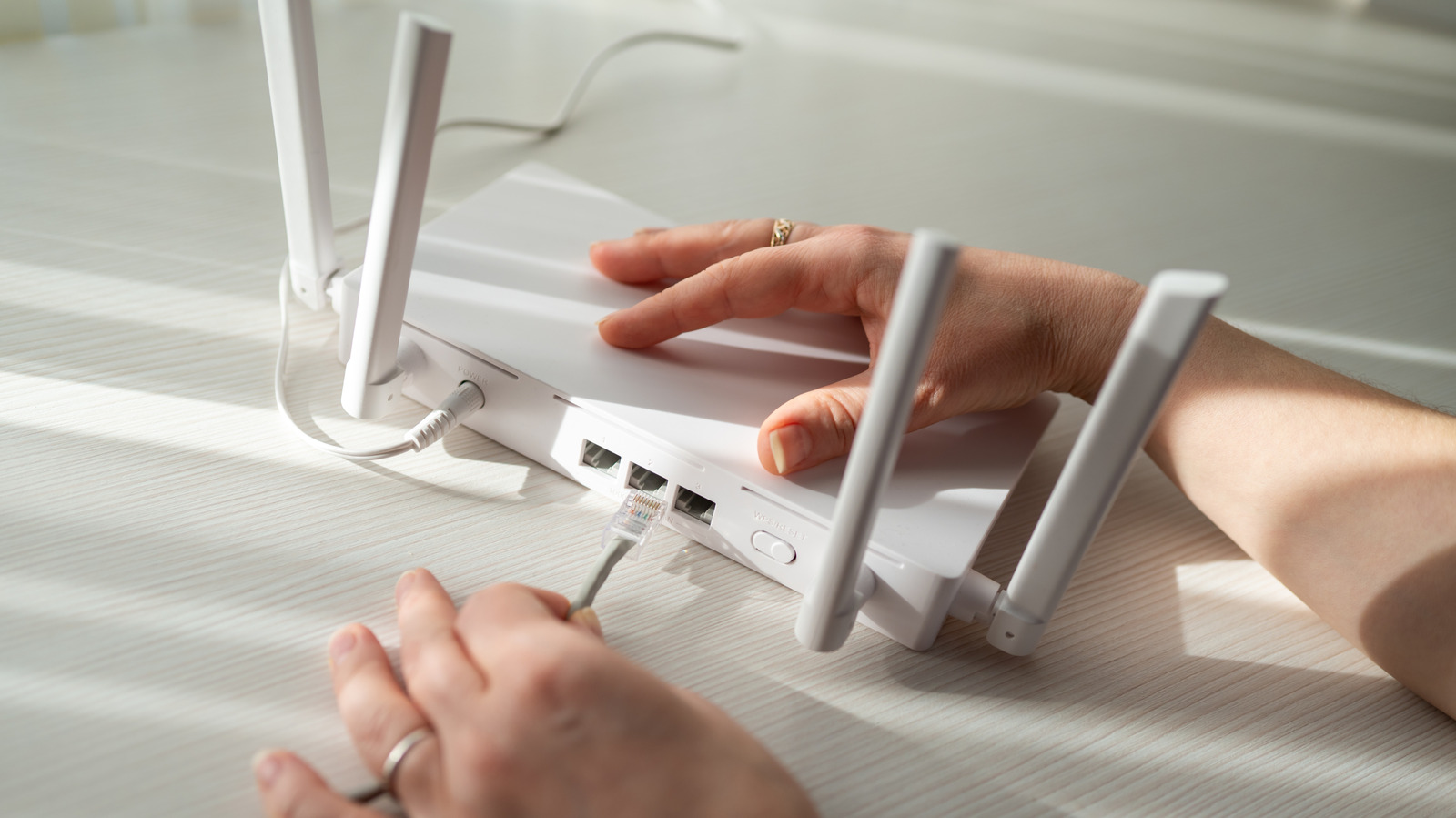
Taking a few shortcuts while setting up your home network can lead to a lot of buffering later.
Setting up your home network is a process, and it’s the little mistakes along the way that will hurt you in the end. One simple yet very common error is poor router placement. Nobody wants to set up one of TP-Link’s big spider routers right in the middle of the living room, but it shouldn’t be tucked into an out-of-the-way corner either. Home decor is important and all, but the router needs to be in a central location, or as close as you can get it without it becoming a tripping hazard.
Nearby electronics are disruptive, so you don’t want to place your router next to the microwave. Cordless phones (yes, they still exist) and baby monitors can wreak havoc on your Wi-Fi signal too. If your connection runs through a corner of the house, you don’t necessarily have to set everything up right there. Regardless of the modem or gateway your ISP installs, you can still set up another access point elsewhere using an Ethernet cable. Sure, it means hiding extra cable, but setting up a home network can require compromises.
When purchasing your own router, the equipment has to be a good match for your internet plan. If you’re in a rural area and DSL or satellite internet is the best you can get, a high-speed gaming router is massive overkill. Consider your home’s layout and the coverage you want in each room. A larger or multi-story home can benefit from a mesh system, but the placement of each is critical for proper whole-home coverage.
Using Wi-Fi for everything and overlooking your cables
Good Wi-Fi coverage throughout the home is convenient, but wireless connections are not ideal for everything. Online gaming, for instance, requires a stable, low-latency connection for best results.
Say you have five people in the home all with smartphones, plus TVs in bedrooms, a few tablets, an Echo device or two, game consoles and a gaming PC in a home office. Without considering anything else, that’s a lot of devices vying for bandwidth on your home network. Why make the gaming PC fight everything else over the air when you can run an Ethernet cable from your router to your PC and avoid the slowdown of Wi-Fi?
An Ethernet cable delivers speed, lower latency, immunity to wireless interference and better security, essentially when you’re prioritizing a gaming setup over everything else. Cat6a can support 10-gigabit connections over channels up to 100 meters, which is great if you have extremely high-speed internet service.
Of course, before running cables everywhere, consider where to set up wired devices. If you add more networking equipment, do it one piece at a time, confirm each stage works and label your cables. It’s much easier to troubleshoot later on when you know where everything is and how it’s running.
Common home network setting errors
Some common errors on the software side of your home network are easy to overlook because the internet will still appear to work fine. Using weak router security settings is one of the most disruptive and damaging. Enable WPA3 Personal if your router and devices support it. If older equipment won’t connect, WPA2/WPA3 transitional mode allows compatible devices to use WPA3 while others use WPA2 Personal with AES. Don’t bother with outdated options like WEP and TKIP.
If you haven’t already, change your router’s administrator credentials as well as the Wi-Fi password. Each serves a different purpose: the former prevents unauthorized people from administering your network while the latter controls who can join your Wi-Fi. Replace default administrator credentials with a strong password that isn’t something weak like your phone number. Always keep the router’s firmware up-to-date so you aren’t susceptible to known vulnerabilities.
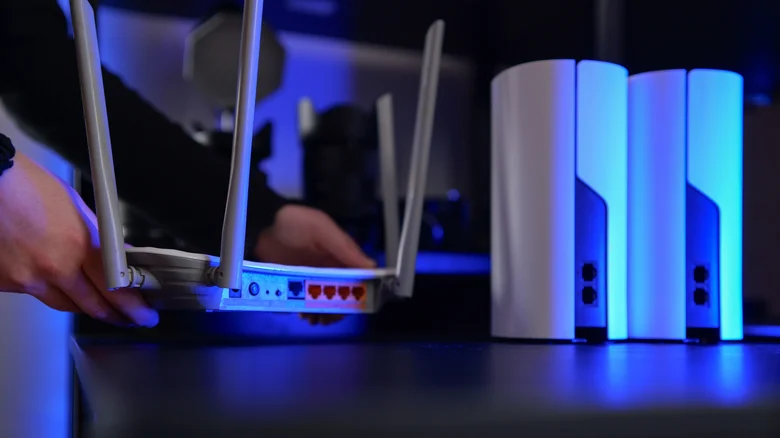
Another mistake is buying a mesh network setup or new router without checking to see how it will work with your existing equipment. Two DHCP servers handing out addresses on the same network create potential conflicts, so you’ll need to use bridge mode or access point mode if you’re adding another router. Network equipment instructions should walk you through the right configuration.
Keep it simple, document, and add new features gradually. That sounds a bit excessive, but it makes a huge difference if something goes wrong.
