

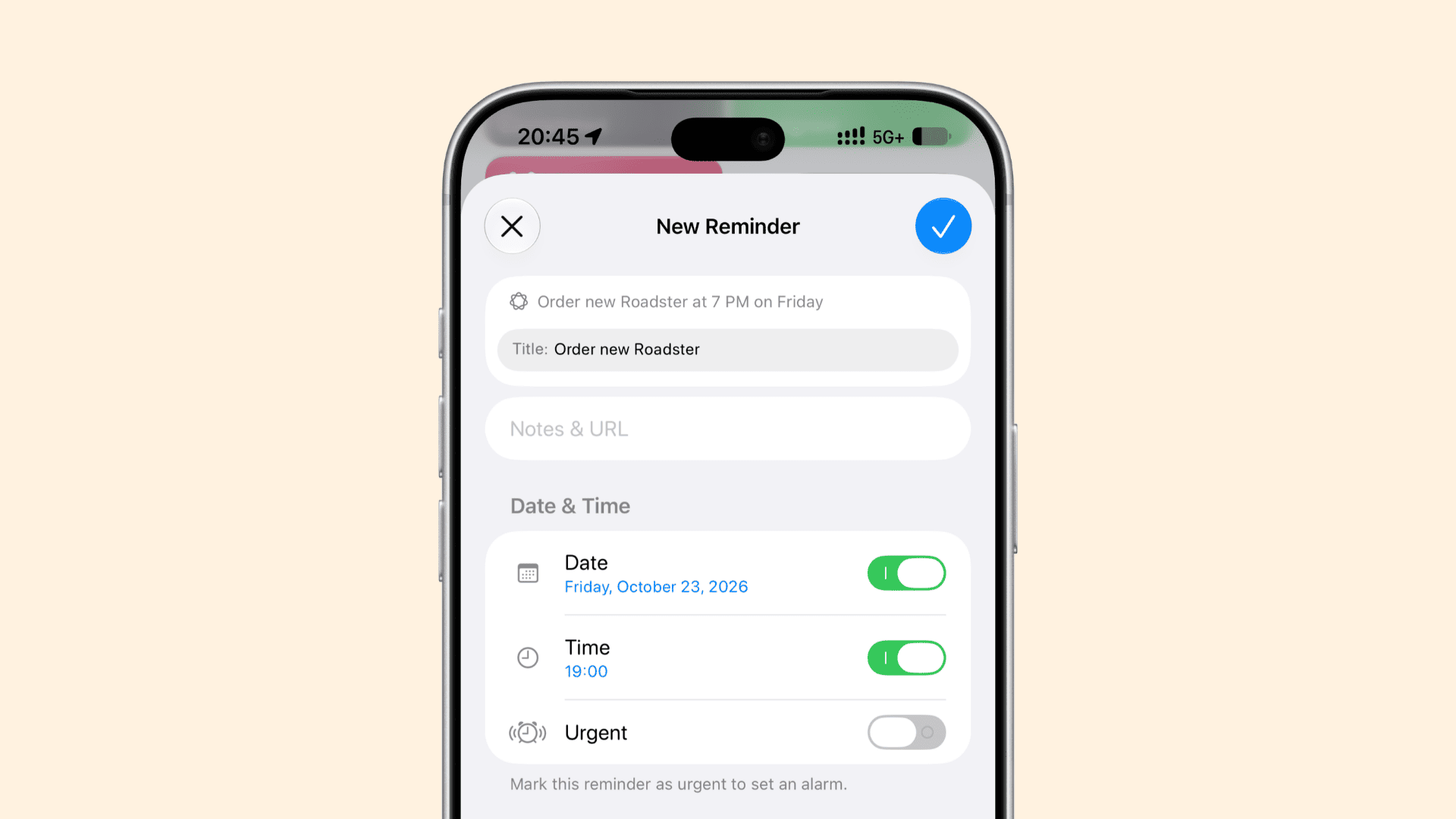
iOS 27, iPadOS 27, and macOS 27 Golden Gate support adding new reminder tasks and calendar events simply by typing in natural language.
Until the latest Apple OS update, the quickest way to create a new reminder or calendar event was to invoke Siri and say something like “set a reminder to check the oven after 30 minutes” or “create a calendar event for soccer practice for Friday at 3 PM.” If you didn’t want to use Siri for any reason, you could manually type the task or event name and fill in the date, time, etc., or select it from suggestions (usually above the keyboard or under where you type).
With the new updates, you can create reminders and calendar events by simply typing in natural language, the same way you’d otherwise speak to Siri (mostly).
Apple Intelligence will understand your written words and automatically fill in the relevant details like task name, date, time, location, people, etc., without you having to fill in these details in their respective fields or selecting a suggestion. We show you exactly how it’s done with examples. But note that automatic location and people entry didn’t work for me.
Apple Intelligence is only available on iPhone 15 Pro, 15 Pro Max, and newer models. For iPad and Mac, see the full list of supported devices here.
Add a reminder in natural language
- Update your iPhone, iPad, or Mac to iOS 27, iPadOS 27, or macOS 27 Golden Gate. We’ll use an iPhone to demo the steps below.
- Open the Reminders app and tap the plus button to add a new task.
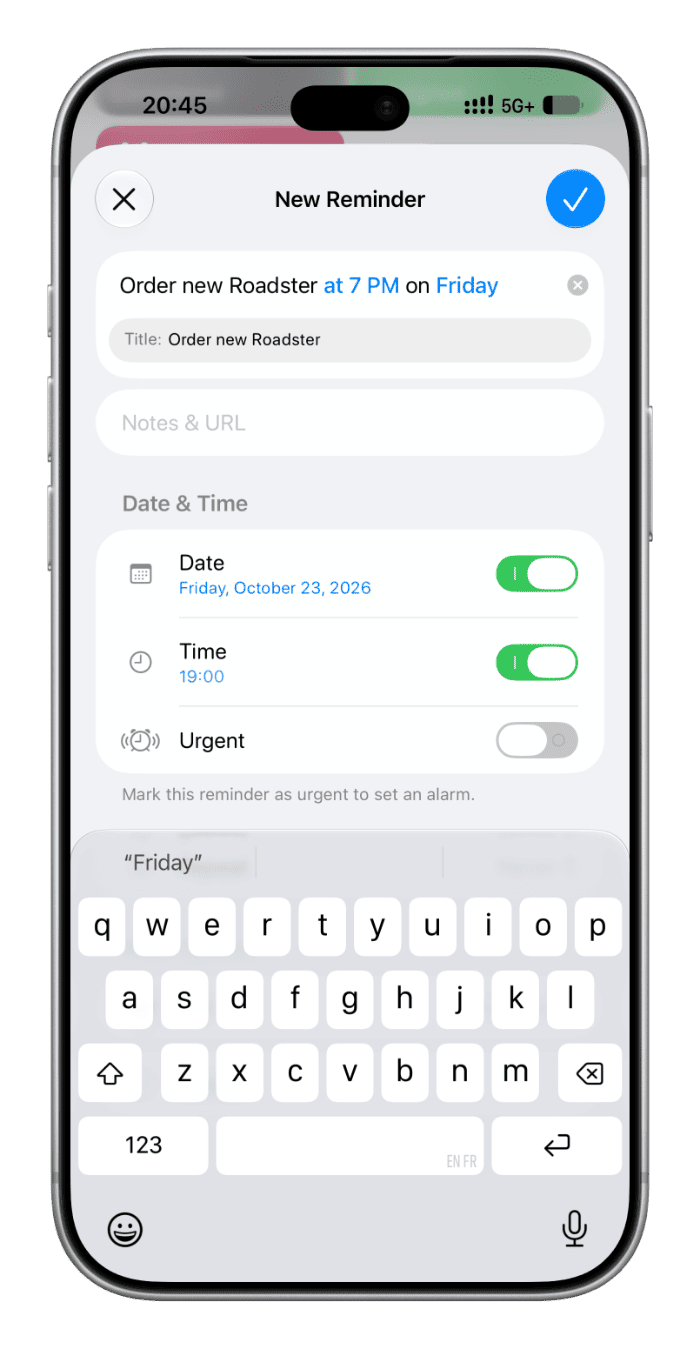
- Type your task name followed by time and date. If you don’t mention a date (or words like tomorrow), the app will consider it as today. And if you don’t mention the time, it will use the all-day reminder time you have set in Settings > Apps > Reminders > Time.
- As you type, Apple Intelligence will understand your details and add them automatically to the Date and Time sections. It will also show the suggested task title/name (which will be what you typed, minus the date and time).
- Tap the checkmark icon to save this new task. As you can see, you just typed, and everything was filled in automatically, with no need to fill in the date and time manually.
You can also use dictation in step 2 above, but if you have to use voice, why not use Siri, which does it quickly and more accurately?
Add a calendar event in natural language
- Update your iPhone, iPad, or Mac to iOS 27, iPadOS 27, or macOS Golden Gate.
- Open the Calendar app and tap the plus button to create a new event.
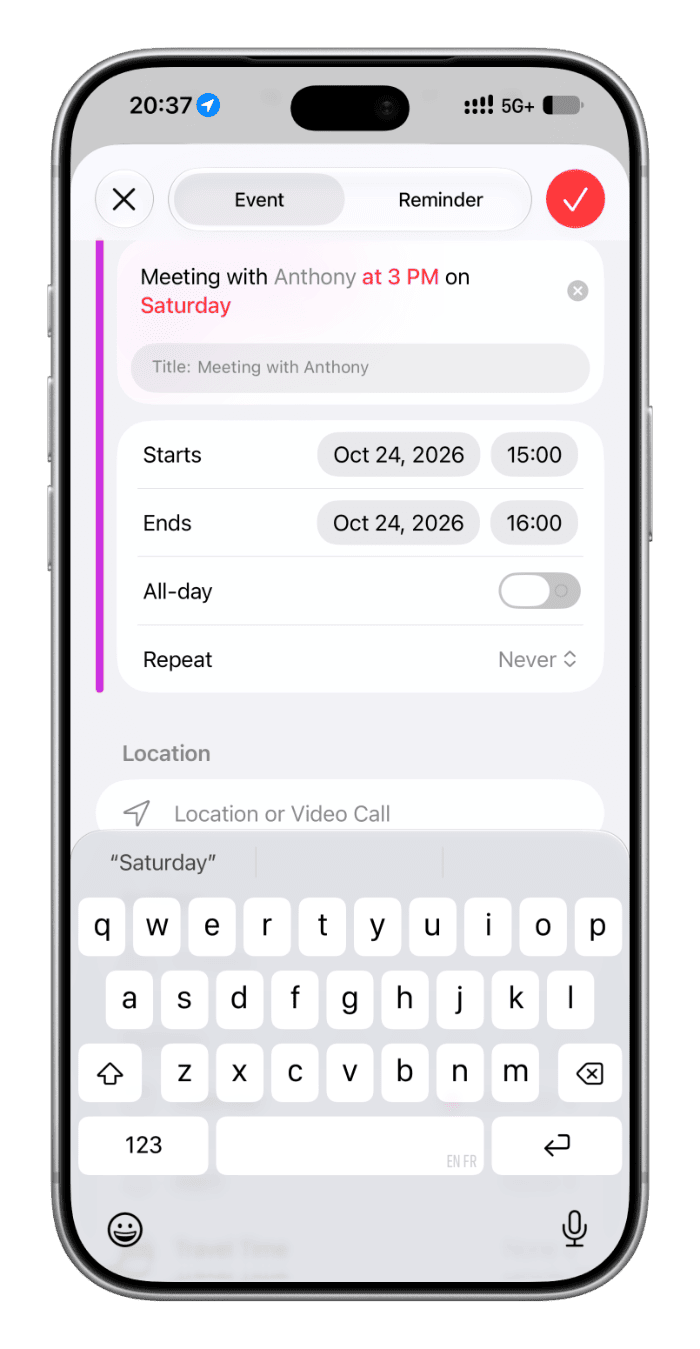
- Type your event name, date, and time. Date and time will be highlighted and auto-added to the relevant fields. Just tap the checkmark icon to save it.
It isn’t always smooth sailing…
While Apple Intelligence gets things right regularly, it’s not always perfect. At times, it may even get frustrating, making you think a manual or Siri method is better and faster.
In my tests, I found that sometimes it would not work if I mentioned the date before the time.
Other times, it would fail if I used a lowercase day name (like ‘friday’) instead of ‘Friday.’ And then for other events, lowercase would work fine. Same for am/pm, AM/PM, and Am/Pm — they all give inconsistent results.
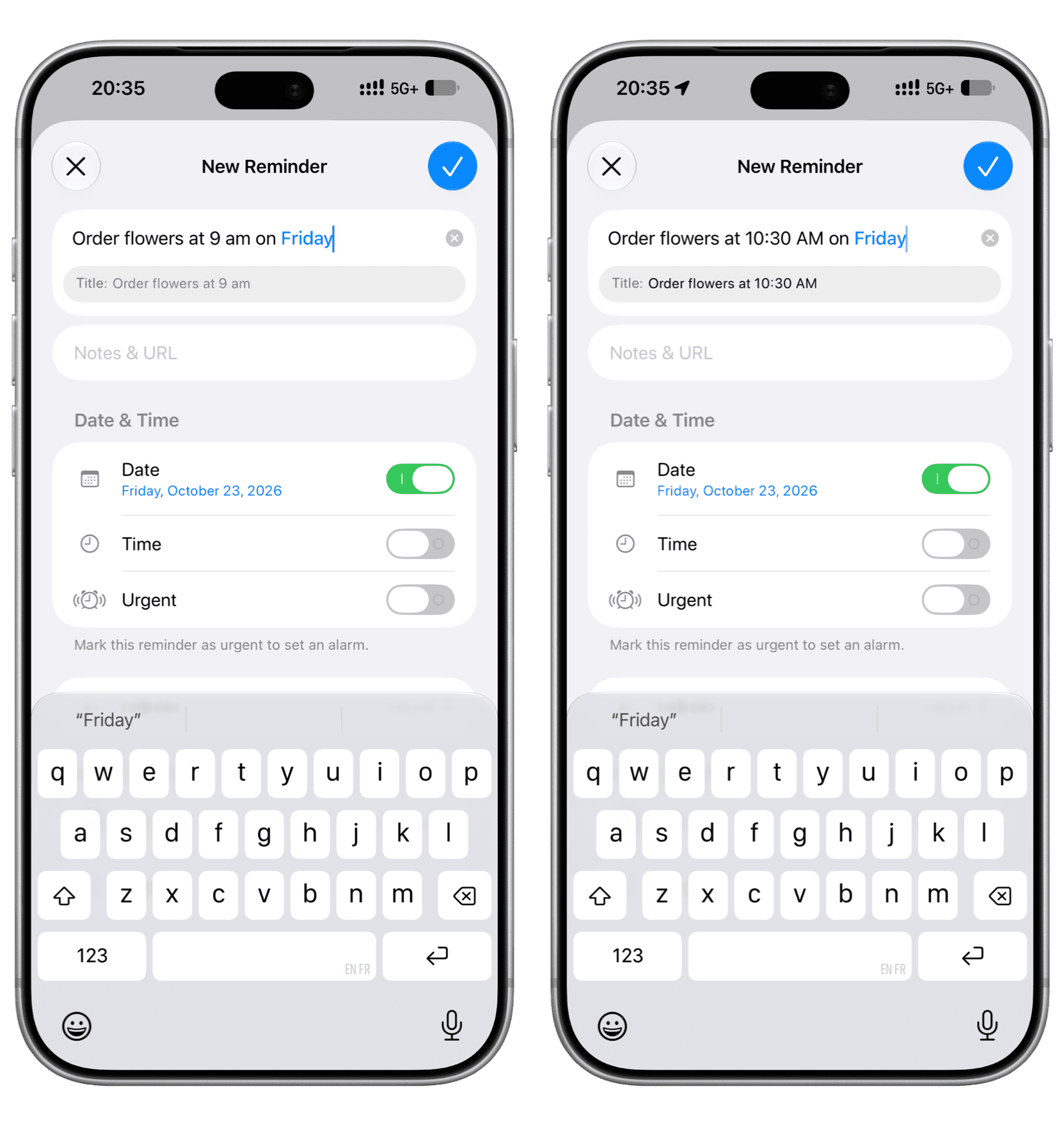
Sometimes the highlighted day and date automatically turn gray when I tap the back button or tap the text field.
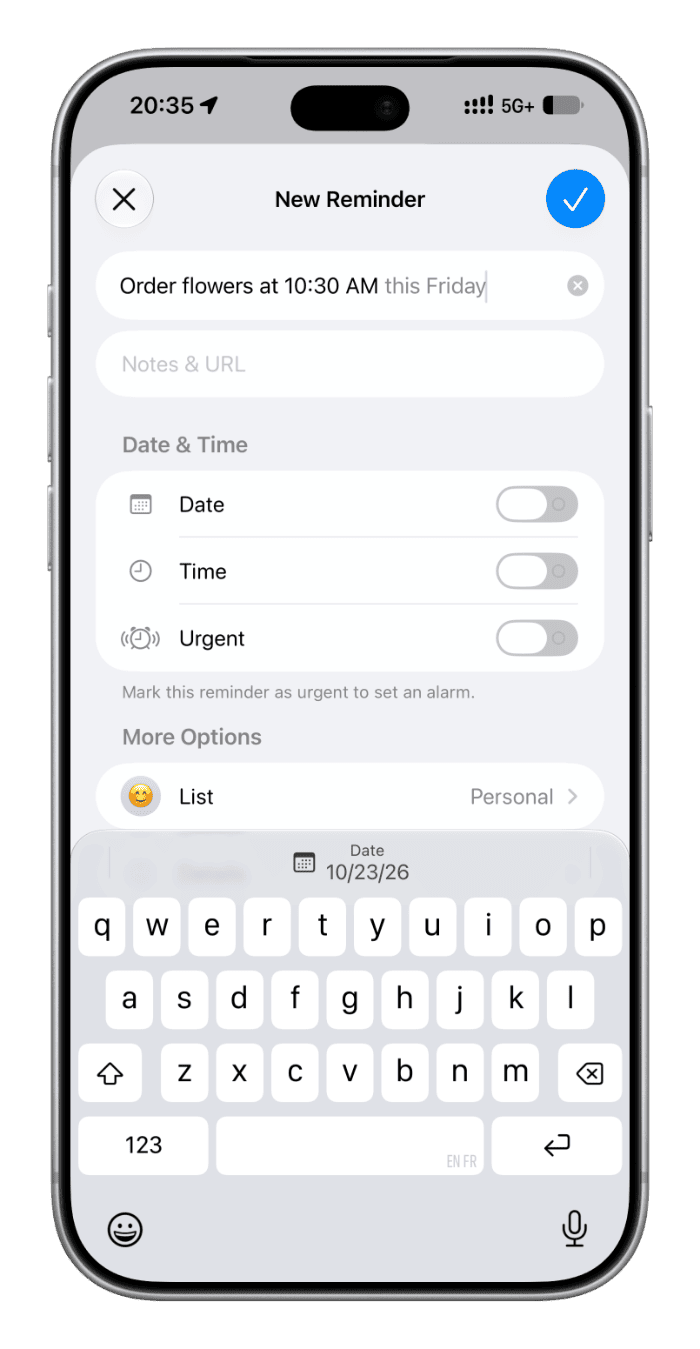
All in all, it works but can be challenging at times. That’s why I still prefer Siri or the date and time suggestion that appears over the keyboard (not a new iOS 27 feature; it also works on older models like iPhone 11 running earlier iOS versions).
Also, check out: How to add alarms for urgent reminders on iPhone in iOS 27
