Close Menu
MyAppsPlus

    Subscribe to Updates

    Get the latest creative news from FooBar about art, design and business.

    What's Hot

    Mamdani says feds have abdicated on AI, urges New Yorkers to push back

    October 20, 2026

    Display your soccer pride with LEGO’s FIFA World Cup trophy down at a new $160 Amazon low ($40 off)

    October 20, 2026

    Does your ‘free’ mobile game empty your wallet? How in-app micro-fees and subscriptions secretly drain your bank account

    October 20, 2026
    Facebook X (Twitter) Instagram
    Facebook X (Twitter) Instagram
    MyAppsPlusMyAppsPlus
    Tuesday, October 20
    • Home
    • Breaking Tech
    • Apps & Software
    • AI & Automation
    • Android
    • iPhone & iOS
    • More
      • Reviews
      • How-To Guides
      • Deals & Discounts
      • Shop
    MyAppsPlus
    Home»Breaking Tech»What can you use the HDMI port on your Ugreen NAS for?
    Breaking Tech

    What can you use the HDMI port on your Ugreen NAS for?

    myappsplusBy myappsplusOctober 20, 2026003 Mins Read
    Share Facebook Twitter Pinterest Copy Link LinkedIn Tumblr Email Telegram WhatsApp
    Follow Us
    Google News Flipboard
    What can you use the HDMI port on your Ugreen NAS for?
    Share
    Facebook Twitter LinkedIn Pinterest Email Copy Link

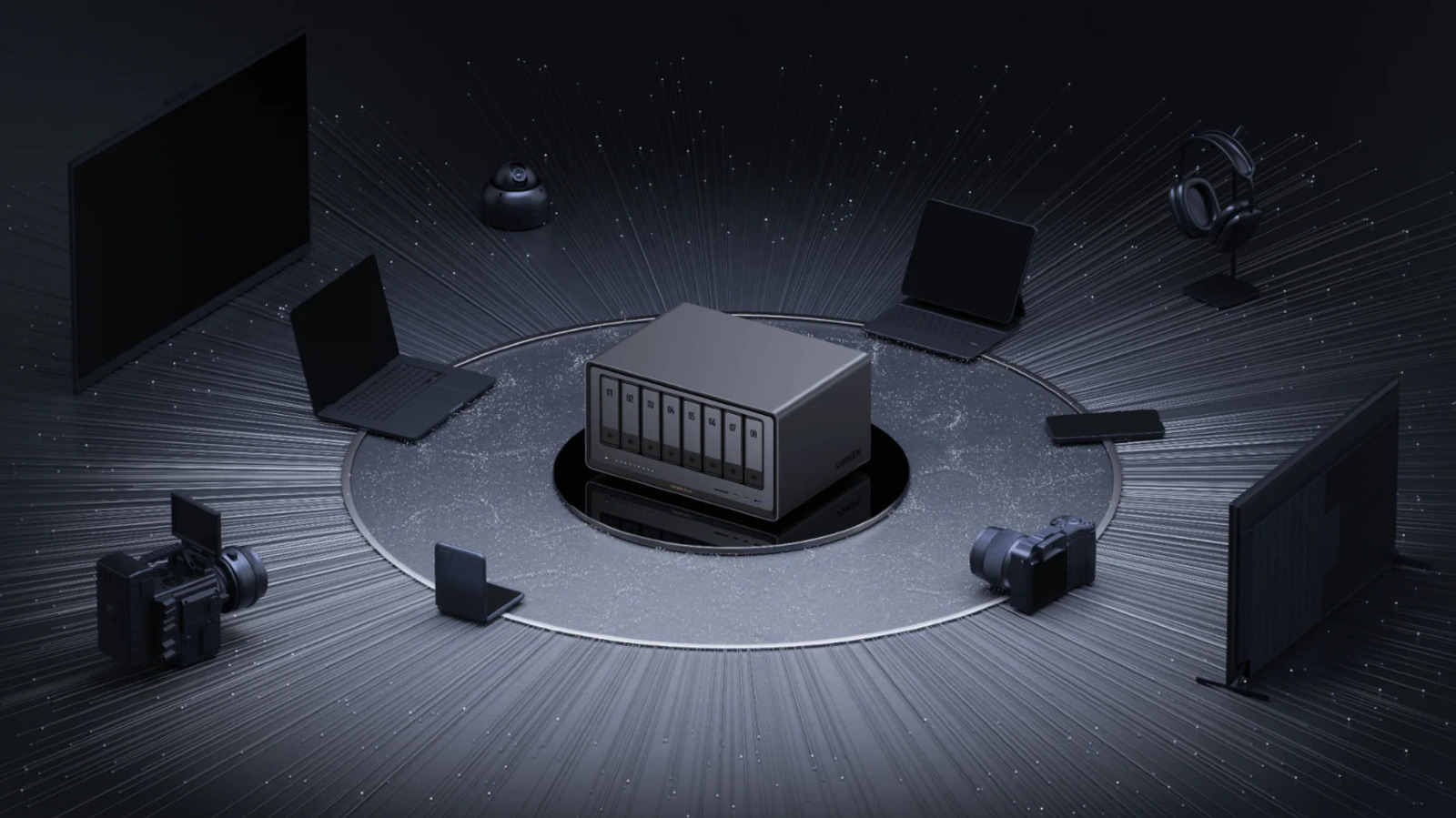
    You can use it to watch media files on the device, but you’ll need to use your phone as a remote.

    While any NAS server with an HDMI port offers broadly the same functions, the specifics for how to use them might be a little different. Ugreen NAS servers come with a few quirks of their own that can make using their HDMI ports a bit confusing, but they’re easy to navigate once you know what you’re doing. Getting to know the tricks for how to use your NAS’ HDMI port before you need them is a good idea because it’s useful for more than just accessing your files.

    Connecting the NAS to an external monitor

    The most straightforward use of a Ugreen NAS’ HDMI port is to watch media files stored on the device. It’s more common to stream from a NAS to a smart TV or a device like a Roku Streaming Stick, but using the HDMI port means you can get by without either of those options, or even connect the NAS to a PC monitor or projector. Unfortunately, it’s not quite as easy as connecting the NAS like you would any other device.

    When you connect a Ugreen NAS to your screen via HDMI, it should display a notice telling you that you need to use the Ugreen phone app to actually play your media. On the app, you’ll see an option to cast your media to the screen using the HDMI cable. At this point, you can use the app as a remote to control playback. It’s a bit of a hassle to have to use an app when you’re already connected via HDMI, but since there’s no physical remote for your NAS, it’s the only way to actually navigate and play from your library.

    Accessing the BIOS and terminal

    The HDMI port also enables a few more advanced features. If you have both a screen and a keyboard connected, you’ll be able to access both the device’s BIOS and a terminal. You might never have to mess with either of these options, but they’re necessary if you want to replace the server’s operating system, troubleshoot boot issues or change advanced settings without a remote SSH connection.

    To access the BIOS, boot up your NAS with a screen connected. As soon as startup begins, repeatedly press the Ctrl and F12 keys together and you should enter the BIOS setup screen. From here, you can navigate the BIOS screen using the keyboard. If you plan to change BIOS settings, you should start by searching for an option under the Advanced tab called Watchdog Settings and disable Watch Dog Control. With this enabled, the NAS will reboot after a set amount of time.

    While it’s not officially documented, Ugreen NAS users online have reported that it’s possible to access the server’s terminal via HDMI as well. With a screen and keyboard connected, press Ctrl Alt F1, which should bring up the terminal, though different models of NAS may use different function keys. By default, the way to access a Ugreen NAS terminal is through an SSH client on another computer connected to your local network, so accessing the terminal directly from the NAS can be a simpler option. Either way you access it, you should only change settings in the terminal if you’re sure you know what you’re doing, as the advanced settings there can cause a lot of hard-to-fix problems if you’re not careful.

    Computing HDMI port What Your
    Follow on Google News Follow on Flipboard
    Share. Facebook Twitter Pinterest LinkedIn Tumblr Email Copy Link
    myappsplus
    • Website

    Related Posts

    Mamdani says feds have abdicated on AI, urges New Yorkers to push back

    October 20, 2026

    Display your soccer pride with LEGO’s FIFA World Cup trophy down at a new $160 Amazon low ($40 off)

    October 20, 2026

    Does your ‘free’ mobile game empty your wallet? How in-app micro-fees and subscriptions secretly drain your bank account

    October 20, 2026
    Add A Comment
    Leave A Reply Cancel Reply

    Top Posts

    Cathay Pacific tests Google AI that dramatically cuts airplane contrails — tiny altitude shifts slash environmental impact by 40% in early trials

    September 8, 202698 Views

    Pricing, Benchmarks vs Claude 5.5

    October 12, 202612 Views

    Drone swarm tech valued by both defense and civilian sectors, industry platform says

    September 8, 202612 Views
    Latest Reviews

    RB Global stock steady as new stake and mobile app launch highlight digital auction focus

    myappsplusAugust 30, 2026

    How to adjust the audio settings for your AirPods (and why you should)

    myappsplusAugust 30, 2026

    If Artificial Intelligence (AI) Leads to Unprecedented Economic Growth, These 2 S&P 500 Stocks Are Once-in-a-Decade Buying Opportunities Right Now

    myappsplusAugust 30, 2026
    Stay In Touch
    • Facebook
    • YouTube
    • TikTok
    • WhatsApp
    • Twitter
    • Instagram

    Subscribe to Updates

    Get the latest tech news from FooBar about tech, design and biz.

    Most Popular

    RB Global stock steady as new stake and mobile app launch highlight digital auction focus

    August 30, 20260 Views

    How to watch US Open Day 1 2026: FREE live streams of Venus Williams, Novak Djokovic, Jessica Pegula and more

    August 30, 20260 Views

    NASA’s Nancy Grace Roman Space Telescope is now on its way to study the ‘dark universe’

    August 30, 20260 Views
    Our Picks

    Mamdani says feds have abdicated on AI, urges New Yorkers to push back

    October 20, 2026

    Display your soccer pride with LEGO’s FIFA World Cup trophy down at a new $160 Amazon low ($40 off)

    October 20, 2026

    Does your ‘free’ mobile game empty your wallet? How in-app micro-fees and subscriptions secretly drain your bank account

    October 20, 2026

    Subscribe to Updates

    Subscribe to our newsletter and get the latest tech news, app updates, AI trends, smartphone reviews, and exclusive deals delivered straight to your inbox.

    Facebook X (Twitter) Instagram Pinterest
    • About Us
    • Get In Touch
    • Disclaimer
    • Privacy Policy
    • Terms & Conditions
    © 2026 MyAppsPlus. All Rights Reserved.

    Type above and press Enter to search. Press Esc to cancel.