

Affiliate links on Android Authority may earn us a commission. Learn more.
I turned my Android phone’s annoying AI button into its most powerful shortcut key
I was ready to disable my AI button until I realized how much it could actually do.
By
•
•
•
Megan Ellis / Android Authority
Add Android Authority on Google:
Preferred SourceGoogle Discover
Nowadays, you can’t avoid phones that boast AI features. Smartphone launches are becoming more AI-centric; hardware frequently takes a back seat, and each brand has its own flavor of AI assistant. Nowhere is this more apparent than when phones come with dedicated AI buttons.
My phone’s AI button was its least attractive feature. However, when I realized I could program it to perform a range of non-AI tasks, it became the button I use most on my device.
Do you use your phone’s AI button?
My phone has an AI button, but I never use its services
Megan Ellis / Android Authority
AI buttons are an increasingly common feature on smartphones as different brands try to push their own AI services. These keys are separate from the power and volume buttons and instantly launch AI assistants and features.
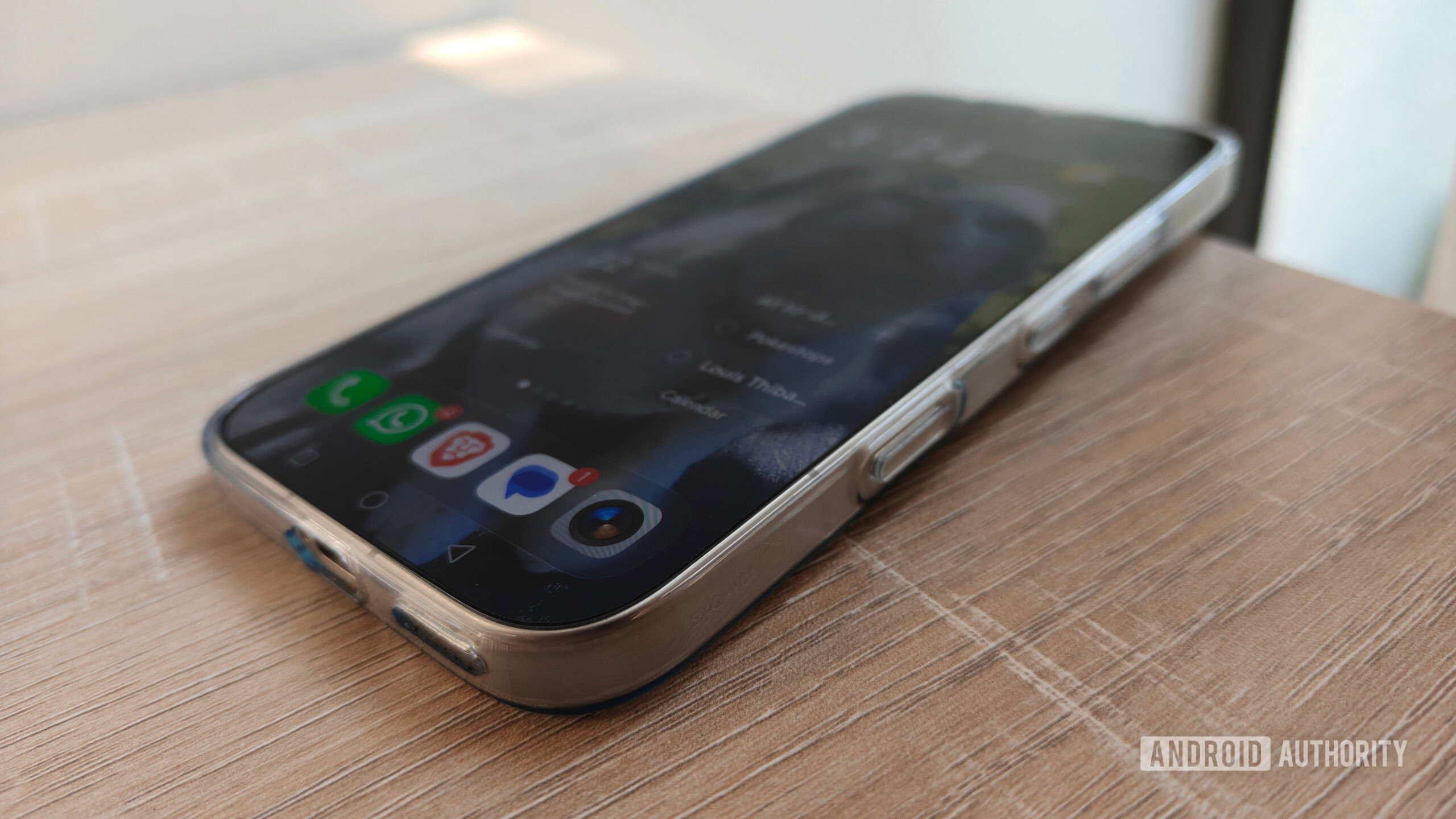
Motorola’s latest phones, including the Razr Fold and Motorola Edge, include dedicated AI buttons on the left side. This isn’t limited to premium devices, as the Nothing Phone 4a also features a dedicated AI button. Recently, I switched to the HONOR 600 Pro as my daily driver, which has a dedicated AI button on the bottom-right side of the frame.
I don’t really use AI much on a daily basis, so a dedicated button was doomed to be a white elephant.
However, as someone who doesn’t use AI daily, I’ve always seen this as an addition I don’t find necessary. I already resent Gemini being tethered to my power button and home button. Most of the time when I launch Circle to Search, it’s by accident.
As a result, the AI button was just something I would accidentally trigger. I would then immediately exit the AI it launched. I eventually decided to search through my phone’s settings to see if I could disable it. Instead, I realized I could turn it into something useful.
Its settings let me turn it into my most useful key
I’m used to AI buttons being relatively limited in their functionality. For example, with the AI button on the Motorola Edge 70 that I’m currently reviewing, the options for the button are AI features or completely disabling the button — nothing in between.
But when I went into the options for my HONOR 600 Pro’s AI button, I was greeted with multiple possibilities. The software had options for different gestures — a long press, a double press, and a single press. To my surprise, among the features available, there were a few non-AI functions. This included using my flashlight, activating my camera, and switching my phone’s sound mode.
However, when I went into the quick services option, I was met with an abundance of other features. The quick services feature lets you launch apps and specific app features with your AI button. For example, you can use it to open your favorite productivity app. But the feature also allows you to launch specific tools within apps. For example, I can use it to create a new event in Google Calendar, start a song recognition search in Deezer, or open the password manager in Firefox.
The long list of apps and features my AI button works with caught me by surprise, providing exciting possibilities.
I was impressed by just how many apps the quick services feature works with. It made me change from seeing my AI button as a waste of space to wishing I could enable more gestures to create more shortcuts.
Eventually, I settled on a few shortcuts that balance fun, utility, and productivity. My long-press gesture launches Pokémon Go, the game I play daily. This saves me from having to open my app drawer or create a shortcut on my home screen. Now I can just launch the game with a button.
My double-press gesture now opens my favorite note-taking app, Notesnook. This allows me to quickly refer to and update notes before I forget them. The shortcut has proved incredibly useful as someone who gets distracted easily when trying to jot down a quick note.
Finally, my single press is linked to my flashlight. It comes in handy every night when I switch off the bedroom lights and have to cross the room in the dark to get to the bed. While my flashlight is in my quick settings panel, I still hate my split notifications layout, so it’s much quicker to just use my AI button.
More Android phones need to give us this type of control
Not every phone with an AI button allows this kind of versatility. I currently have a Motorola Edge 70 in for review, and the only options for its AI key are AI features or no features at all. On Motorola phones, the button is at least out of the way, so it doesn’t feel like an intrusive addition.
However, if phone makers allowed users to use these buttons as a versatile shortcut, there would be far less risk of them becoming an annoyance or a white elephant. After all, hidden Android shortcuts, like launching the camera app with the power button, are still popular with many users. I also still always take screenshots by holding down my volume and power button.
Reprogrammable AI buttons could be a new avenue for convenience and productivity for users.
For some reason, gestures related to buttons seem to stick with me better than gestures on the screen. I can easily remember the shortcuts for my AI key, but I still don’t swipe down correctly with my split notifications panel. I also still stick with the navigation button menu over screen gestures.
Instead of being just another AI feature foisted upon consumers, versatile AI buttons could offer much more convenience and productivity for users. And of course, for AI enthusiasts, the AI is always still there if they want to use it for its original purpose.
I saw my AI button as unnecessary until I realized how much HONOR lets users do with it. Now I can’t get enough of it. And I hope that other phone manufacturers follow suit, rather than keeping these buttons frustratingly locked down.
Features
AIAndroidHonor
Follow
Thank you for being part of our community. Read our Comment Policy before posting.
