


Here’s how to know whether it’s cause for concern.
Whether you’re a hardcore gamer or a hardworking student, you probably know that the best laptops for gaming and schoolwork can get monstrously loud. There are several reasons why your portable PC’s fans are driving you to distraction with their constant din, but thankfully there are also steps you can take to reduce the noise levels they generate.
It’s important to note that aggressively loud laptop fans shouldn’t necessarily make you worry. In most cases, especially with gaming laptops, the fans are working so hard because they need to ventilate the heat that your machine’s CPU and GPU are generating. The more demanding the game or processing task you throw at your laptop, the faster its fans have to spin to prevent system-wide overheating.
Sure, the constant whirr of laptop fan noise can detract from gaming experiences, but it’s a better solution than suffering through regular crashes owing to an overheated GPU. There are situations where loud fan noise should concern you, and we’ll guide you through those below. In a lot of cases, though, noisy laptop fans shouldn’t give you sleepless nights. But if they do, we’ve got tips on how to make them quieter.
Why does my laptop sound like a jet engine?

Most likely because you’re putting the poor thing under seriously heavy load. The best gaming laptops can get obnoxiously noisy when running demanding modern titles. When games like Crimson Desert are putting a lot of strain on both the GPU and CPU, your laptop’s fans have to run at extremely high speeds to dissipate heat from these two crucial components. Prosumer workstations that have been designed with intensive productivity tasks in mind (like 4K video rendering) can also get seriously noisy when GPU usage shoots through the roof.
At the time of writing, we consider the ASUS ROG Zephryus G14 to be the best gaming laptop around. I’m actually writing this up on the beastly RTX 5080 configuration. Trust me when I say that my eardrums know the pain of excessive fan noise all too well. Like many high-end laptops, the G14 has a Turbo mode that squeezes maximum performance out of modern games, at an exceptionally loud cost. In terms of noise output, my G14 can reach in excess of 50 dB (that’s a super-distracting amount of decibels). Unless you play in an FPS-slaying quiet mode, most gaming laptops are going to drum up a whole lot of din.
Having a bunch of background processes running can be taxing on your laptop’s fans too, so it’s worth opening the task manager, checking CPU usage and closing any programs you don’t actively need. Blocking effective ventilation to your laptop’s fans will also increase noise output, while dust accumulation can clog fan blades, making them even louder, which we’re about to touch on.
Is it okay to use a laptop with a noisy fan?
In most instances, absolutely. If you’re in the middle of playing a demanding AAA game — particularly one that supports advanced ray tracing features like Cyberpunk 2077 — loud fan noise is sadly par for the course. That doesn’t mean your laptop is bricked, though. Far from it. Instead, your portable PC’s fans are merely doing their job by helping to reduce the thermal levels of your system’s internal components. In short, a distractingly noisy fan when your laptop is under heavy load is completely normal and, crucially, safe.
Admittedly, there are cases where noisy fans could point to issues with your laptop. Fans whirring at consistently high speeds are generally nothing to fret over provided your laptop is performing demanding tasks. Yet if your machine sounds like a jumbo jet taking off when you’re merely swapping between tabs in your favorite browser, that’s more concerning.
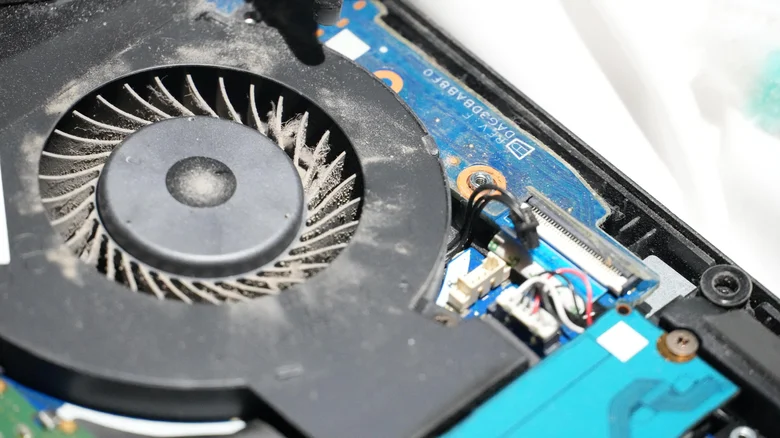
Should you find that fans are running at full pelt even when your laptop’s GPU and CPU usage levels are low, that could be a sign of dust build-up. When debris accumulates inside your laptop, it can cause dust to cover your system’s fan blades, restricting airflow. If you’re worried your fans are clogged, it’s best to take your laptop to a repair specialist, who will likely remove the lower case of your PC and use compressed air to clean its fans.
Rattling or buzzing noises emanating from your laptop’s fans should be even more worrying. If you are hearing these irregular noises, the fan’s internal bearing may well be damaged. A fan that’s not providing proper cooling can cause serious overheating problems, leading to erratic crashes and shutdowns. Concerned about irregular sounds coming from your laptop’s fans? Definitely take your system to an expert or contact the manufacturer.
How can I make my laptop fan quieter?
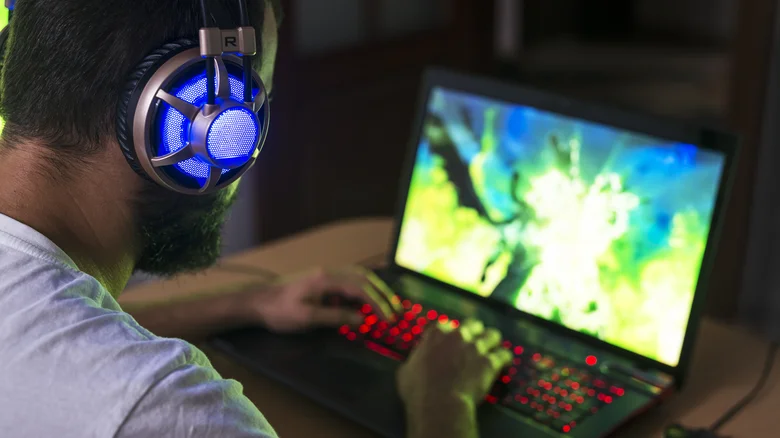
Excessive fan noise is generally more common on gaming laptops than it is on standard workstations. Regardless of whether your laptop is a portable powerhouse or is primarily used to watch cat videos on YouTube, you can get the best battery life for your Windows laptop by changing these settings. Improving battery performance is often tied to boosting power efficiency, which in turn can lower fan noise.
One of the easiest methods to reduce fan speeds is by swapping to a quieter power mode. On a Windows laptop, go to Settings > System > Power & battery > Power mode, then select Bestpower efficiency. Alternatively, if you own a dedicated gaming laptop, there’s a decent chance it will have manufacturer-specific software to help you set or reduce fan speed. In the case of my Asus Zephyrus G14, I can quickly select the Quiet profile through its Armoury Crate app, drastically reducing decibel levels.
Staying on noisy gaming laptops, a good way to reduce the din of rapidly whirring fans is to lower in-game settings and cap frame rates. With the latter, capping the PC games to a 60 FPS limit can significantly reduce performance demands compared to running titles at uncapped frame rates, in turn helping to reduce fan noise. Turning off high-end features like ray tracing and lowering a game’s internal resolution will also put less strain on your laptop’s GPU, allowing your system to run quieter.
It’s also worth considering what conditions you’re using your laptop in. In the height of summer, your laptop’s fans have to work harder to ventilate the warmer surrounding air. If you’re worried about ventilation, place your laptop on a flat surface like a desk, as propping your system on a bed or even, yes, your lap, can block airflow to the fans.
