

![Every single new feature in Android 17 QPR1 [Video]](https://9to5google.com/wp-content/uploads/sites/4/2026/09/Andorid-17-QPR1-logos-1.jpg?quality=82&strip=all&resize=1200,628 "Every single new feature in Android 17 QPR1 [Video]")
Get ready, Android 17 QPR1 is now available, and it might be a refresh that hardware holdouts hope is going to give them some great new features – here is everything new.
Just a few weeks after the Pixel 11 started shipping, we now have a fresh update to install and run on your new phone, or any device from the Pixel 6 through to the newest additions. We are not getting huge changes here, just a few tweaks, some more refinements, mostly quality of life changes.
Table of contents
If you want more, the Pixel Drop for September 2026 adds a little more flavor to what is, in all honesty, a very small update by the standards of Quarterly Platform Releases. As noted, most of the new functionality is very minimal at best or not notable at worst. You’ll probably notice that this update is heavily weighted toward cosmetic changes. That’s mostly just a symptom of Android hitting a bit of a functionality ceiling as of late.
UI changes
Core user interface changes are part and parcel of any Android update, as things get tweaked and tuned to help improve the cohesion of specific sections and subsections. All UI changes we have tracked relate to commonly used areas and features within Android 17 QPR1, with changes over the previous base Android 17 and 16 builds and releases noted.
Lockscreen animation slide-ins improved
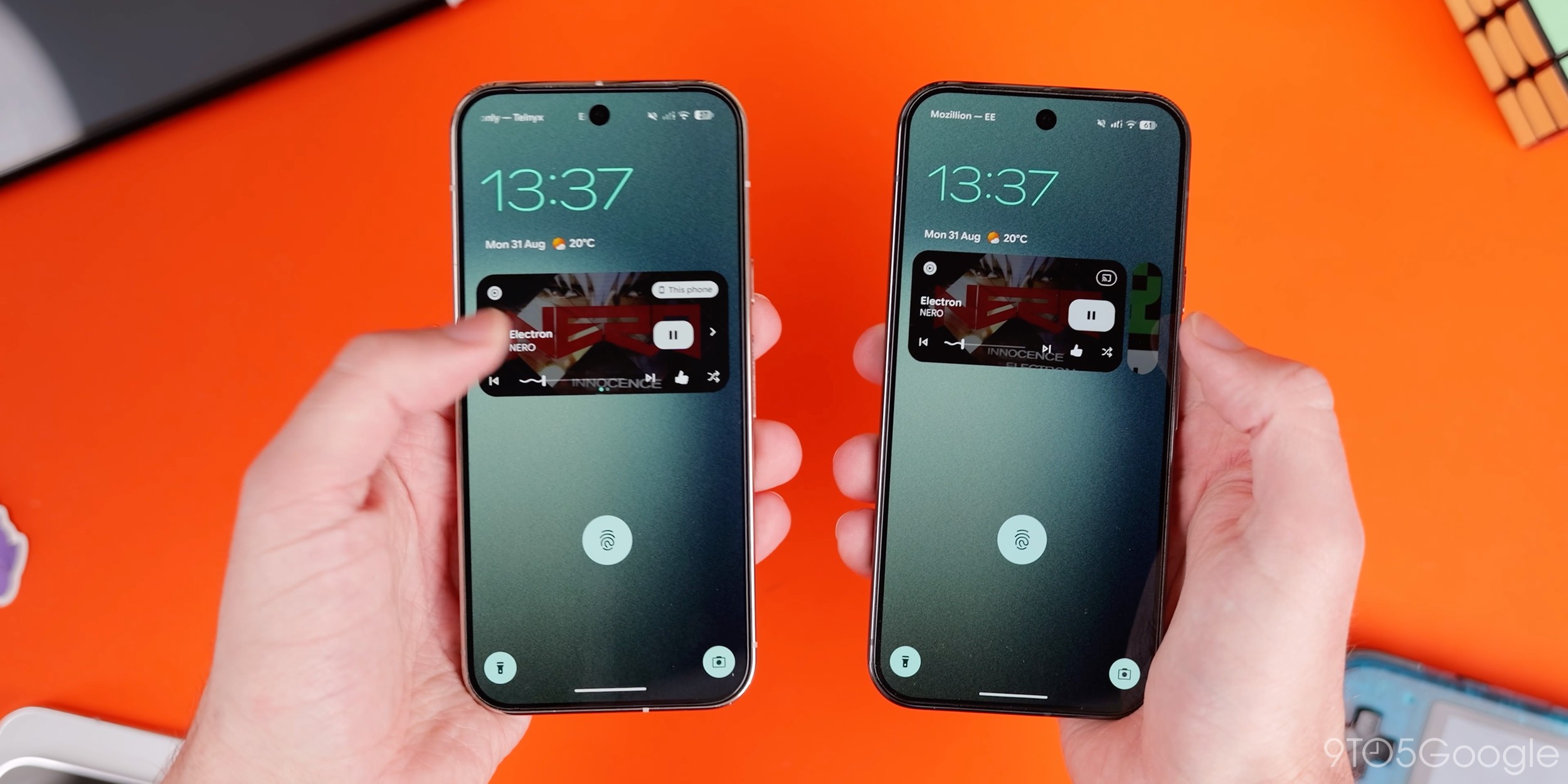
Google has tuned one of the key lockscreen UI portions with a vastly improved slide-in animation for media player controls while your phone is locked. When you have something playing, and your phone is locked, tapping the power button or the screen causes the media player UI to slide up into view rather than being static on your display.
It’s super clean and gives this already fun section just a little more life per Material 3 Expressive’s aim for more playful UI interactions.
Pixel Search settings in App List settings
Although live on the Pixel 11, older Pixels will get access to the new Pixel Search settings option within App list settings. This gives you options for the search bar at the top of the App drawer, so you can tune the experience to show suggestions, apps, and full web search, and adjust whether the keyboard appears automatically.
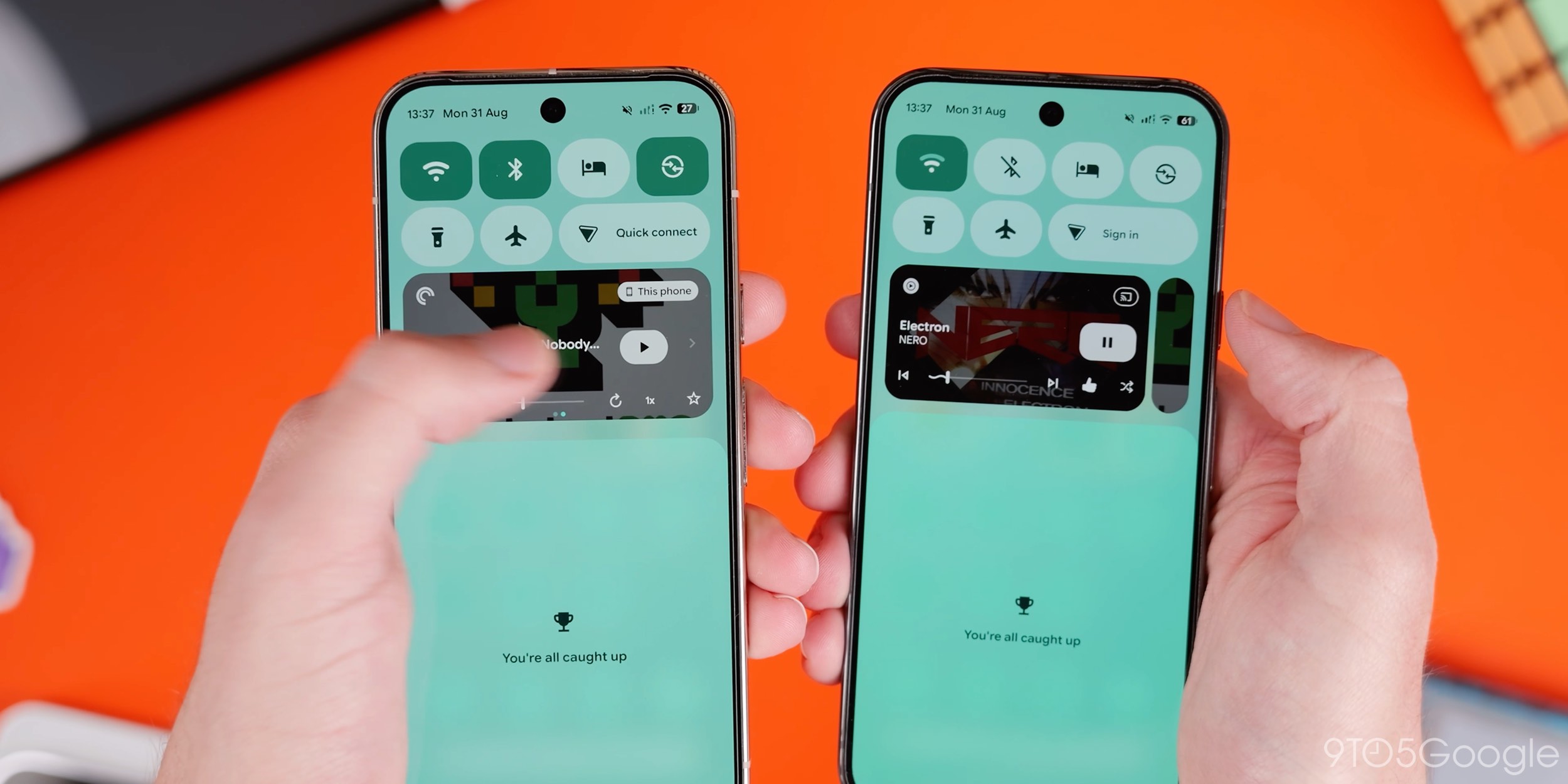
Stashed media player in Quick Settings
If you have multiple media apps open or are using multiple at the same time, Android 17 QPR1 now stashes these within the Quick Settings panel so you are able to switch quickly while still making it easy to manage one at a time. This change is also present on the lockscreen.
Usability changes
Android 17 QPR1 includes a host of usability enhancements aimed at making everyday device interactions smoother and more intuitive. This section details these core changes to the Android 17 QPR1 experience, which may also include some new functionalities.
Predictive back gesture in Quick Settings
Predictive back or a close approximation is coming to the Quick Setting panel, as you’ll get a visual indicator of what will happen when using back gestures. Instead of just minimizing, you’ll see the notifications appear when fully expanded (if there are any). Then, going back once more will show the homescreen before you release the gesture.
This is a better implementation than in previous versions, as the section would just collapse with no indication of where you’d end up.
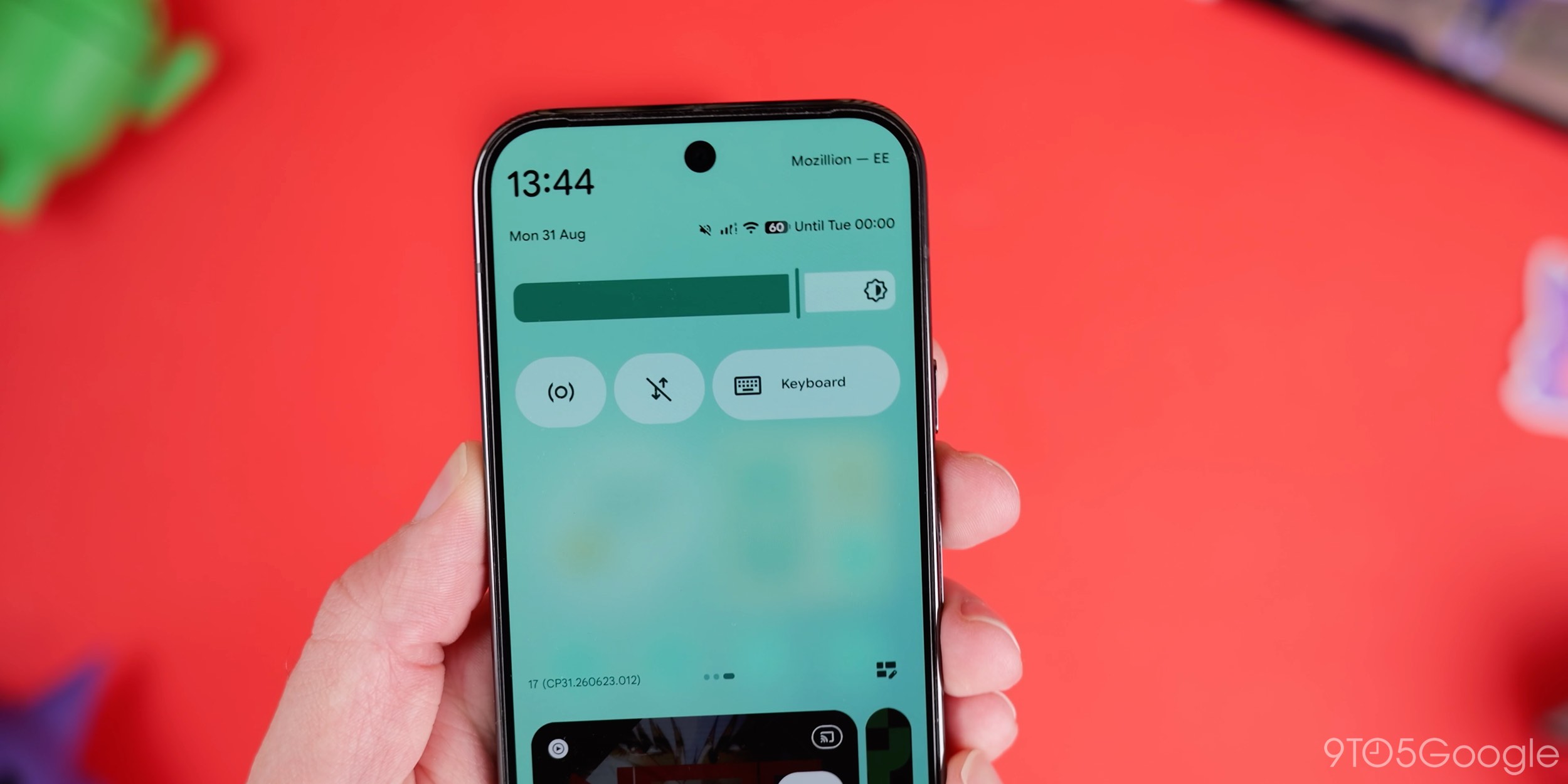
Keyboard QS tile
Android 17 QPR1 has a new Keyboard tile that you can add to Quick Settings. If you add and activate it, it gives you the pop-up menu for your installed keyboards, allowing you to quickly switch anywhere within your device system. Long pressing opens up the Keyboard apps section and allows you to enable or disable any installed apps. If you have multiple keyboard applications, this might be a really neat, quick tool to switch when required.
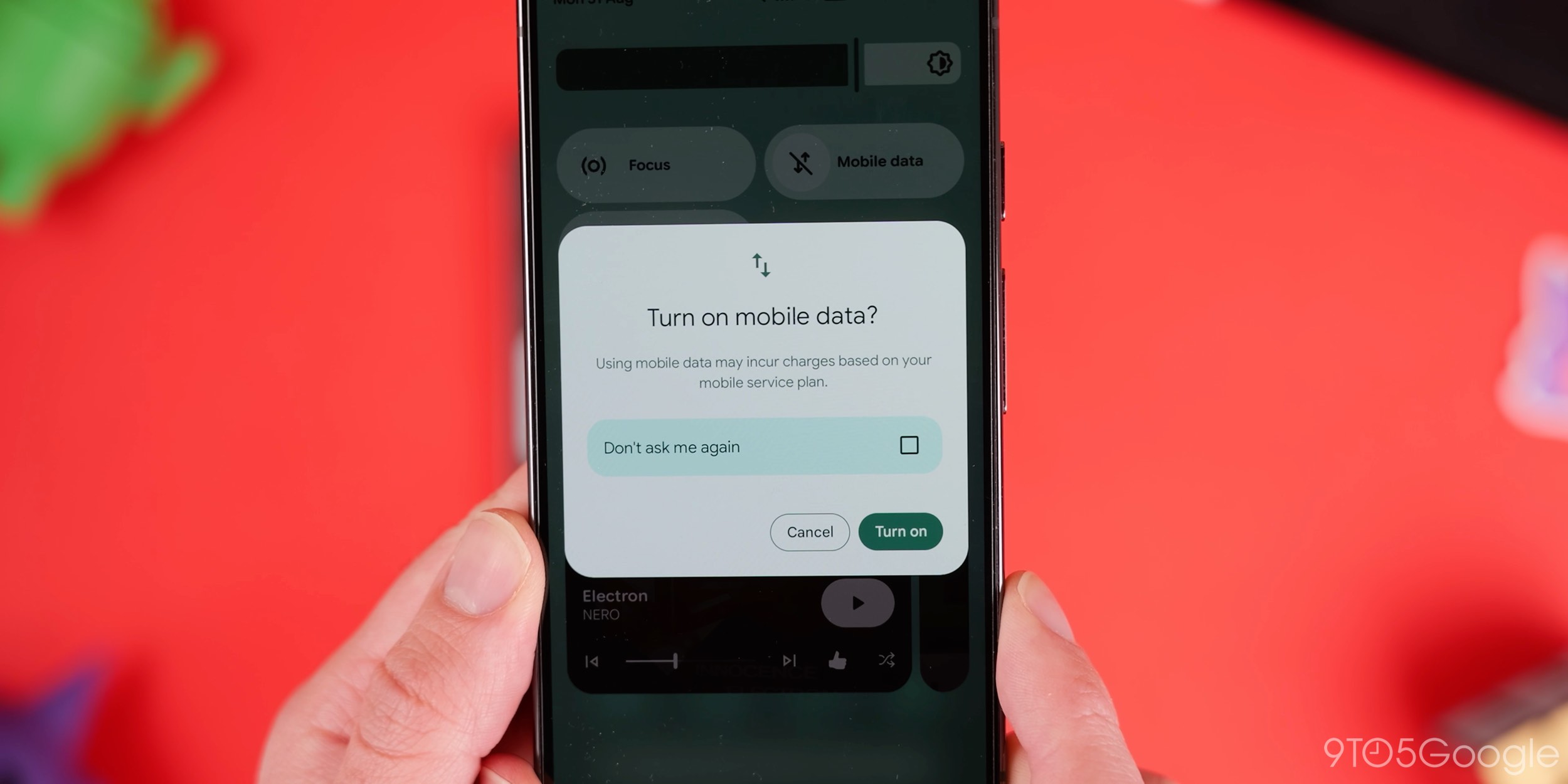
New mobile data pop-up
Easily one of the best new features in Android 17 QPR1 is the ability to dismiss the annoying “Turn on mobile data” pop-up that usually appears every time you want to make a change. When you turn mobile data off and then re-enable it, there’s a new checkbox labeled “Do not ask me again,” so you won’t keep getting prompted to turn on mobile data if you have disabled it momentarily.
Some applications with multiple actions and shortcuts offer split panels to reduce on-screen clutter – especially on smaller displays. When you long-press an app icon such as Pocket Casts, the default app actions, including widgets, remove, app info, pause, and bubble, will be visible. A new “Shortcuts” toggle lets you tap to access quick in-app shortcuts and add them to your homescreen. Not all apps will have these options.
Screen recording adjustments
In Android 17 QPR1, Google has adjusted the menu so that the last-used app is now the default option, and the dropdown menu starts with “single app” selected. If you were to tap “start” immediately, the most recent app would be selected and recorded. Previously, this defaulted to “Entire Screen.”
Cosmetic changes
Alongside features, Android 17 QPR1 focuses on some cosmetic or visual changes to the experience you’ll have with your Pixel phone. Most are merely updates to areas that may have been overlooked or recently added in previous software versions.
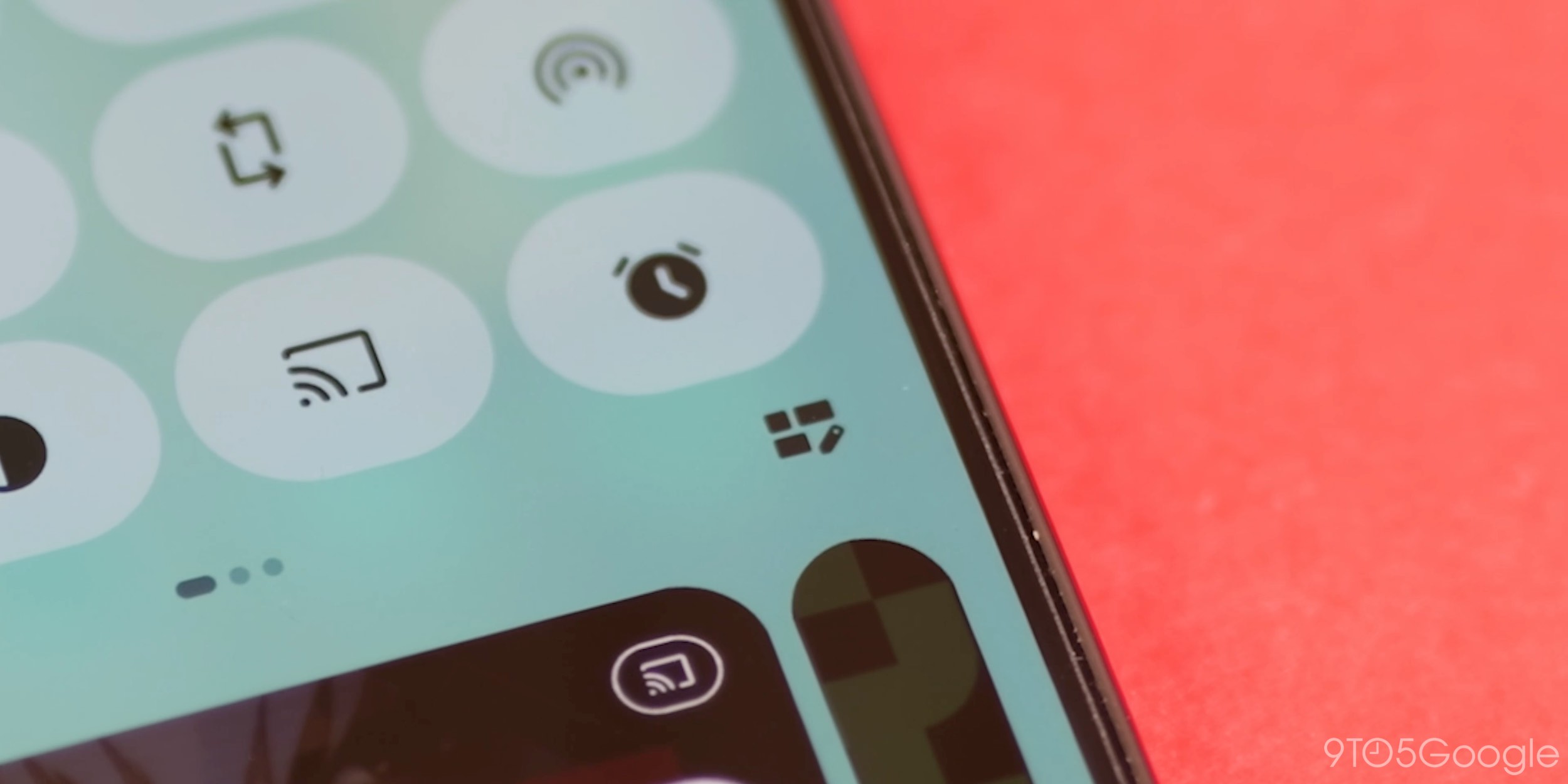
New QS edit tile icon
If you want to edit your Quick Settings tiles, there is a new icon that combines the pencil icon with some tiles to show you how the enhanced system works.
When you view sections in Settings, the spacing increases to pre-Android 17 levels, making things feel less cramped, albeit with fewer options on screen. You’ll have to scroll a little more.
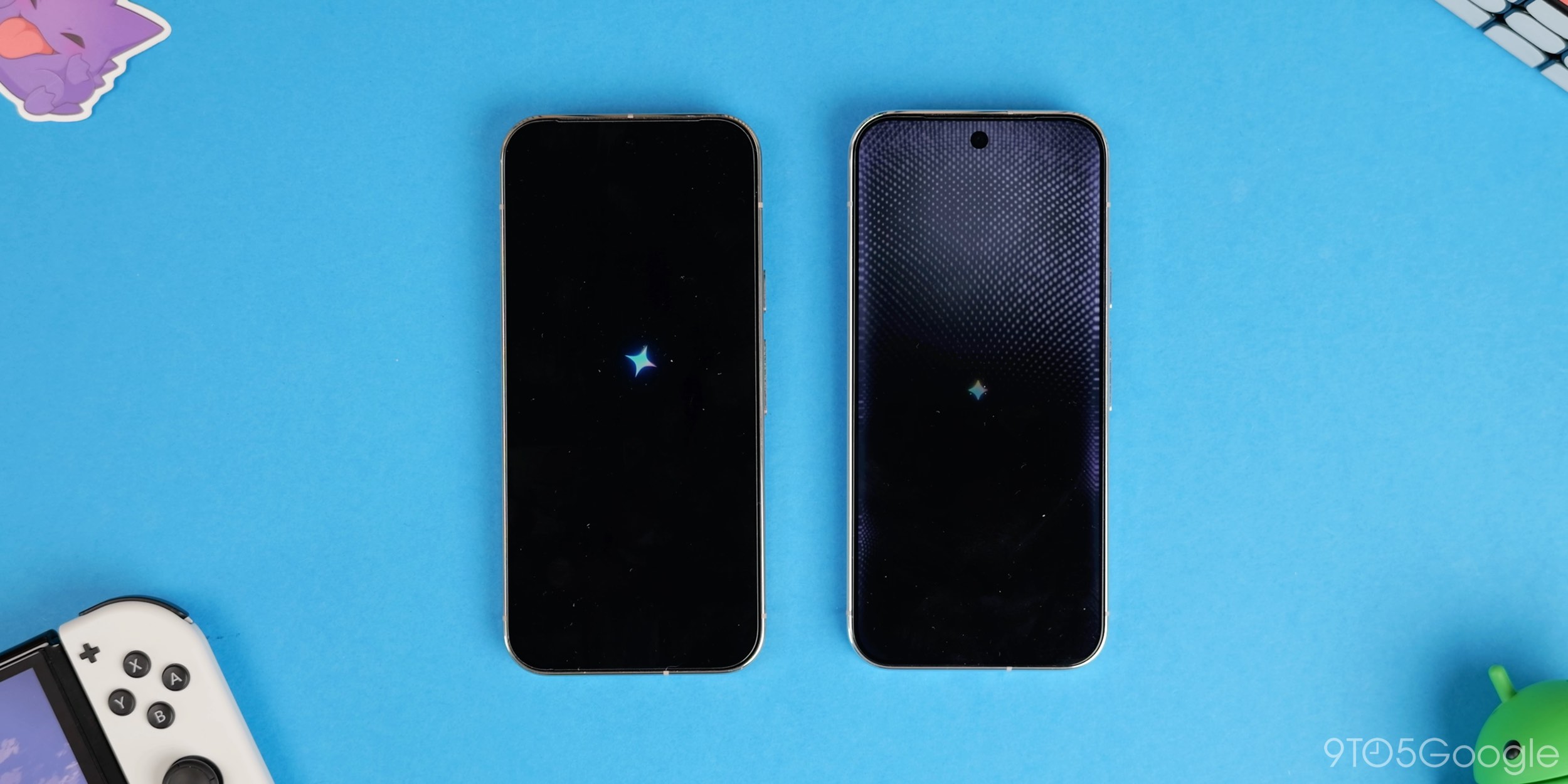
Gemini Intelligence boot logo
We’re not actually sure how widespread this is, given that Gemini Intelligence isn’t technically expected to come to older Pixel phones now. Some may see the Gemini Intelligence logo when rebooting or powering on their devices, but only on the Pixel 10 and newer. It’s already live on Pixel 11 devices.
Many of the pop-up menus on your Pixel will be smaller with Android 17 QPR1. This is prominent with the Wallpaper and style pop-up and some of the mini menus.
New app icons
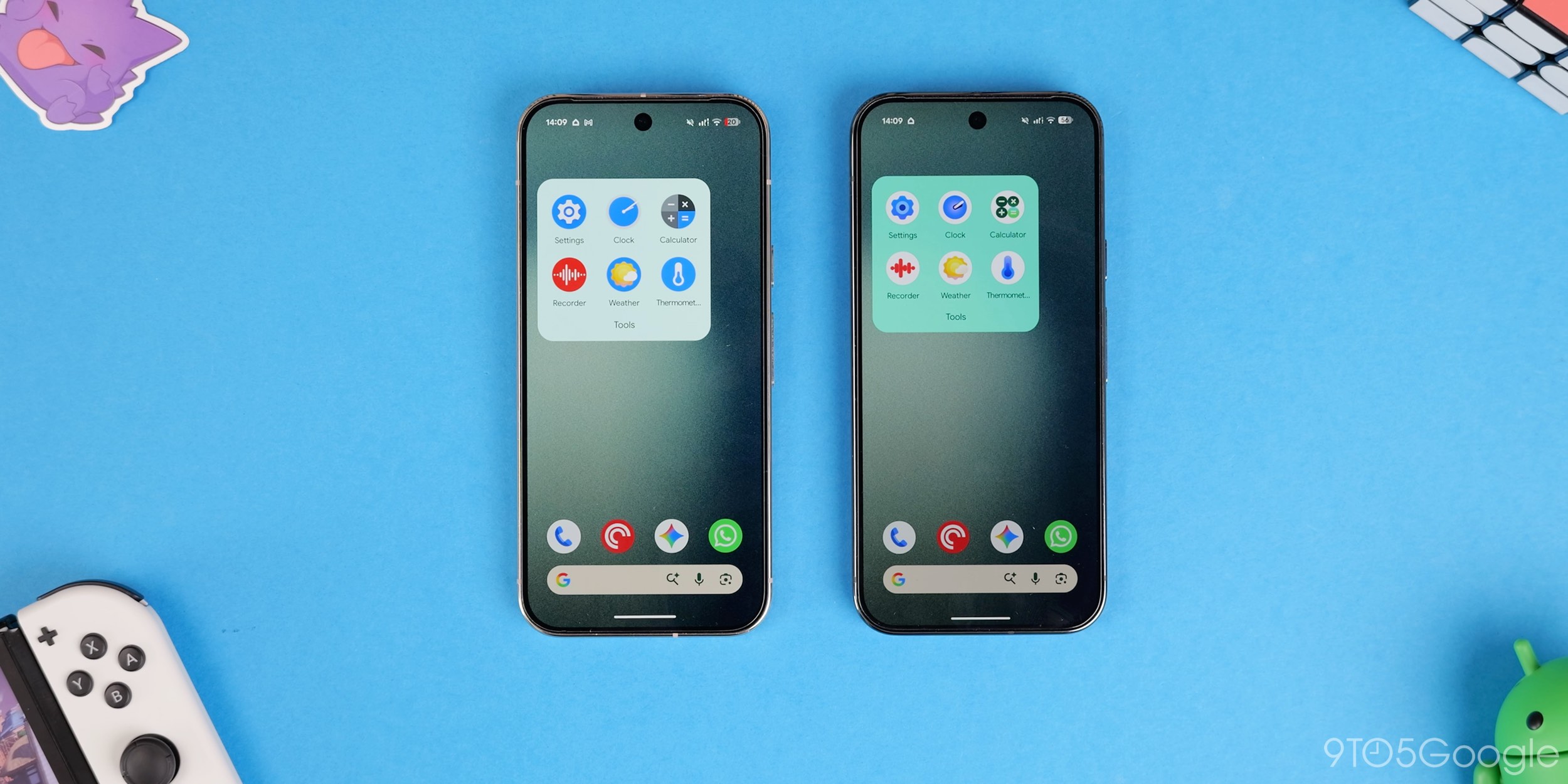
Google has updated the entire suite of default app icons, including Settings and various other first-party apps like Clock, Calculator, and Recorder, to fit the new “Pixel style.”
Improved animations
Some further attention has been paid to animations added over the last couple of years, with even more bounce when using Quick Settings. Tiles respond to slide speed, exhibiting overshoot and easing back into position. Some other animations have a little more bounce, but it’s most visible here.
Increased system blur
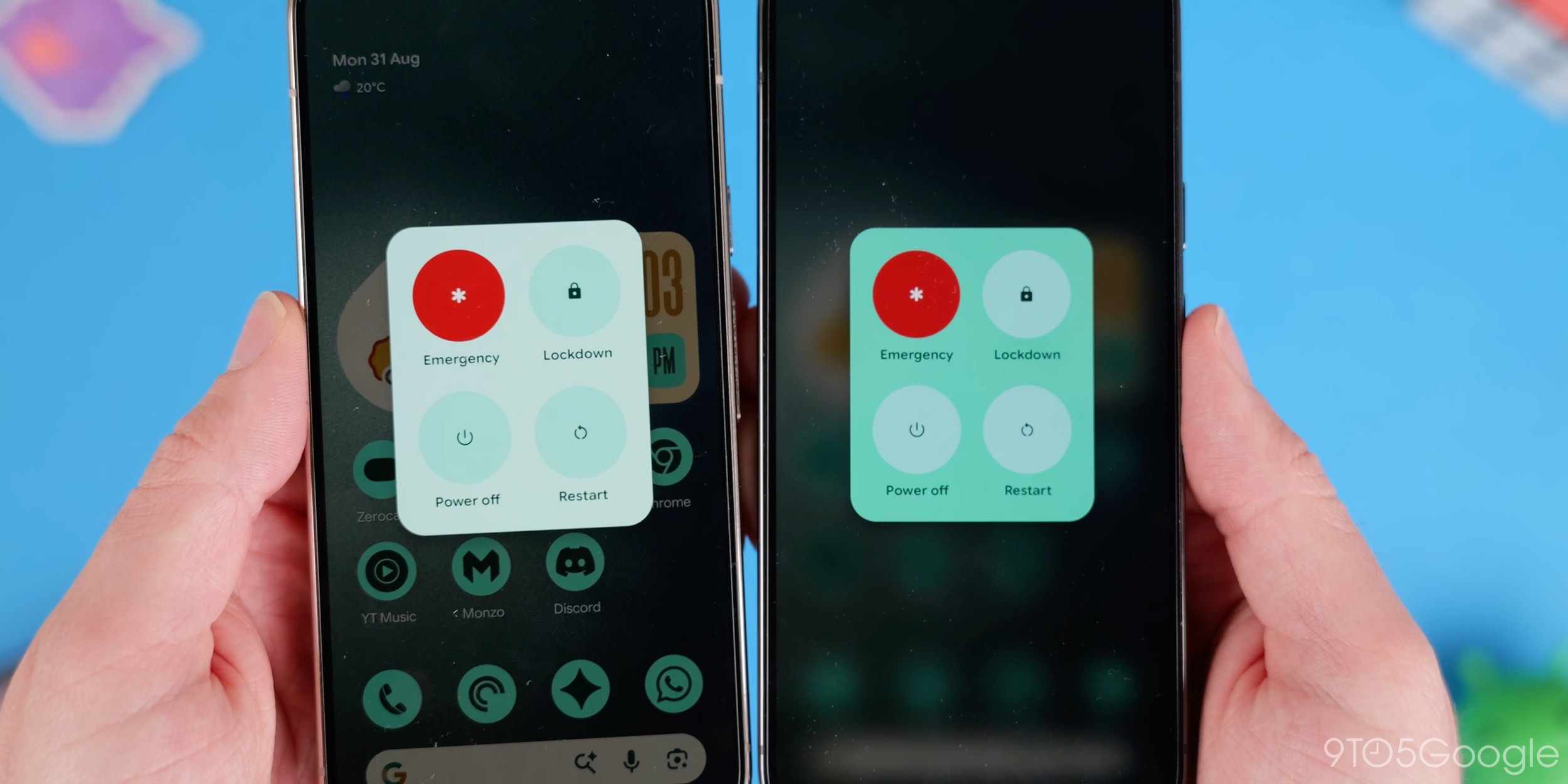
Not to be confused with Liquid Glass, Google’s system blur effect is more prominent in more areas with marginally more glassy visuals in the app drawer, volume slider sidebar, the power menu, and app pop-ups. It’s not completely frosted, but has increased opacity.
App notification dot visual update
If you have enabled notification dots in Android 17 QPR1, you will see a new Dynamic Color-styled outline that helps the dot stand out from icons.
Follow Damien: Threads, Bluesky, Instagram
You’re reading 9to5Google — experts who break news about Google and its surrounding ecosystem, day after day. Be sure to check out our homepage for all the latest news, and follow 9to5Google on Twitter, Facebook, and LinkedIn to stay in the loop. Don’t know where to start? Check out our exclusive stories, reviews, how-tos, and subscribe to our YouTube channel
