

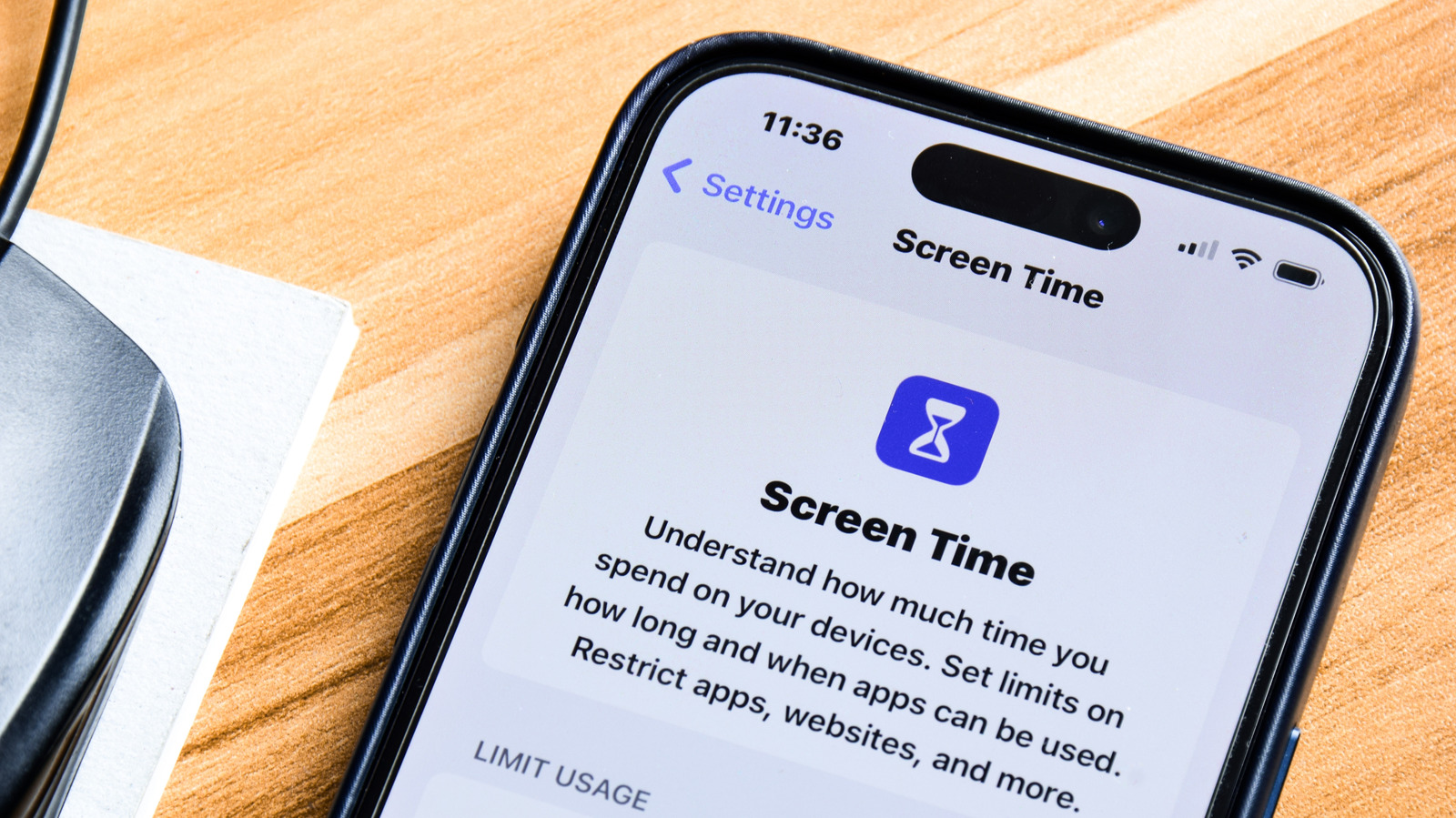
If you want to stop using your phone so much, Screen Time can help.
Everyone knows how easy it is to get sucked into spending time on your phone when you don’t intend to. Maybe you’re trying to spend less time on a specific app or want to avoid using your phone entirely during certain periods. Either way, a built-in feature of your iPhone called Screen Time can help you regain control of when and how often you use your phone.
And even if you don’t struggle with your own phone usage, Screen Time’s feature suite is a great way to restrict features on your child’s iPhone or iPad. If you’ve never taken a look at this menu, you should get acquainted.
Viewing your Screen Time usage
To begin using Screen Time, open Settings > Screen Time on your iPhone or iPad. At the top, you’ll see a chart of how much you’ve used your device per day this week. Tap See All App & Website Activity to dive deeper. This page shows your daily average screen times (including app categories), the apps you’ve spent the most time in, how many times you unlock your device, which apps you use first after unlocking, and what apps are sending you the most notifications (and thus causing you to look at your phone).
This historical information provides a good background on how much you use your phone so you can make informed choices in the below menus. If you have multiple Apple devices, tap Devices at the top-right to filter for just one of them. Toggle between Week and Day breakdowns at the top, using the arrows to move back or forward in time.
Setting allowed apps and taking breaks

Before you set up any of Screen Time’s modes, you should set which apps will stay available during restrictions. Select Always Allowed to pick from your list of installed apps. Then using the Contacts dropdown will let you select whether you can talk to any phone number or only a list of your choosing.
Downtime is the first option for limiting your usage. When enabled, you can only access the apps you’ve selected above and phone calls from the contacts you’ve set. Toggle it manually here, or use Scheduled to customize when it activates on a per-day basis. You’ll get a warning five minutes before Downtime activates.
App Limits are the other major way to cut down on phone usage. Choose Add Limit to see a breakdown of your apps by category, like Social, Games and Entertainment. Use the bubbles on the left side to apply a limit to all apps in a group, or expand the dropdown to pick them individually. There’s also a Websites button if you want to go beyond apps.
Next, choose the maximum amount of time you want to spend on your selected app(s) each day. As with Downtime, Customize Days helps for setting a different schedule on weekends. When you get within a few minutes of your daily limit, your phone sends a reminder. Repeat the above steps with various groups of apps if you want different time limits for each of them.
Trying to use any app outside the allowed list when Downtime is on, or opening an app after you’ve exhausted its time, will show a screen saying you’ve reached your limit. You can choose Ignore Limit to use it for another minute, 15 minutes, or completely ignore the restriction for today. Consider hiding addictive apps for another layer of separation.
Enable Share Across Devices to have your limits sync across every iPhone, iPad, and Mac using your Apple Account. If this is disabled, you’ll need to configure each of your devices individually.
Screen Time can manage your child’s device

Although we’re focusing on reducing your own screen usage, it’s worth knowing that Screen Time is also the place to set restrictions on a kid’s iPad or iPhone. If you’re in an Apple Family Sharing group, you’ll see your children’s names at the bottom of the Screen Time page; tap one to set up their controls.
A few Screen Time options are primarily applicable for kids instead of adults, though you might still appreciate them. Screen Distance tells you if you’re holding your phone too close to your face, while Communication Limits has an option to prevent communication with people outside your contacts list. Notably, the contact restrictions only work for Apple’s first-party apps like Phone, Messages and FaceTime. They won’t work for third-party messengers like WhatsApp.
The Communication Safety slider can detect when an explicit image is sent or received and provide guidance about such material. Finally, the Content & Privacy Restrictions section provides sliders to disable features or prevent settings from being changed. For instance, you can disable features like Apple Wallet, prevent a child from installing apps, or lock the setting for permissions like location.
Your child can request your approval to go around many of the restrictions, like an age-gated App Store download or using other apps during Downtime. Even if you don’t have your own Apple device, you can set up the controls as you like on your child’s device. Once you’re satisfied, use the Lock Screen Time Settings button to create a PIN specific to Screen Time, which prevents a child from changing these options.
Make Screen Time as restrictive as you want
Depending on what you’re looking for, Screen Time can serve as a gentle reminder to stop using certain apps or a heavy-handed way to get you off your phone. Perhaps seeing a quick reminder to stop using an app is enough for you, but without setting a passcode, there’s nothing to stop you from bypassing the limits repeatedly.
With a Screen Time passcode set, you can block apps entirely when their limits are reached. If you want to get more serious, try having a friend set a Screen Time PIN that they only give you in emergencies. Or, as this Stack Exchange thread suggests, have a friend set a PIN that you copy and lock behind a complicated password that’s kept somewhere inconvenient. That way you can unlock it if you really need to, but you probably won’t want to go through the effort. Combined with iPhone Focus modes to suppress excess notifications, you’ll easily get a handle on your phone usage.
