


CEC makes all the devices connected to your Samsung TV work together more efficiently, with a few quirks to know
Disable just one setting on your Samsung TV, and it can suddenly feel a lot less smart. Turning on your game console will no longer wake the display, your soundbar won’t respond to the TV remote, and changing inputs becomes a game of finding the last remote you left between the couch cushions. Much of this behavior is tied to Anynet+, which is Samsung’s name for a feature call HDMI-CEC.
HDMI-CEC (Consumer Electronics Control) lets compatible devices send control signals over HDMI. This means your Samsung remote can control another device (like your soundbar), while turning on a streaming box will automatically turn on the TV and switch it to the appropriate input. HDMI still carries audio and video; CEC is just one feature that operates over it.
Most Samsung smart TVs made after 2008 support this functionality. Anynet+ is usually activated by default on newer Samsung TVs, so you might not have noticed it. It’s also easy to turn off by mistake while exploring the Settings menu.
How to make sure HDMI-CEC is enabled on a Samsung TV
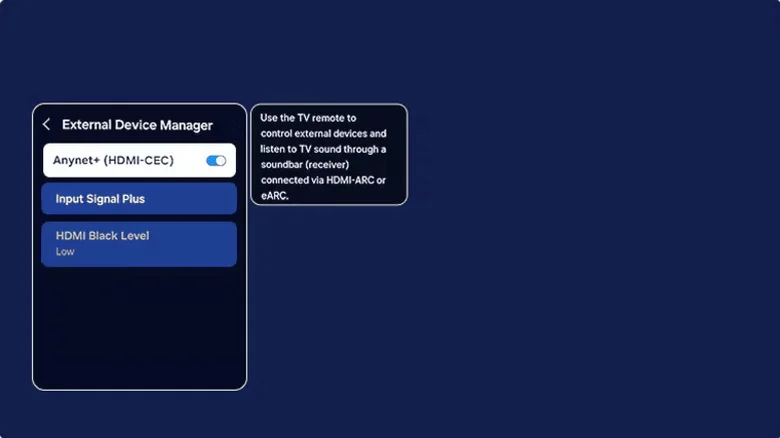
For newer Samsung TVs, press the Home button on your remote, then go to Settings > All Settings > Connection > External Device Manager. Make sure Anynet+ (HDMI-CEC) is turned on. If your TV doesn’t have a Connection menu, look under Settings > General > External Device Manager. Samsung has moved this setting across models over the years, so it might be in another location. In case you still can’t find it, check the TV’s manual or support page.
That’s the entire TV-side setup, but what’s on the other end of the HDMI cable must cooperate as well. The connected device needs to support HDMI-CEC and, if it has its own CEC setting, that must be on. Unsurprisingly, manufacturers couldn’t agree on what to call this “standardized” feature, so you’ll see different names. LG uses SIMPLINK, Sony uses BRAVIA Sync or Control for HDMI and consoles or streaming boxes may give it yet another name. For instance, on PS5, the option is under Settings > System > HDMI > Enable HDMI Device Link.
For CEC to work properly, the connected device must be on or in standby mode. Samsung says it can take up to two minutes to establish the initial “handshake.” Once this is done, you should be able to control the connected device with your TV remote and take advantage of automatic input switching. Turning a compatible device off (or putting it into sleep mode) will do the same for your TV.
Should you leave HDMI-CEC turned on?
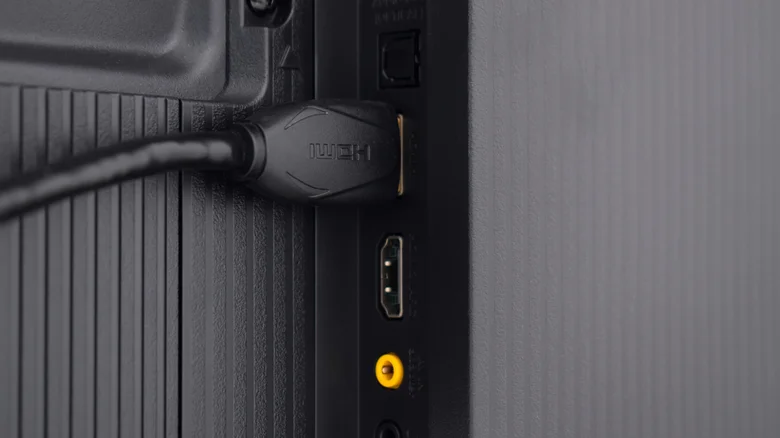
Usually, yes. HDMI-CEC makes a collection of devices act more like a single entertainment system, reducing the number of remotes and manual input switching you need. A console can turn on the TV, a compatible soundbar can power on or off with it, and your Samsung remote can control supported playback or volume functions.
That convenience can sometimes be the issue, though. Samsung says by default, its TVs switch to an HDMI source when the connected device reports that it has turned on. Because of this, a faulty or unexpected CEC command can cause unwanted input changes. HDMI-CEC is worth checking if your TV turns on by itself, keeps switching to another HDMI device or suddenly stops controlling another unit. First, ensure CEC is enabled on both devices. Then reseat or replace the HDMI cable, restart the hardware and install available firmware updates.
You might also want to disable the feature for any devices where unwanted shutdowns pose a problem, like accidentally putting your game console to sleep while in a ranked match. Compatibility isn’t 100 percent consistent between manufacturers, so two products that support HDMI-CEC may not support every command in the same way. There are also device limitations, though you’ll likely need an HDMI switch before you hit these. Anynet+ can control up to 12 compatible devices, including up to three of the same type, but only one home theater system.
There’s one important caveat if you’re using a soundbar or receiver. HDMI eARC can only work if Anynet+ is enabled, so disabling CEC to fix an annoying input-switching issue may leave you soon troubleshooting a completely different audio problem.
