

If your Windows laptop drains like crazy when away from a charger, adjusting some settings will help you get more out of each charge.
It’s a terrible feeling to watch your laptop’s battery life quickly tick down as you realize you forgot your charger at home. While some Windows laptops have improved battery performance thanks to Microsoft’s renewed focus on ARM systems, the average clamshell still relies on the more powerful — and more power-hungry — x86 architecture.
With settings cranked for performance, you’ll be lucky if even the best Windows laptop lasts until lunchtime. Windows 11 has been plagued by performance issues, and despite some recent TLC from Microsoft, it hasn’t overcome its own overhead. This all means the best battery life tip for a Windows laptop is to switch to Linux.
However, there are still steps you can take to preserve your battery on Windows 11. The most important is reducing your screen’s brightness; press Win + A and then drag the slider down. Beyond this, by dialing in the right settings, you can eke out precious extra hours before your computer gives up the ghost. Of course, power management is all about trade-offs: the more your laptop does, the faster it drains, so you’ll sacrifice some performance in exchange for longevity. Not everyone needs to implement all of these changes, so mix and match until you reach a good balance.
Set an energy-efficient power plan
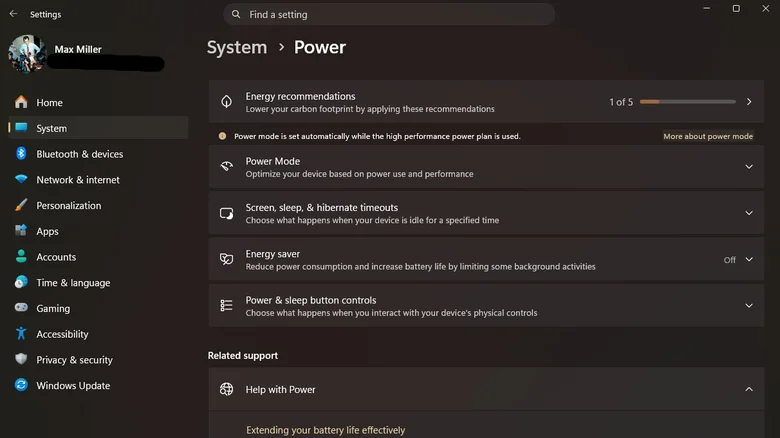
Windows laptops utilize a few separate power modes, one of which activates when your laptop is connected to power and another that takes effect when you unplug. These are often tuned for the computer’s intended purpose, like a gaming laptop’s more aggressive fan curves compared to a productivity-focused machine. If the default power plan is too battery-hungry for you, adjusting it is simple.
Open Windows 11’s Settings app using Win + I and select System > Power & battery. Here, you can adjust basic power settings under Power Mode, determining how long the screen and system will stay awake while either plugged in or on battery. Below, you’ll find Screen, sleep, & hibernation timeouts (important to lower if you often leave your machine idle) and then Energy Saver, which is similar to the lower power mode on your phone. When enabled, it limits background activities, reduces the screen brightness and turns off some of Windows’ fancy effects. This helps cut down on battery use when you need maximum time, and you can set it to come on automatically at a chosen threshold.
If you’re a bit more adventurous, head to the older Control Panel by searching for it in the Start menu. Inside its Power Options menu, select Power saver if it’s not active already, then click Change plan settings > Change advanced power settings. This surfaces a more comprehensive menu where you can change various options, including the Minimum and Maximum processor state (under Processor power management) if you want to save battery by artificially underclocking your CPU.
Another trick that can reduce battery consumption (or make a laptop already running in energy-efficient mode less laggy) is visiting Settings > Accessibility > Visual Effects and toggling off Transparency effects and Animation effects. To go further, type “performance” into the Start menu, choose Adjust the appearance and performance of Windows, and pick Adjust for best performance to turn off even more visual flair. This has the largest impact on budget Windows laptops.
Close unneeded background apps and processes
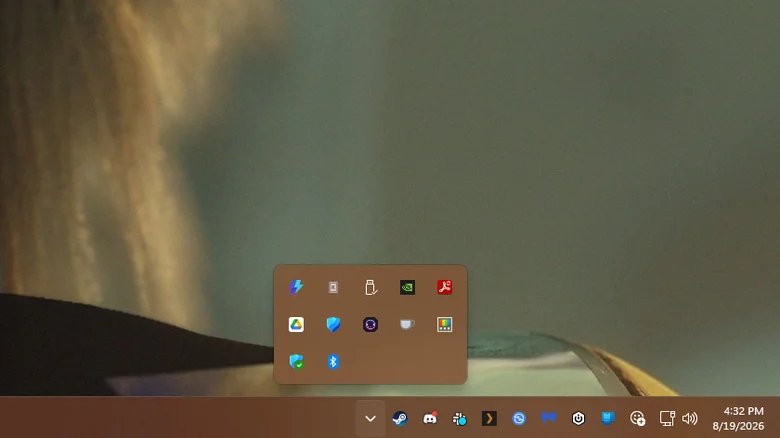
If you’ve already tweaked your settings to preserve battery life and still can’t get your laptop to last without a charger, it might be running too many programs at once. Even when you don’t see a stack of programs open on your screen, they could be hiding in the background.
The first place to check is your taskbar. Once you’ve closed all open apps represented by larger icons, check the smaller icons at the bottom-right. Right-click and close any you don’t need. Be sure to click the small upward-facing arrow to the left of the icons, which opens an overflow panel.
Don’t discount the strain browser tabs can place on your battery. If you’ve got a number of pages open in Chrome or Edge, closing any you aren’t using helps reduce power consumption. For tabs you’ll need later, put them in tab groups and close the groups, or add those tabs to a bookmarks folder. You should also make sure to turn on the feature called Memory Saver (Chrome), Sleeping Tabs (Edge), or similar. This will reduce system resources for open tabs you haven’t used in a while.
Lastly, check which background processes are running. Use the Ctrl + Shift + Esc shortcut to open the Task Manager, then click Processes on the left side. Sort them by Name for an easy view of everything currently running, or click one of the resource types (like CPU) to check what’s using the most. This is slightly more advanced, so don’t mess with any process you don’t recognize. If you’re curious about one, right-click it and select Search online. You can disable startup processes as part of tidying your PC so they don’t run every time, or use a tool like Chris Titus Tech‘s WinUtil to cull a preselected batch of processes.
