

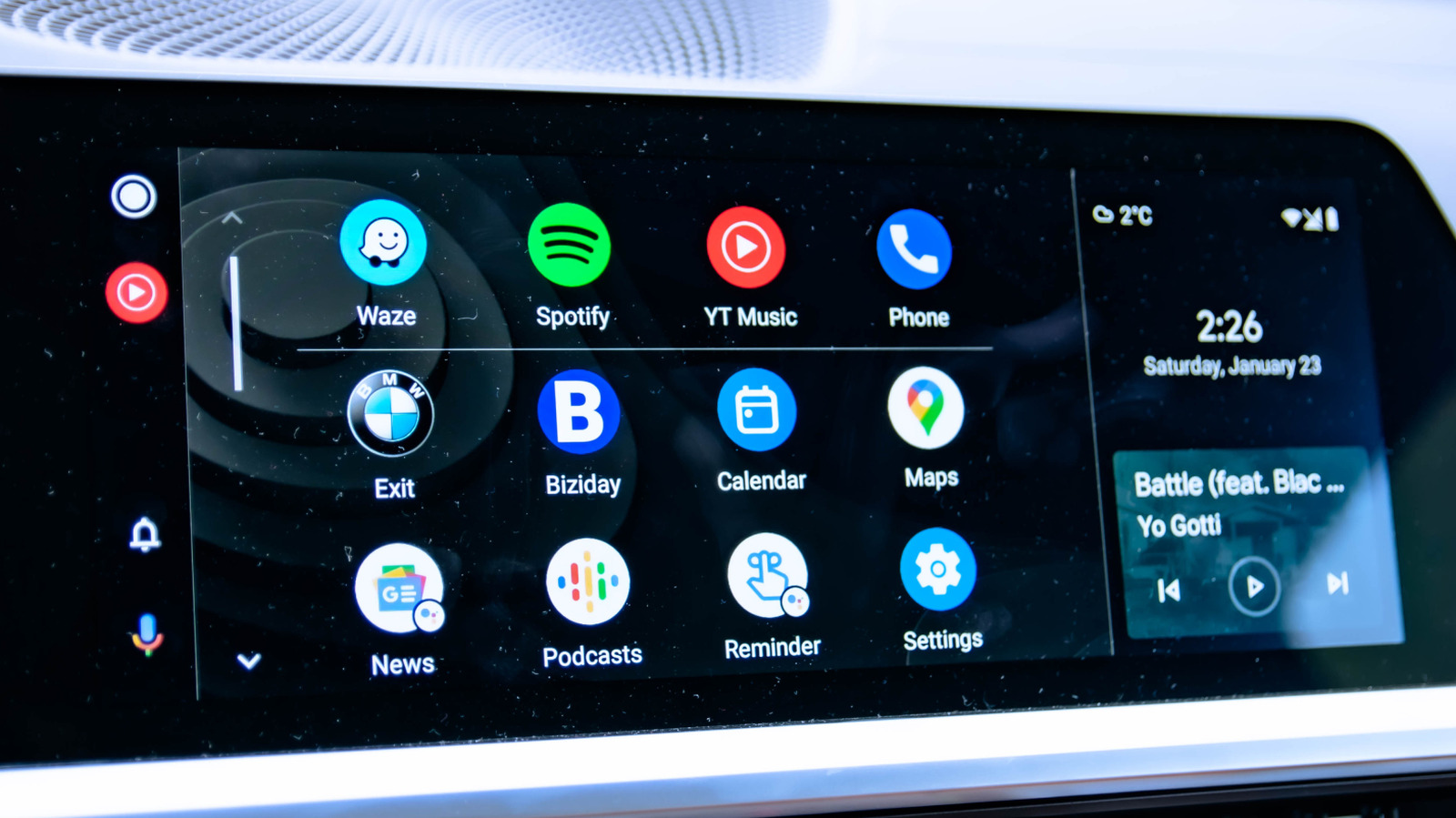
If you have an Android phone and a car with an infotainment system made in the past decade, you’re likely familiar with Android Auto. It acts as an extension of your phone and displays its apps on a car-friendly interface, taking care of navigation, calls, messages, and media playback — negating the need for you to constantly use your phone while driving. Whether it’s the daily work commute or a long highway trip, Android Auto undoubtedly makes driving easier.
Still, if you’re heading out on a road trip, simply hooking up your phone to Android Auto and accepting its default setup means you’re probably not getting everything the system has to offer. Several useful features are tucked away deep into Android Auto’s settings, and a few minutes of preparation before a road trip can considerably improve the experience.
From simple adjustments like decluttering the Android Auto launcher and tweaking notification controls for fewer distractions, to more substantive stuff like AI-enabled conversations and other useful settings, here are six Android Auto features to check out before embarking on your next big road trip.
Night mode
Spending several hours looking at an infotainment screen can become uncomfortable, particularly when driving after sunset. Android Auto offers Day and Night display modes, along with an automatic option that can switch between them by itself. Night mode uses a darker interface that reduces the amount of bright light coming from the screen, which your eyes will appreciate during long nighttime drives.
If you’d like Night mode to be the default setting in Android Auto, you can do so manually. On your phone, go through Android Auto’s settings and look for Day/Night mode for maps, where the options include Day, Night, and Auto. Some systems also expose the setting directly through the infotainment display.
Many newer cars can automatically switch between day and night modes based on their lighting controls. Infotainment systems in older cars, however, may not behave in the same way. This issue can also arise with aftermarket infotainment displays that add Android Auto functionality to cars that didn’t originally support it. Further, some third-party Android Auto apps may have their own display settings, so the appearance can vary between applications.
Reduce message notifications
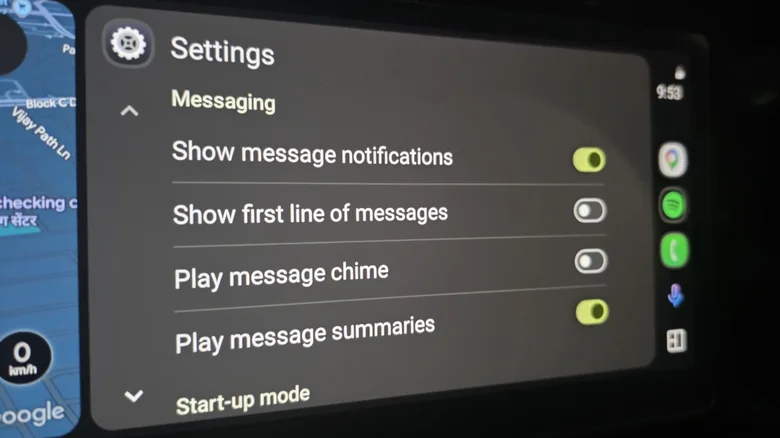
A long highway trip can mean dozens of incoming messages, especially from group chats. Seeing every notification appear on the infotainment screen can create unnecessary distractions, particularly when you’re driving for hours on end. Android Auto provides controls that let you reduce the amount of message information that pops up on your infotainment screen while driving.
Open your phone’s settings, jump to connected devices, choose connection preferences, and select Android Auto. Some phones also allow you to use a search bar after opening settings to select Android Auto, while others go straight to Android Auto from connected devices. From here, you can review the available notification options. Depending on the version of Android Auto and your phone, you can control whether message notifications appear, if notification chimes play, how group messages are handled, and whether the first line of a message is displayed. Some versions also offer message summaries.
You don’t necessarily have to disable everything. For a long highway trip, however, there is a strong argument for minimizing unnecessary notifications and dealing with non-urgent conversations after you arrive. A quieter interface can help keep your attention on the road instead of repeatedly drawing your attention toward the infotainment screen. If you want to remain aware of important messages, you can use the voice assistant to have them read aloud and dictate replies instead of reaching for your phone.
Voice commands and Google Gemini
While a lot of drivers don’t consider voice commands among the more useful features in cars, they can be pretty nifty during a long drive — provided you keep requests simple. These requests may include placing a call, sending a text, requesting directions, playing music, and setting a destination without manually typing the address (whether on your infotainment screen or phone). Depending on your car and phone, you can activate the Android Auto voice assistant by saying “Hey Google,” tapping the microphone button, or, if available, pressing and holding the voice-command button on the steering wheel.
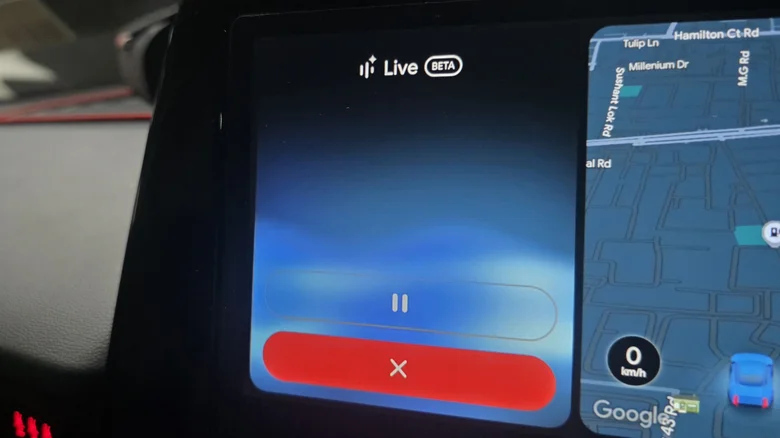
If conventional voice recognition simply doesn’t cut it for you, you can consider using Google’s AI assistant, Gemini, which is integrated into Android Auto. Compared to usual one-and-done voice commands, Gemini enables a more conversational slant, as it can handle follow-up questions and multi-layered requests. For example, you can ask Gemini to pull up a list of highly-rated restaurants roughly an hour away on your route, and then ask which establishments are pet-friendly without having to repeat the whole thing. Gemini Live (pictured) can support longer back-and-forth conversations, which can be a neat way to pass the time on a road trip if you’re alone or if everyone else is dozing off in the car.
Media playback control
Android Auto can automatically resume media playback when it connects to your infotainment system. That can be convenient if you want to immediately continue the podcast or playlist you stopped the previous time you drove. On a long trip, however, automatic playback isn’t always desirable.
If you’re driving with passengers on a road trip, for example, you may not want the podcast you were listening to late at night to start playing automatically in the morning. The same applies if you left the volume turned up or were listening to something that might not be appropriate for the journey.
Android Auto provides a “Start music automatically” setting that lets you decide whether playback should resume on its own every time you start the car. Open Android Auto through your phone using any of the previously highlighted methods, scroll through available settings to find it, and then switch it based on what you prefer.
Declutter home screen
Android Auto can display a surprisingly large number of compatible apps on its home screen (also dubbed the “launcher”), but chances are you won’t need all of them during every drive. Scrolling through apps you never use adds unnecessary interaction with the infotainment screen, particularly when you’re trying to find something quickly behind the wheel. Android Auto lets you decide which compatible apps appear on the launcher and how they’re arranged. Open Android Auto on your phone and look for the “Customize Launcher” section. From there, you can hide apps that have little or no use in the car and rearrange the remaining ones.
To reduce scrolling, consider placing your most frequently used apps toward the top. Common apps that drivers prioritize for long highway drives include navigation, phone, and entertainment apps. This is a small change in the grand scheme of things, but it can make Android Auto feel much simpler to parse.
