Close Menu
MyAppsPlus

    Subscribe to Updates

    Get the latest creative news from FooBar about art, design and business.

    What's Hot

    Apple iPhone Duo vs Samsung Galaxy Z Fold 8: a big battle of small differences

    October 26, 2026

    Chrome 156 for Googlebook rolling out with 14 updates across sites, shortcuts, more

    October 26, 2026

    GPT-6.1 Terra makes a strong case for being OpenAI’s best bang for your AI buck

    October 26, 2026
    Facebook X (Twitter) Instagram
    Facebook X (Twitter) Instagram
    MyAppsPlusMyAppsPlus
    Monday, October 26
    • Home
    • Breaking Tech
    • Apps & Software
    • AI & Automation
    • Android
    • iPhone & iOS
    • More
      • Reviews
      • How-To Guides
      • Deals & Discounts
      • Shop
    MyAppsPlus
    Home»Breaking Tech»How to change and customize your Apple CarPlay display
    Breaking Tech

    How to change and customize your Apple CarPlay display

    myappsplusBy myappsplusSeptember 8, 2026003 Mins Read
    Share Facebook Twitter Pinterest Copy Link LinkedIn Tumblr Email Telegram WhatsApp
    Follow Us
    Google News Flipboard
    How to change and customize your Apple CarPlay display
    Share
    Facebook Twitter LinkedIn Pinterest Email Copy Link

    CarPlay is great as it comes, but a few personalization tweaks make it even more convenient.

    If your vehicle supports the feature, one of the best quality-of-life upgrades you can make to your drives is setting up Apple CarPlay with a cable or wirelessly. This way, you don’t need to deal with the clunkiness of a phone mount. Your navigation app of choice and essential media controls are displayed directly on your car’s infotainment screen. Plus, with Siri receiving a major overhaul in iOS 27, interacting with your device completely hands-free should finally feel reliable while you’re driving.

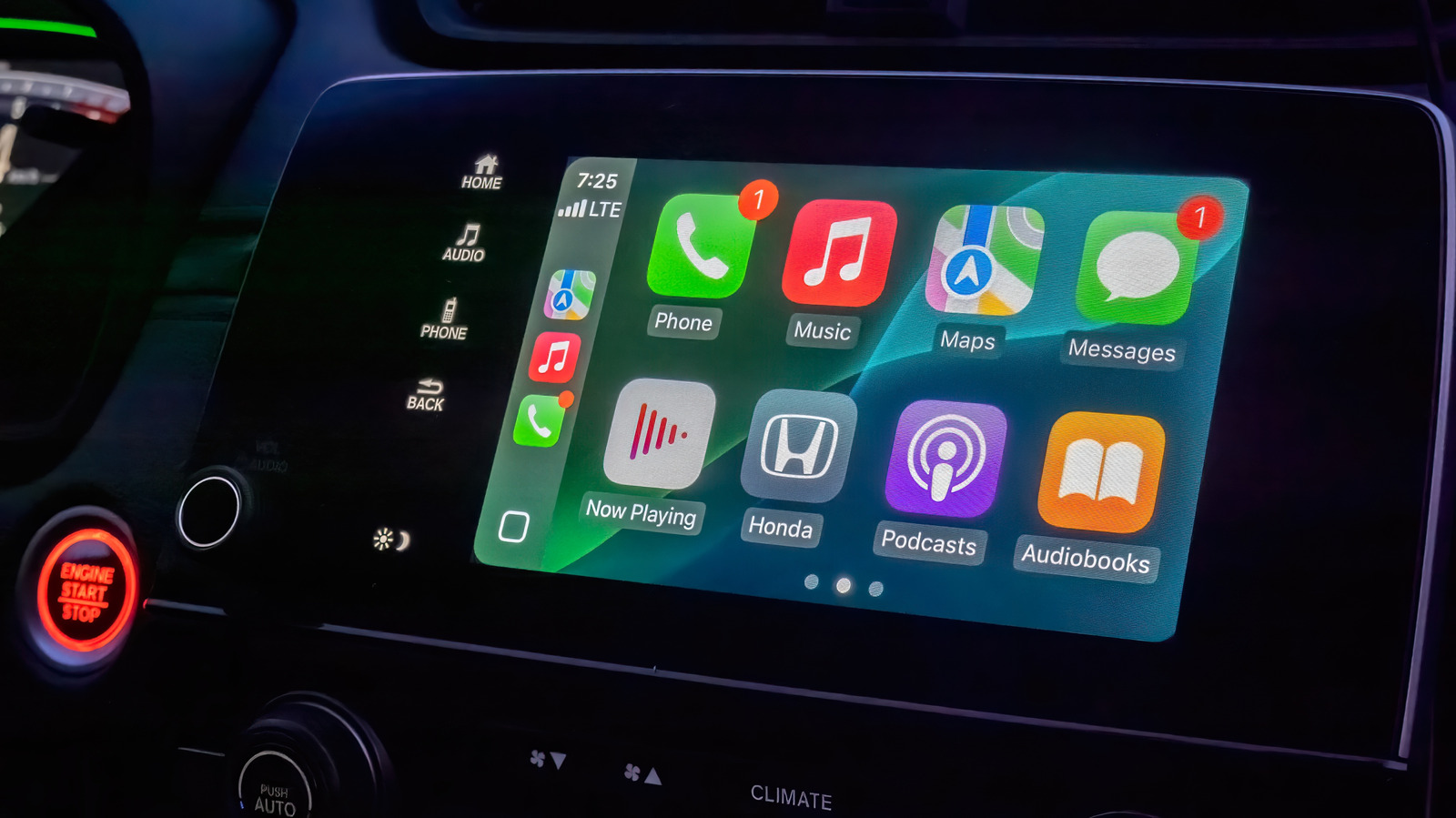
    CarPlay’s user interface uses a lot of bold text and large icons to make information easy to glance at and touch. It’s solid by default, but making a few tweaks will put the most important items in front of you and make everything easy to process.

    The Settings app inside CarPlay (Settings > Wallpaper) is also where you can change the background that shows behind all your apps. Though you can’t use a custom image from your phone’s gallery, there are a handful of Apple-designed wallpapers with different color and pattern options to choose from. 

    Similarly, visit Settings > Customize Icons to pick a dark icon pack or switch to clear icons that follow Apple’s Liquid Glass design philosophy. In the Accessibility submenu, you can alter the text size to improve readability.

    Rearrange apps and use widgets in CarPlay
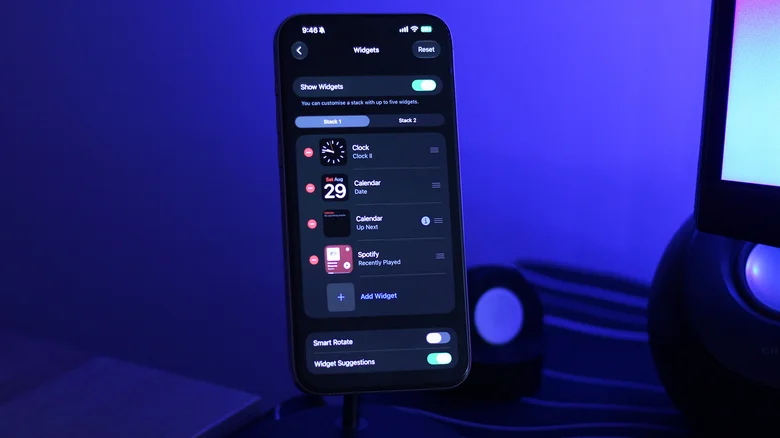
    Customizing CarPlay widgets on an iPhone.

    One of the best ways to personalize the display in CarPlay is rearranging the apps on the home screen. Unlike the above, this customization happens on your iPhone. Navigate to Settings > General > CarPlay and select your vehicle, then tap Apps.

    To bring your frequently used CarPlay apps to the first page, reorder the list using the handles. Your car’s display size affects how many apps appear on each page, so keep that number in mind as you adjust the list. Tap the Remove icon for any apps you don’t use; a few default ones can’t be removed, so drag them to the bottom if you don’t care about them.

    It took forever for the iPhone to feature widget support on the home screen and even longer for Apple to bring widgets over to CarPlay. Widgets were finally added to CarPlay with iOS 26; they live on a separate page accessible access by swiping right from the main dashboard. 

    Depending on how wide your car’s infotainment screen is, you’ll see one or more stacks of widgets at a time. By default, CarPlay lists widgets it thinks you might find useful, like the clock, calendar, media player and weather. To make better use of this space, you should customize which widgets show up in what stack. After all, you don’t want to be frantically going through the entire stack while on the road to find the widget you’re looking for. 

    To do this, visit the same CarPlay settings page on your phone as mentioned above. Tap Widgets and make sure the Show Widgets toggle is turned on. You can add widgets in each stack or reorder them to keep the essential ones easily accessible. What shows here depends on your installed apps.

    Apple CarPlay change customize Your
    Follow on Google News Follow on Flipboard
    Share. Facebook Twitter Pinterest LinkedIn Tumblr Email Copy Link
    myappsplus
    • Website

    Related Posts

    Apple iPhone Duo vs Samsung Galaxy Z Fold 8: a big battle of small differences

    October 26, 2026

    Apple addressed 329 unique security vulnerabilities across today’s updates

    October 26, 2026

    Apple’s iOS 27.2 update offers major Siri AI upgrades, dual camera support for FaceTime

    October 26, 2026
    Add A Comment
    Leave A Reply Cancel Reply

    Top Posts

    Cathay Pacific tests Google AI that dramatically cuts airplane contrails — tiny altitude shifts slash environmental impact by 40% in early trials

    September 8, 2026137 Views

    Keep running out of mobile data? This new unlimited plan gets you up to 80Mbps 5G speeds for just AU$50/m

    October 8, 202615 Views

    Drone swarm tech valued by both defense and civilian sectors, industry platform says

    September 8, 202615 Views
    Latest Reviews

    Anthropic’s new Fable release is cheaper, less restrictive

    myappsplusSeptember 2, 2026

    iPhone 18 Pro vs. iPhone 17 Pro: Should you upgrade this year?

    myappsplusSeptember 2, 2026

    Enjoy low-and-slow BBQ with East Oak’s 30-inch electric smokers starting from $207

    myappsplusSeptember 2, 2026
    Stay In Touch
    • Facebook
    • YouTube
    • TikTok
    • WhatsApp
    • Twitter
    • Instagram

    Subscribe to Updates

    Get the latest tech news from FooBar about tech, design and biz.

    Most Popular

    Anthropic’s new Fable release is cheaper, less restrictive

    September 2, 20260 Views

    Enjoy low-and-slow BBQ with East Oak’s 30-inch electric smokers starting from $207

    September 2, 20260 Views

    NYC schools announce major classroom technology overhaul

    September 2, 20260 Views
    Our Picks

    Apple iPhone Duo vs Samsung Galaxy Z Fold 8: a big battle of small differences

    October 26, 2026

    Chrome 156 for Googlebook rolling out with 14 updates across sites, shortcuts, more

    October 26, 2026

    GPT-6.1 Terra makes a strong case for being OpenAI’s best bang for your AI buck

    October 26, 2026

    Subscribe to Updates

    Subscribe to our newsletter and get the latest tech news, app updates, AI trends, smartphone reviews, and exclusive deals delivered straight to your inbox.

    Facebook X (Twitter) Instagram Pinterest
    • About Us
    • Get In Touch
    • Disclaimer
    • Privacy Policy
    • Terms & Conditions
    © 2026 MyAppsPlus. All Rights Reserved.

    Type above and press Enter to search. Press Esc to cancel.