

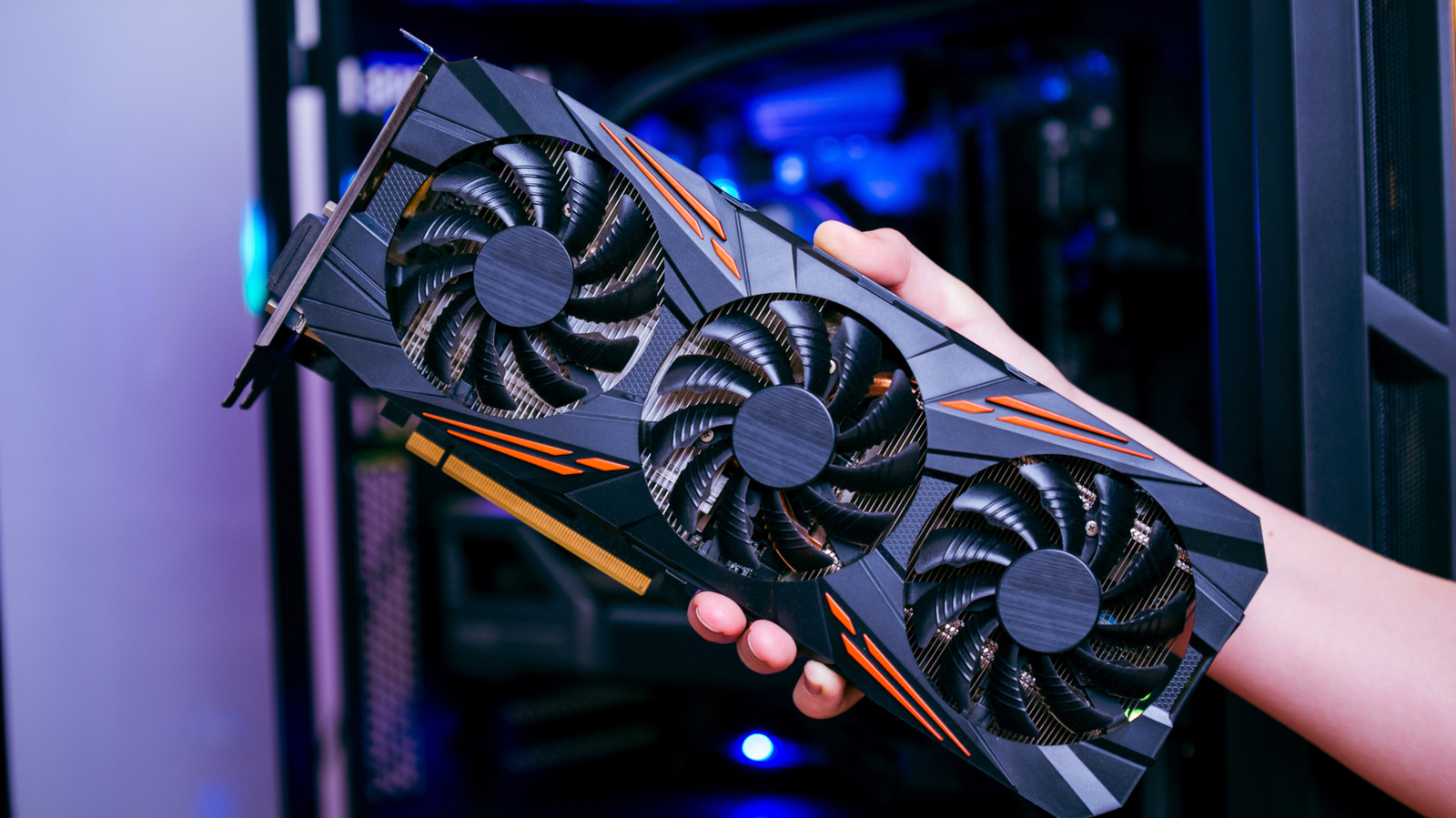
Graphics card driver updates are important, but finding them can be confusing.
Software updates for apps, operating systems and services primarily serve two benefits — they deliver new features and fix known issues. Hardware driver updates largely fall into the latter category, so don’t offer as much excitement, but keeping them up-to-date is a good way to ensure your computer’s internals perform optimally.
Graphics cards (GPUs) often receive the most updates, with new game releases often requiring a driver update to yield the best possible performance. But knowing the best place to get them on your Windows PC can often be confusing.
If you haven’t updated your GPU drivers in a hot minute, navigating to Settings > Windows Update and clicking on Check for updates will fetch available updates and install them. However, you can also check for new graphics card drivers through another built-in utility.
Open the Start Menu and search for Device Manager. Here, you’ll find a list of all the hardware connected to your computer. Expand the Display adapters section and double-click on your GPU’s name. It’s likely one made by AMD, NVIDIA or Intel. Navigate to the Driver tab, click on Update Driver and select Search automatically for drivers.
Though this is a handy way to deal with outdated drivers, Windows Update doesn’t have the best reputation with how it handles GPU drivers. If it finds and installs a version that’s several releases behind what’s available directly from the manufacturer, you could be missing out on the latest performance improvements and bug fixes. If you have a little more time on your hands, it’s recommended that you grab the latest drivers directly from your graphics card maker.
Using your GPU’s companion software

You’ll first need to determine which company made your GPU. Looking inside the Device Manager app is a quick way to find out. Next, launch the Start Menu and check if you have your GPU’s companion software already installed. Just type in “AMD,” “Intel” or “NVIDIA” and see if any results pop up.
If nothing shows up, head to the manufacturer’s website and download the latest version of the companion software. It’s either going to be the NVIDIA App, AMD Software: Adrenalin Edition or Intel Graphics Software. Upon installation, the app should automatically detect your graphics card and let you know if newer drivers are available to install.
To manually check for updates in the NVIDIA App, launch it and navigate to the Drivers tab on the left and click on Download if there’s a newer version available. If you have an AMD GPU, launch the Adrenalin companion app, click on the settings cog icon located in the top-right corner and click on Manage Updates. This will open the AMD Install Manager, which is yet another utility (yeah, we know it’s annoying) that handles driver updates. Click on Install if you spot any pending GPU driver updates here. If you’re using an Intel GPU, the Intel Graphics Software utility places an Install All button front and center for any pending driver updates.
During installation, it’s normal for your display to flicker a few times. Once done, you should see a confirmation popup saying the latest drivers have been installed. You don’t always have to restart your computer, but it wouldn’t hurt to do so anyway.
Manually installing GPU drivers

Though relying on your GPU’s companion software for driver updates is usually the easiest option, you can also install drivers manually if you need a specific version or simply don’t want to keep another piece of software running on your computer. The quickest way to find drivers for your GPU is to search on Google for its exact model name followed by “drivers.” Then, follow the link that takes you to the manufacturer’s official website. This works great for both AMD and Intel GPU drivers.
If you have a GPU from NVIDIA, head to the company’s Driver Updates page. Search for your GPU by its product name and series, or by using the drop-down menus. Download the latest available Game Ready Driver. Open the executable file and you should see an option to install just the driver or pair it with the GPU’s companion app. Select your preference and click on Install.
In most cases, staying up-to-date with the latest available driver for your GPU is what’s recommended. However, there are instances where a new release may cause game crashes or performance issues. Windows Update has already begun reverting problematic drivers automatically, but being able to find and install an older version of your GPU’s driver can come in extremely handy.
